EditText.ai vs Photopea for changing text in images
Photopea is a free editor that runs in your browser and opens Photoshop files, so it is a real option when you want hands-on control without a Photoshop subscription. EditText.ai does one job: you type the new words and the AI redraws the image. This page compares the two for changing text in an image and says when Photopea is the better choice.
We make EditText.ai. Facts about the other tool come from its maker's own pages, listed under Sources.
Upload an imageSign in with Google to upload. Your first Standard edit is free and includes a watermark.
The short answer
Use Photopea when you want free, hands-on editing in a browser, or your file is a PSD or a format EditText.ai does not accept. Use EditText.ai when you only want new words in a flat image and prefer the AI to do the matching and the background repair.
Choose EditText.ai if…
- you only want new words in a flat image and prefer not to retouch it by hand
- the words sit on a photo, a texture or curved lettering that is slow to rebuild with brush tools
- you want the new words to follow the original lettering without choosing a font
- you want to translate the text in an image into one of 35 languages
Choose Photopea if…
- you want a free editor in your browser, with layers and PSD support
- you want to choose the font, size and color yourself, or edit a layered file
- your image is a PSD, a PDF or a HEIC photo, which EditText.ai does not accept
- you want to retouch more than the words, and are comfortable with Photoshop-style tools
Side-by-side comparison
Checked October 2026. Prices and features change, so confirm them on the official pages under Sources. The learning-curve row is our own view.
| Feature | EditText.ai | Photopea |
|---|---|---|
| How the text is changed | Upload an image, type the new words beside each detected line and apply. The AI redraws the image with your wording. | You paint out the old words, then add new text with the Type tool and choose the font, size and color in the top bar. Photopea's own tutorial teaches these steps. |
| Font matching | There is no font to choose or identify: the lettering in your image guides the new letters. Results can vary with unusual lettering, so compare each changed line with the original. | You choose the font, size and color yourself in the top bar. |
| Background | The area behind the old words is rebuilt as part of the edit, from the surrounding image. Details close to the text can change, so check the result at full size. | You rebuild it yourself: the Brush with a sampled color for flat backgrounds, the Healing Brush for grass, sand and other complex ones. Photopea also has an AI tool that fills part of an image from a text description. |
| Translation | The Translate tool rewrites the detected text in one of 35 languages and keeps the design. Check names, prices and long lines in the result. | You supply the translation, then paint out the old words and type the translated ones with the Type tool. |
| Removing text | Select the detected lines you want gone and the area is rebuilt from the surrounding image. It is meant for text you have the right to change. | Paint over the text with the Brush on a flat color, or with the Healing Brush on a complex background, as Photopea's tutorial shows. |
| Learning curve | Low: upload, type the new words, apply. There are no layers, selections or fonts to learn. | Moderate to steep. It follows Photoshop's approach of layers and brush tools, and its Learn section teaches it step by step. |
| Platforms | In a web browser, after you sign in with Google. There is nothing to install. | In a web browser. There is nothing to install. |
| Pricing | Every account includes one free Standard edit with a watermark. Plans cost $9, $29 or $49 a month for 10, 35 or 60 credits. A 1K edit uses 1 credit with Standard or 2 credits with High quality. | Free to use. As of October 2026, Photopea says it is monetized mainly through advertising, and a Premium account removes the ads. Photopea's own Premium announcement lists US$5 a month, so check Photopea for today's price. |
| Output | A flat PNG, made at 1K, 2K or 4K size. 2K and 4K need a paid plan. Your original stays saved in My images. | Opens and saves PSD, and opens many other formats, including PNG, JPG, PDF and HEIC. Export as JPG or other formats. |
Examples
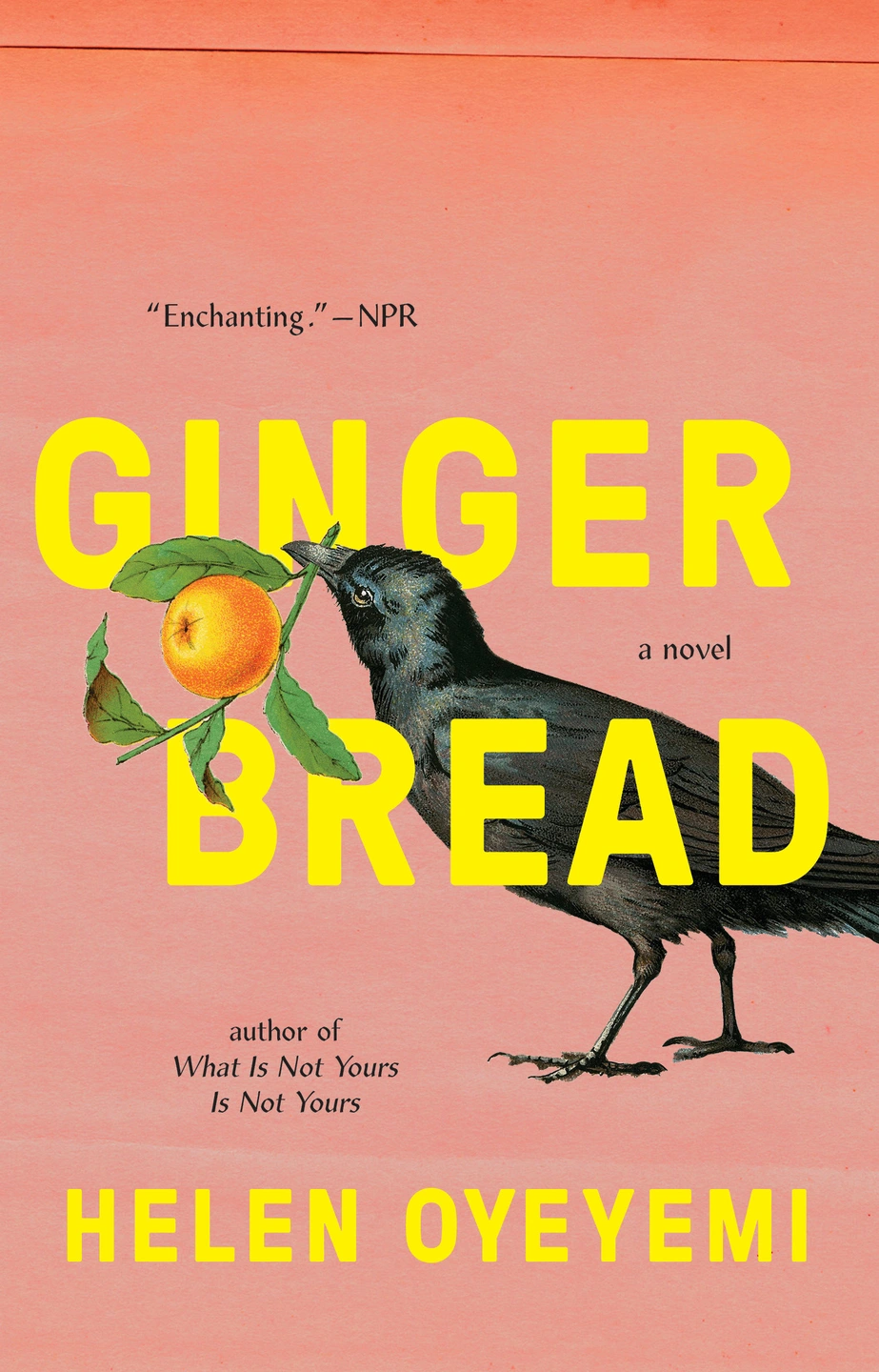
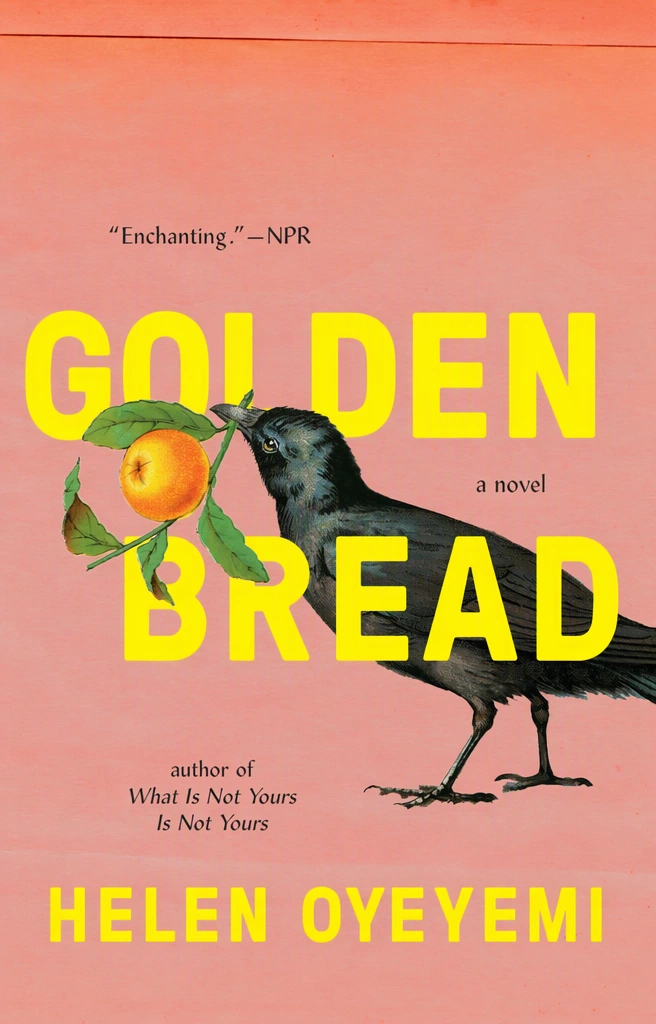
When Photopea is the better choice
Photopea is the better pick when you want free, hands-on control. It runs in a browser, gives you layers, brushes and a Type tool, and Photopea says it fully supports PSD, both opening and saving. If your file is a layered PSD and the words are still a text layer, click the text with the Type tool and retype it. That is a better route than any image tool.
It is also the answer when EditText.ai cannot take your file. EditText.ai accepts PNG, JPG and WebP up to 14 MiB, so a PSD, a PDF or a HEIC photo needs converting first, while Photopea opens all three. And when you want to change more than the words, such as retouching, cropping or compositing, a full editor is the right tool.
The trade-off is your own time: you remove the old words, rebuild the background and match the lettering by hand. Photopea is free to use, but it says ads pay for it, and a Premium account removes them.
How to change text in an image in Photopea
Open the image
Choose Open from the File menu and pick your image. JPG and PNG work, and so do many other formats.
Paint out the old words on a flat background
Select the Brush tool (B), hold Alt and click the background to pick its color, then release Alt and paint over the text. If the background has more than one color, repeat the color pick as you go.
Remove them on a complex background
Choose the Healing Brush tool, which sits above the Brush tool. Hold Alt and click clean background to set the source, release Alt and paint over the text so the background blends over it.
Type the new words
Switch to the Type tool (T), click where the text should begin and type. Select the text and set the Font, Size and Color in the top bar. Text styles or layer styles add more advanced styling.
Export
Choose Export As from the File menu and pick a format such as JPG. Save a PSD as well if you want to keep the layers.
When EditText.ai is the better choice
EditText.ai is for the case where the manual route is slow: lettering that is curved, textured or sitting on a detailed photo. You upload the image, type the new wording beside each detected line, and the AI redraws the image so the new words follow the original lettering, color and texture. There is no font to choose and no background to rebuild with a brush.
You also get a Translate tool that rewrites the detected text in one of 35 languages, and a Remove tool that clears chosen lines and fills the space from the surrounding image. Results can vary with unusual lettering or detailed backgrounds, so check each edit against the original at full size.
Because EditText.ai gives a flat PNG, the two tools combine well: edit the words in EditText.ai, then open the PNG in Photopea for any further retouching. The EditText.ai part takes three steps:
- Sign in with Google and upload a PNG, JPG or WebP up to 14 MiB.
- Type the new words beside each detected line, and add any line it missed.
- Apply the change, compare the result with the original and download a PNG.
Edit text in imageTranslate text in imageRemove text from image
Frequently asked questions
Is Photopea a good free alternative to EditText.ai?
It depends on how much work you want to do. Photopea is free to use and gives you layers, brushes and a Type tool, so you control every step, but you remove the old words and match the lettering yourself. EditText.ai does those steps for you: every account includes one free Standard edit with a watermark, and paid plans start at $9 a month.
Is Photopea really free?
Yes to use. As of October 2026, Photopea says it is monetized mainly through advertising, with ads covering between 5% and 15% of the screen. A Premium account removes the ads, and Photopea's own Premium announcement lists US$5 a month, so check Photopea for today's price.
Can Photopea match the font of text in an image?
You choose the font yourself. In Photopea's tutorial on changing text in an image, you select the new text and set its font, size and color in the top bar, so matching the original lettering is up to you. Our guide on identifying a font from an image covers how to find a candidate. EditText.ai skips that step because the lettering in the image guides the new words.
Can Photopea edit the text in a PSD file?
Yes, if the text is still a text layer. Photopea says it fully supports PSD, opening and saving, and you edit a text layer by clicking it with the Type tool. A PSD keeps the work editable, so editing that layer is a better route than any image tool. If the file is a flat JPG or PNG, you cannot click into the words, and you need one of the methods on this page.
Can I translate the text in an image with Photopea?
You supply the translation, then paint out the old words and type the translated ones with the Type tool, choosing a font that suits the new language. EditText.ai has a Translate tool that rewrites the detected text in one of 35 languages and keeps the design. With either tool, check names, prices and long lines before you publish.
Does EditText.ai accept the files Photopea opens?
Only PNG, JPG and WebP up to 14 MiB. Photopea opens many more, including PSD, PDF and HEIC, so convert those files to PNG or JPG first. EditText.ai's result downloads as a PNG, which you can open in Photopea for further retouching.
Sources
Checked in October 2026 on these pages from the tools' makers.
Try it on your own image
Upload an imageSign in with Google to upload. Your first Standard edit is free and includes a watermark.