Remove captions from an image
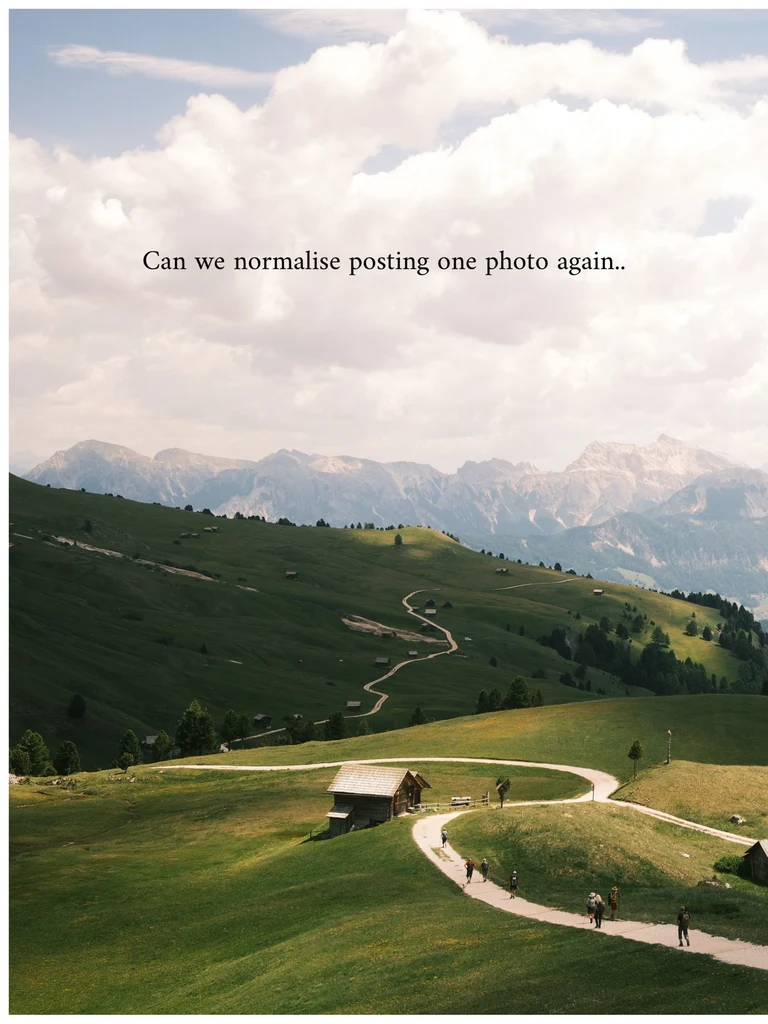
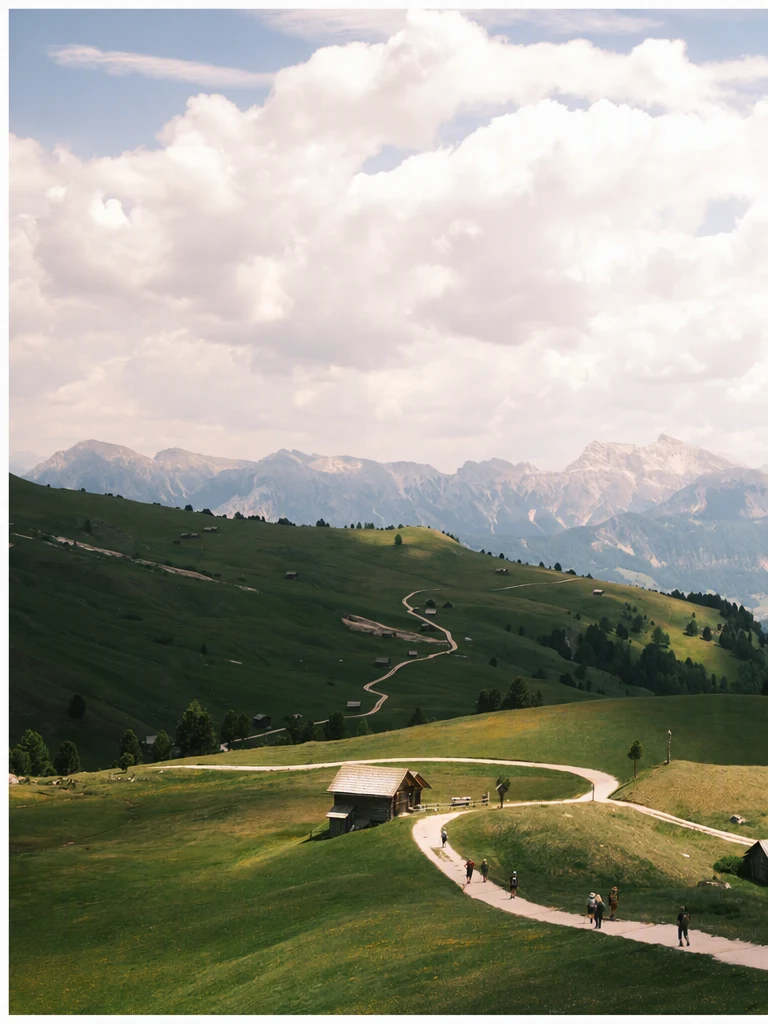
Burned-in captions and subtitles are part of the picture, so they stay whenever creators, teachers or presenters reuse a still from their own video, a slide or a photo. Remove captions from an image you own, let the surrounding picture fill the space, and then check the areas where results can vary.
Or drop an image here. PNG, JPG or WebP, up to 14 MiB.
Your image stays on this device until you sign in.
Sign in with Google to upload. Your first Standard edit is free and includes a watermark.
Examples

How it works
Choose the cleanest frame
From a video, pick a frame where the captions cross a simple area such as sky, a wall or a dark background. Export it from your editing software rather than taking a screenshot of the player.
Select only the caption lines
Tick the detected caption lines to remove, and leave other text, such as a sign in the scene or a slide title, unticked so it stays as it is. Use Add missing text for any caption words that were missed.
Pick the quality and apply
Choose High quality (2 credits) when captions cross faces, hands, hair or a busy pattern, and Standard (1 credit) for captions over plain areas. With a paid plan you can also choose 2K or 4K, where High quality uses 5 or 7 credits and Standard 2 or 3. Then select Remove selected text.
Compare where the captions were
Drag the comparison slider across the caption area, then view the result at full size. Look for leftover outlines or shadows, a caption box that is still visible, and nearby details that changed.
Look for a clean source first
Before you remove captions from an image, check whether a clean original still exists. Removing a caption rebuilds the area behind it from the surrounding picture; it cannot recover what the camera actually recorded there, so a clean original is more faithful. Removal is the practical route when the captions are burned into the only copy you have.
- A video with captions on a separate track or layer: turn the captions off in your editing software and export the frame again.
- A slide: open the original presentation, delete the caption text box and export the slide again.
- A photo captioned in an app: look for the copy saved before the caption was added.
Where results vary
Captions over sky, walls, floors, dark bars and soft-focus backgrounds give the fill plain material to continue, which usually makes them the easiest cases.
Results vary more when a caption crosses a face, hands, hair, printed fabric, leaves or a crowd. The fill has to invent detail that was hidden, and a mouth, a finger or a pattern can come out different from the original. Heavy outlines and drop shadows, which subtitles often have, can also leave faint traces.
If the words sit on a solid or semi-transparent caption box, check whether the box was cleared along with them. When the caption runs along the very bottom edge, cropping that strip away can be simpler than removal, as long as the new shape still suits where you will use the picture.
Check the clean picture before you reuse it
View the result at the size you plan to use it, and then closer. A small thumbnail can hide flaws that show on a large screen or in print. If you will place new text over the same area, such as a title on a thumbnail, small flaws there will be covered, so focus on the parts that stay visible.
- Faces and hands near the old caption look natural, with the same expression.
- No letter outlines, shadows or color bands remain where the text was.
- Text you meant to keep, such as a sign or a slide title, is still there and unchanged.
- Small details next to the caption, such as jewelry, patterns on clothing or objects on a table, have not changed.
Frequently asked questions
Can I remove captions from a whole video?
No. EditText.ai works on still images in PNG, JPG or WebP format, not on video files. A video without burned-in captions needs a version exported without them. If the captions are burned into the only copy you have, use this tool for the individual stills you need, such as a cover image or a slide.
Should I remove the captions or replace them?
Remove them when you want a clean picture with no text. If you only need different wording, such as a corrected caption, the Edit text tool lets you type new words in the same style. If you need the caption in another language, the Translate text tool replaces it with a translation and keeps the layout.
Can I remove subtitles from a frame of a film or TV show?
Only if you have the rights to that image. Frames from films, shows and other people's videos usually belong to someone else, and removing their subtitles does not change who owns the picture. This page is meant for stills from your own videos, your own slides and photos you are allowed to edit.
What if the captions are in two languages or run over several lines?
Tick every line you want to remove; each detected line can be chosen separately, or use Select all when the captions are the only text. In two-language subtitles, one row may be smaller, and small text can be missed, so check it and use Add missing text if needed. Removing several lines means a larger area to fill, so compare the result closely, especially where the lines crossed a face.
Try it on your own image
Or drop an image here. PNG, JPG or WebP, up to 14 MiB.
Your image stays on this device until you sign in.
Sign in with Google to upload. Your first Standard edit is free and includes a watermark.