Remove text from a screenshot before you share it
Developers, support teams and tutorial writers often share screenshots that show names, email addresses, phone numbers or account details. Remove text from a screenshot to take those details out before it goes into a bug report, a guide or a support thread, then check that nothing readable remains.
Or drop an image here. PNG, JPG or WebP, up to 14 MiB.
Your image stays on this device until you sign in.
Sign in with Google to upload. Your first Standard edit is free and includes a watermark.
Examples
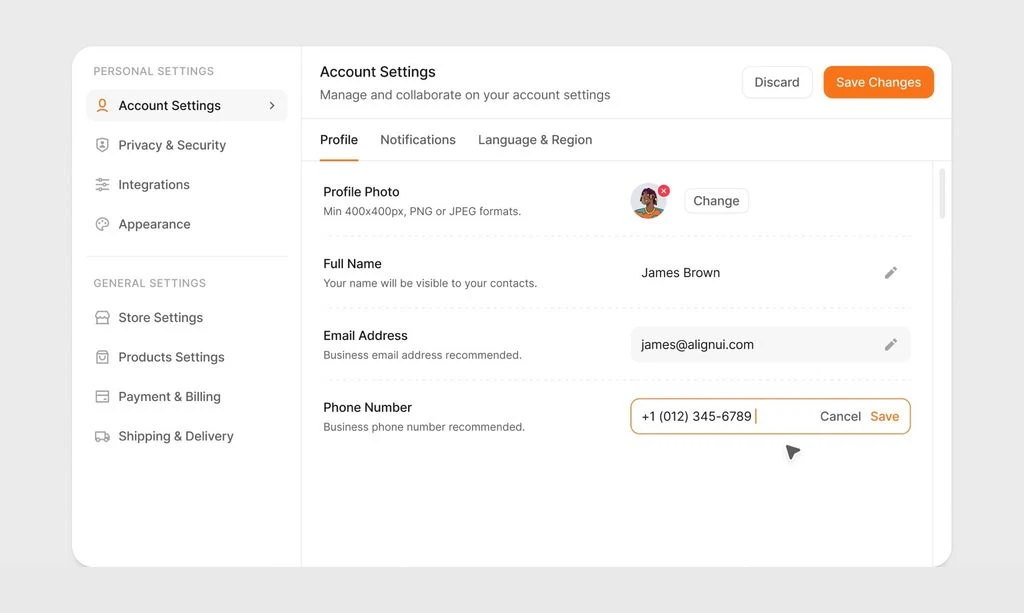
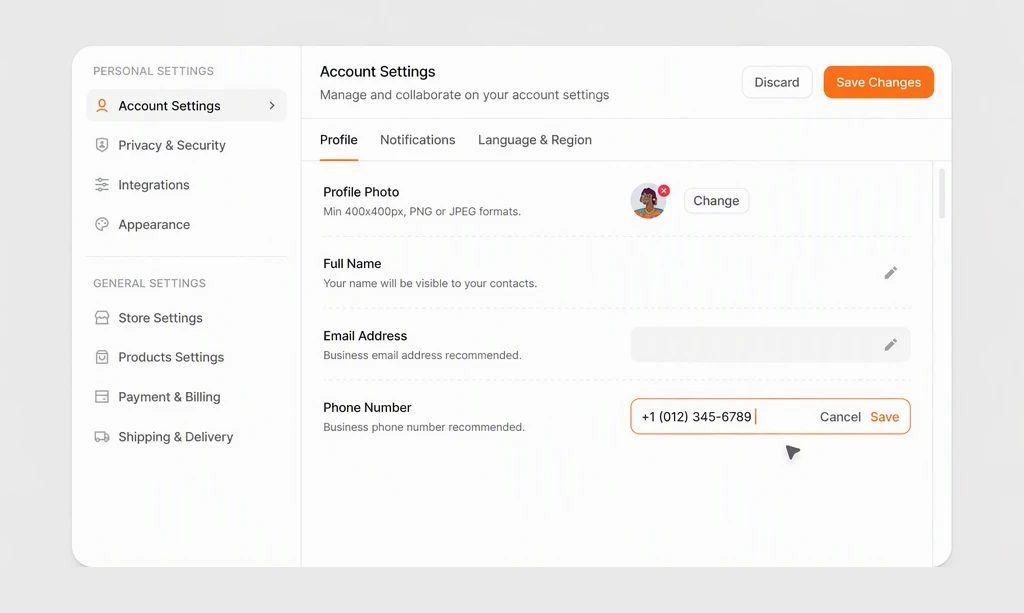
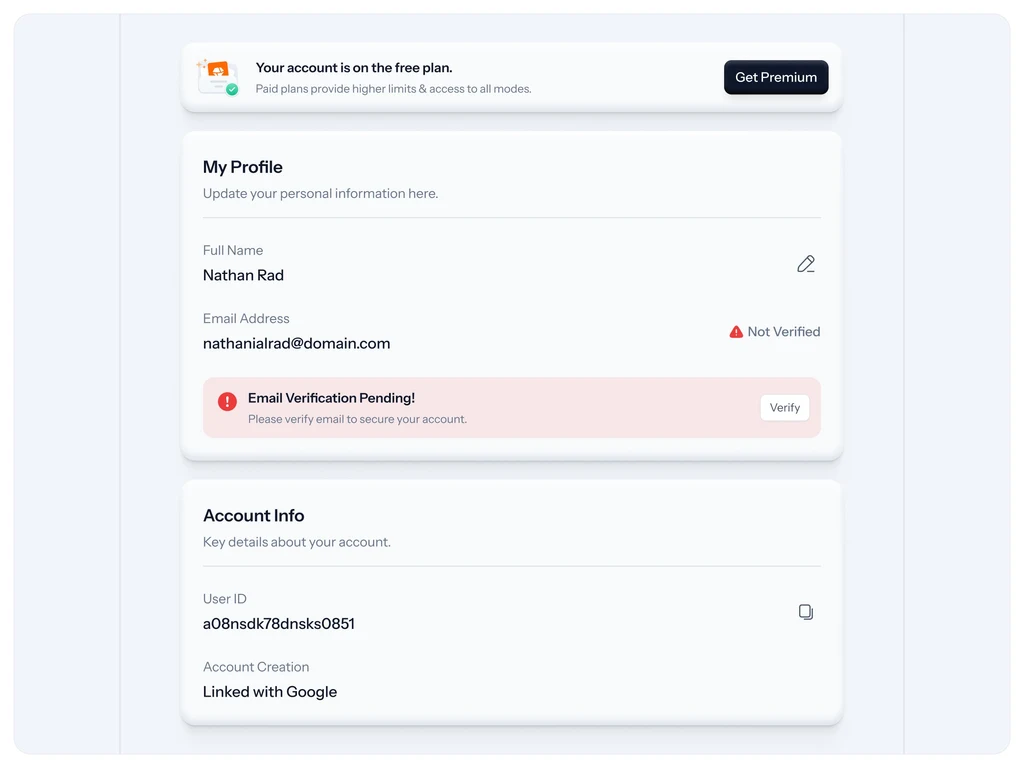
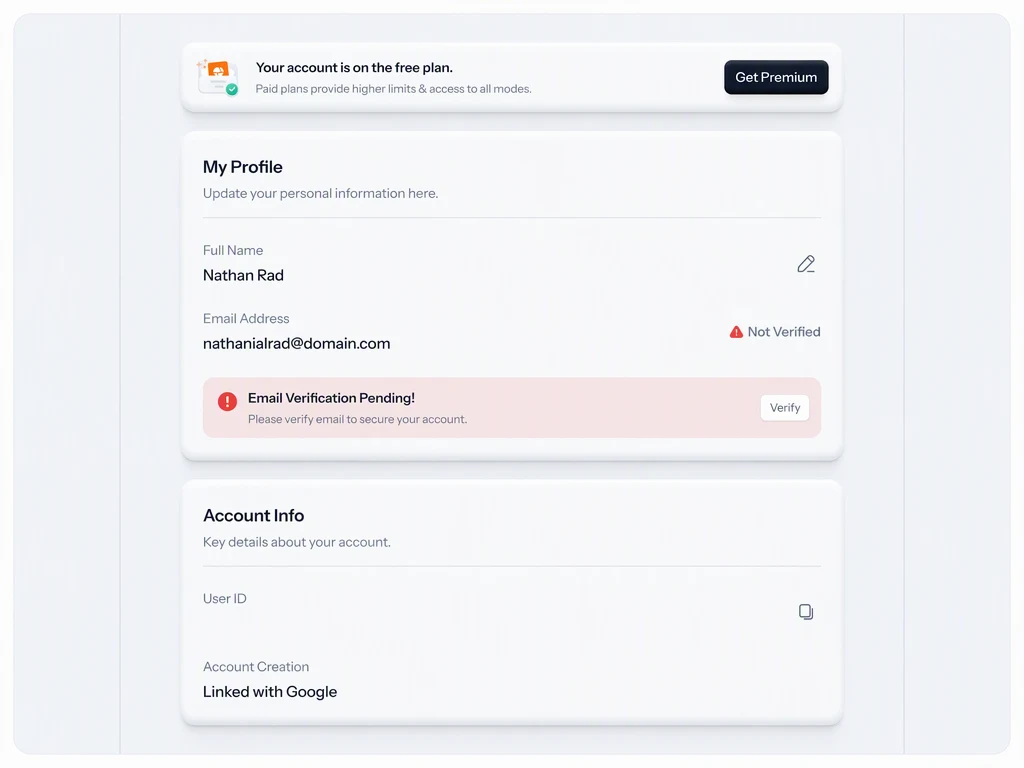
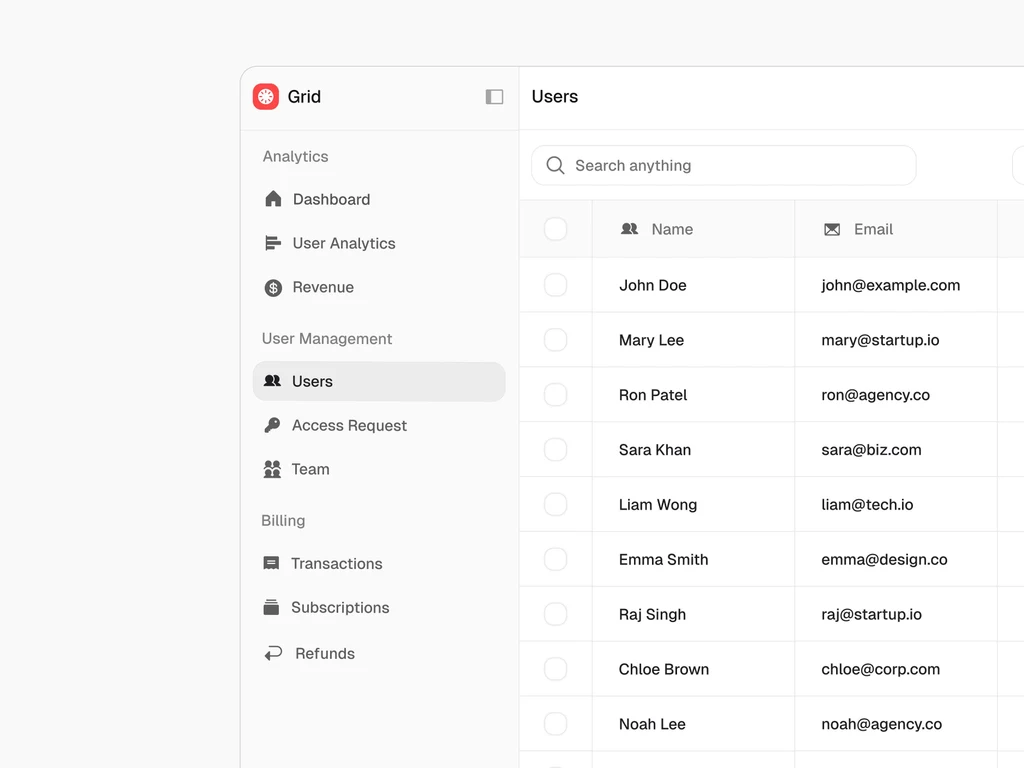
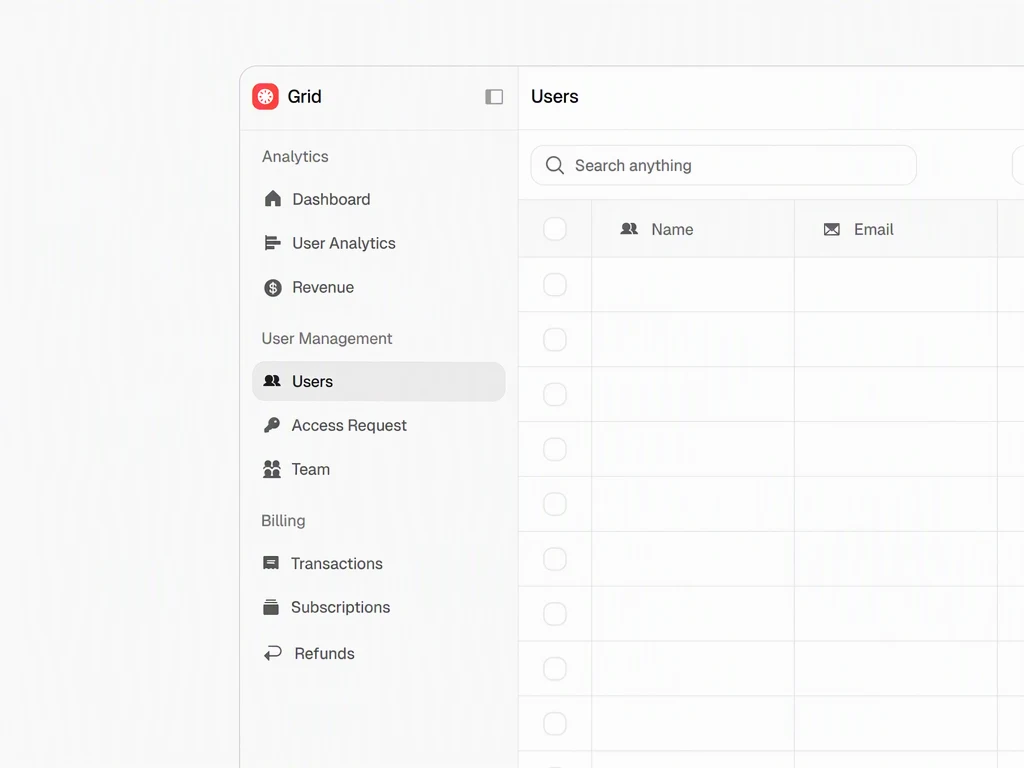
How it works
Paste or upload the screenshot
Paste the screenshot straight from your clipboard, or upload a PNG, JPG or WebP file up to 14 MiB. If the text is tiny, capture the screen again at a larger zoom level.
Select every personal detail
Tick the lines with names, email addresses, phone numbers and account details. Small interface text can be missed, so use Add missing text for anything that was not detected.
Apply and inspect closely
Select Remove selected text and use the comparison slider to find each spot. Then zoom in to confirm that no letters, digits or partial outlines can still be read.
Download, then delete the original
Download the PNG for your report or guide. If the original showed anything sensitive, delete it from My images, where it stays until you remove it.
Find every place the detail appears
Personal details often appear more than once on a screen. An email address in a form can also show in the account menu, the page title and the browser's address bar. When you remove text from a screenshot, check the whole image for every copy of each detail, especially in these places.
- Browser tabs, window titles and the address bar, which can contain names, user IDs or search terms.
- Account menus, profile names and the initials shown in place of a profile photo.
- Notifications and message previews that arrived while you were capturing the screen.
- Autofill suggestions, recent searches and breadcrumb trails.
- Rows in tables or lists that belong to other people, such as customers or coworkers.
When a solid box or a crop is safer
Removal erases the words and fills the area from the surrounding interface, without a box that draws attention to it. That suits names and contact details in an everyday bug report. For the cases below, a solid box or a crop made on your own device is the safer choice: it covers the area completely, and the detail never reaches My images, where uploads stay until you delete them.
- Passwords, access tokens, security codes and recovery keys.
- Full account numbers and anything else that could be used to sign in or make a payment.
- Faces, profile photos, QR codes and barcodes. They are not text, so removal does not cover them.
- Anything you would not want stored in a copy outside your own device.
Keep the screenshot useful
A screenshot for a bug report or a tutorial still has to show the problem or the steps. Remove only the personal details, and leave the error messages, version numbers, settings and button labels the reader needs.
An empty field can confuse readers, who may think the value was missing or that the app failed to load it. Say in your report or caption that personal details were removed, so nobody spends time investigating a blank space.
Partial details count too. The last digits of a phone number or the first part of an email address can be enough to identify someone, so remove the whole value. Then check the result at the size your readers will see it, and at full size, because a detail that is unreadable in a small preview may be readable when someone opens the image.
Frequently asked questions
Is removing text better than blurring it?
For privacy, usually. Light blur or pixelation can leave a short name or number guessable, especially when the reader knows what kind of detail was there. Removal takes the words out of the picture instead. Zoom in afterward to check for faint traces, and use a solid box for anything highly sensitive.
Will the cleared area look edited?
It depends on what was behind the text. Text on a flat background, such as a white form field or a plain menu, leaves simple space to fill. Text over a photo, a gradient or a busy table may leave a visible patch, so compare closely and try High quality (2 credits) if the patch stands out. Paid plans can also remove text in 2K or 4K, where High quality uses 5 or 7 credits and Standard 2 or 3.
Can I keep part of a line or show a placeholder instead?
Yes, with the Edit text tool. The removal tool works with the detected lines, while the editor lets you retype a line. Type the line without the name, such as "Signed in as", or replace the name with an obvious placeholder such as name@example.com. Never use a placeholder to make a screenshot appear to show something it does not.
Is there a way to avoid removing details at all?
Yes, for screenshots you take regularly. Set up a test account filled with invented names and sample data, and capture documentation and tutorial screenshots there. No real personal details appear in the first place, and the screenshots stay consistent between updates. Removal is most useful for screenshots you cannot retake, such as a bug you caught only once.
Try it on your own image
Or drop an image here. PNG, JPG or WebP, up to 14 MiB.
Your image stays on this device until you sign in.
Sign in with Google to upload. Your first Standard edit is free and includes a watermark.