Change the price on a menu photo
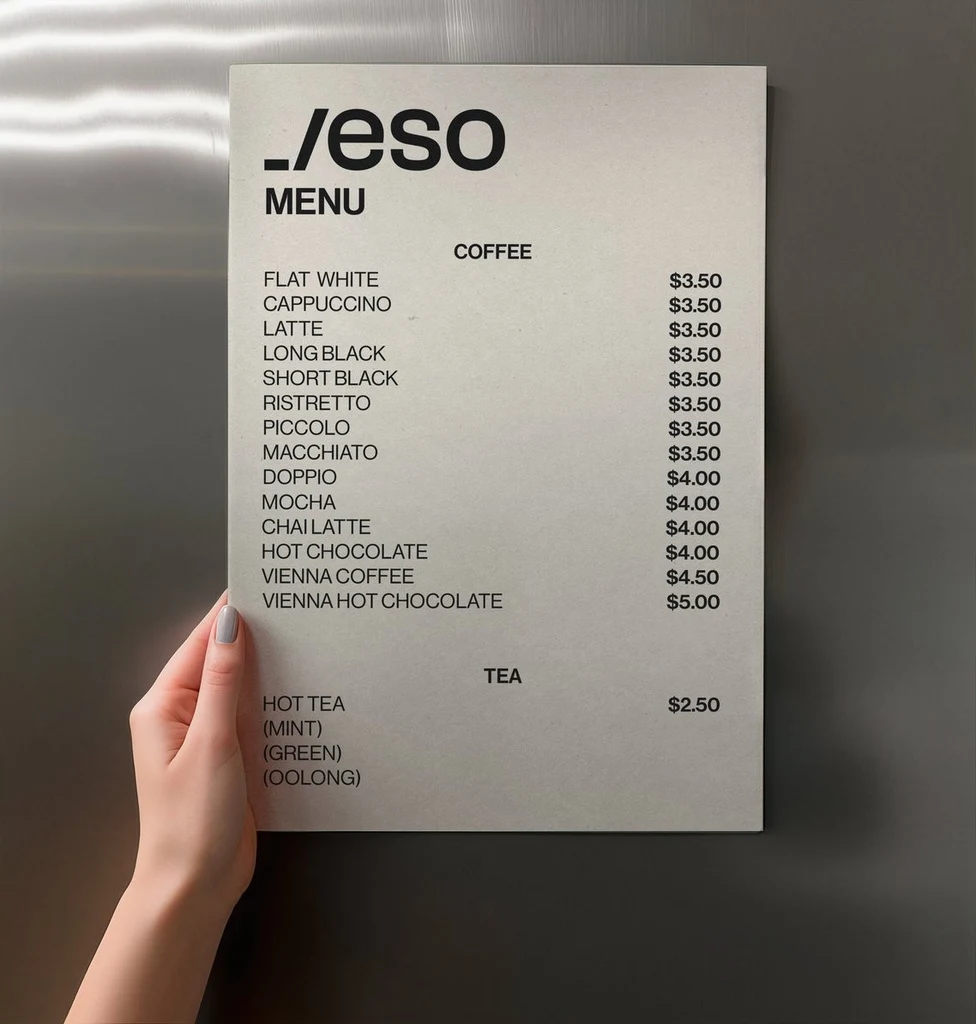
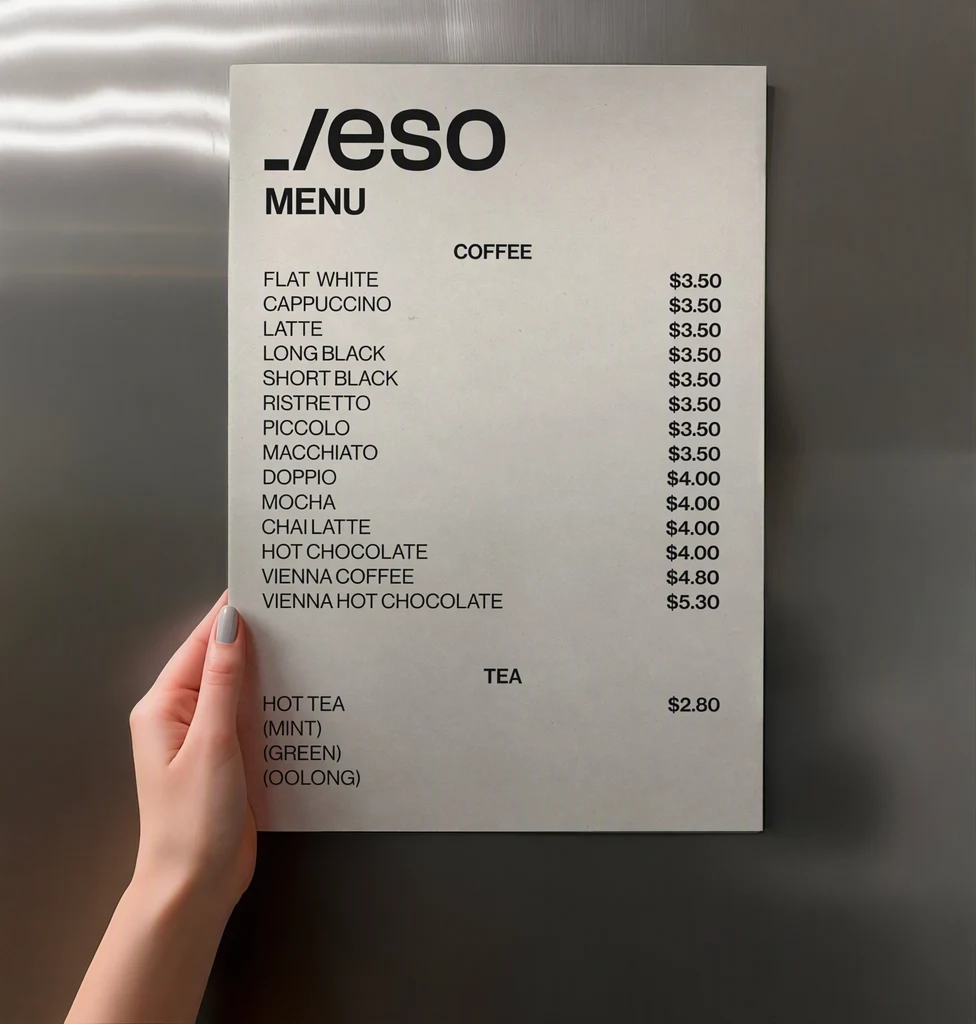
Restaurant and café owners can change the price on a menu photo, swap a dish or update the opening hours without rebuilding the design. Upload a photo of your own printed menu, chalkboard or menu board, edit only the lines that changed, and check that your printed and online menus still match.
Or drop an image here. PNG, JPG or WebP, up to 14 MiB.
Your image stays on this device until you sign in.
Sign in with Google to upload. Your first Standard edit is free and includes a watermark.
Examples
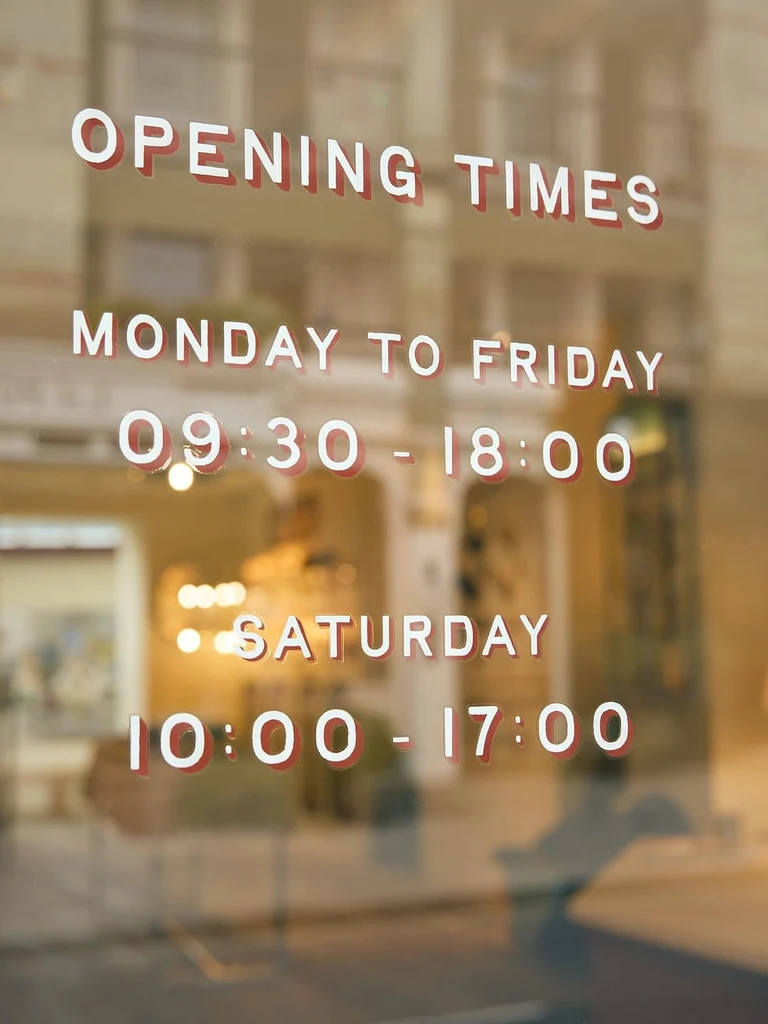
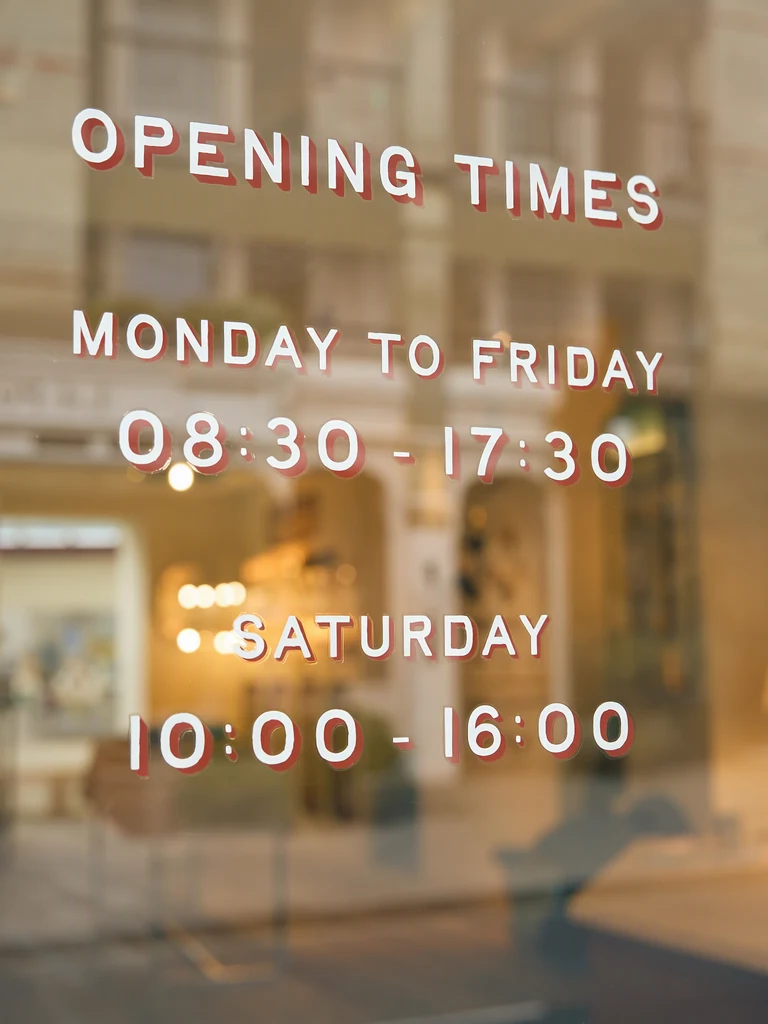
How it works
Start from a sharp, straight-on photo
Use the exported menu file if you have it, saved as a PNG, JPG or WebP image. Otherwise photograph the menu or board square-on, in even light, with no glare across the prices. Angled or creased shots are harder to read and to match.
Find the lines that changed
Every line of the menu gets its own Original entry. Find the dish and its price, and correct the entry if a digit or letter was read wrongly. If a line is missing, enter it with Add text, spelled exactly as printed.
Type the new price, dish or hours
Write the new words in each Replacement field and leave the other lines as they are. Type prices the way the rest of the menu prints them, with the same currency symbol, decimal mark and spacing.
Choose a quality level
Menus are mostly small print, so High quality (2 credits) is the better choice for small type, ornate headings and chalk lettering. Standard (1 credit) is the faster option for large, clean type. With a paid plan you can also choose 2K or 4K, where Standard uses 2 or 3 credits and High quality 5 or 7. Then select Apply changes.
Check every price, then update your other menus
Move the comparison slider over each changed line and read the new price against your price list, digit by digit. Then download the PNG and update your printed menu, website and other copies at the same time.
What menu owners usually change
Most menu edits are small and frequent: a price that moves with costs, a seasonal dish that replaces last season's, a special for the week, or new hours for a holiday. You change only those lines and leave the layout, the lettering and the photography as they are.
A board or card that changes often, such as a daily special, is best edited from the same original every time. Starting each version from the original instead of from yesterday's edited copy avoids stacking one edit on top of another.
- Prices, including the currency symbol and decimals
- Dish names and seasonal specials
- Opening hours, including holiday hours
- Phone number, address, web address or social media handle
Photos of printed menus and menu boards
A menu is mostly small, dense type, and the photo decides how well it can be edited. Shoot straight on, fill the frame with the menu, and keep shadows and reflections off laminated or glossy cards. When you can export the menu from your design software instead of photographing it, that file is the cleanest starting point.
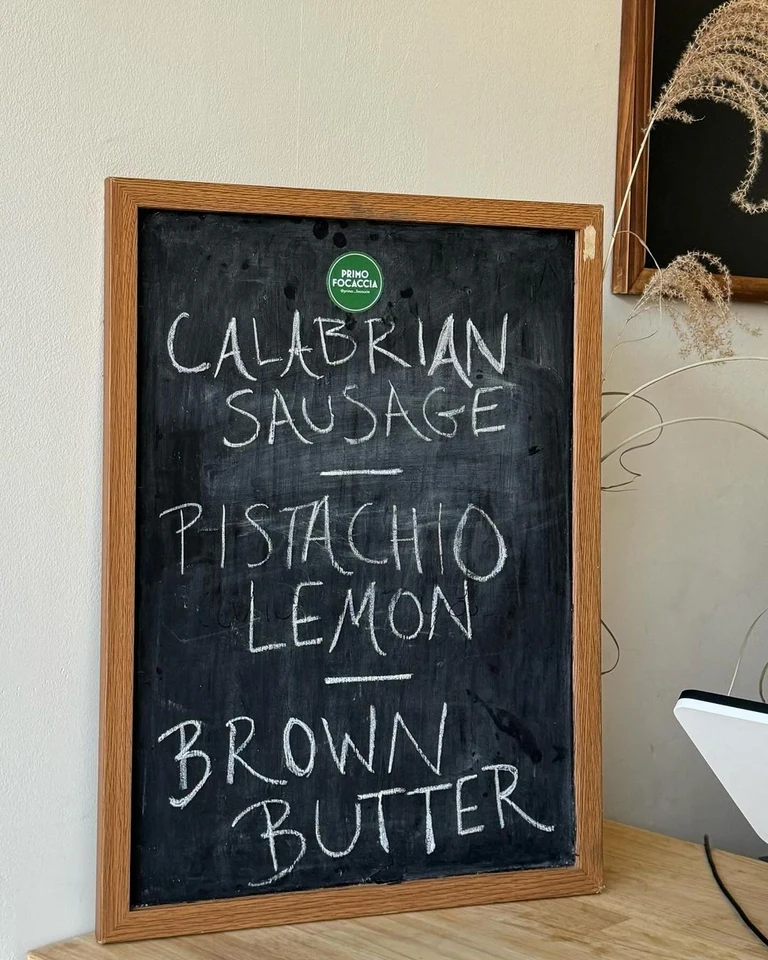
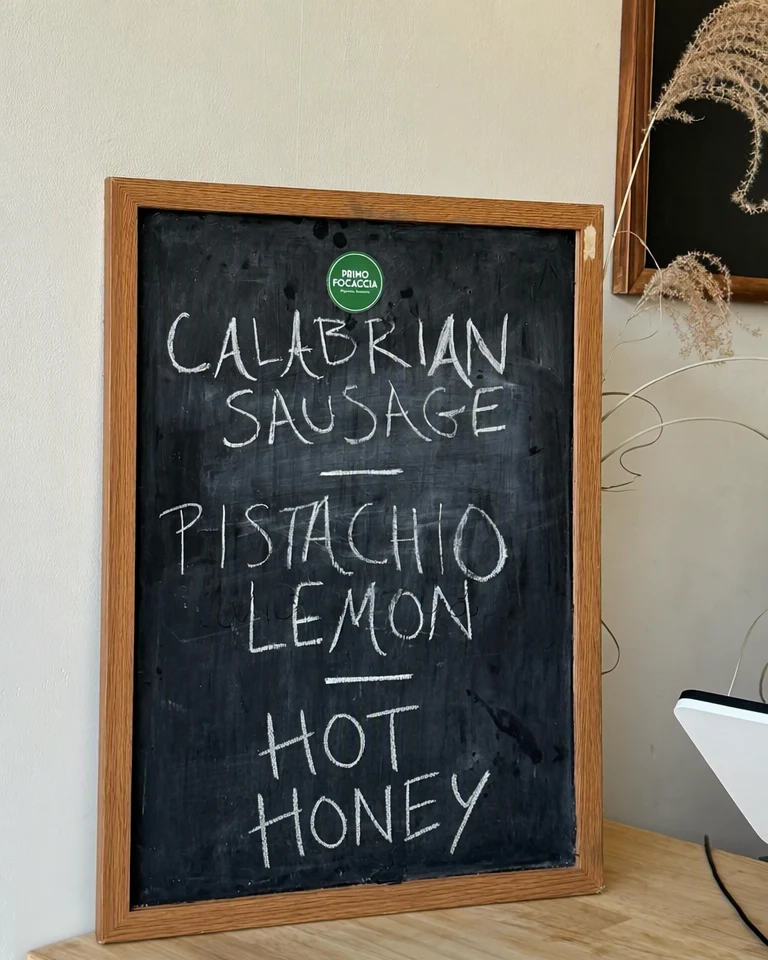
Chalkboards and painted boards are lettered by hand, so each line looks a little different and results can vary more than with printed type. Choose High quality, change a few lines at a time, and look closely at the edges of each new letter. The frame, the stand and the wall behind a board are part of the photo and should stay as they were.
Menus are laid out in columns, so check the layout around each change:
- Prices still line up with each other, and the decimal points sit in one column.
- Dotted leader lines between a dish and its price still reach the new price.
- Currency symbols, decimal marks and spacing match the prices you did not change.
- Dish names are spelled as in your price list, accents included.
Keep printed and online menus consistent
A menu photo is only a picture of your menu, so editing it does not change anything else. When a price moves, update your source file, your printed copies, your website and every listing that shows the menu, so a customer never meets two different prices for the same dish.
Replace the old photo wherever it was posted, because copies that were saved or shared earlier stay as they were. Keep the original photo and your price list, with the date of each change, so you can always see what the menu said and when. And show only what you will really serve and charge, because customers read a menu as a promise.
Frequently asked questions
Can I change prices on a photo of a chalkboard or menu board?
Yes, though results vary more than with printed menus, because hand-lettered chalk or paint changes from letter to letter. The AI follows the style of the lines already on the board instead of a font. Photograph the board straight on in even light, choose High quality, and compare each new letter and digit with the lines you left alone. If a result looks uneven, try fewer lines at a time.
What if the new price has more digits than the old one?
A move from $9 to $10.50 makes the price wider, so the new digits may be set slightly smaller or closer together to fit the space. Keep the same number of digits where you can, and check that the price still lines up with the rest of its column and does not touch the dish name. If it looks crowded, try High quality or move the price in your design file instead.
A price was read wrongly. What should I do?
Correct the Original entry first so it matches the photo exactly, for example $12.50 instead of $12.5O, then type your new price in the Replacement field. Small, thin or faint digits are the ones most often misread, and a zero can look like a capital O. Check the finished price against your price list before you download the image.
Can I edit a menu that is saved as a PDF?
Not directly. Uploads accept PNG, JPG or WebP images up to 14 MiB, so export each page of the menu as an image first. Edit each page on its own, then put the edited PNG files back together in your layout or PDF software. Keep a list of every price you change so the pages stay consistent with each other.
Can I use the edited photo on my website, social media and delivery apps?
Yes, if it shows your own menu and the prices you really charge. Some platforms ask you to enter menu items in their own forms instead of, or as well as, uploading a picture, so check how each one wants it. The edited image downloads as a PNG, so resize or convert it if a site asks for another format, and replace the old photo everywhere at the same time.
Can I remove a dish that is sold out or no longer served?
Yes. Leave the Replacement field blank for the dish name and for its price, and the surrounding design guides how the space is filled. Then check that the gap looks natural and the lines around it still sit evenly. If the gap looks odd, put a new dish or a short note in that line instead.
Try it on your own image
Or drop an image here. PNG, JPG or WebP, up to 14 MiB.
Your image stays on this device until you sign in.
Sign in with Google to upload. Your first Standard edit is free and includes a watermark.