Edit thumbnail text for YouTube, TikTok and Instagram
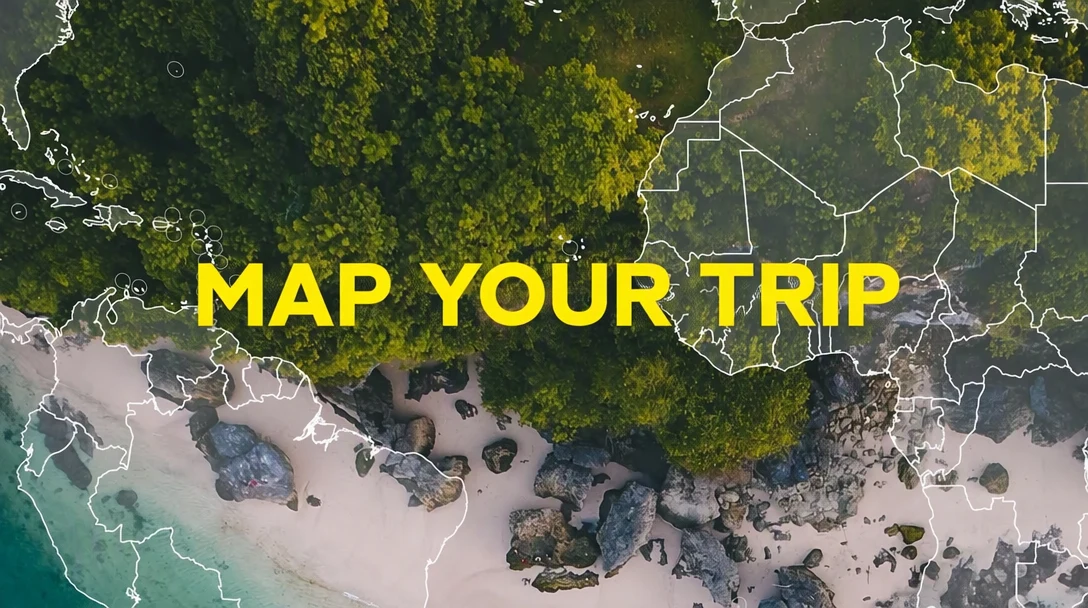
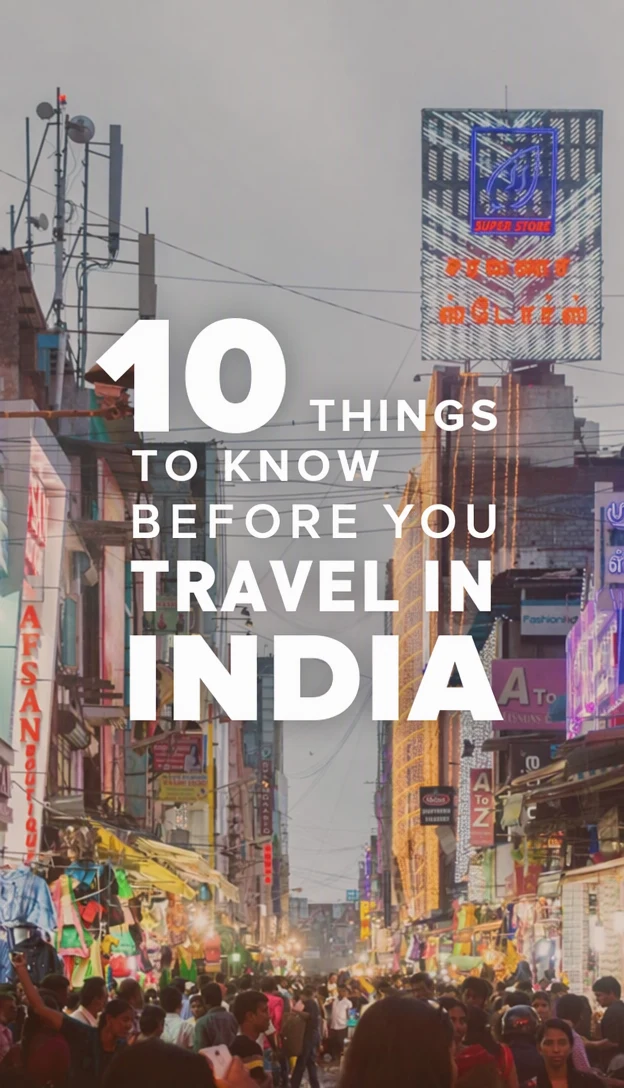
Whether you publish your own videos or manage social media accounts for a brand, you can edit thumbnail text without rebuilding the design. Rewrite the title on a YouTube thumbnail, a TikTok cover or an Instagram Reel cover, make variants to compare, or update a number or year on an older video.
Or drop an image here. PNG, JPG or WebP, up to 14 MiB.
Your image stays on this device until you sign in.
Sign in with Google to upload. Your first Standard edit is free and includes a watermark.
Examples


How it works
Start from the exported file
Upload the thumbnail or cover image you exported, not a screenshot of it inside an app. A screenshot is usually smaller and can include play buttons, view counts or a video length badge.
Rewrite the title line
Find the title among the Original entries and write the new words beside it, in the Replacement field. Keep to a few short words that fill the space the old title used, so it stays readable on a phone.
Pick a quality for the effects
Thumbnail lettering often has thick outlines, glows, drop shadows or 3D effects. Choose High quality for those, or Standard for flat, bold lettering, then select Apply changes.
Check it at phone size
Compare the before and after, then view the downloaded PNG at roughly the size of a thumbnail in a phone feed. If the title is hard to read at that size, shorten it.
Fit it to the platform
Check the platform's current help pages for the recommended size, shape and file type, and resize or crop the downloaded PNG in your usual image editor if it does not match.
Rewrite titles and test variants
Rewriting the words on an existing thumbnail helps when a video's angle changes after publishing, when the first title did not attract viewers, or when one design introduces a new episode. Change the title line and leave the photo, colors and layout as they are.
For a test, make two or three versions that differ only in their words. Start each one from the same original image and change nothing else, so any difference in results comes from the wording rather than from a new crop or color.
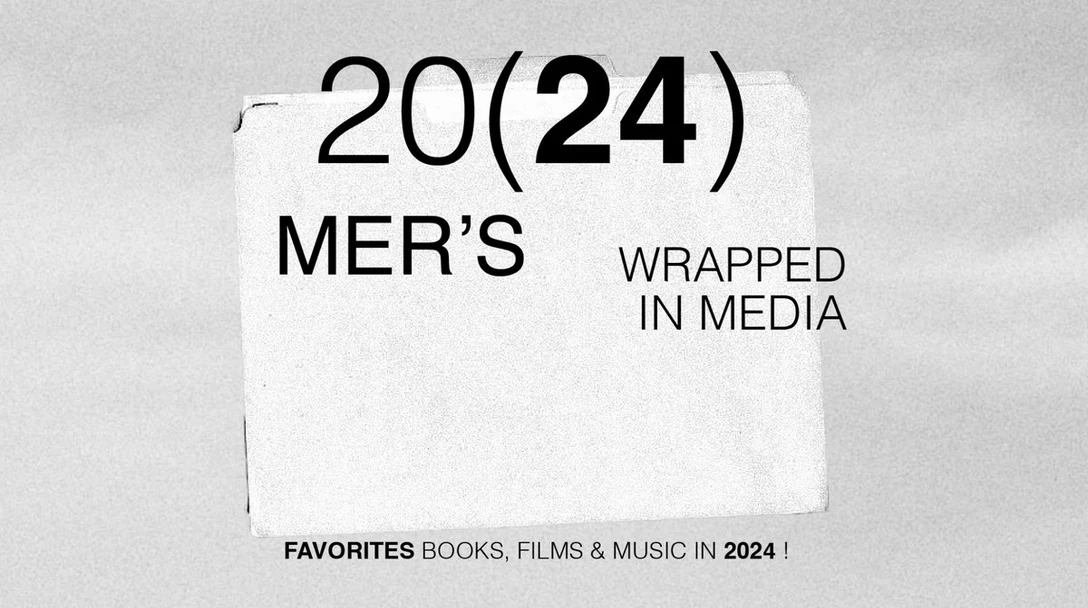
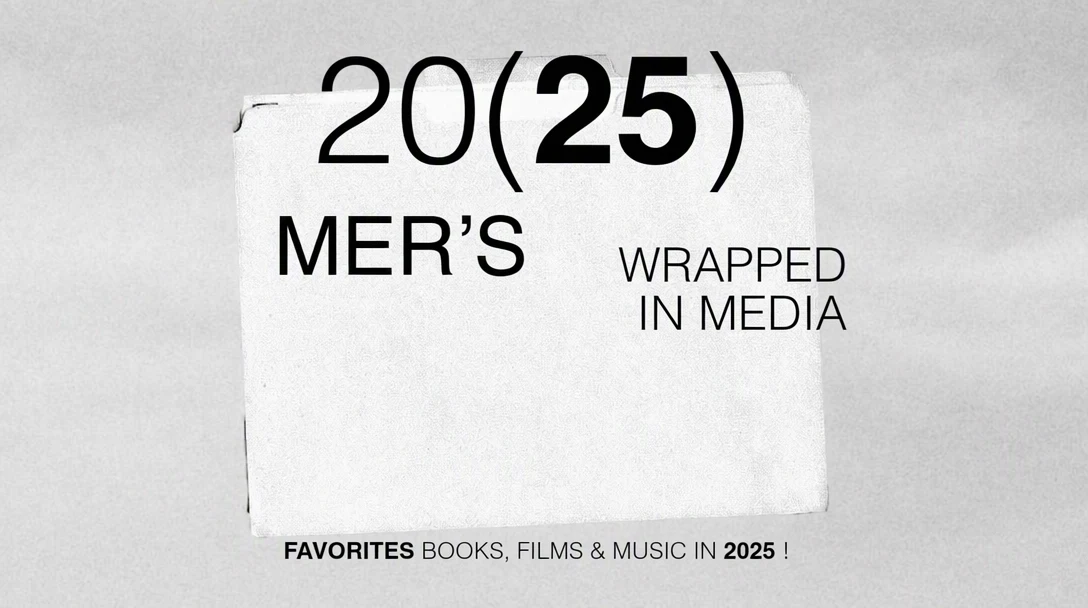
Numbers are a common update: a list that grew from 7 tips to 9, the part number in a series, or the year on a guide. Stylized digits can come out slightly different, so compare the style of the new digits with the old ones before you upload the image.
Keep the words readable at small sizes
Thumbnails and covers are usually seen small, next to many others, so a title of a few large words stays readable where a full sentence does not. The new title follows the outline, shadow and color of your design. If the old title was hard to read against the picture, the new one is likely to be hard to read too.
Faces and objects often overlap thumbnail text. When the title changes, nearby eyes, hair and hands can change too, so check them after the edit, and choose High quality when the lettering touches a face.
YouTube thumbnails
A YouTube thumbnail appears at very different sizes: large on a TV screen, medium in the home feed and small in the list beside a playing video. Check the title at the smallest of these. Because the video title is shown next to the thumbnail, the thumbnail words can add to it rather than repeat it.
YouTube usually shows the video length in the bottom-right corner, so keep important words out of that corner. You can replace the thumbnail of a published video in YouTube Studio, so an older upload can get a refreshed title. If your channel can use YouTube's thumbnail testing, variants made from the same original image are a good fit for it. Check YouTube's help pages for the current size, file and account requirements.
TikTok covers
In the For You feed the video plays straight away, so a TikTok cover is mostly seen where videos appear as tiles, such as your profile grid and search results. Those tiles can crop the top and bottom of a vertical cover, and the app may place view counts over the lower part, so keep the title in the central part of the frame.
For a series, keep one cover design and change only the part number or episode title, so your profile reads as a set. How you add a custom cover image can change between app versions, so check TikTok's help pages for the current options and size.
Instagram Reel covers
A Reel cover appears in the Reels tab of your profile and can also appear on your main profile grid, which shows a cropped version of the vertical frame. That crop has changed over time, so preview the cover in the app before you publish and keep the title inside the area that stays visible.
If you upload a separate cover image instead of choosing a frame from the video, edit the title in that image and check Instagram's help pages for the current recommended size. When you post the same video on TikTok and Instagram, make a separate cover for each from the same original, since the crops and on-screen labels can differ.
Frequently asked questions
Can I edit thumbnail text without the original design file?
Yes. Upload the exported thumbnail or cover, and the text in it is detected automatically. Because the image guides the lettering, size and color of the replacement, you do not need the layered file, the font or the template it was made with. This helps when a freelancer made the design or the original project is lost.
Why does my new title look squeezed or smaller than the old one?
The new title has to fit the space the old one used, because the image guides the size of new lettering, so a much longer title can come out smaller or tighter. Cut it to a similar number of words and lines, and move the extra detail into the video title. If the letters look uneven rather than small, try High quality.
Is it okay to change the year on an older video's thumbnail?
Yes, when the video is still accurate for that year. A new year on a thumbnail for an outdated video can make viewers feel misled, so check the content first. Change the year in the video title and description at the same time, so the thumbnail, title and description all match.
Can I use one edit for a horizontal thumbnail and a vertical cover?
No, edit each file separately. A horizontal thumbnail and a vertical cover need different layouts, and EditText changes the words in an image, not its layout. Create each version in your design tool first, then change the words on each one and check that the title sits inside the area each platform shows.
Why does the outline or glow look different after the edit?
Thick outlines, glows, gradients and 3D lettering are among the more demanding thumbnail styles, so results can vary more than with flat text. If you used Standard, try High quality. Zoom in with the comparison slider and look at the edges of each letter. If the effect is thin or uneven on part of the title, run the edit again or use fewer words.
Try it on your own image
Or drop an image here. PNG, JPG or WebP, up to 14 MiB.
Your image stays on this device until you sign in.
Sign in with Google to upload. Your first Standard edit is free and includes a watermark.