Edit text in a banner ad, social ad or sale banner
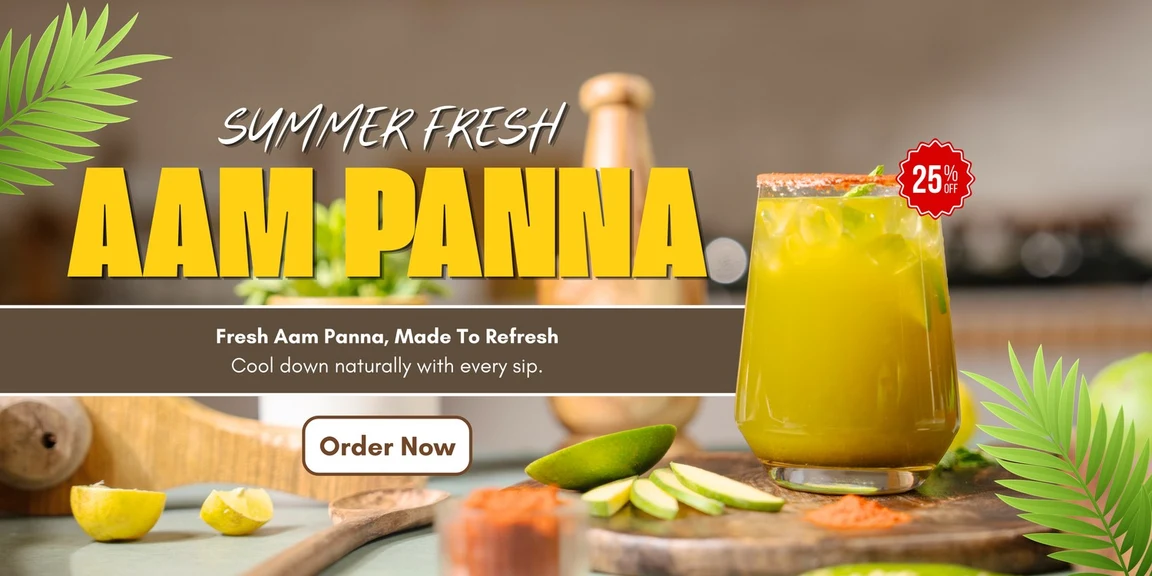
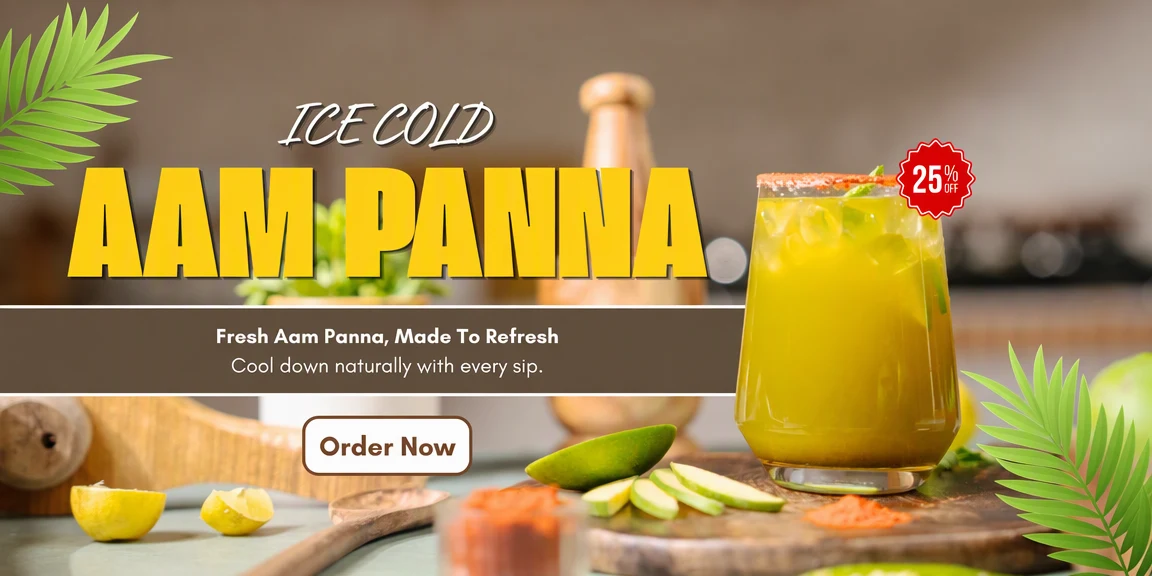
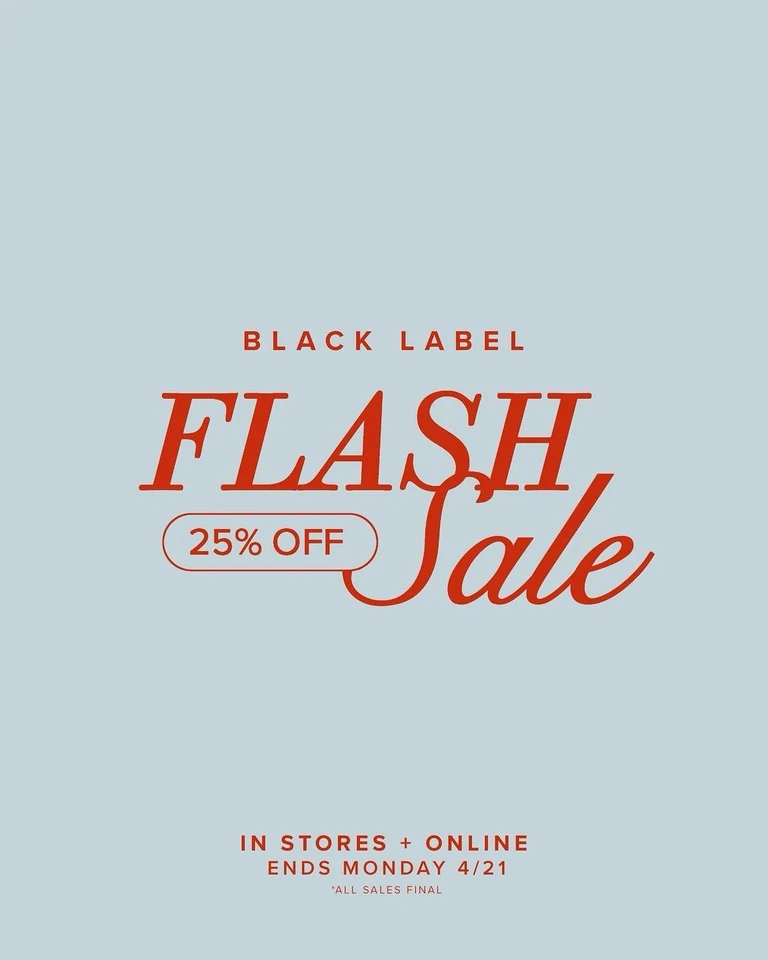
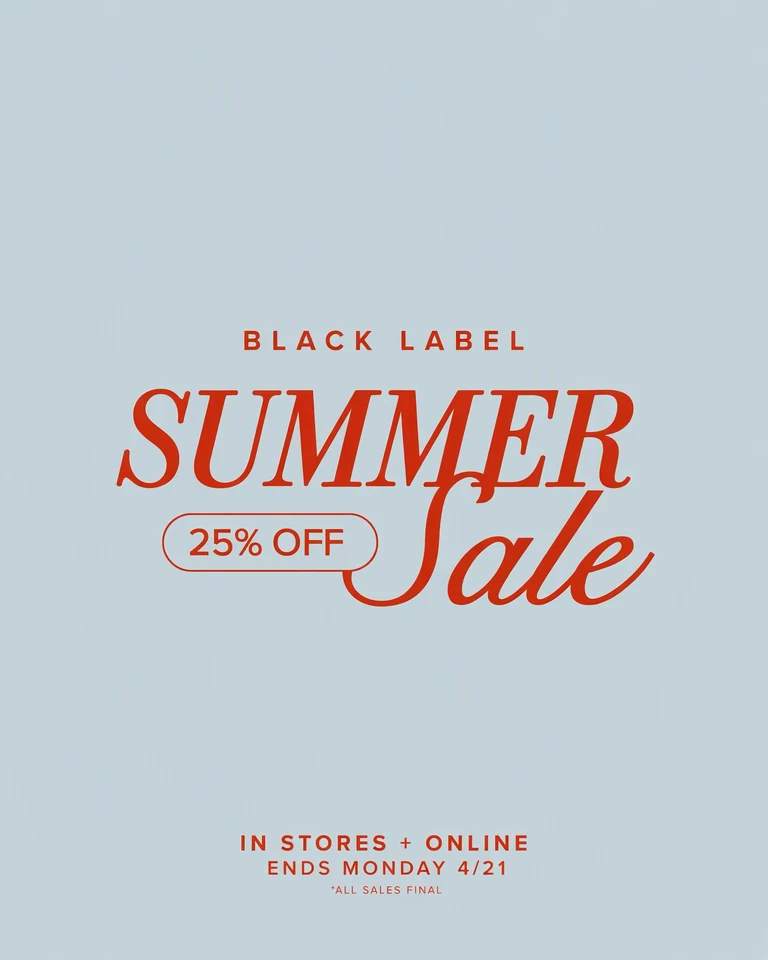
Marketers, shop owners and designers can edit text in a banner ad without rebuilding the creative. Change the headline, the offer or the call to action on your own ad, social post or sale banner, and make a few versions of it to test against each other.
Or drop an image here. PNG, JPG or WebP, up to 14 MiB.
Your image stays on this device until you sign in.
Sign in with Google to upload. Your first Standard edit is free and includes a watermark.
Examples
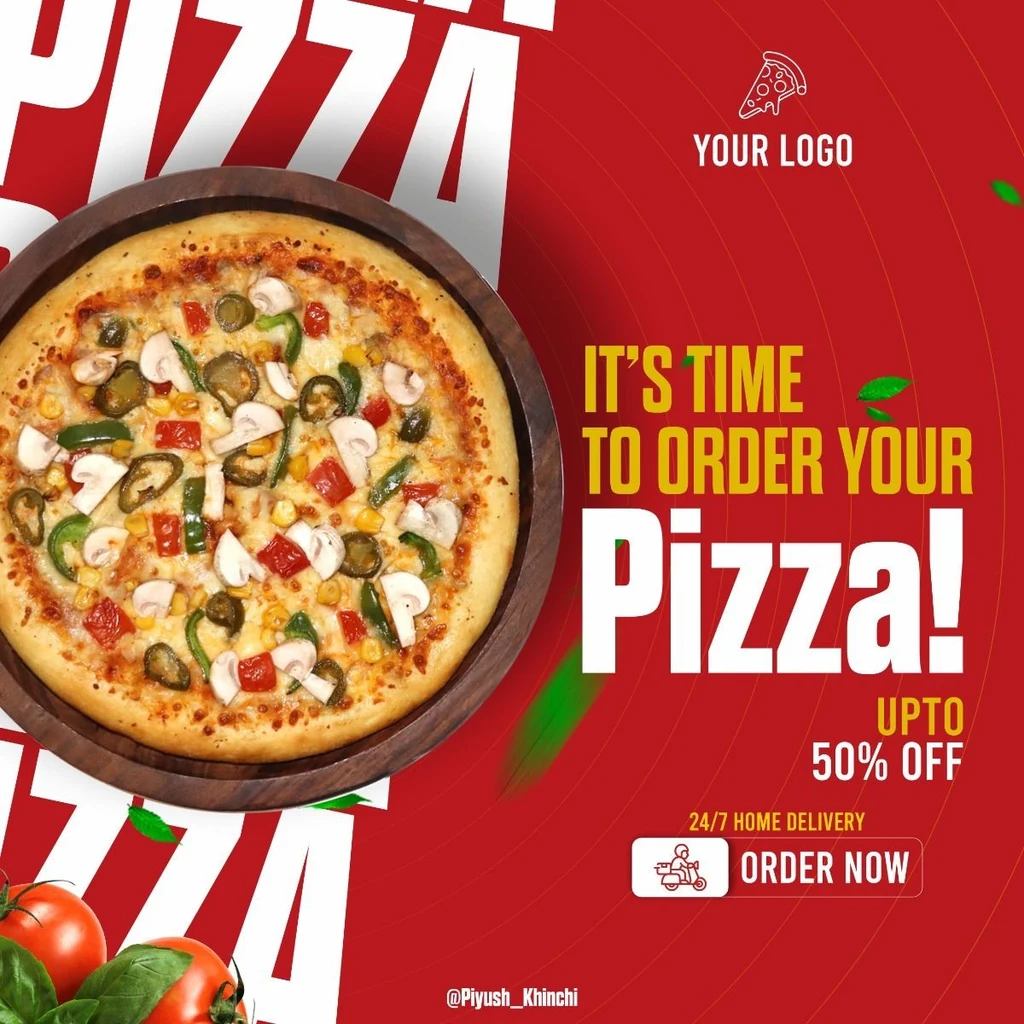
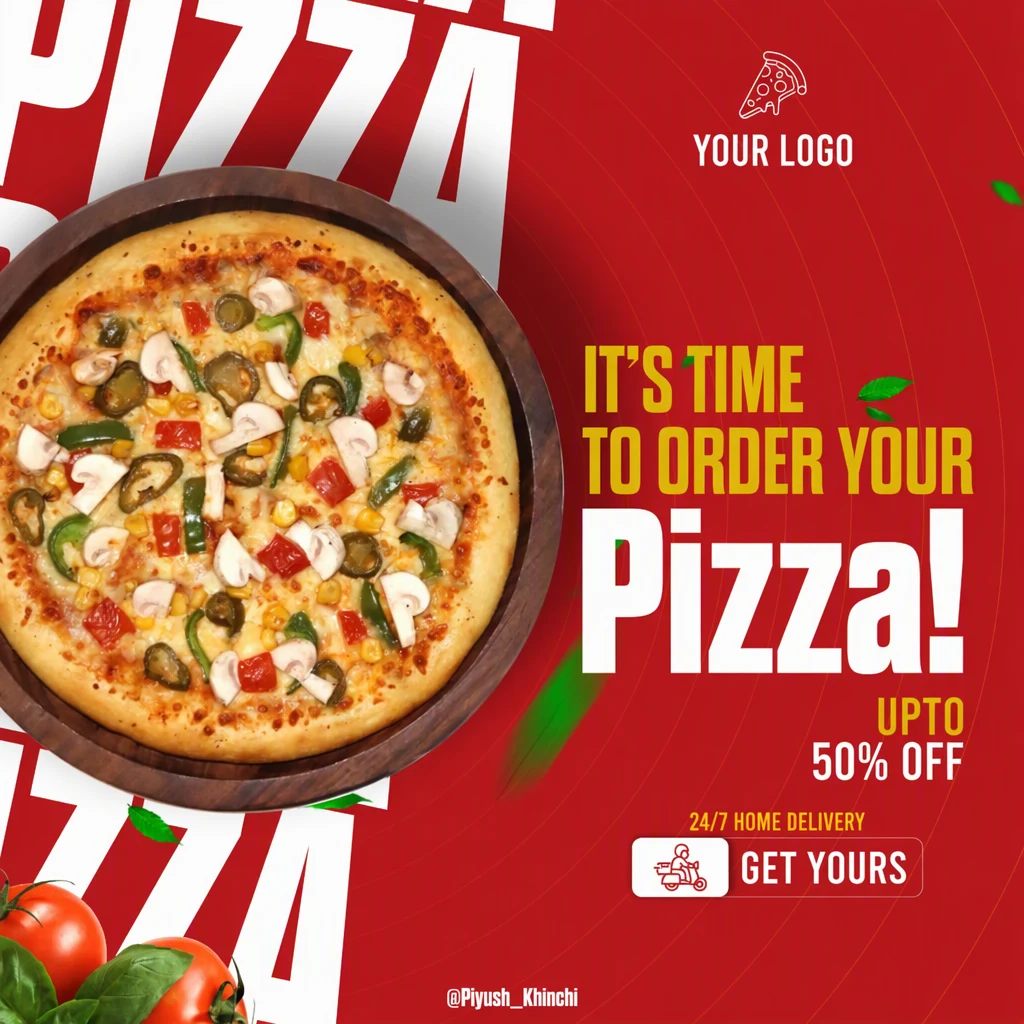
How it works
Upload the exported creative
Upload the PNG, JPG or WebP you exported at the size you plan to run, not a screenshot of an ad preview. A screenshot can include the platform's buttons and rounded corners, and it is usually smaller than the original.
Find the headline, offer and button
Every line of the banner gets its own Original entry. Find the headline, offer, button text and any small print, and correct an entry if a letter was read wrongly. If a line is missing, such as a button label, add it with Add text.
Write the new words
Type the new headline, offer or call to action in its Replacement field and leave the other lines alone. Aim for a similar number of words and lines, so the new text fits the space the old text used.
Choose a quality level
Bold, flat headlines suit Standard (1 credit). Choose High quality (2 credits) for outlines, shadows, gradients and small print over a busy photo. With a paid plan you can also choose 2K or 4K, where Standard uses 2 or 3 credits and High quality 5 or 7. Then select Apply changes.
Compare, then make the next version
Move the comparison slider over the new words, the button and the area around them, then download the PNG. For another version, upload the same original again and change only the words you are testing.
What to change in an ad creative
Ad creatives change often, and most changes are only words: a new headline, a different offer, another deadline, or a call to action that suits the next stage of a campaign. You change only the words and leave the photo, the colors and the layout that already work as they are.
Offers need extra care. When a price, discount or end date changes, update every line that mentions it, small print included, so the banner never contradicts itself or the page it leads to.
- Headline and sub-headline
- Offer, price or sale name
- Deadline or end date of your own promotion
- Button text, such as Shop Now or Learn More
- Small print and terms lines that must match the offer
Make versions for an A/B test
To test two headlines, make two versions that differ in that headline only. Upload the same original for each one, change that single line, and keep the photo, colors, layout and button identical, so any difference in results comes from the words and not from a new crop or color.
Before you publish, put the versions side by side at the size they will run and check that the lettering looks the same in all of them, with the same weight, position and spacing. Name each file after what it tests, such as sale-banner-headline-a.png, and keep a note of the exact wording so you can match results to versions later. Then run them with your ad platform's own testing tools.
Video thumbnails and covers follow the same method and have their own guide, Edit thumbnail text, linked below.
Keep ads readable and accurate
Most people see an ad small and only for a moment, so a short headline in large letters works better than a full sentence. The new words follow the outline, shadow and color of the old ones, so if the old headline was hard to read against the photo, the new one is likely to be too. Check the result at the size it will run, on a phone as well as a desktop screen.
Platforms can place their own labels and buttons over parts of an image, and some crop images differently in different placements. Keep important words away from the edges, and read each platform's current help pages for sizes, text limits and ad policies before you publish.
Make sure every claim is true on the day the ad runs: the price, the discount, the dates and the product shown should match your shop or landing page.
Frequently asked questions
Can I make all the versions of a banner in one go?
No. Each version is its own upload and edit, so a test of three headlines means three edits. Start every one from the original image rather than from an edited copy, and change only the line you are testing. That keeps the photo, layout and lettering identical across the versions.
Can I change the text on the button in my banner?
Yes. Button text is detected like any other line, so type the new label in its Replacement field. Choose a label with about the same number of letters, such as Learn More in place of Shop Now, so it fits the button, then check that the button's edges are still sharp and the label is centered. If the label was not detected, add it with Add text.
Can I edit an ad if I only have a screenshot of it?
You can, but it is a weaker starting point. A screenshot of a live ad can include the platform's labels, buttons and rounded corners, and it is often smaller than the original. Ask your designer or the person who made the ad for the exported file when you can. If you must use a screenshot, capture it at full size and crop away everything that is not part of the ad.
Will an edited ad pass the platform's ad review?
EditText.ai cannot tell you. Ad platforms review the ad itself against their own policies, which change over time, not how it was made. Read the current ad policies of each platform you use, keep the offer, price and dates true, and keep the text easy to read. A new offer may also mean updating the page the ad links to.
Can I change the picture or the colors in my banner?
No. EditText changes the words in an image, not the photo, the colors or the layout. For a new product photo or a different palette, change the design in your design tool, export it, and then edit the words in the new file. The new words follow the lettering style of the image you upload.
Can I translate a banner instead of rewriting it?
Yes. The Translate text in image tool replaces each detected line with its translation in a matching style, and keeps prices and web addresses as written where it can. Translations can run longer, so check the headline and the button. Have a fluent speaker read every line, especially the offer and the call to action, before the ad runs.
Try it on your own image
Or drop an image here. PNG, JPG or WebP, up to 14 MiB.
Your image stays on this device until you sign in.
Sign in with Google to upload. Your first Standard edit is free and includes a watermark.