Turn a screenshot of an app, chat or website into text
Error messages, chat replies, settings pages and slides from a video call keep their words inside a picture, where you cannot select or copy them. Upload the screenshot and the words come back as plain text you can paste into a bug report, a note or an email. Check names and numbers against the screen before you use them.
Or drop an image here. PNG, JPG or WebP, up to 14 MiB.
Your image stays on this device until you sign in.
Sign in with Google to upload. Reading the text is free and uses no credits.
Examples
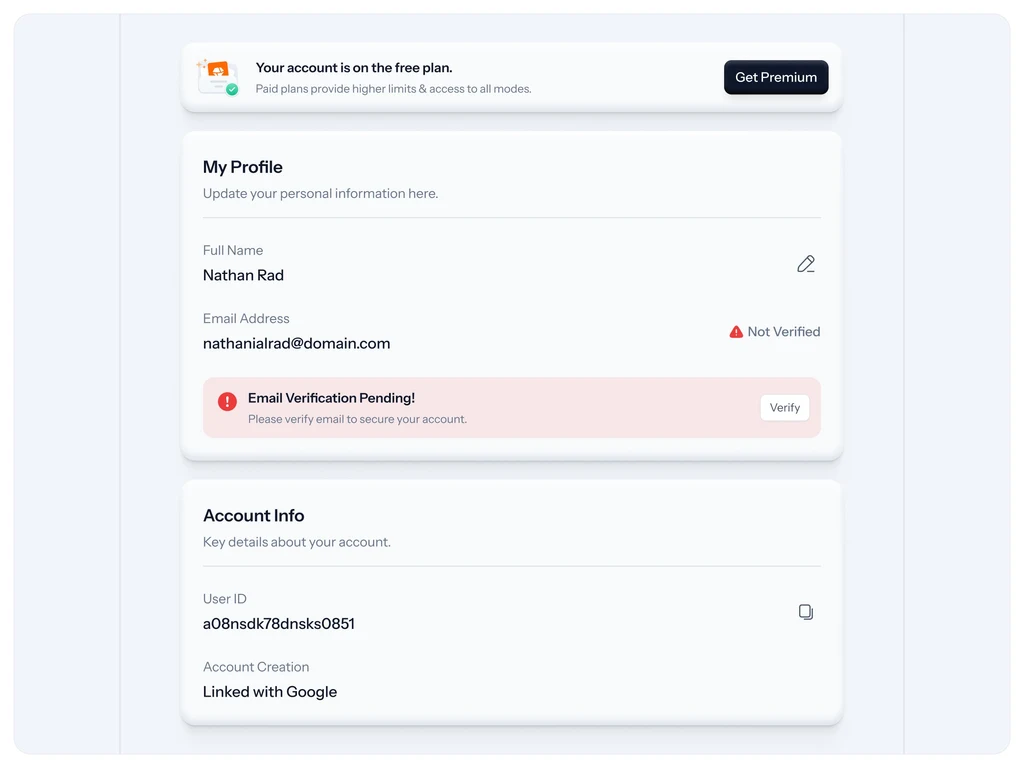
Text read from the image
Your account is on the free plan.
Get Premium
Paid plans provide higher limits & access to all modes.

My Profile
Update your personal information here.

Full Name
Nathan Rad
Email Address
Not Verified
nathanialrad@domain.com
Email Verification Pending!
Verify
Please verify email to secure your account.

Account Info
Key details about your account.

User ID
a08nsdk78dnsks0851
Account Creation
Linked with Google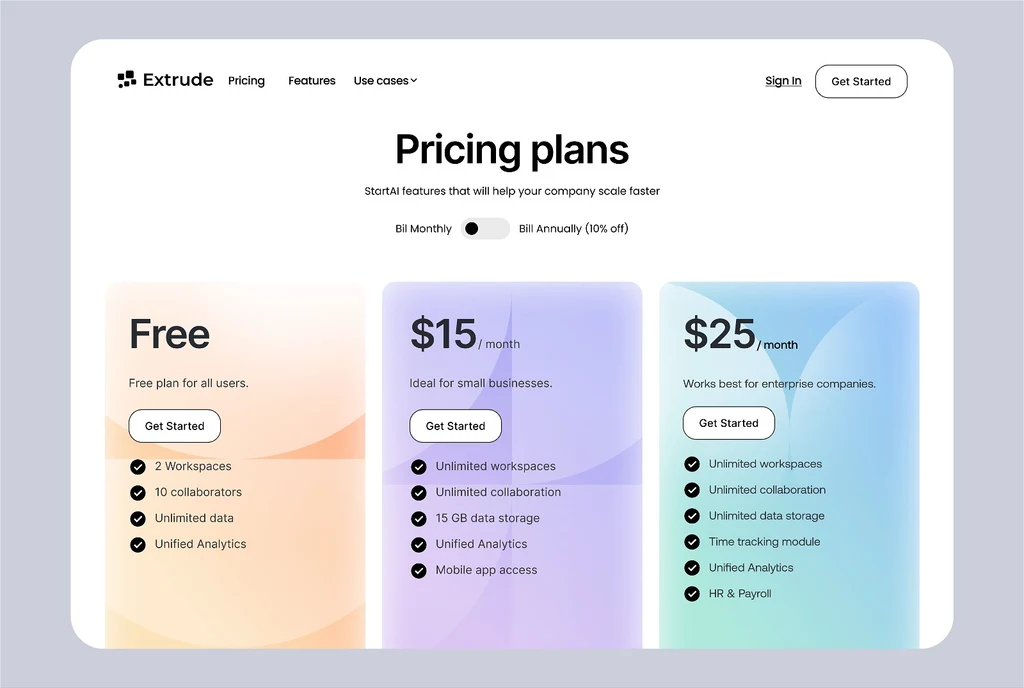
Text read from the image
Extrude
Pricing
Features
Use cases
Sign In
Get Started
Pricing plans
StartAI features that will help your company scale faster
Bill Monthly
Bill Annually (10% off)
Free
Free plan for all users.
Get Started
2 Workspaces
10 collaborators
Unlimited data
Unified Analytics
$15/month
Ideal for small businesses.
Get Started
Unlimited workspaces
Unlimited collaboration
15 GB data storage
Unified Analytics
Mobile app access
$25/month
Works best for enterprise companies.
Get Started
Unlimited workspaces
Unlimited collaboration
Unlimited data storage
Time tracking module
Unified Analytics
HR & PayrollHow it works
Sign in and upload the screenshot
Sign in with Google, then upload a PNG, JPG or WebP file up to 14 MiB. Crop it to the part of the screen you need first. If the text is tiny, capture the screen again at a larger zoom level.
Read the text beside the screenshot
The text appears next to the screenshot in reading order, with one line for each line on the screen and a blank line between separate blocks. It stays in the language it was written in, and nothing is translated or rewritten.
Check names, numbers and addresses
Compare the text with the screenshot, especially names, numbers, prices and email addresses. Small interface text and pale gray text on a white background are the places to check first.
Copy the lines you need
Select Copy all, or copy a single line if you only need part of the screen. You can also download the text as a .txt file. Remove other people's names and contact details before you share it.
Change the screenshot itself, if you want to
The Edit this text in the image and Translate buttons open the same screenshot in the Edit text or Translate tools. They change the image itself and use credits; reading and copying the text does not.
Screenshots that are worth turning into text
A screenshot is a picture, so its words cannot be selected, searched or pasted. Reading the text turns them back into plain text. That helps most when the words have to go somewhere else:
- Error messages and dialog boxes that you want to paste into a bug report or a search.
- Settings pages, menus and instructions that you want to quote in a help article or a note.
- Chat and email threads, when you need the exact wording of a message that you are allowed to use.
- Slides shared on a video call, when the presenter does not send the deck.
- PDF pages. PDFs are not accepted, but a screenshot of one page works.
Capture the screen so the words read cleanly
Letters on a screen can be only a few pixels tall, so how you capture the screen affects the text you get back. These habits help the most:
- Use the original screenshot file. A copy that was shrunk or compressed when it was shared gives the AI less detail to work with.
- Zoom in before you capture, so small interface text is larger in the file.
- Crop to the area with the text, so the image holds only what you want to copy.
- Keep to one screen per image. For a long page, take several screenshots and read them one at a time, because an account reads one image at a time.
Check the text, then respect who it belongs to
Small, blurry, low-contrast or heavily stylized text can be misread or skipped, and interface screenshots often contain small gray captions, timestamps and labels. Compare the text with the screenshot before you rely on it, especially names, numbers, prices and email addresses.
Screenshots also tend to show other people. A chat holds names and messages written by someone else, and a contact page holds phone numbers and email addresses. Copy only what you are allowed to use, and take out personal details before you paste the text into a report, a forum or a shared document. Your screenshot stays in My images, private to your account, until you delete it.
If you want to share the screenshot itself with those details cleared, the Remove text tool can take them out of the image. It changes the image, so it uses credits.
Frequently asked questions
How do I turn a screenshot into text?
Sign in with Google, then upload your screenshot as a PNG, JPG or WebP file up to 14 MiB. The text appears beside the image in reading order. Select Copy all to copy everything, copy a single line, or download the text as a .txt file. Compare it with the screenshot before you use it.
Can I copy text from a chat screenshot?
Yes, if the text is readable. It comes back in reading order, in the language it was written in. Check names and numbers against the screenshot, because they are easy to misread. Remember that the messages and names belong to other people: copy only what you are allowed to use, and remove personal details before you share the text.
Why are some words missing from my screenshot text?
Small, blurry, low-contrast or heavily stylized text can be misread or skipped. Pale gray labels, tiny captions and compressed copies are common causes. Capture the screen again at a larger zoom level, crop to the area you need, and upload the original file instead of a copy that was shrunk when it was shared.
Can I turn a PDF page into text?
PDFs are not accepted, but a screenshot of a PDF page works. Upload that screenshot as a PNG, JPG or WebP file. Use one page per image, and upload them one after another, because an account reads one image at a time. Compare each result with its page before you rely on it.
Does reading a screenshot use credits?
No. Reading the text in a screenshot uses no credits, with or without a plan, though you need to sign in with Google first. Credits are used only when you change the screenshot itself, with the Edit text or Translate tools, which the Edit this text in the image and Translate buttons open.
Is my screenshot private?
Your screenshots stay in My images, private to your account. Opening one again shows its text without reading it again. If a screenshot shows personal details you do not want to keep, copy the text you need and then delete the image from My images.
Try it on your own image
Or drop an image here. PNG, JPG or WebP, up to 14 MiB.
Your image stays on this device until you sign in.
Sign in with Google to upload. Reading the text is free and uses no credits.