Edit text in any image
Upload image- Try it free
- No font to pick
- Your images stay private
No image?Try one of these
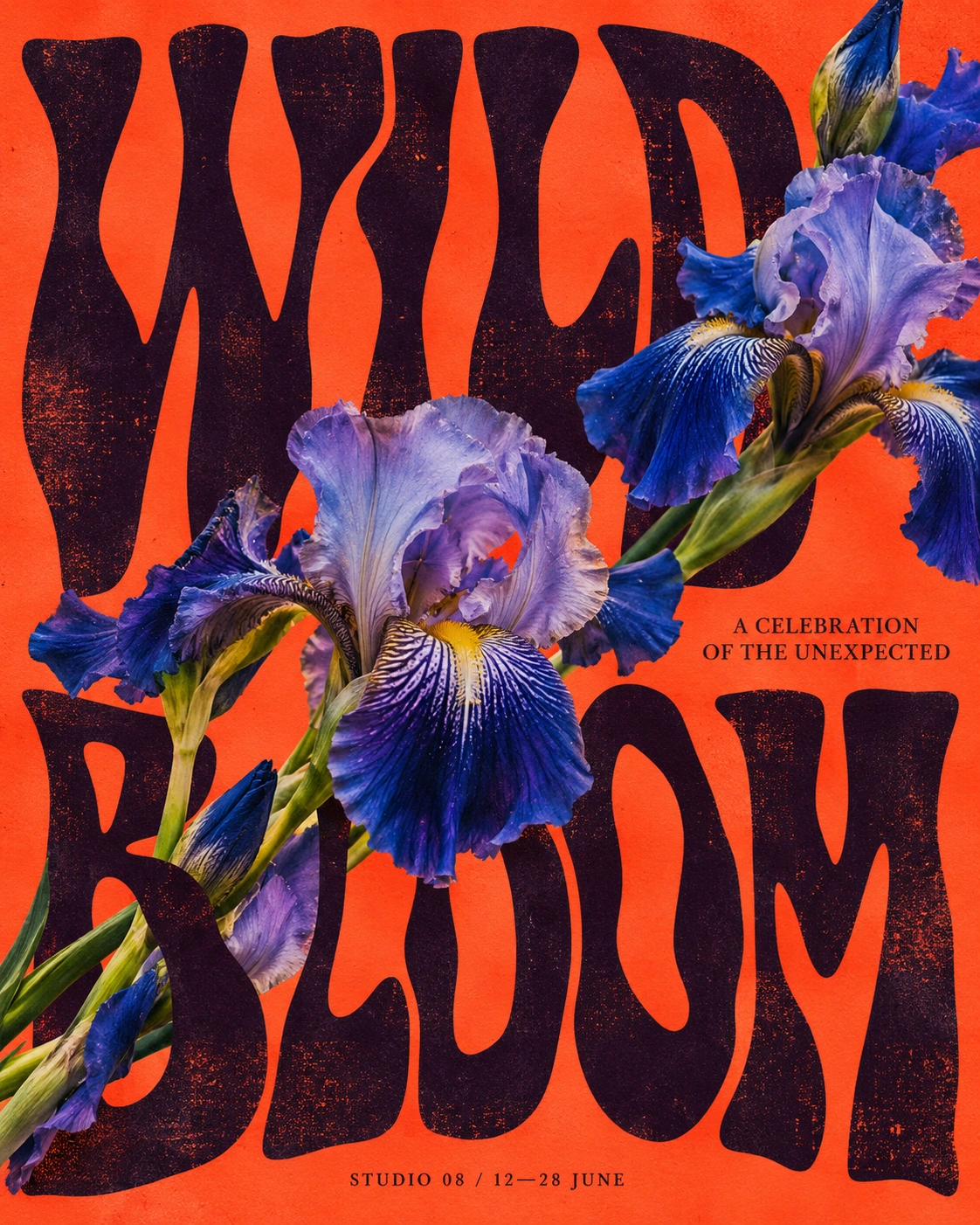
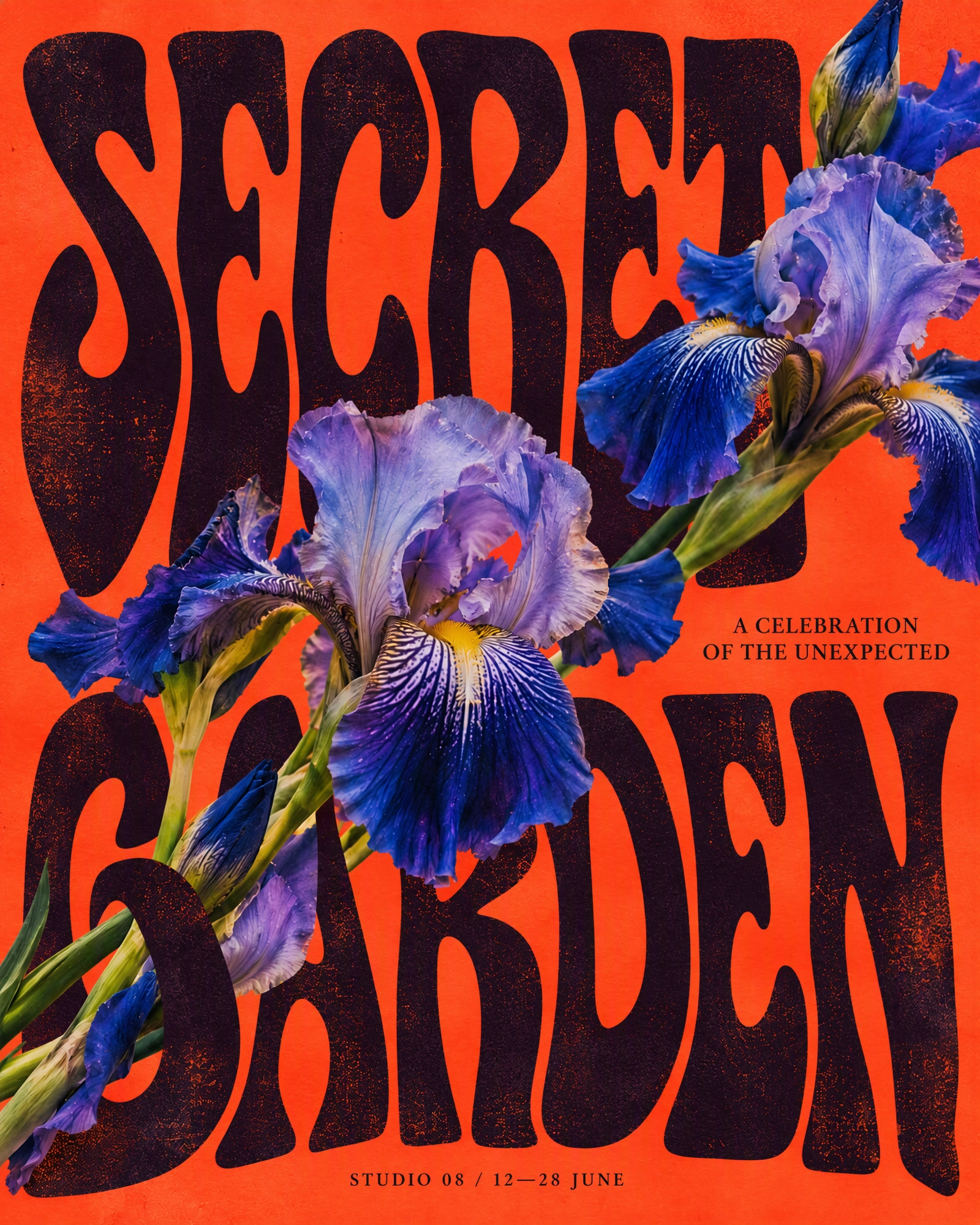 BeforeAfter
See what you can change.
Drag to compare the original and edited image.

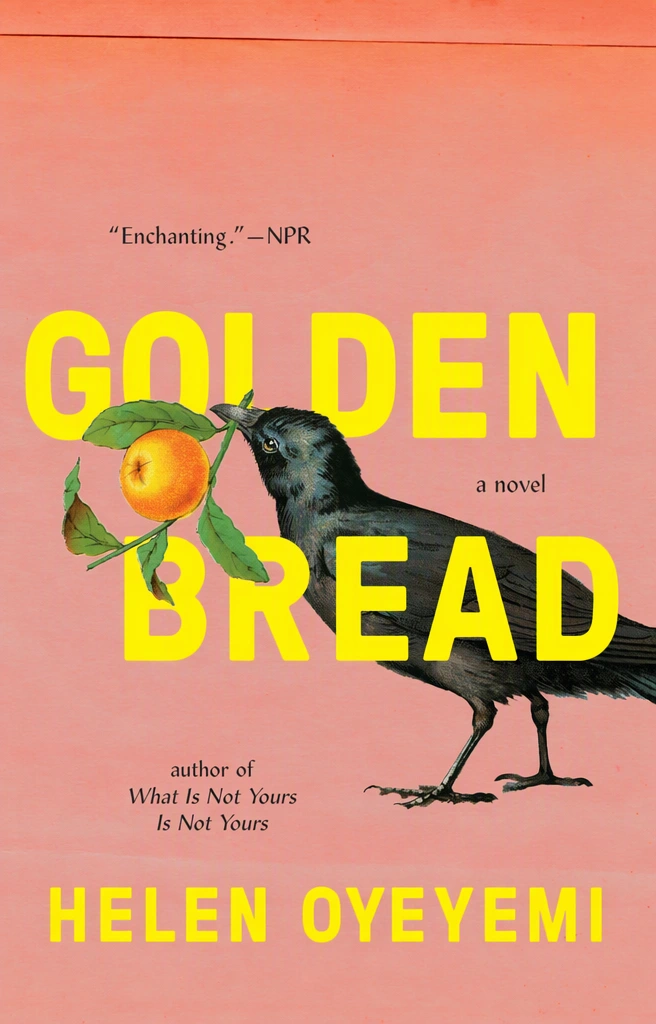
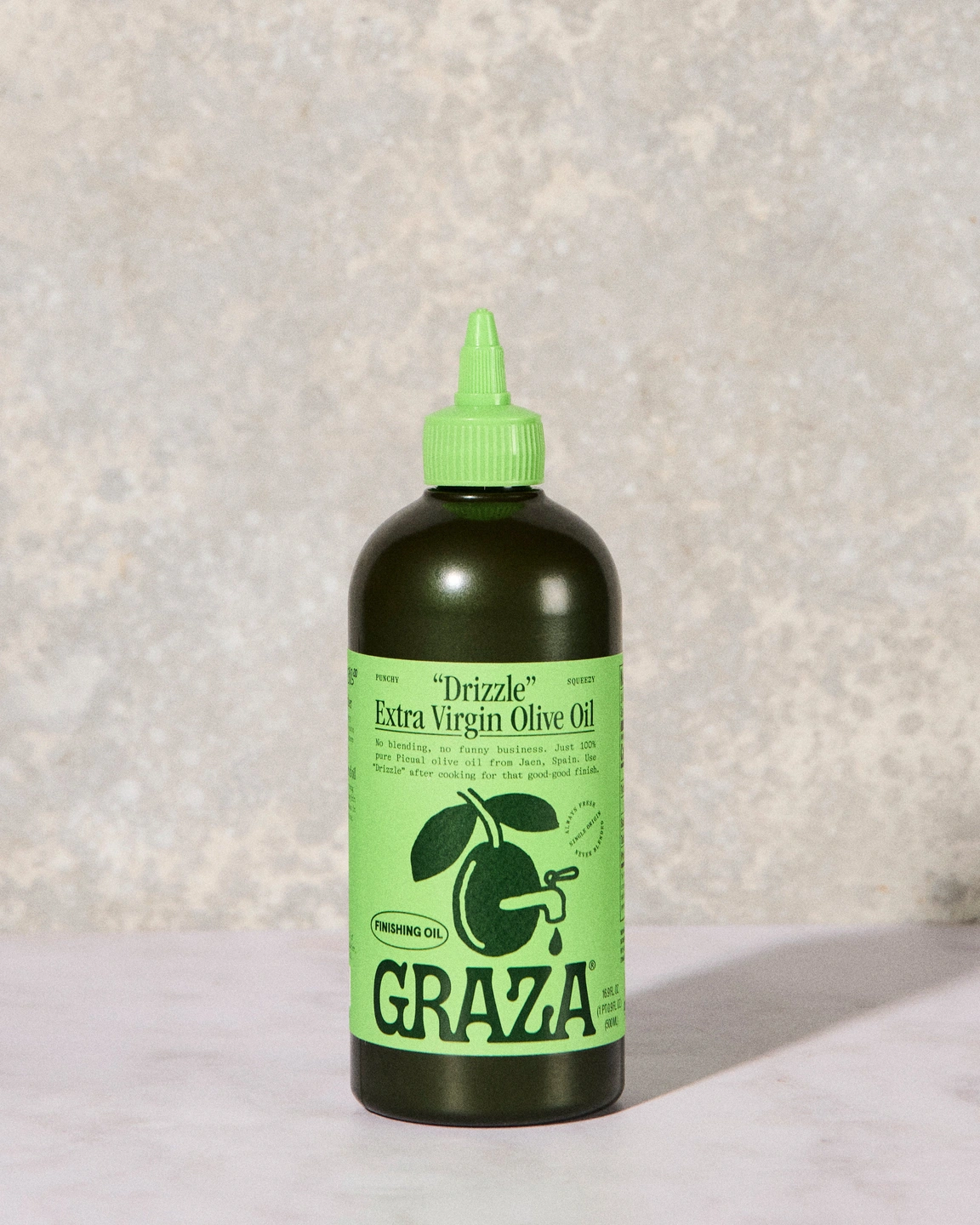
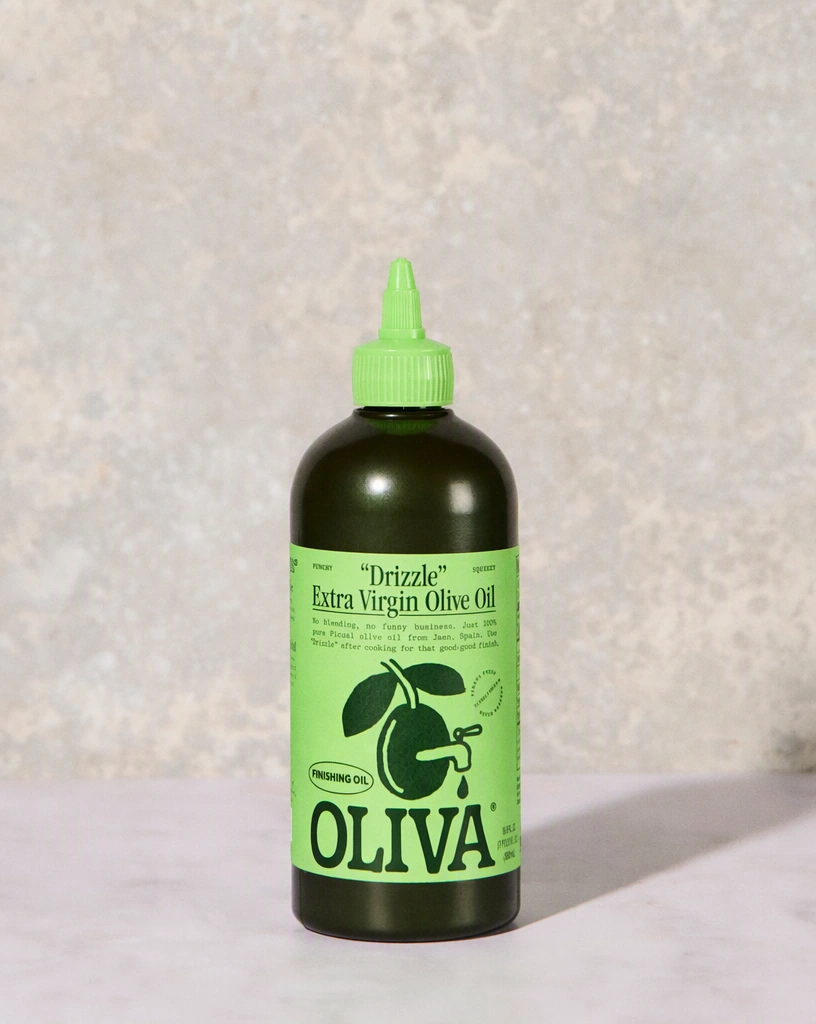
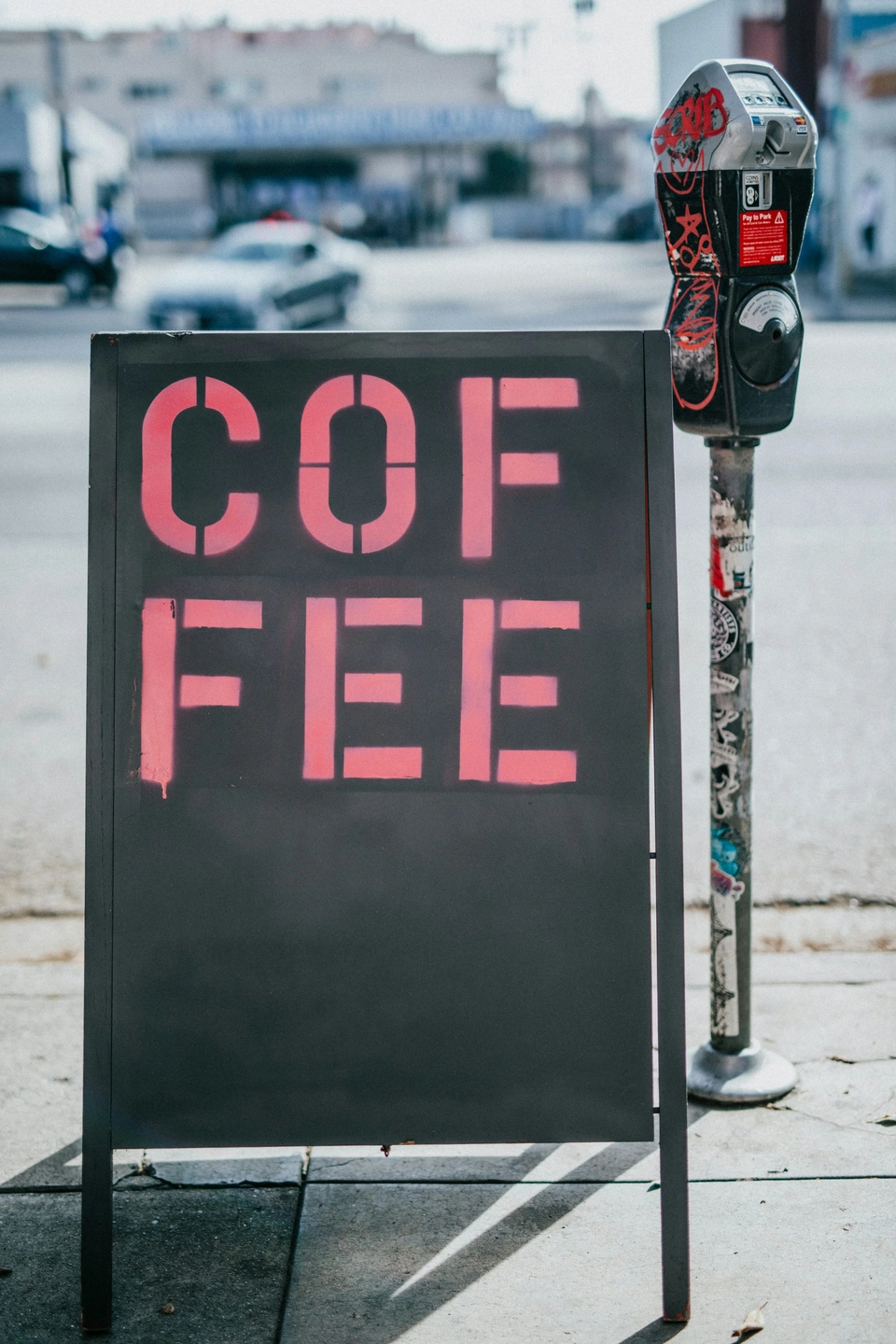


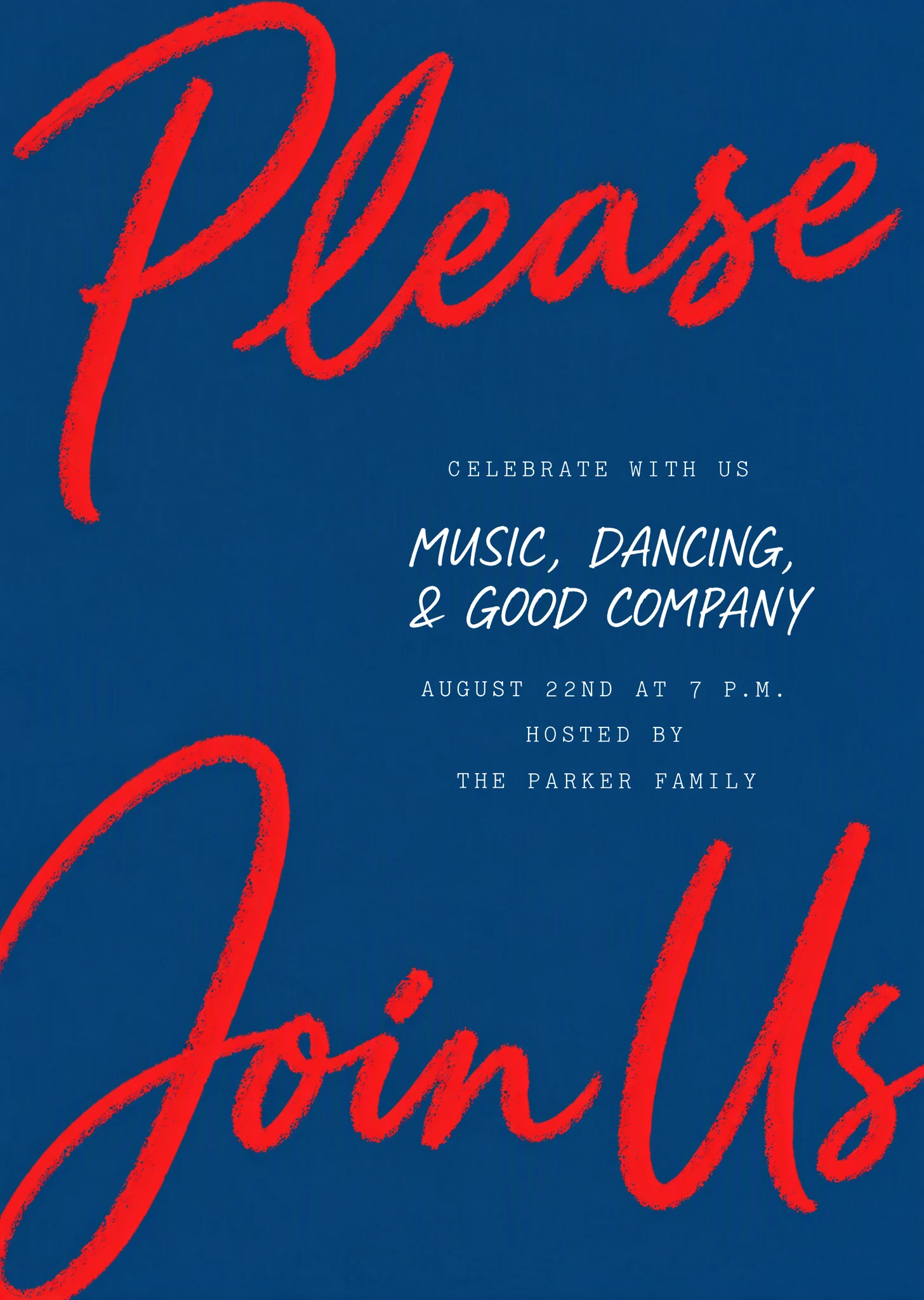
How to edit text in an image
Three steps from upload to a finished image.
Upload your image
Sign in with Google and upload a PNG, JPG or WebP up to 14 MiB. Text detection finds the words automatically; add any line it missed.
Type the new words
Write the replacement beside each line you want to change and leave the rest as they are. Leave a replacement blank to remove that line.
Apply and download
At 1K, apply as a Standard edit for 1 credit, or in High quality for 2 credits when the lettering is detailed; for 2K or 4K, the button shows the total. Compare the result with the original, then download a PNG.
Popular uses
Pick the kind of image you are working with.
Keep the same font
Change the words and keep the original typeface, weight and effects without identifying the font.
Fix text in AI images
Repair garbled or misspelled lettering in images from AI image generators.
Change poster text
Update the date, venue, price or headline on a poster or flyer and keep its design.
Edit product photo text
Change the text on packaging, labels and printed products in your own product photos.
Screenshot editor
Edit the text in screenshots of apps and websites for mockups, documentation and design reviews.
Keep the background
Replace text that sits on photos, textures or objects while everything around it stays untouched.
Other tools
Every tool opens in the same editor. Edits use credits; reading text is free.
Translate text in image
Turn the words in an image into one of 35 languages, written back in a matching style.
Remove text from image
Erase words from a photo or graphic and rebuild the background behind them.
Add text to photo
Write new words into a photo so they look printed, painted or lit on a surface in the scene.
Image to text
Copy the words out of a photo, screenshot or scan as plain text, at no cost.
PDF to text
Copy the text out of a PDF, including scanned pages, as plain text, at no cost.
Image to Excel
Read a table from a photo, screenshot or scan and download it as a spreadsheet, at no cost.
Image to Word
Turn the text in a photo, screenshot or scan into a Word document, at no cost.
Alt text generator
Get a short and a long alt text for any image, in 35 languages, at no cost.
Frequently asked questions
How do I edit text in an image?
Upload an image, change the detected text, then select Apply changes.
Will the new text match the original style?
Your image guides the lettering, size, color, and texture of the replacement. Matching happens automatically, so there is no font to identify or select. Results can vary, especially with unusual lettering or detailed backgrounds.
Can I change just one word?
Yes. Change only the replacement you want and leave the other entries as they are. If a word was missed or read incorrectly, correct the Original entry or use Add text to enter the words yourself.
How do I remove text?
Leave the Replacement field blank for the words you want to remove, then select Apply changes. The surrounding image guides how the area is filled.
What is the difference between Standard and High quality?
Standard is the faster option for everyday edits. Choose High quality for more complex lettering and finer details. Results can vary with either option, so check the finished image.
Which files can I upload and download?
Upload a PNG, JPG, or WebP image up to 14 MiB. Your edited image downloads as a PNG, and your original remains saved in My images.