Add text to a photo
Upload image- Try it free
- Text that fits the scene
- Your images stay private
No image?Try one of these
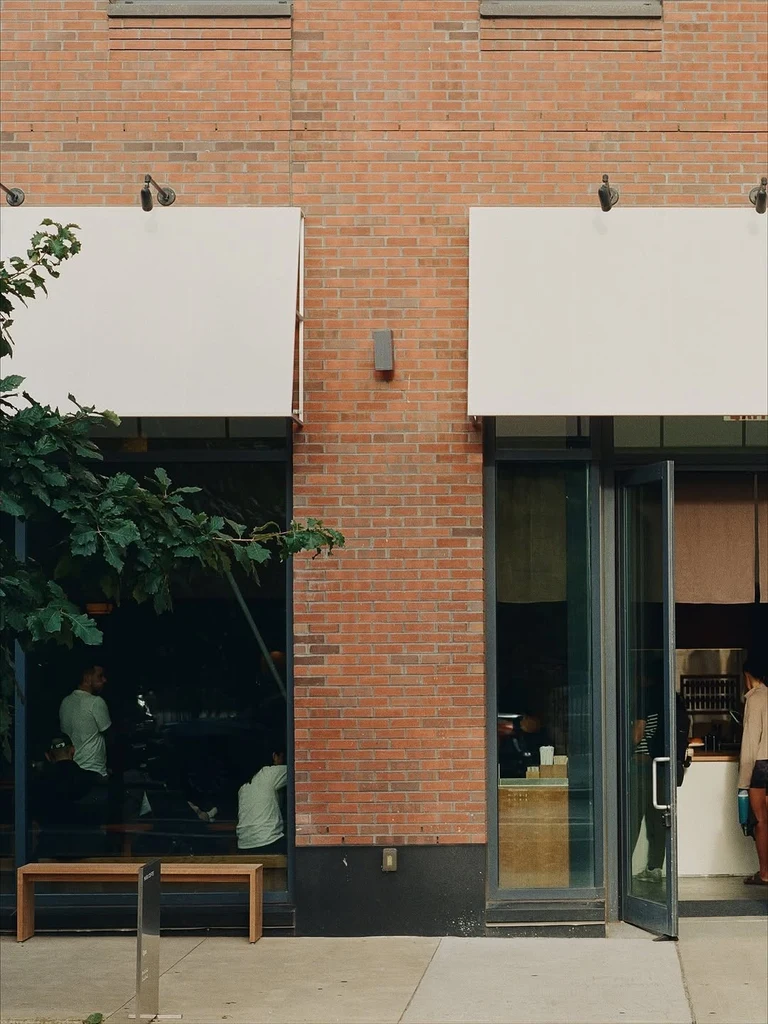
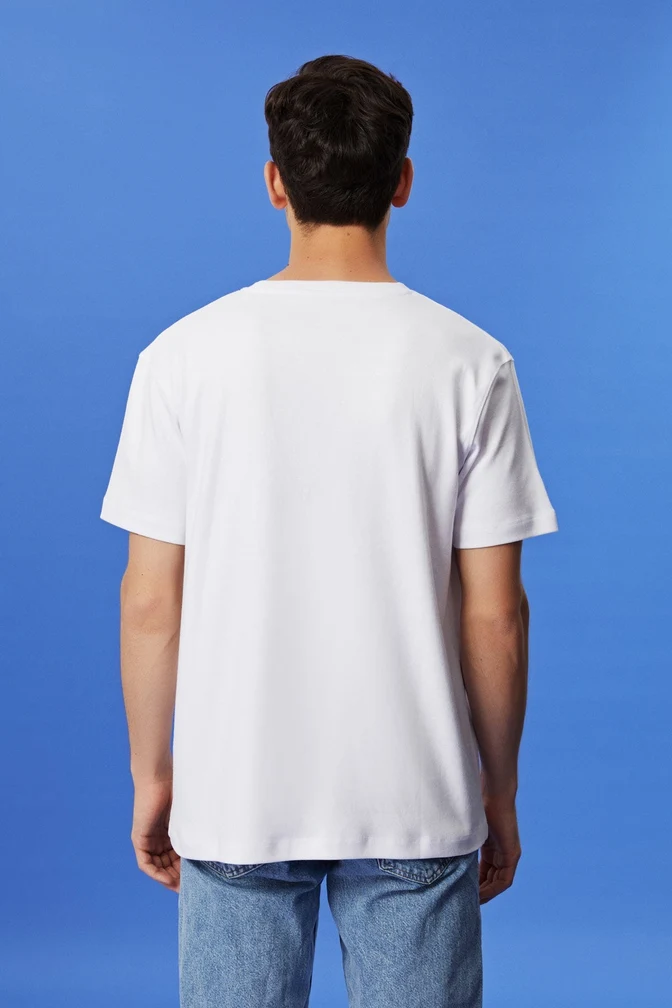
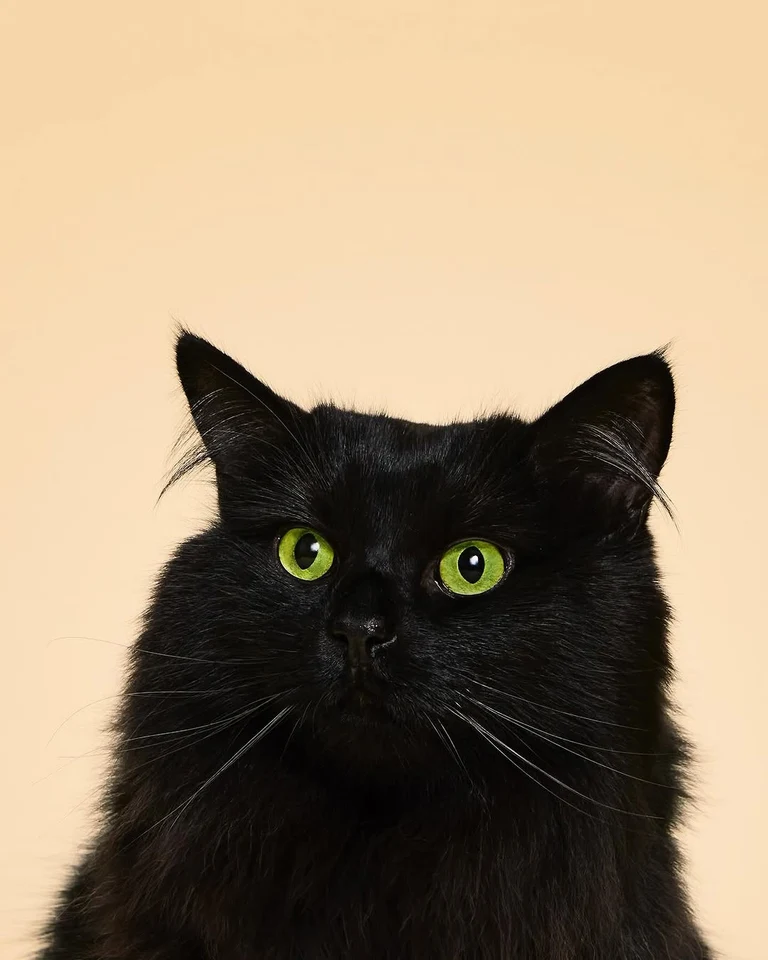
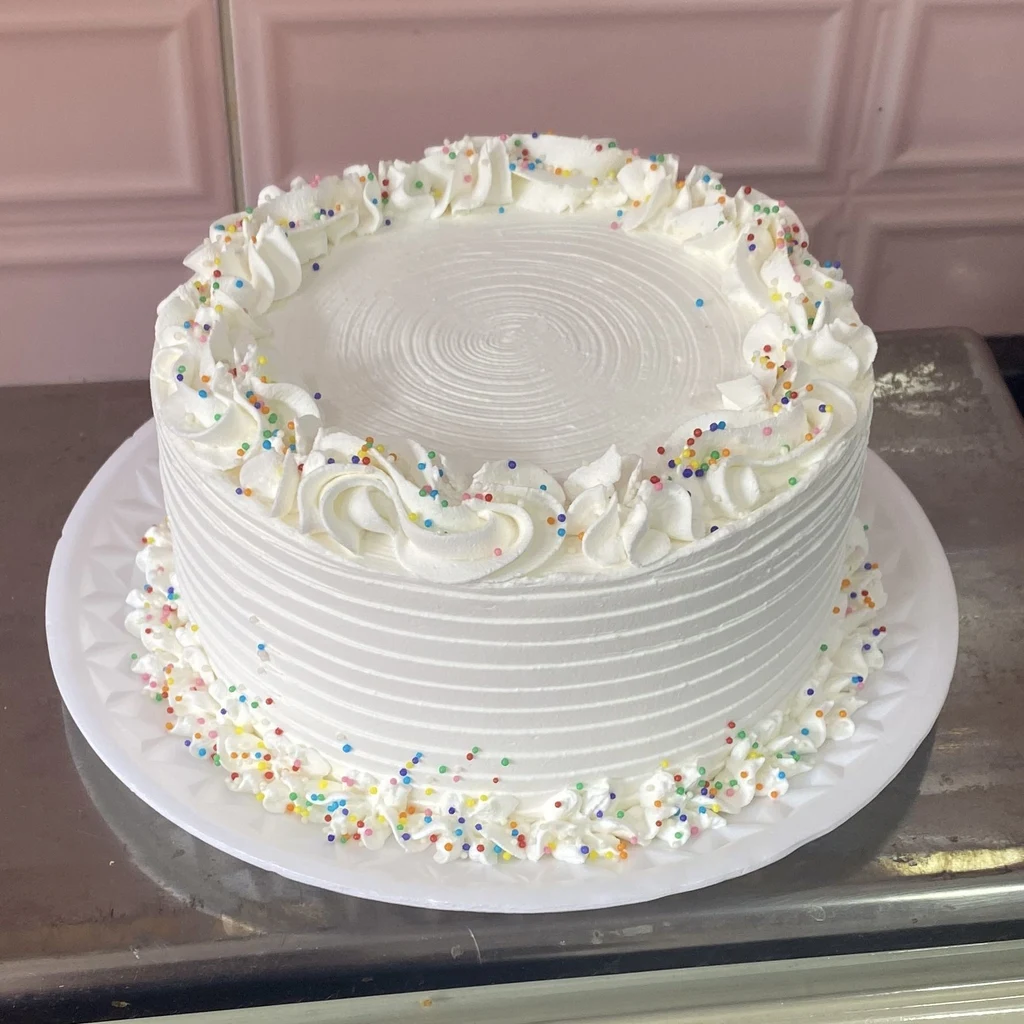
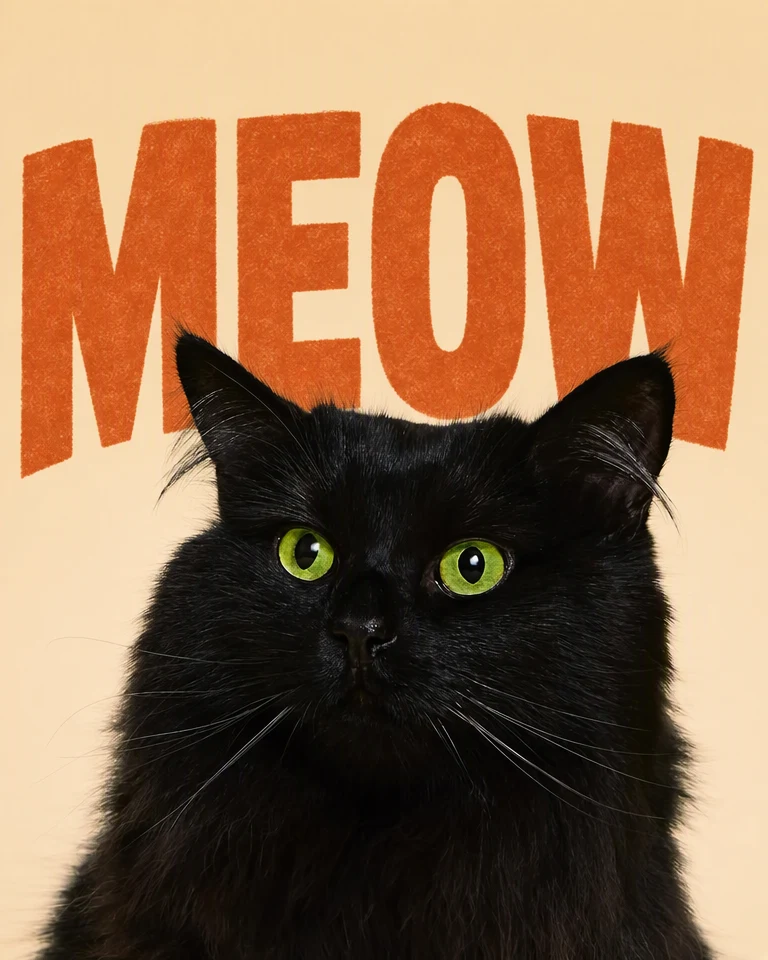 BeforeAfter
See what you can add.
Drag to compare the original and edited image.
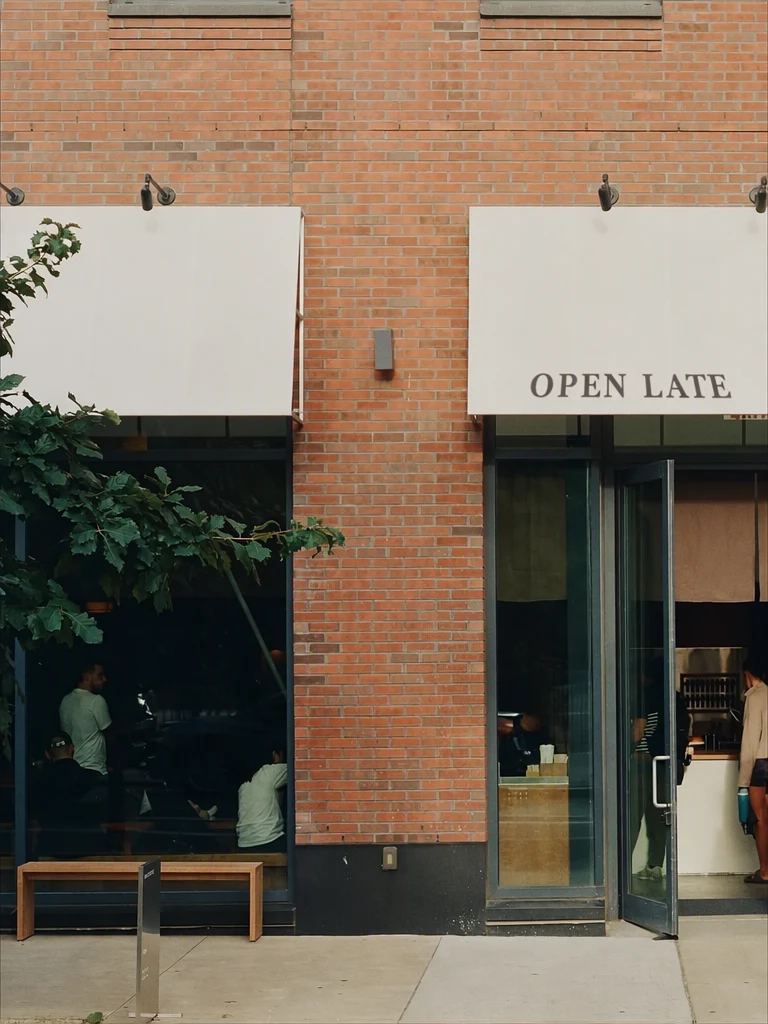
Printed on the awning: the words follow the canvas, its slope and its shade.
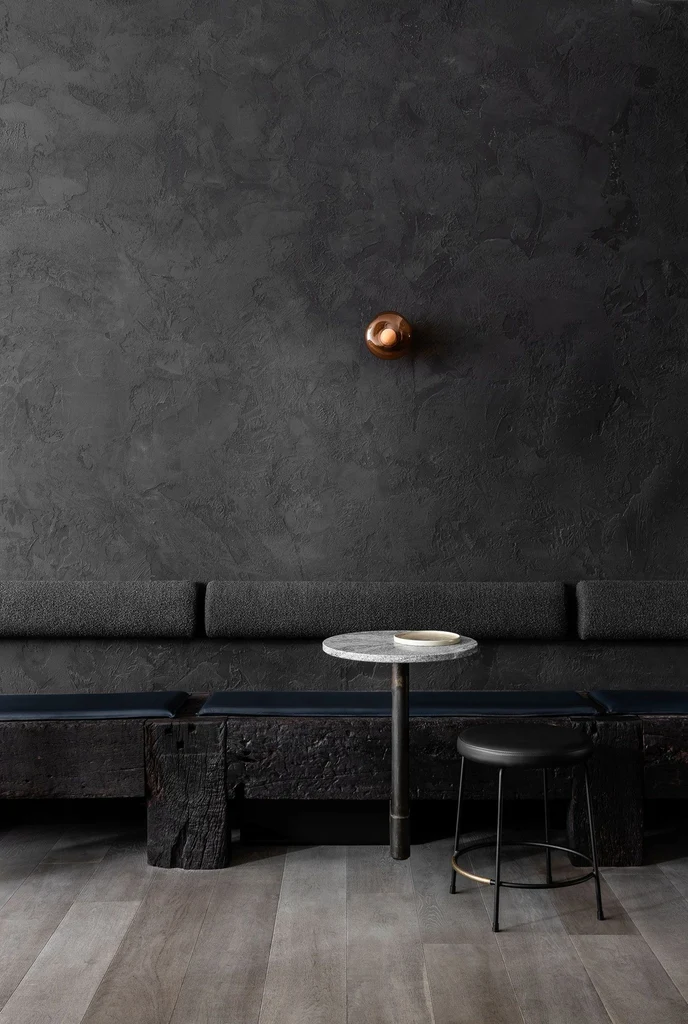

A neon sign that lights up the wall and the seats around it.
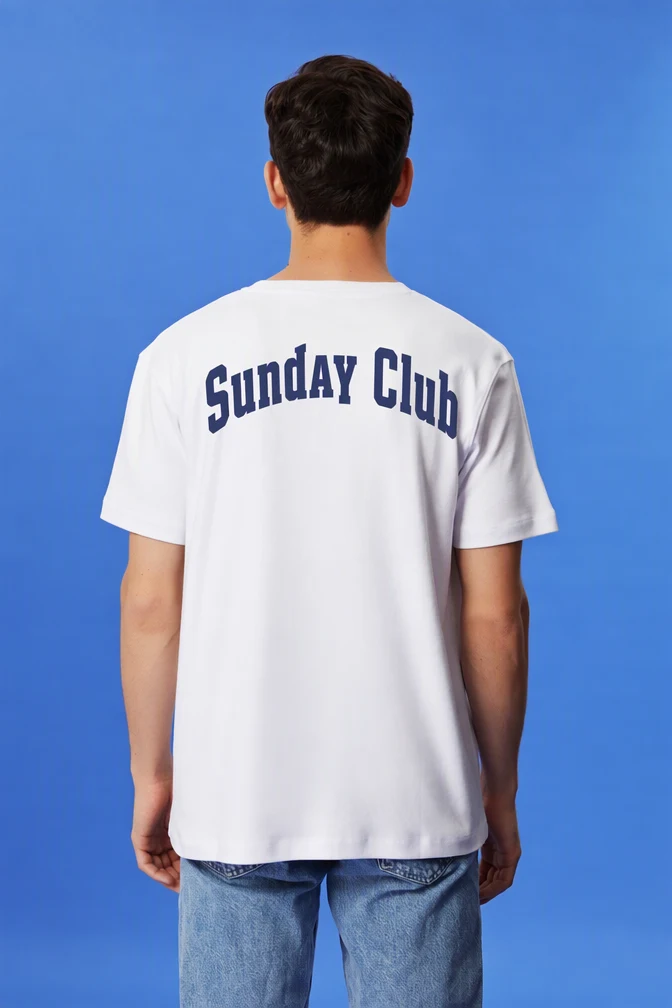
Screen-printed on a shirt: the letters bend with the folds of the fabric.
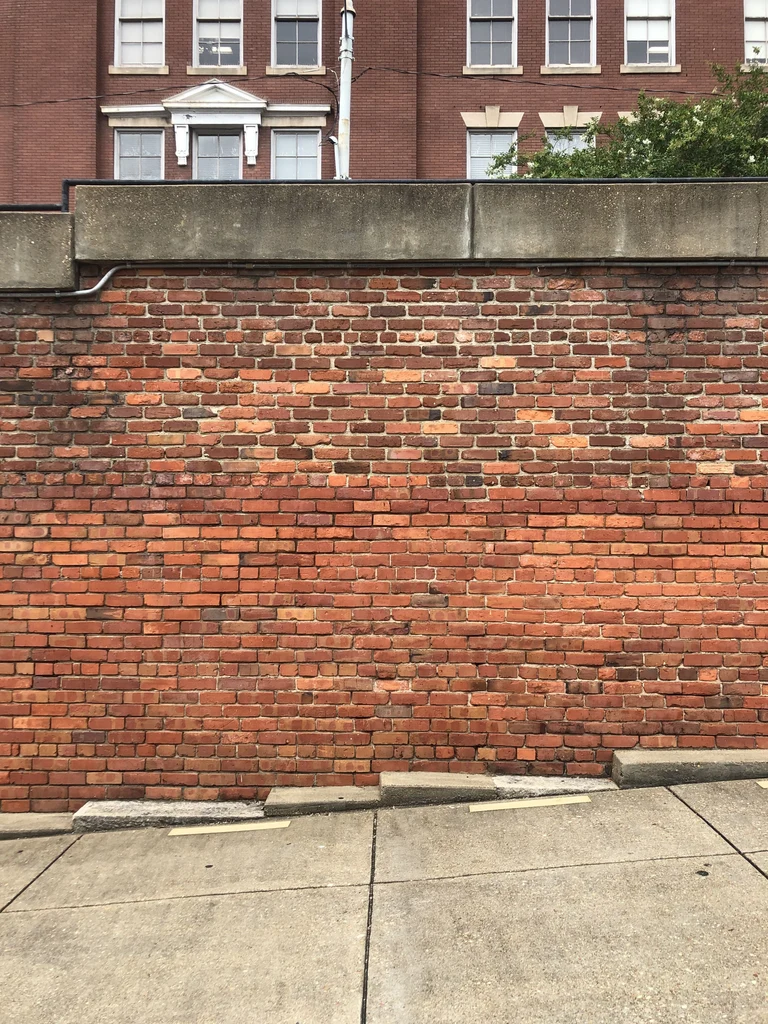
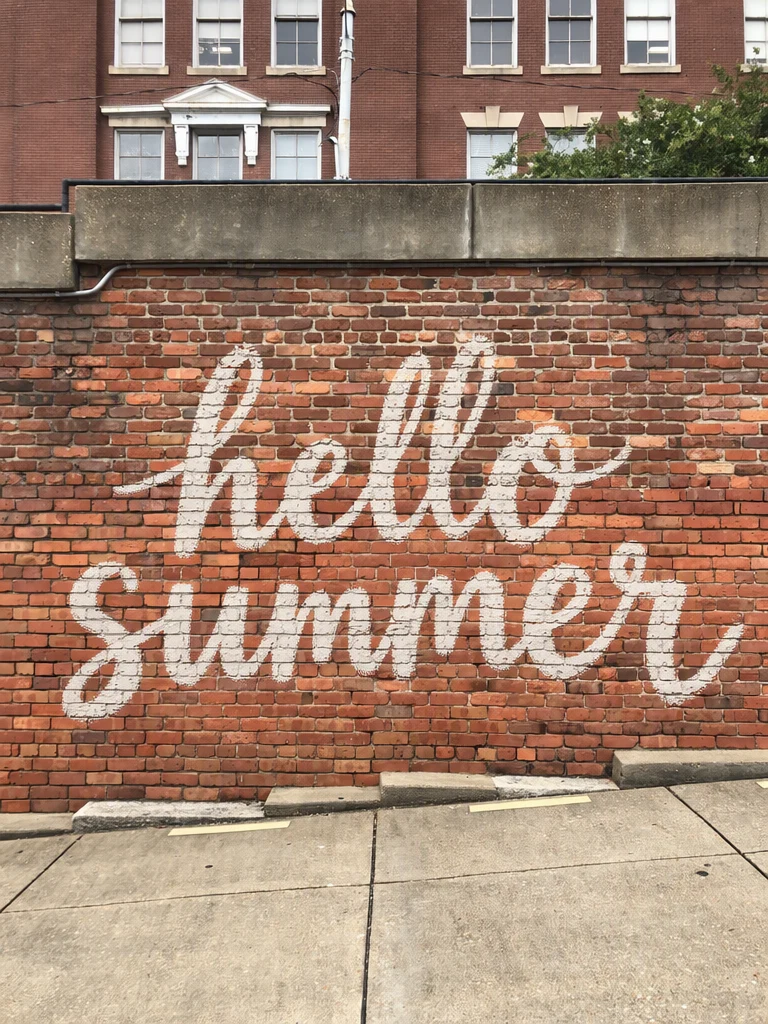
Painted on brick: the mortar lines show through the paint.
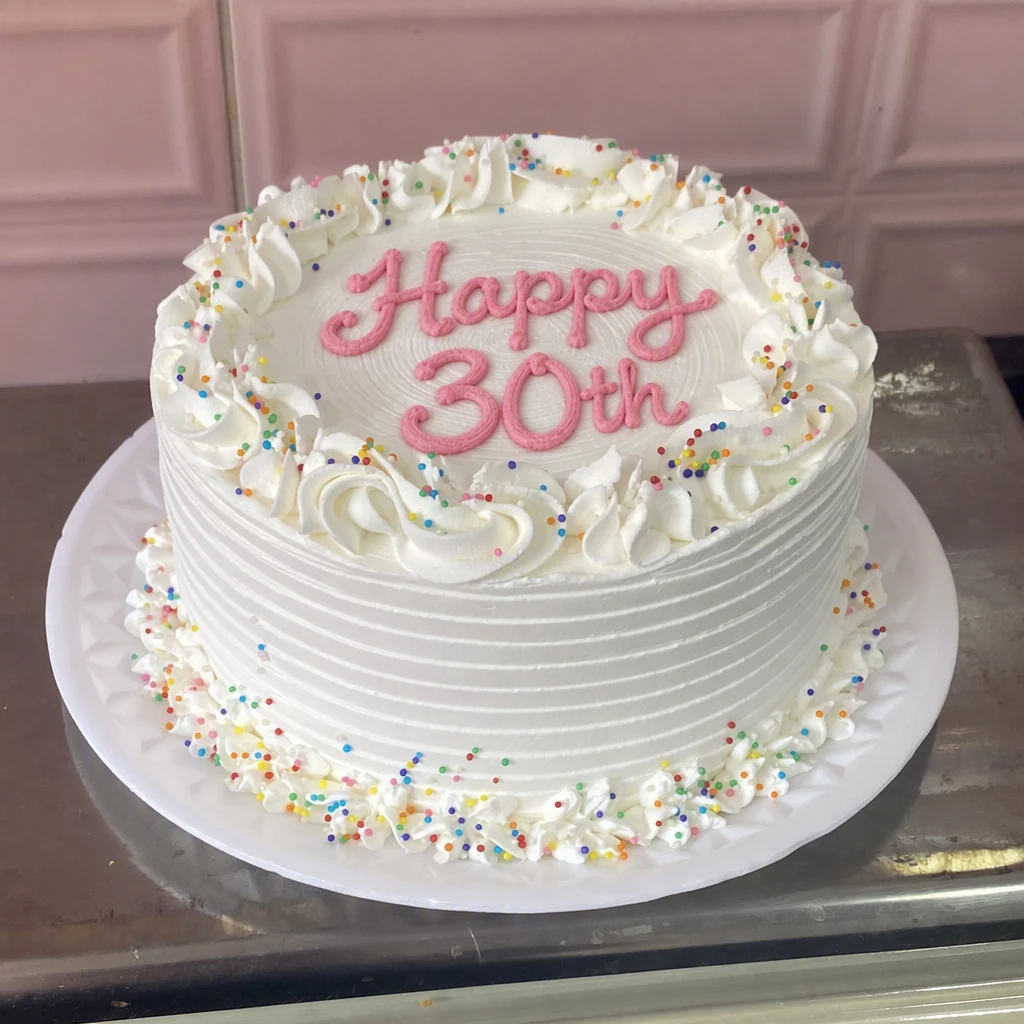
Piped in icing on top of the cake, following its shape.
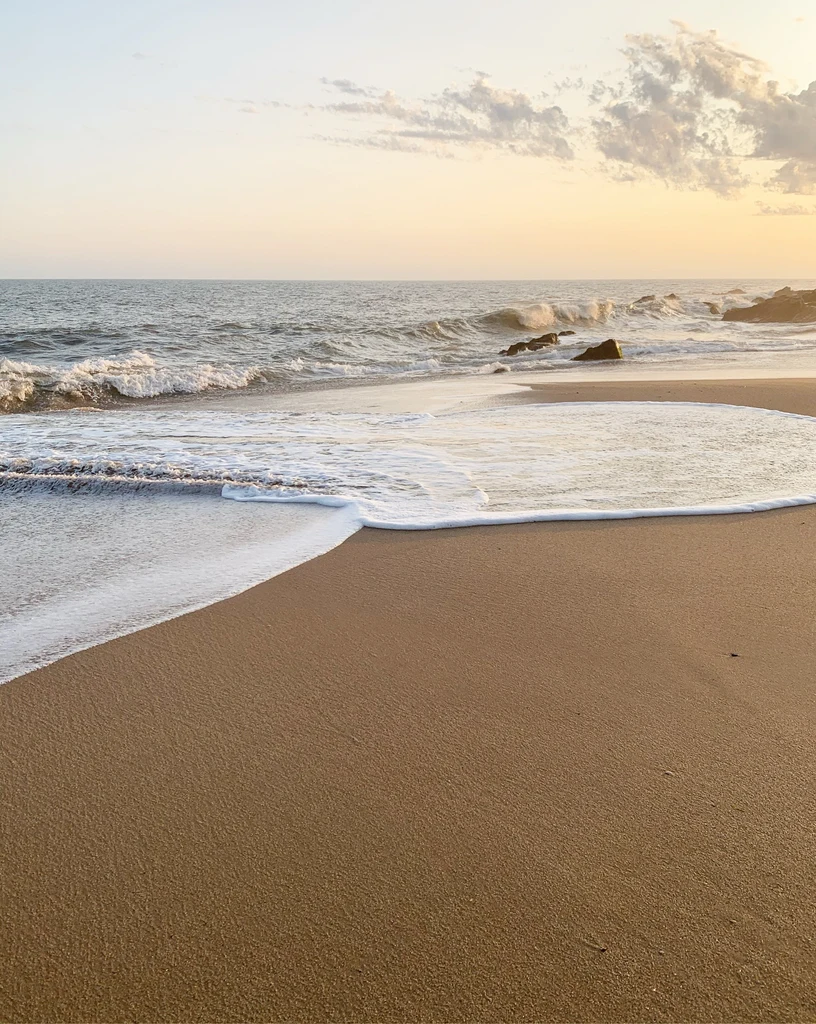
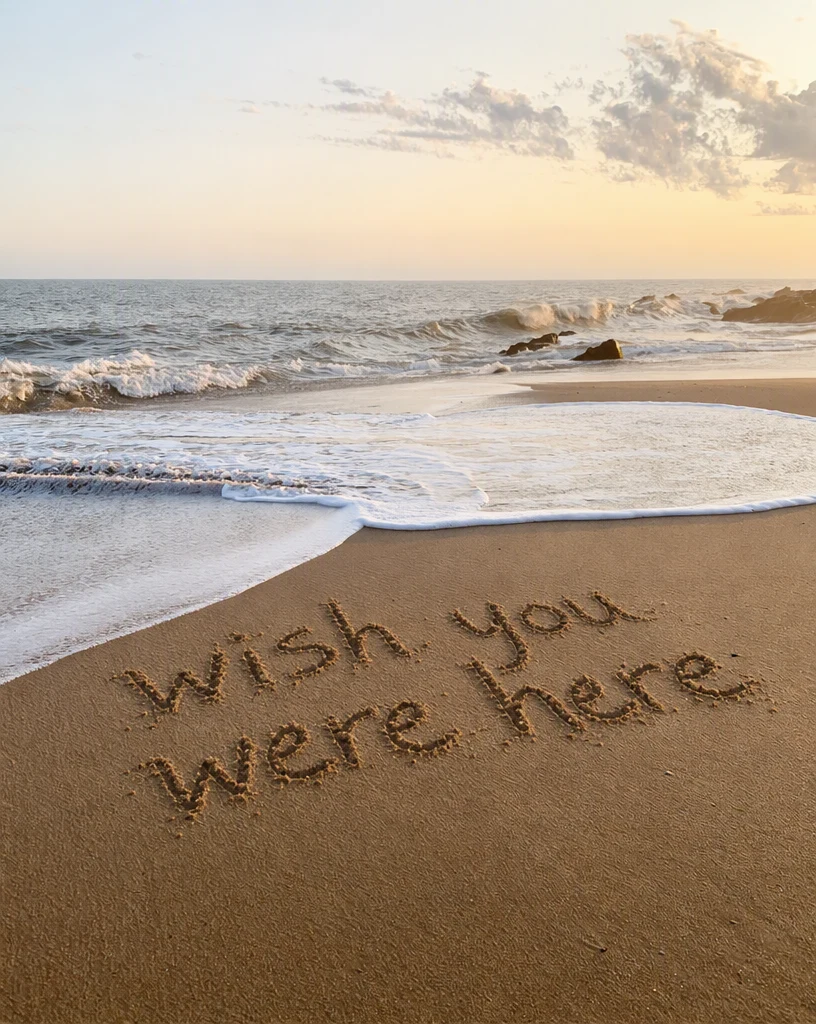
Written in the sand, with the grooves catching the evening light.
How to add text to a photo
Three steps from a plain photo to words that look as if they were always there.
Upload your photo
Sign in with Google and upload a PNG, JPG or WebP up to 14 MiB: a storefront, a wall, a shirt, a cake or a portrait with space behind the subject.
Type the words and the place
Type the words, then say where they go, such as on the blank awning or behind the cat. Describe a look if you have one in mind, such as white brush script or pink neon.
Add and download
At 1K, run a Standard edit for 1 credit, or High quality for 2 credits when the lettering is detailed; for 2K or 4K, the button shows the total. Compare, then download a PNG; your original stays saved in My images.
Other tools
Every tool opens in the same editor. Edits use credits; reading text is free.
Edit text in image
Change the words in a photo, poster or screenshot while the new text follows the original lettering.
Translate text in image
Turn the words in an image into one of 35 languages, written back in a matching style.
Remove text from image
Erase words from a photo or graphic and rebuild the background behind them.
Image to text
Copy the words out of a photo, screenshot or scan as plain text, at no cost.
PDF to text
Copy the text out of a PDF, including scanned pages, as plain text, at no cost.
Frequently asked questions
How do I add text to a photo?
Sign in with Google, upload the photo and open it in Add text. Type the words, then say where they go in plain words, such as on the blank sign or behind the person, and describe a look if you have one in mind. Choose Standard or High quality, add the text, and compare the result with your original before you download it.
Can I put text behind a person or an object?
Yes. Say so in the place, for example behind the cat or behind the mountain, and the words are drawn in the background with the subject in front of them. This works best when the subject has a clear outline against a simple background, such as a sky, a wall or a studio backdrop. Check the edges around hair and fur before you use the result.
Will the text look like part of the photo?
That is the aim. The words are drawn into the scene rather than pasted on top, so they follow the surface, its angle, its light and its texture: a sign looks printed, paint follows the bricks and neon glows. Results can vary, so check every letter before you download. Use it on photos and designs you have the right to change, never to fake what a photo shows.
How much does it cost to add text?
Adding text is a normal edit: 1 credit for Standard or 2 credits for High quality at 1K. With a plan, a 2K edit uses 2 credits or 5 credits and a 4K edit 3 credits or 7 credits. Every account includes one free Standard edit with a watermark. Plans cost $9, $29 or $49 a month for 10, 35 or 60 credits, so you can choose how many images you edit each month.
Can I choose the font and color?
Describe the look in your own words, such as white brush script, navy varsity letters or pink neon, and the text is drawn in that style. You cannot choose an exact font file. When you leave the look empty, a style that suits the place is chosen for you. High quality suits detailed lettering and busy scenes, where more of the picture has to match.
Which files can I upload, and are they private?
Upload a PNG, JPG or WebP image up to 14 MiB after signing in with Google; the result downloads as a PNG. Your images are private to your account. My images keeps each original together with its result, so you can come back to them, compare them or download them again later.