Fix a typo in an image
When you notice a misspelled word, a missing letter or a wrong number after a graphic is exported, you do not need the design file to correct it. This page is for designers, social media managers and event organizers who want to fix a typo in an image by changing only that line and leaving the layout as it is.
Or drop an image here. PNG, JPG or WebP, up to 14 MiB.
Your image stays on this device until you sign in.
Sign in with Google to upload. Your first Standard edit is free and includes a watermark.
Examples


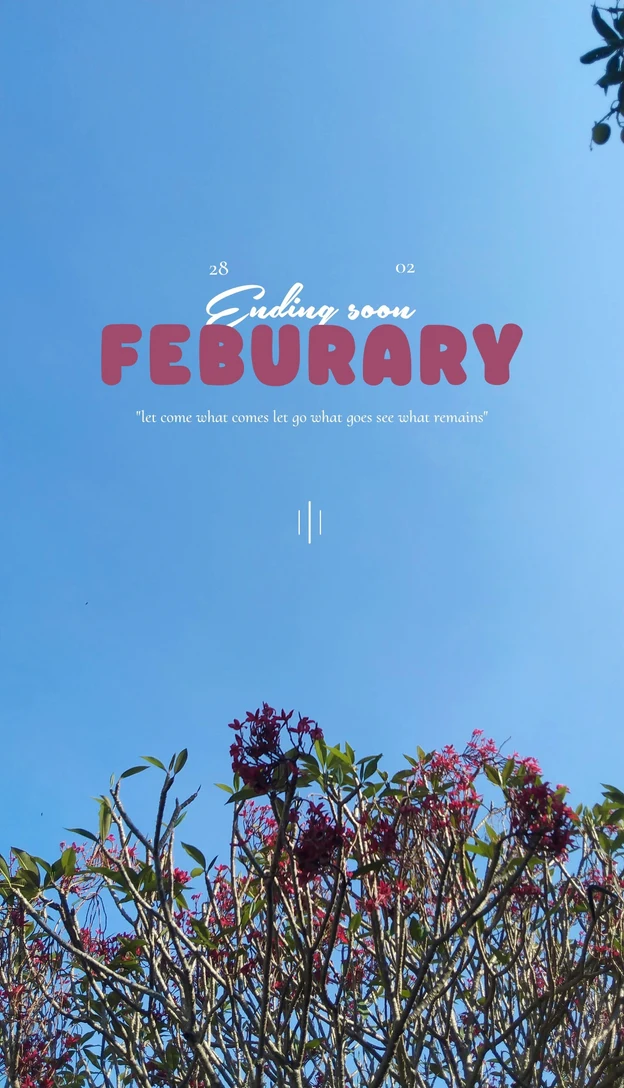
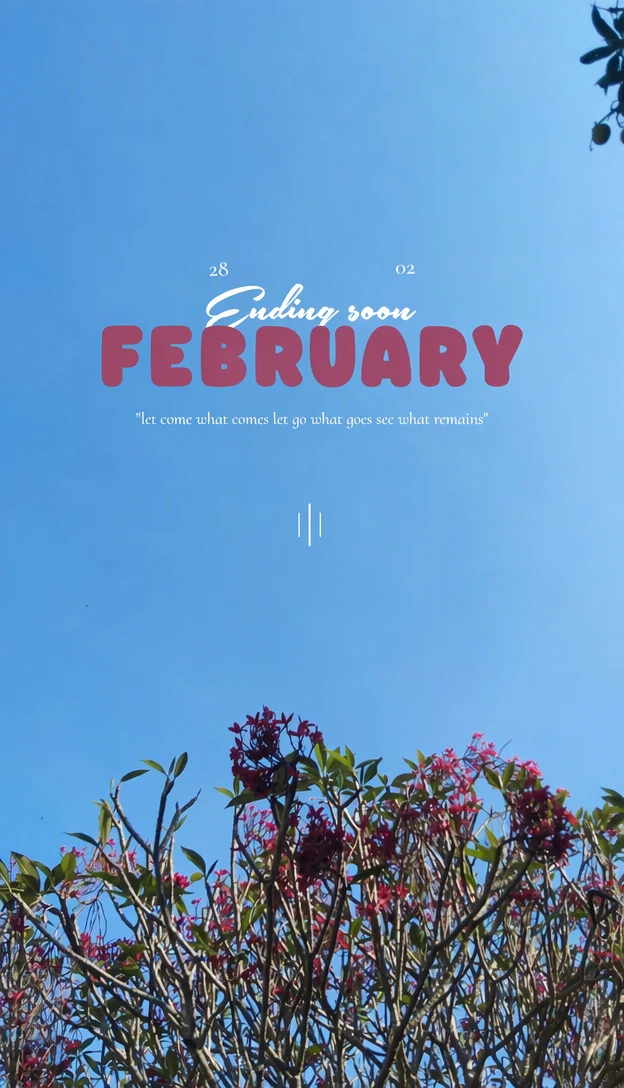
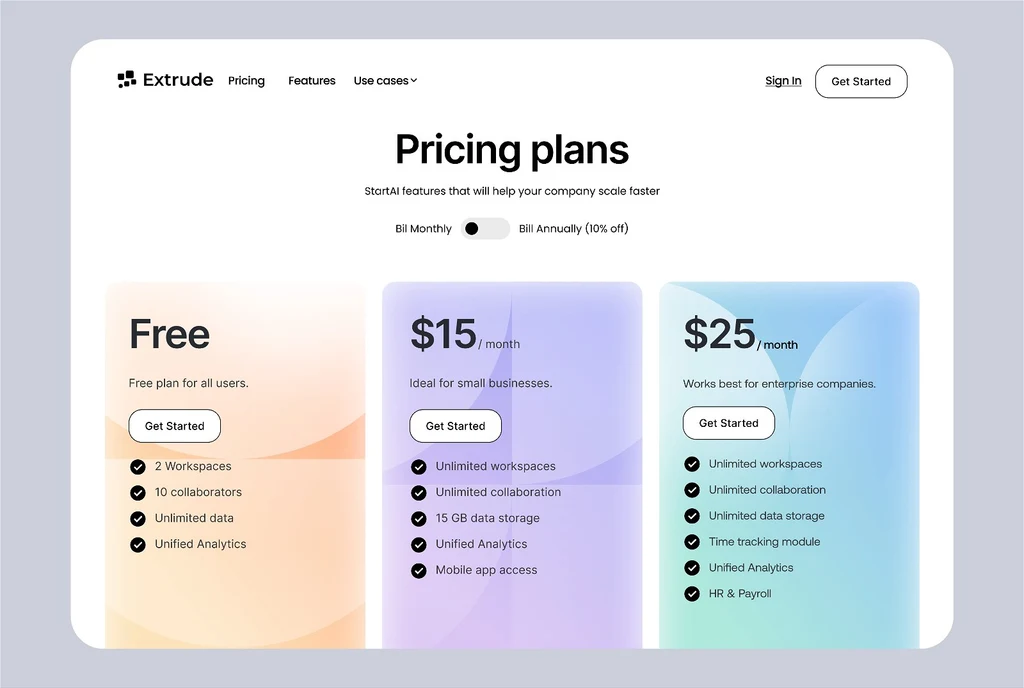
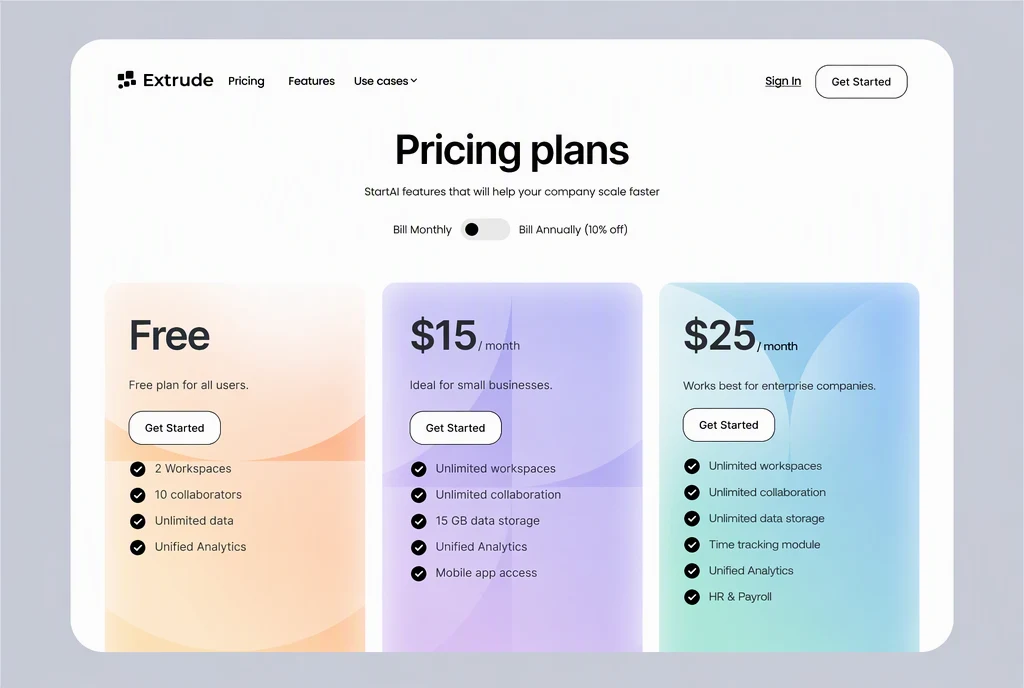
How it works
Upload the finished graphic
Upload the exact PNG, JPG or WebP file you were about to share, up to 14 MiB, or paste the image from your clipboard.
Find the entry with the mistake
Locate the Original entry for the line with the typo. It should show the line exactly as the image does, mistake included. If detection read it differently, correct the entry first.
Correct only the wrong letters
In that line's Replacement field, fix the misspelled word and keep the rest of the line exactly as it reads now, including capitals, spacing and punctuation.
Leave correct lines exactly as they are
Don't retype lines that are already right. Even a different apostrophe or an extra space makes a line count as changed, and every changed line is redrawn.
Proofread, apply and compare
Read the corrected line once more, then select Apply changes. Use the comparison slider to confirm that only the typo changed, and download the PNG.
One mistake, one changed line
To fix a typo in an image that may already be approved, touch as little as possible. Each changed line is redrawn, and an icon, a divider line or a price sitting right next to it can shift with it. Correcting a single line leaves the other headings, prices and icons out of the edit.
Detected text is listed line by line, not word by word. A phrase that wraps onto a second line, or a hyphenated word split across two lines, can appear as two entries; if it does, correct the part in each. If the same misspelling appears in two places, such as a headline and a footer, each place has its own entry and needs its own correction. One edit can include both.
Typos that change the length of a line
Swapping one wrong letter for another keeps the line the same length, which is the simplest case. Other typos make the corrected line longer or shorter. Those need a closer look afterward, including whether the line still aligns with the text around it:
- A missing letter or word makes the line longer, so the letters may sit a little tighter to fit the same space.
- A doubled word, such as "the the", makes it shorter, and the background around the gap guides how it is filled.
- A number with more or fewer digits, such as a time or a phone number on your own flyer, changes the width too.
Proofread before you apply
Each attempt uses credits, and a mistake in the Replacement field will appear in the image. Before you select Apply changes, check the Replacement field for these:
- Spelling copied from the approved text, not typed from memory.
- Autocorrect on your device, which can swap in a different word while you type.
- Apostrophes, hyphens and quotation marks in the same style as the rest of the design.
- Characters that look alike, such as 0 and O or 5 and S, in times, prices and phone numbers.
- Accented letters in names and places, such as é or ñ.
Small print and the final check
Typos are easy to miss in the smallest text: a footer, a caption or the fine print under a price. Small lines can also be missed or misread by detection. If the line with the typo is missing from the list, add it with Add text: the Original is the line as it appears in the image, with the error, and the Replacement is the corrected line.
After applying, compare the corrected word with the words beside it. If it looks heavier, lighter or differently spaced, make sure the Original entry was an exact match for the image, then try again with High quality. View the PNG at full size before the graphic goes to print or back online, since small differences are easier to see there.
Frequently asked questions
Why does the Original entry already show the correct spelling?
Detection can read a misspelled word as the word it was meant to be. When that happens, the Original and the Replacement match, so there is nothing for the editor to change. Edit the Original entry so it matches the image exactly, typo included, and put the correct spelling in the Replacement field. Then select Apply changes as usual.
Is Standard enough for a one-letter fix?
A small correction in plain type is the kind of everyday edit Standard (1 credit) is for, and it is the faster option. Switch to High quality (2 credits) if the typo sits in script or decorative lettering, in very small text, or in letters with fine detail such as thin serifs. Results can vary with either, so compare the corrected line closely. Paid plans can also edit in 2K or 4K, where Standard uses 2 or 3 credits and High quality 5 or 7.
Can I fix a misspelled name on my own design?
Yes. A speaker's name on an event graphic or a team member's name on a social post is corrected like any other word. Copy the correct spelling from the person or from an approved source, and check accents, capitals and hyphens, since names are easy to get almost right. This applies to your own designs, not to documents or records.
I found a second typo after applying. What should I do?
Start from the original file rather than the corrected copy: upload it again and correct both lines in the same edit. One edit can change several lines for the same credits, and the image goes through one edit instead of two, which leaves fewer chances for nearby details to shift. Check the first correction again in the new result.
Do I need a paid plan to fix one typo?
To use the corrected graphic without a watermark, yes. After you sign in with Google, your account includes one free Standard edit, and that result carries an EditText watermark, which is enough to see how the fix looks. Paid plans let subscribers remove the watermark. The smallest plan is $9 a month for 10 credits and renews monthly until canceled.
Try it on your own image
Or drop an image here. PNG, JPG or WebP, up to 14 MiB.
Your image stays on this device until you sign in.
Sign in with Google to upload. Your first Standard edit is free and includes a watermark.