Fix text in an AI-generated image
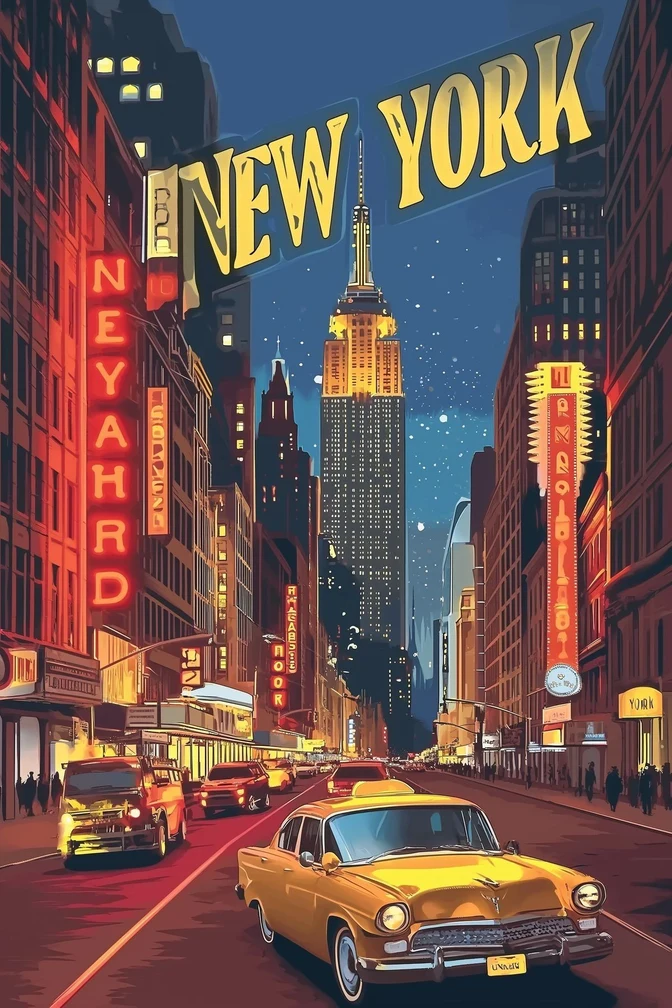
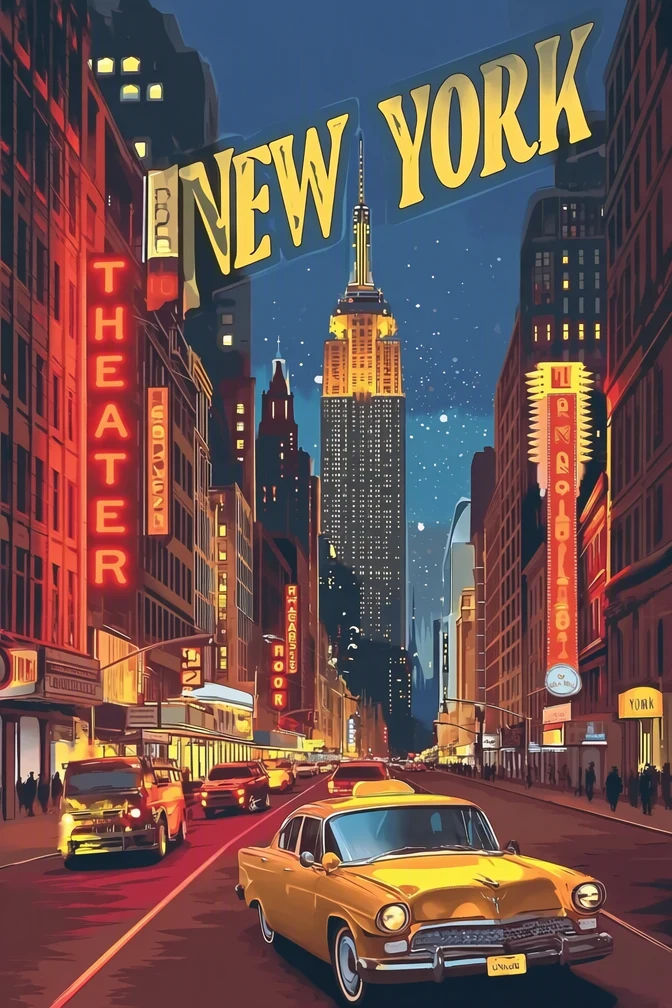
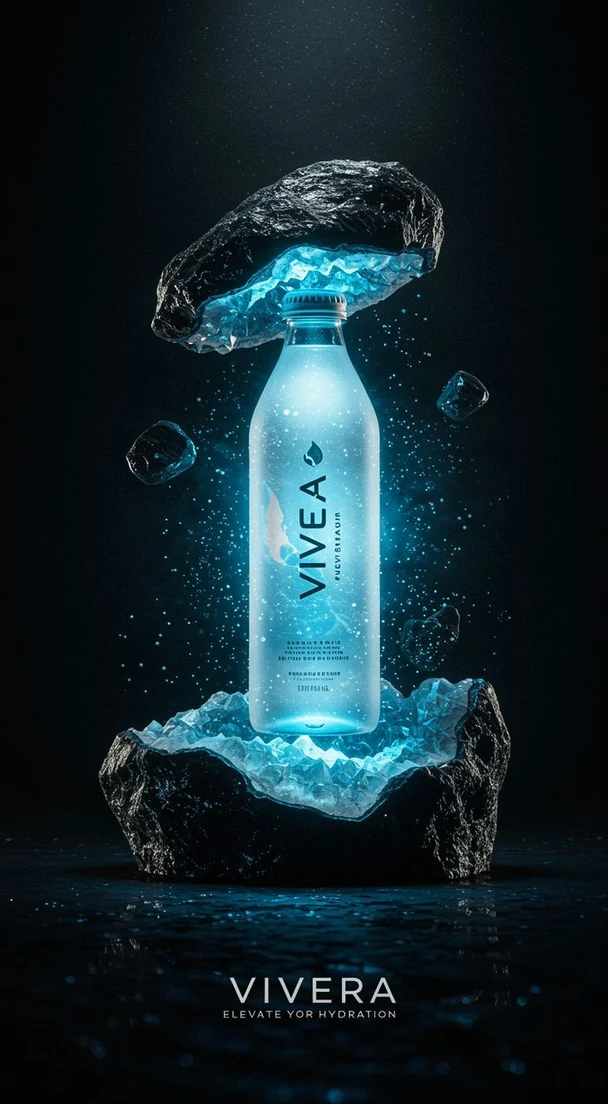
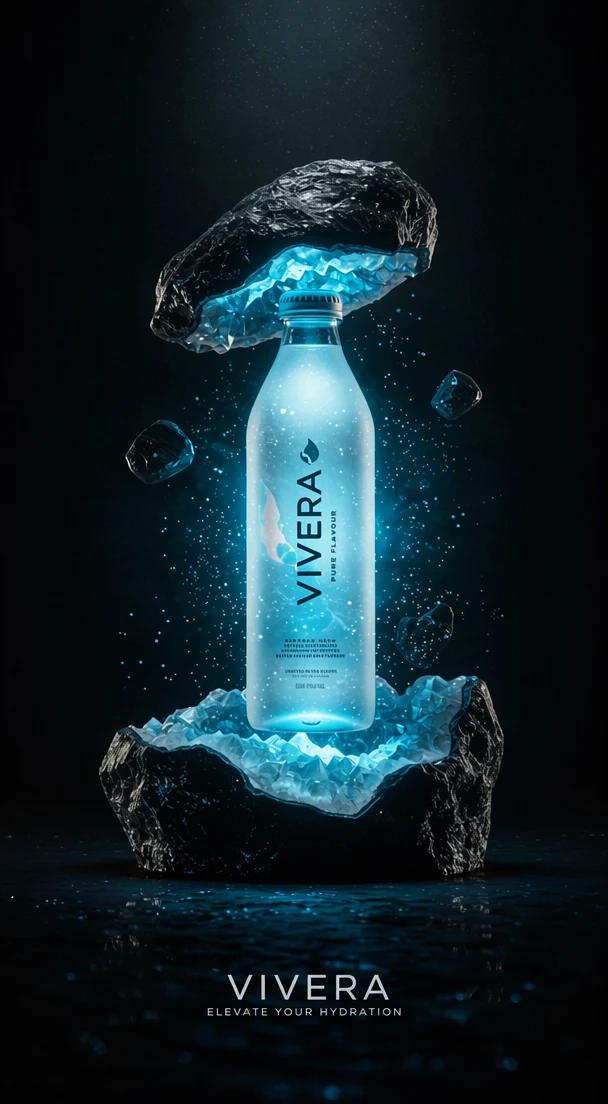
An AI image can be right in every way except the words: a poster headline with invented letters, a mockup label that is almost spelled correctly, a sign that reads as gibberish. AI image generators often misspell or garble lettering. If you make posters, product mockups or social posts with AI, you can fix text in an AI-generated image and keep the composition you already like.
Or drop an image here. PNG, JPG or WebP, up to 14 MiB.
Your image stays on this device until you sign in.
Sign in with Google to upload. Your first Standard edit is free and includes a watermark.
Examples
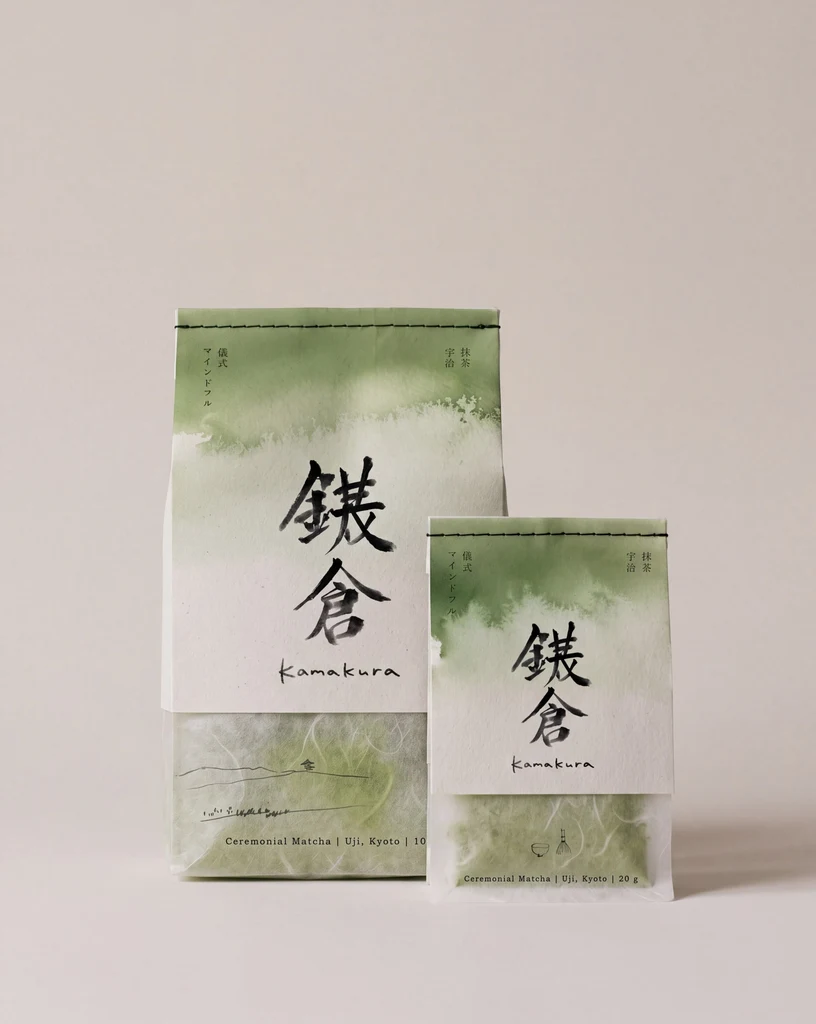
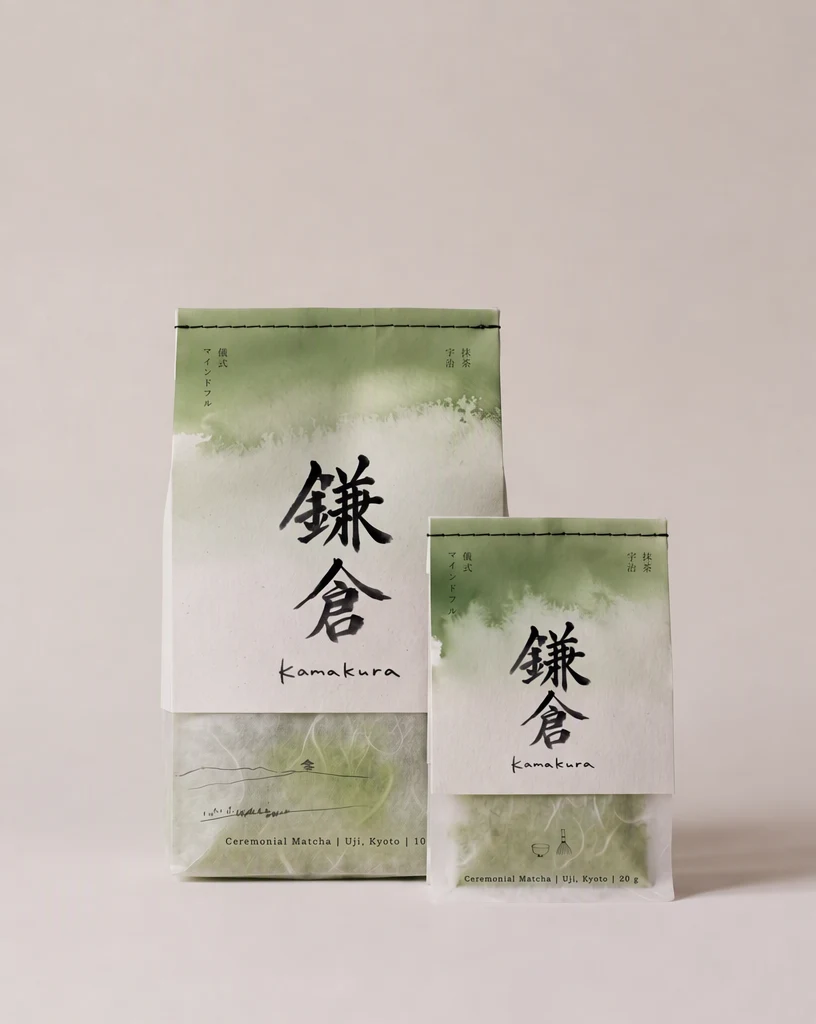
How it works
Upload the generated image
Download the image from your generator, then upload it or paste it in. PNG, JPG and WebP files up to 14 MiB work, and so does a direct link to the image file.
Make each Original entry match the image
Garbled letters may be read oddly, split into pieces or skipped. Edit each Original entry to match what you see as closely as you can, and use Add text for any line that was missed.
Type the words you meant
In each Replacement field, type the intended wording exactly as it should read. Aim for about the same length as the garbled text, because the new words go into the same space.
Choose High quality for stylized lettering
For glowing, chrome, 3D or painted letters, use High quality (2 credits), the level intended for detailed, complex lettering. Plain labels can use Standard (1 credit), which is faster. With a paid plan you can also choose 2K or 4K, where High quality uses 5 or 7 credits and Standard 2 or 3.
Read every corrected word
Select Apply changes, compare with the slider, then read each corrected line letter by letter. A spelling error is easy to overlook when the lettering itself looks convincing.
What garbled AI lettering looks like
The picture can be exactly what you asked for while the words on a poster, a label, a storefront or a T-shirt are not. Before you upload, go through the image and note every place where text appears and what each one should say. Garbled lettering can take several forms:
- Almost-correct words: one letter swapped, doubled or missing.
- Invented letters: shapes that look like writing but are not real characters.
- Words that start correctly and turn into nonsense partway through.
- Background text on small signs, book spines or labels, filled with lookalike letters.
Helping detection read garbled words
Because the letters are garbled, detection may read them as odd spellings, split one word into several short entries, or skip them. The Original entry is how the editor knows which words to replace, so make each one match the image as closely as you can read it. Where the shapes are not real characters, type the nearest letters you can see.
If one garbled word comes back as several entries, edit the first entry so its Original holds the whole garbled word as the image shows it, and type the intended word in its Replacement field. Leave the other pieces as they are: entries you do not change are not part of the edit.
If a line was skipped, select Add text, enter what the garbled line appears to say in the Original field, and put the intended words in the Replacement field.
Choosing the replacement words
With an AI image there is no design file holding the correct text, so the Replacement field is the first place the right spelling enters the picture. Copy names, slogans and product details from your own approved text rather than retyping them from memory, and check the result against that same text.
The garbled text already occupies a space in the composition, and the replacement has to fit there. If the image leaves room for a short word, choose a short word. Squeezing a long phrase into the same space can shrink the letters or crowd them together.
If the image is meant to show Japanese, Korean or another script, type the intended characters in the Replacement field and ask a fluent reader to check the result. Characters can look convincing to someone who does not read the language and still be wrong.
Before you publish the image
Fixing text in an AI-generated image changes the words, not how the image was made. If a platform, marketplace, publisher or client requires AI-generated images to be disclosed or labeled, follow that rule for the corrected version too.
If the image is a mockup for a real product, event or sign, check the corrected text against the final approved wording, since people may read the mockup as the real thing.
Frequently asked questions
Should I fix the text or generate the image again?
Fix the text when you are happy with the picture and only the words are wrong, because the edit is meant to change the lettering and leave the composition alone. Generate again when the layout itself has to change, for example when there is no room for the words you need, or when the lettering covers part of the subject.
Does it matter which AI generator made the image?
No. EditText.ai works on the image file, not on the generator, so an image from Midjourney, ChatGPT, Gemini, Ideogram or another tool goes through the same steps. What matters is the file itself: PNG, JPG or WebP, no larger than 14 MiB. If your generator saves a different format, convert the image to one of these before you upload it.
What should I do about tiny garbled text in the background?
Either give it real words or remove it. Small background text, such as writing on distant signs or book spines, may not be detected, so enter it with Add text first. To replace it, type the intended words; to remove it, leave its Replacement blank, and the picture around it guides how the area is filled. For lettering too small to read, removing it can be the simpler choice.
Can I fix lettering on objects in the scene, like a mug or a T-shirt?
Yes. Lettering on objects inside an AI scene is edited the same way as a headline. Check that the new words follow the surface they sit on, such as the curve of a mug, the folds of a shirt or the slope of a shop awning, and that they keep the same lighting. Curved and textured surfaces deserve the closest look, and High quality is the level to choose for them.
What if the corrected text still has a wrong letter?
First check the Replacement field, because a typo there also appears in the picture. If what you typed is right but a letter still came out wrong, try High quality or a shorter wording, then compare again. Results can vary, so read every corrected word in the downloaded PNG before you publish or send the image.
Try it on your own image
Or drop an image here. PNG, JPG or WebP, up to 14 MiB.
Your image stays on this device until you sign in.
Sign in with Google to upload. Your first Standard edit is free and includes a watermark.