Edit text in a JPG image
A JPG is a flattened, compressed picture, so its words are pixels, not live text you can click and retype. This page is for anyone with a JPG or JPEG photo, flyer, screenshot or social graphic who needs to change the words without the original design file. Upload the JPG, change the lines you need and download the edited image as a PNG.
Or drop an image here. PNG, JPG or WebP, up to 14 MiB.
Your image stays on this device until you sign in.
Sign in with Google to upload. Your first Standard edit is free and includes a watermark.
Examples
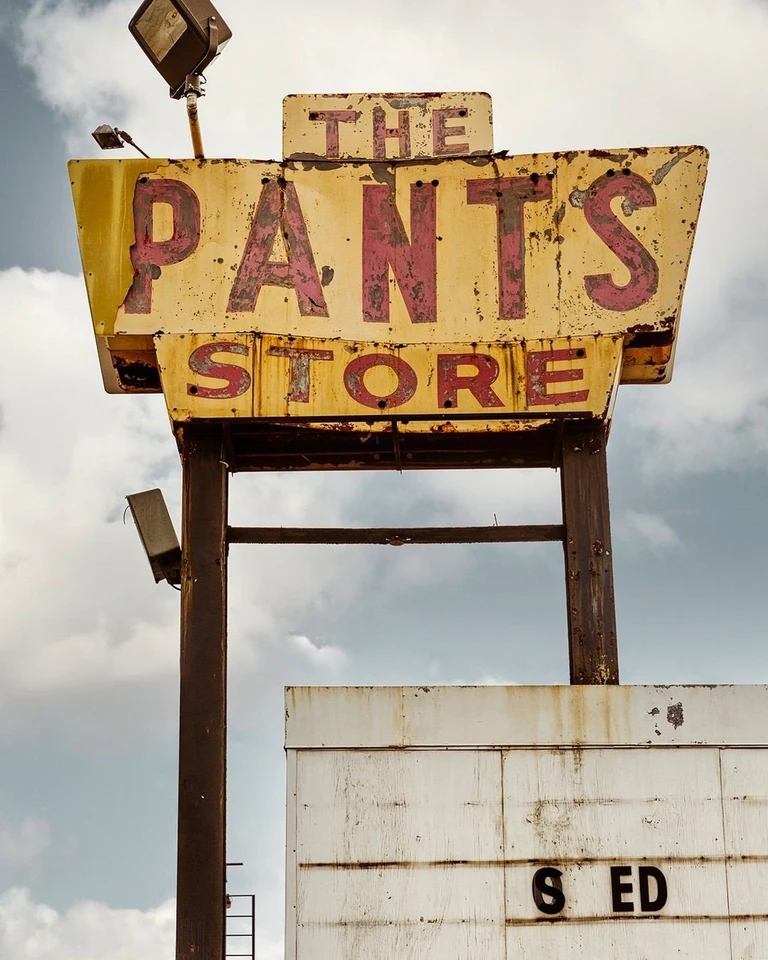
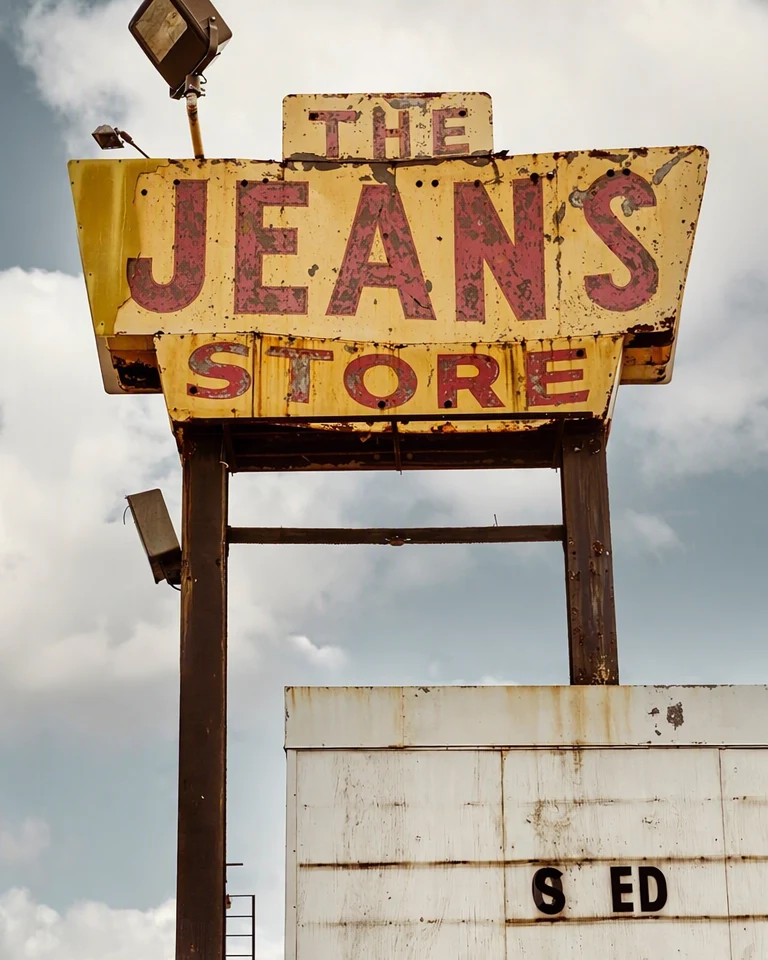
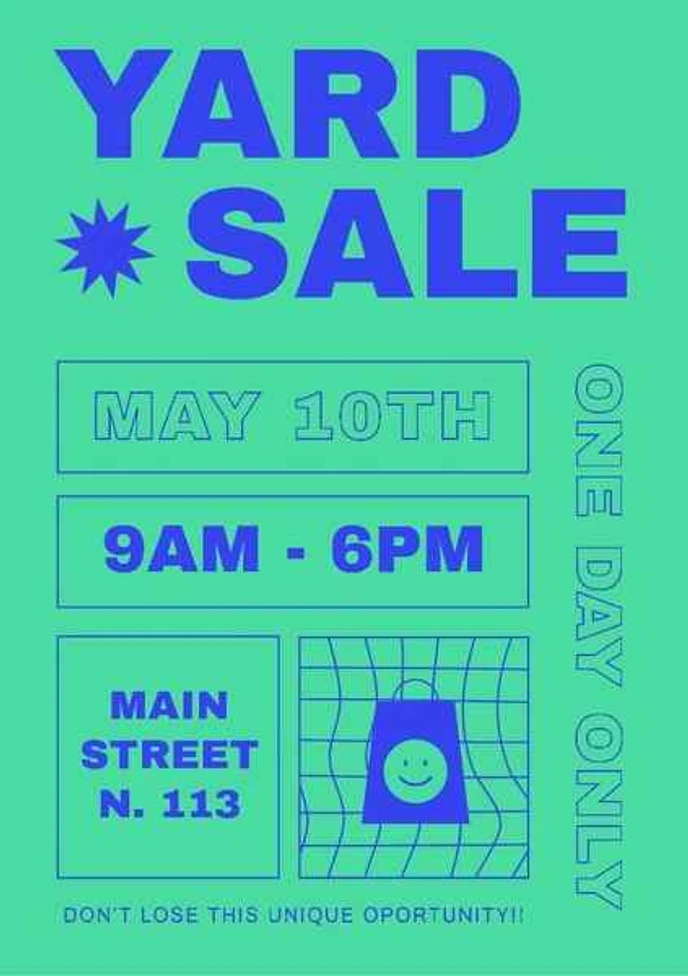
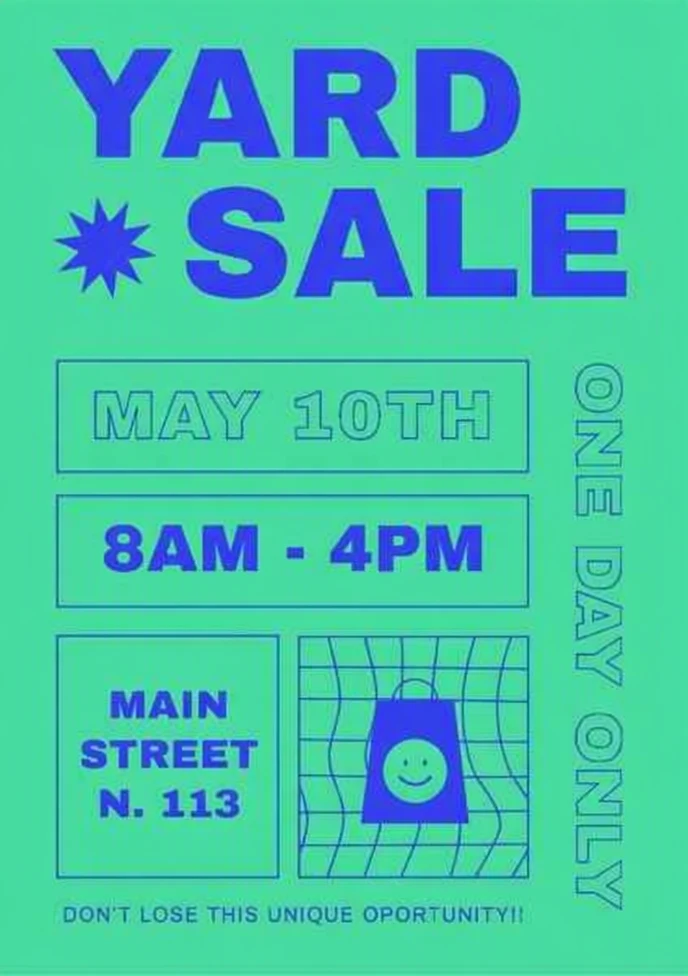
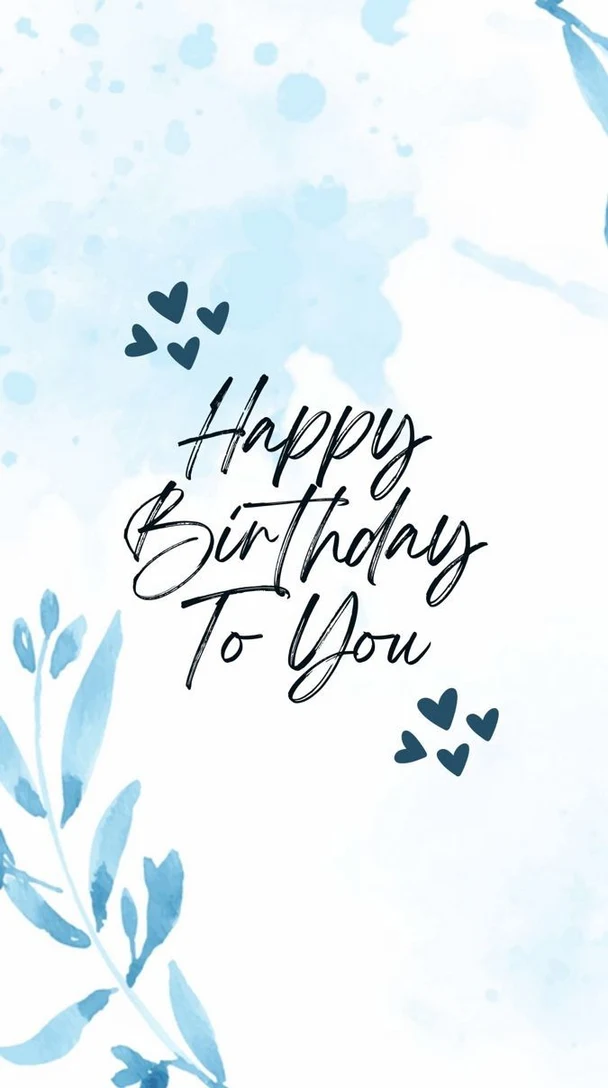
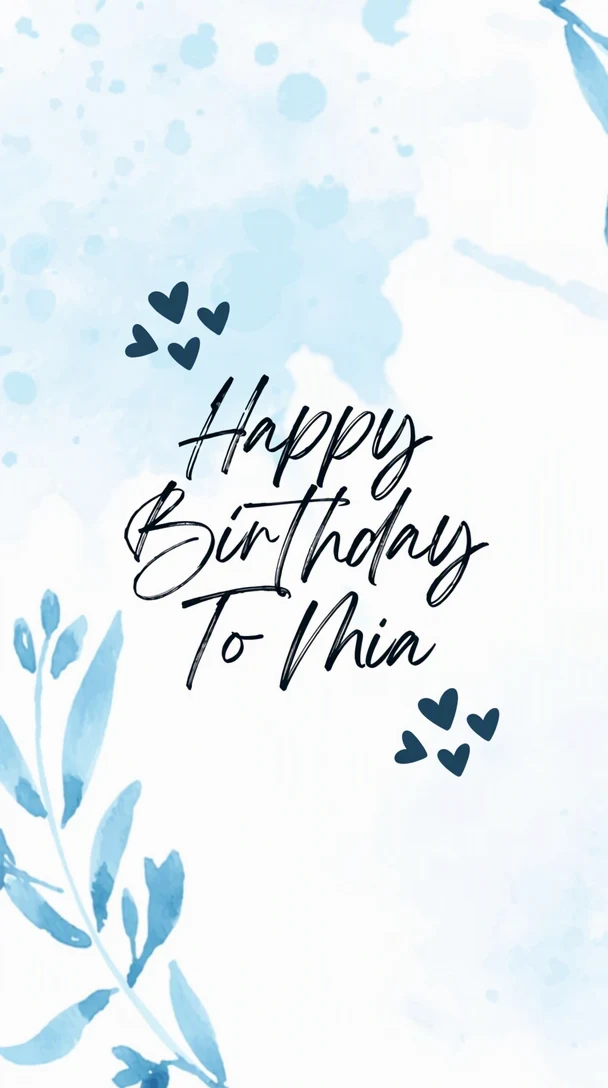
How it works
Upload the JPG as it is
Upload the JPG or JPEG without re-saving it first, up to 14 MiB. Use the largest, least-compressed copy you have. A copy that was sent through a chat app or saved from a social site has often been compressed again and shows more artifacts.
Check the detected text
Compression can blur small or low-contrast letters, so detection may misread a line or miss it. Compare each Original entry with the image, correct any that are wrong, and add a missed line with Add text.
Type only the changes
Write the new words in the Replacement field for each line that should change and leave the other lines alone. Every changed line is redrawn, so a smaller edit disturbs less of the picture around it.
Choose the quality
Standard (1 credit) suits large, clear lettering. For small text, a heavily compressed JPG or letters on a busy photo, try High quality (2 credits). Paid plans can also edit in 2K or 4K: Standard uses 2 or 3 credits, and High quality 5 or 7.
Compare, then download the PNG
Select Apply changes, move the comparison slider across each edited line, and check the letters and their edges at full size. The result downloads as a PNG. If you need a JPG again, export one from that PNG as the last step.
What JPG compression does to lettering
JPG keeps a file small by discarding fine detail. That suits photographs, but sharp edges such as letters are where the loss shows first. Heavy compression can leave a fuzzy edge on each stroke, a faint speckle beside it and small blocky squares in flat areas. Thin strokes and small text are affected most, and the color of a bright letter can smear into the area around it.
These artifacts are part of the picture you upload, and they change how an edit goes. Detection reads letters from the pixels, so smeared text is easier to misread. The new letters are drawn fresh, so they can look cleaner than the compressed text beside them. Compare the line you changed with the lines you left alone.
Re-saving, and why the download is a PNG
Each time a JPG is opened, edited and saved as a JPG again, it is compressed again and the loss adds up. Chat apps and social sites can compress an upload once more. Start from the original file or the least-compressed copy you have, and edit it once instead of editing a copy of a copy.
EditText.ai saves the edited image as a PNG, so the save adds no new JPG compression. A PNG does not bring back detail the JPG had already lost, and for a photo it is usually a larger file. If a website or form needs a JPG, export one from the PNG as the last step at a high quality setting, and keep the PNG as your working copy.
How large the result is
The edited image is sized by the resolution you choose, not by the file you upload. At 1K its longer side is about 1,000 pixels, so a photo straight from a phone camera, which is often around 4,000 pixels wide, comes back much smaller. Paid plans can choose 2K or 4K for a larger result. Pick the resolution that matches how the image will be used, and check the size of the PNG you download before you replace the original.
Which JPGs edit best, and what to check
Large, high-contrast lettering on a flat or lightly textured area is the easiest case. These cases need a closer look:
- Small text and fine print: compression can blur it, so confirm what each Original entry says before you apply.
- Light letters on a saturated color: color can smear at the edges, so check the outline of the new letters.
- Photos with grain: new letters that look too clean can seem pasted on, so compare them with the old letters at full size.
- Screenshots saved as JPG: interface text often has a faint halo, so compare the edited line with the lines next to it.
- A JPG that has been shared many times: if you have the original file or a PNG export of the design, edit that instead.
Check the PNG before you use it
After you apply, open the downloaded PNG at full size, not only the preview. Artifacts, grain and edges are easier to judge there. Look at the edited lines first, then at the area around them, and compare both with the original JPG before you publish or print the result.
Frequently asked questions
Will my JPG come back as a JPG?
No. The edited image downloads as a PNG, and your original JPG stays saved in My images. PNG is a lossless format, so saving the result does not compress it again the way a JPG export would. If you need a JPG, open the PNG in a photo or image editor and export one JPG as the last step, at a high quality setting.
Will editing make my JPG look worse?
The edit is a redraw, not a patch of your original pixels, so details near the text can change and grain may not match exactly. The result is also sized by the resolution you choose, so a large photo comes back smaller at 1K. Results vary, so compare the PNG with your JPG at full size before you use it.
Why does the new text look sharper than the rest of my JPG?
The new letters are drawn fresh, so they can be crisper than the compressed text and picture around them. If an edit looks pasted on, try High quality, keep the new wording close in length to the old, and start from a less compressed copy if you have one. Check the result at full size.
Can I upload a HEIC photo from my iPhone?
EditText.ai accepts PNG, JPG and WebP files up to 14 MiB, so a HEIC photo has to be converted first. Export or convert it to a JPG with your photo app or an image converter, then upload the JPG. Keep the HEIC original in case you need it again.
Do I need a paid plan to edit a JPG?
After you sign in with Google, your account includes one free Standard edit, and that result carries an EditText watermark, which is enough to see how the edit looks. Paid plans let subscribers remove the watermark and edit in 2K or 4K. The smallest plan is $9 a month for 10 credits and renews monthly until canceled.
Try it on your own image
Or drop an image here. PNG, JPG or WebP, up to 14 MiB.
Your image stays on this device until you sign in.
Sign in with Google to upload. Your first Standard edit is free and includes a watermark.