Remove text from any image
Upload image- Try it free
- PNG, JPG or WebP up to 14 MiB
- Your images stay private
No image?Try one of these


 BeforeAfter
See what you can remove.
Drag to compare the original and edited image.
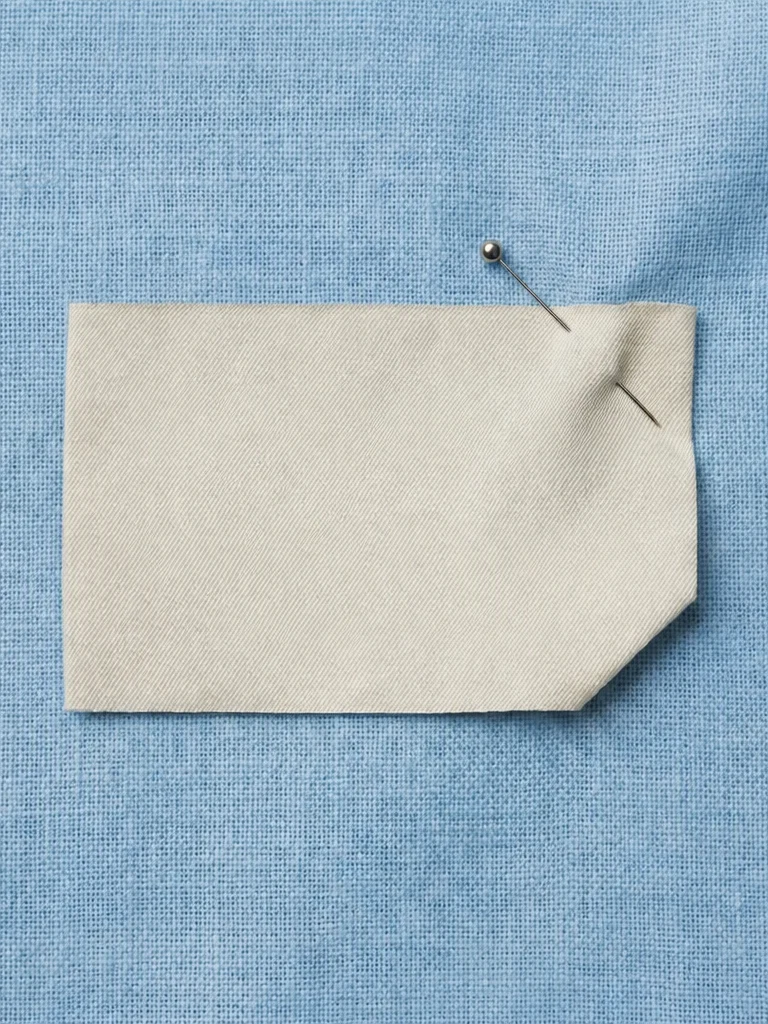
Embroidered words removed from a sale label. The blank label, the pin and the fabric stay.
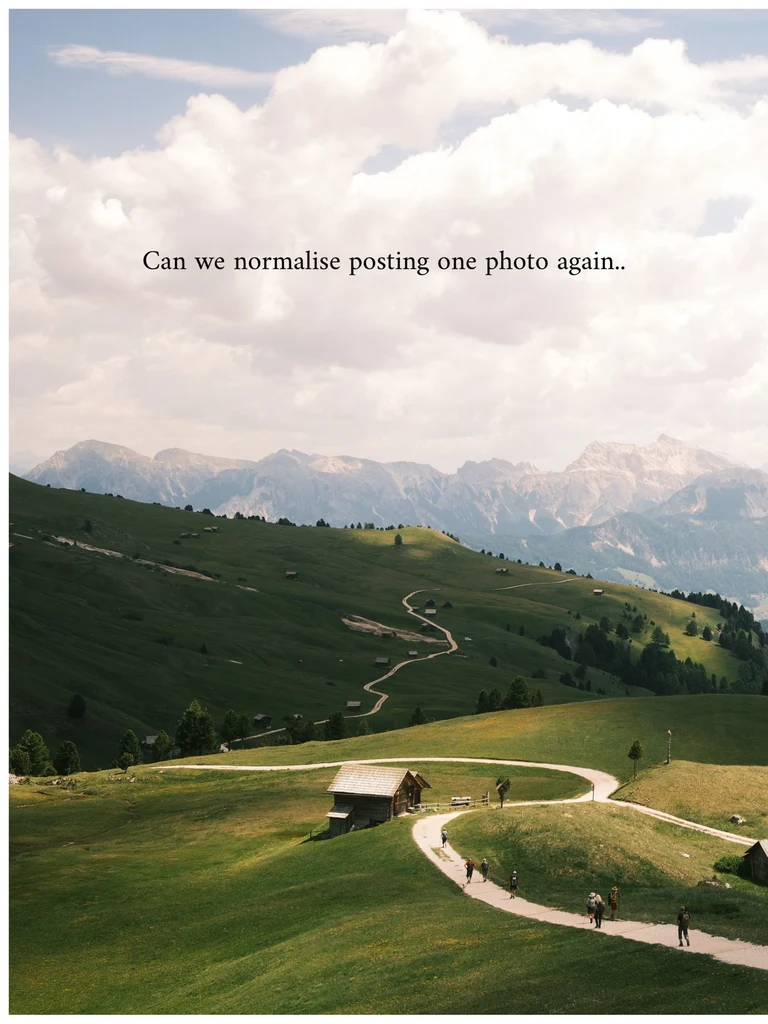
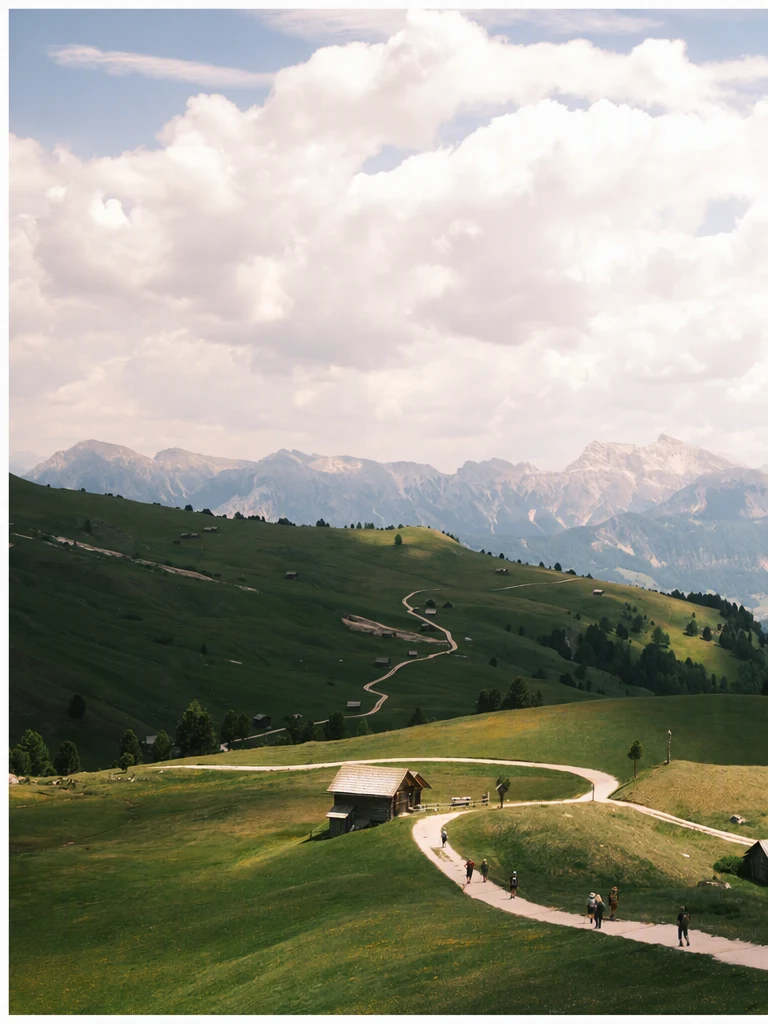
Caption removed from a landscape photo, with the clouds rebuilt behind it.
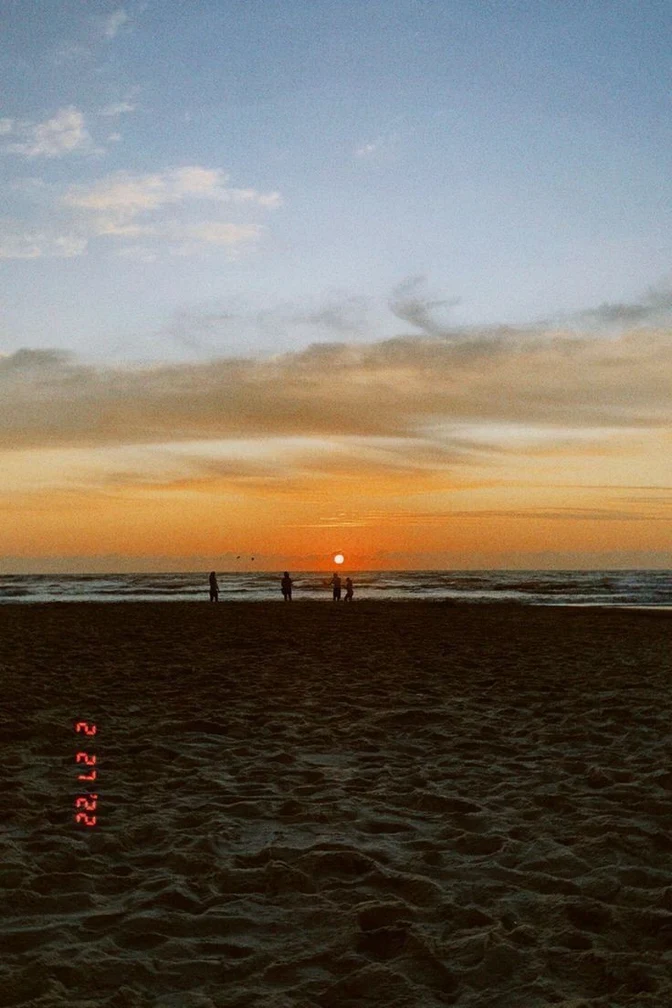
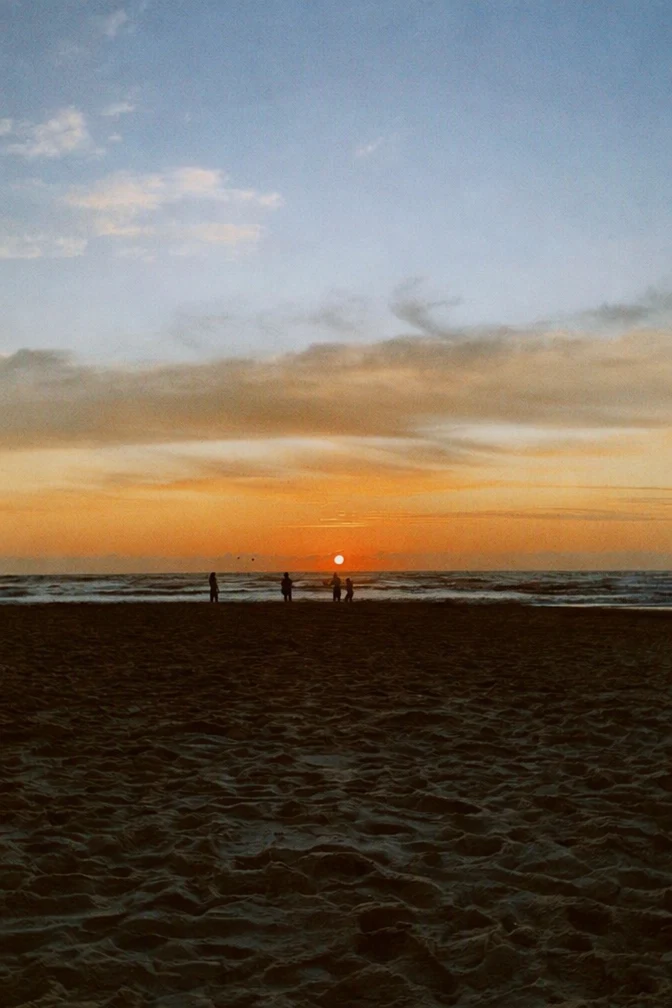
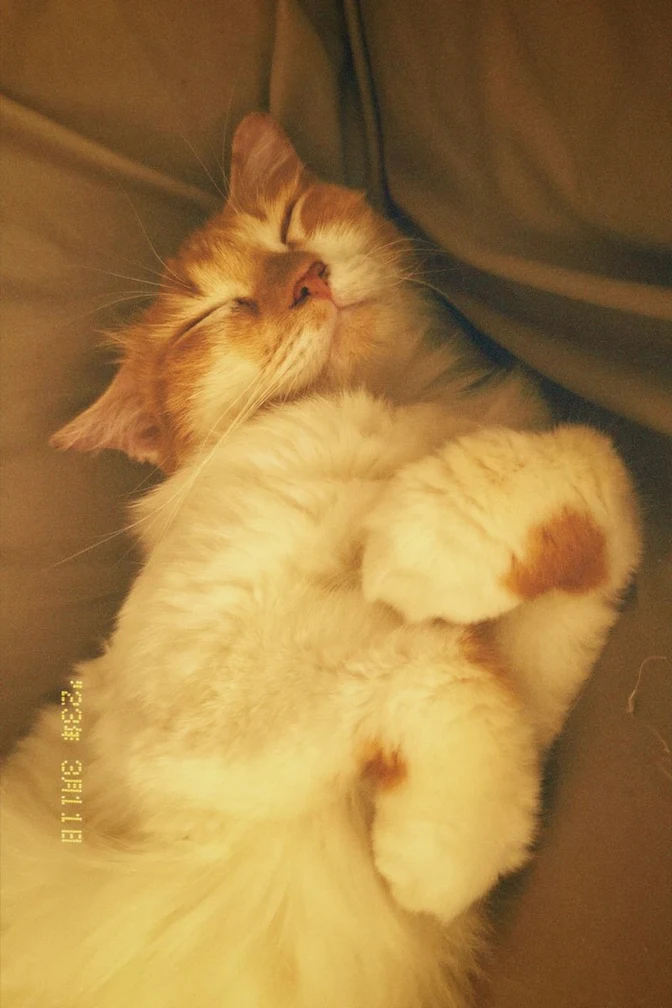
Orange camera date stamp removed from a film photo of a beach.
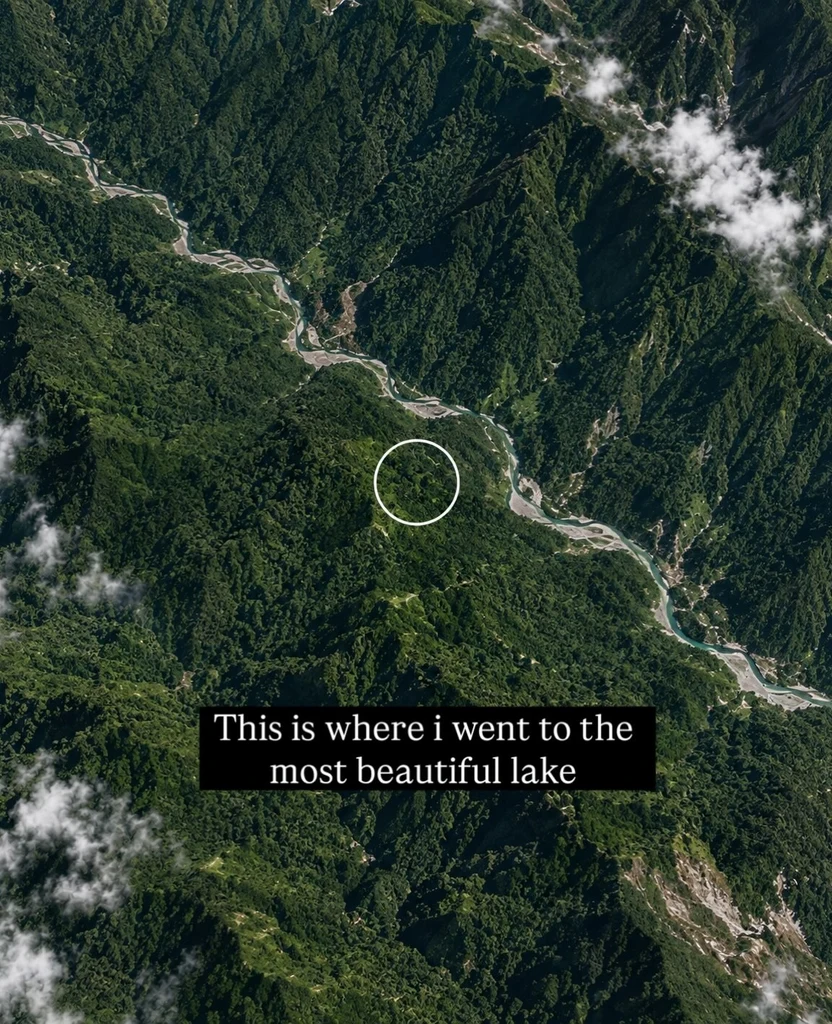
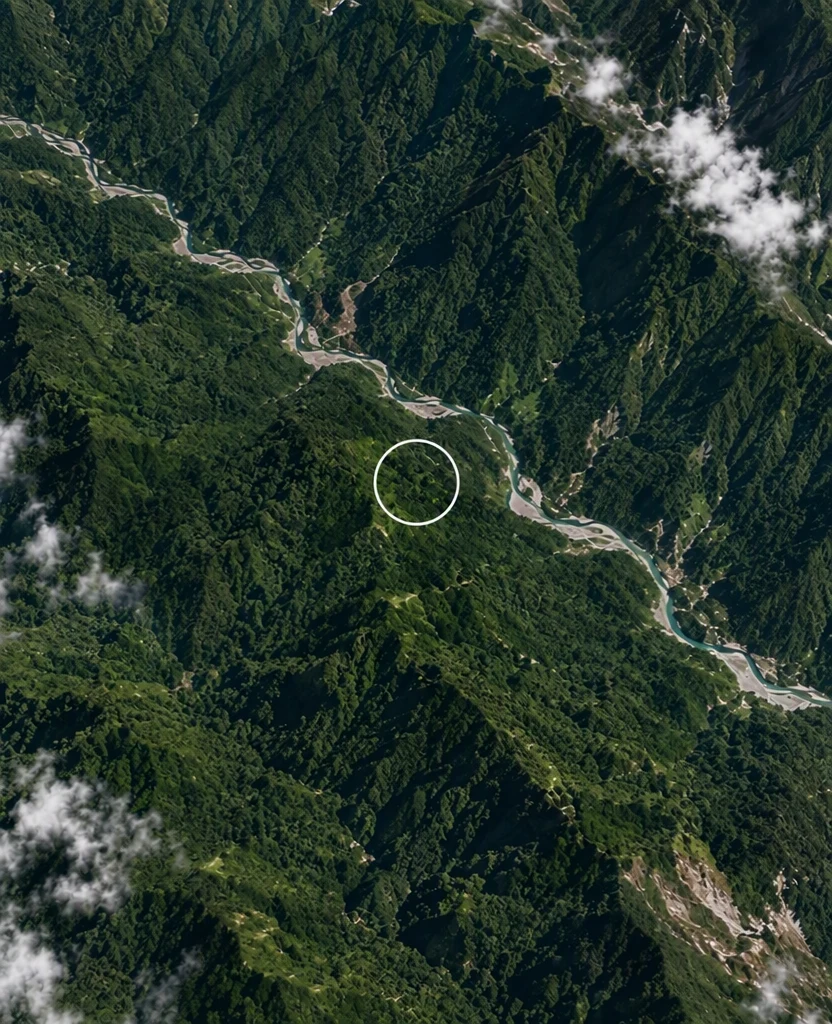
Burned-in subtitle and its black box removed from a video still.
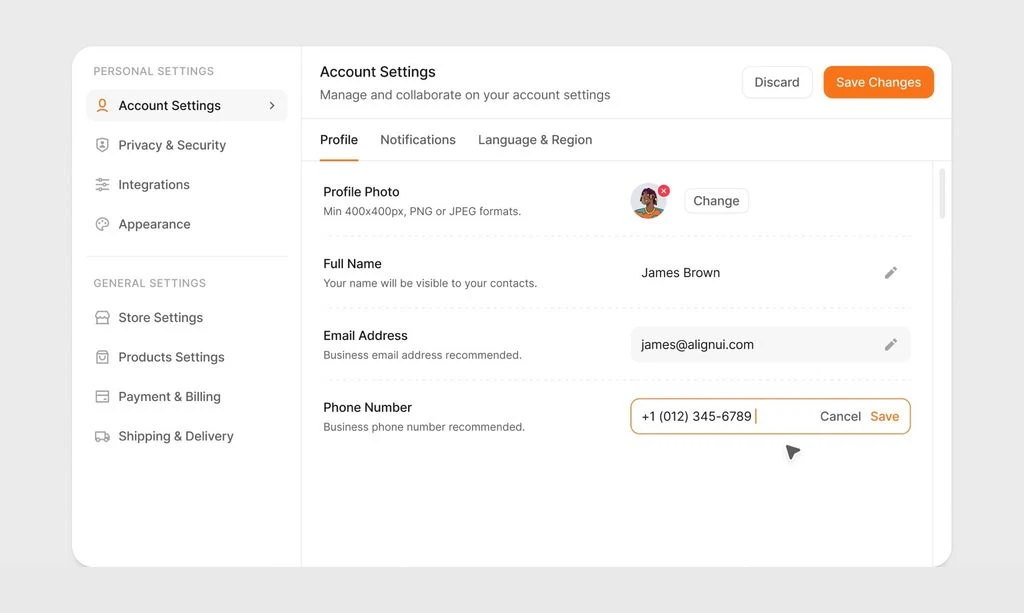
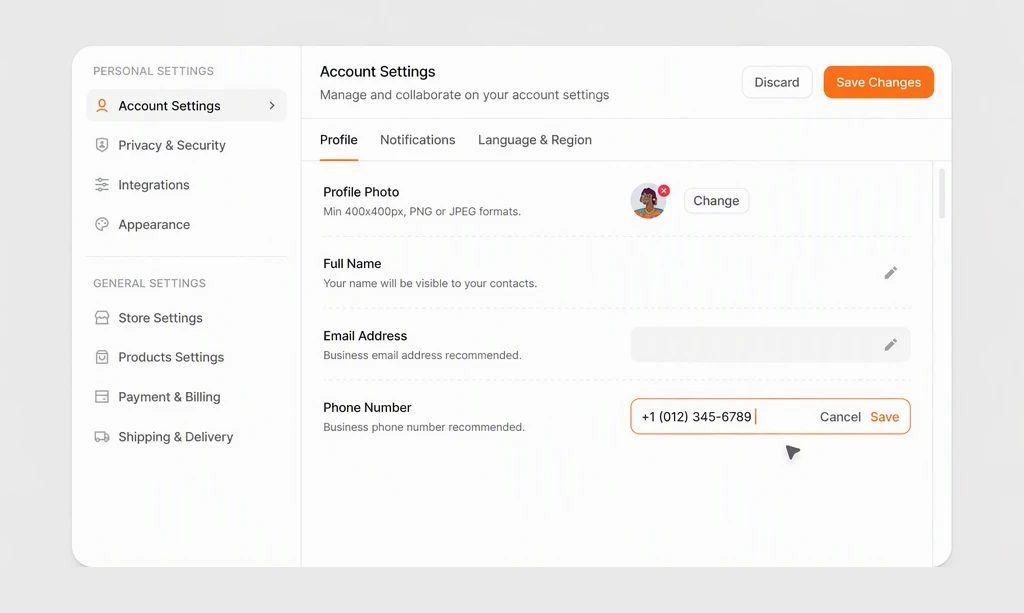
Sample name and email removed from a settings screen. The rest of the interface is unchanged.
How to remove text from an image
Three steps, and you choose which lines go.
Upload your image
Sign in with Google and upload a PNG, JPG or WebP up to 14 MiB. Text detection runs automatically and lists the words it finds in the image.
Choose what to remove
Select the lines you want gone and leave the rest. If small, blurry or handwritten text was missed, add it yourself so it is removed too.
Remove and download
At 1K, run a Standard edit for 1 credit, or High quality for 2 credits when the background is busy; for 2K or 4K, the button shows the total. The area behind the words is rebuilt from the surrounding image. Compare, then download a PNG; your original stays saved in My images.
Popular uses
Pick the kind of image you are working with.
Other tools
All three tools use the same editor and the same credits.
Frequently asked questions
Can I remove text from a photo without changing the background?
That is the aim. The AI rebuilds only the area behind the words from the surrounding image, continuing colors, textures and edges where it can, and the rest of the photo is meant to stay as it was. A plain or evenly textured background is easier to rebuild than faces, fine patterns or other lettering. Choose High quality for busy backgrounds, and check the result before you use it.
Can I remove some words and keep others?
Yes. After you upload, text detection lists the words it finds. Select only the lines you want to remove; the other lines are passed on as text to keep, so they stay in place. Results can vary, so compare the result with the original before you download it. Small, blurry or handwritten text can be missed, so add any missing words yourself. To replace words instead, use Edit text in image.
Can I remove watermarks or logos?
No. Removing watermarks or logos is not supported. EditText.ai is meant for text you have the right to change, such as captions on your own photos, old date stamps or words on your own designs. Please do not use it to alter documents, or to change what a screenshot or photo shows in a way that could mislead someone.
How much does it cost to remove text?
Removing text is a normal edit: 1 credit for Standard or 2 credits for High quality at 1K, and one edit can remove several lines at once. With a plan, a 2K edit uses 2 credits or 5 credits and a 4K edit 3 credits or 7 credits. Every account includes one free Standard edit with a watermark. Plans cost $9, $29 or $49 a month for 10, 35 or 60 credits, so you can choose how many images you edit each month.
Should I choose Standard or High quality?
Standard, for 1 credit at 1K, is the faster option for everyday removals, such as a caption on a simple background. High quality, for 2 credits at 1K, suits detailed lettering and busy backgrounds, where more of the picture has to be rebuilt. Results can vary with either option, so compare the result with the original before you download it.
Which files can I upload, and are they private?
Upload a PNG, JPG or WebP image up to 14 MiB after signing in with Google; the result downloads as a PNG. Your images are private to your account. My images keeps each original together with its result, so you can come back to them, compare them or download them again later.