You can't click into the words in a photo, a screenshot or an exported JPG and retype them, because in a flat image the letters are pixels, not editable text. To change them, you either let an AI tool redraw the new words in the original style, or you remove the old words and type new ones on top in a design app. Below are four practical ways to edit text in an image, with the skill, cost and risk of each, so you can choose the one that fits your picture.
Why the text in a picture isn't editable
Most images you download or receive are raster graphics: a grid of colored dots called pixels. When someone exports a poster, a product shot or a social post as a JPG or PNG, every layer is merged into that one grid. The words become colored pixels, just like the background behind them.
A layered design file is different. A Photoshop document, a Canva design or a slide deck keeps the text as live type that you can select and change. If you still have that file, edit it instead. It's always the cleanest option.
Without the source file, changing a word means two jobs:
- Rebuild what was behind the old letters, such as a gradient, a texture, a wall or a product label.
- Draw new letters that match the old ones in font, size, color, angle, texture and lighting.
Each method below handles these two jobs differently.
The 4 ways at a glance
| Method | Best for | Skill needed | Cost | Keeps the original lettering? | Risk to the rest of the image |
|---|---|---|---|---|---|
| AI text replacement (for example, EditText.ai) | Posters, product photos, thumbnails, screenshots, AI images | Low | One free Standard edit with a watermark, then plans from $9 a month | It aims to; the image guides the new letters | Low to medium; results vary, so check details near the text |
| Photoshop or Photopea | Print work, exact control, layered master files | High | Photoshop is a paid subscription; Photopea is free to use with ads | Only if you find or match the font | Low; you control every pixel |
| Canva (Grab Text, or cover and retype) | Simple, flat designs and social posts | Low to medium | Grab Text is listed as a Pro feature; shapes and text work on the free plan | A similar font, not the original | Low on flat colors; patches show on textures |
| Phone markup or an AI chat app | Quick fixes on your phone | Low | Built into your phone; AI apps vary | Markup: no. AI chat: varies | Markup: none. AI chat: other details can change |
1. AI text replacement: keeps the original style
AI text replacement tools find the words in your image, let you type new ones, and redraw the image so the new words take on the look of the old lettering and background.
EditText.ai works this way. You upload a PNG, JPG or WebP image up to 14 MiB, the text is detected automatically, and you type a replacement for each line you want to change. The image is then redrawn with your new words, at Standard or High quality. There is no font to choose, because the image itself guides the lettering, and the result downloads as a PNG. That makes it a good fit when you want to edit text in an image with the same font or edit text without changing the background.
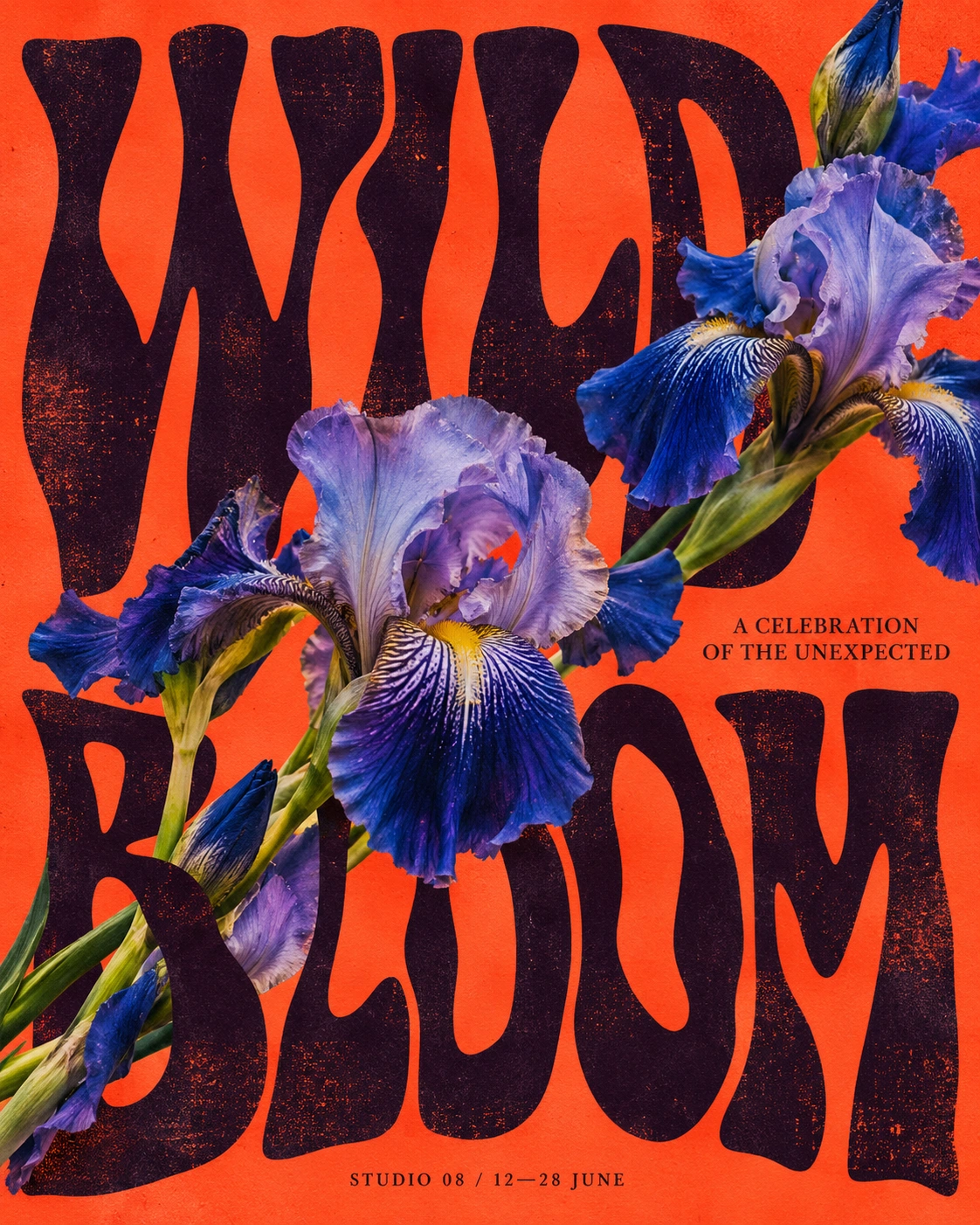
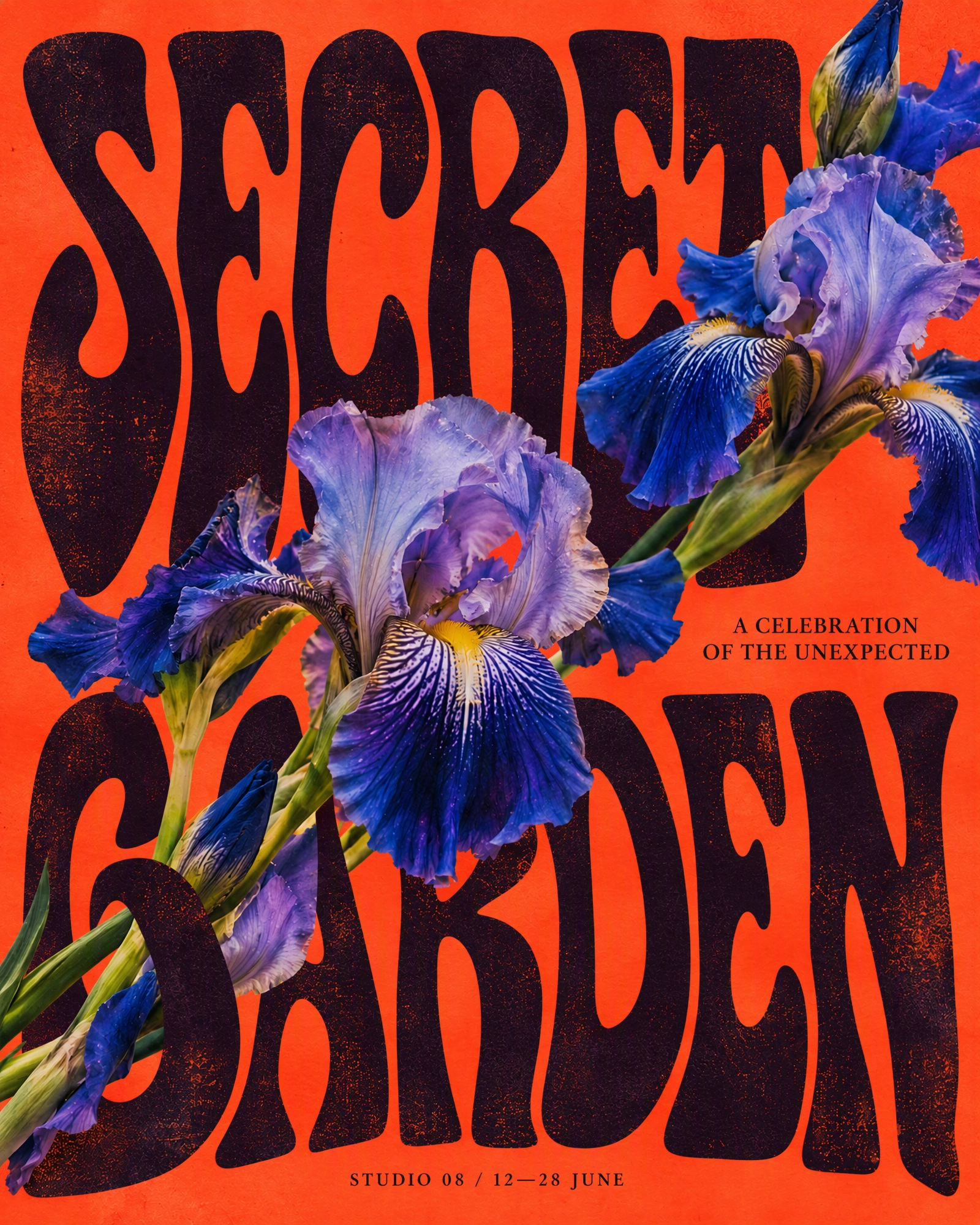
Before and after: WILD BLOOM changed to SECRET GARDEN (from the EditText.ai examples).
Common jobs for this method:
- When an event moves, change text on a poster without rebuilding the artwork.
- When a label or flavor name changes, edit text in a product photo.
- To refresh an older video, edit thumbnail text.
- For a single misspelled word, fix a typo in an image and leave the rest untouched.
- When an image generator garbles the words, fix text in AI-generated images.
More examples are collected on the use cases page.
Strengths: no design skills needed, and it can work with curved, wavy or textured lettering that is hard to retype by hand.
Limits: results can vary, especially with unusual lettering or detailed backgrounds, so check the finished image closely. If you need exact brand typography and you have the source file, edit the source file instead.
2. Photoshop or Photopea: full manual control
The classic method is to erase the old words, rebuild the background, and set new type on top. Adobe Photoshop is the standard tool for this. Photopea is a browser-based editor with Photoshop-style tools, free to use with ads, and its official guide covers the same steps.
- Open the image and duplicate the layer, so you can always go back.
- Remove the old words. In Photoshop, brush over them with the Remove tool, or select them and use Content-Aware Fill or Generative Fill. In Photopea, the Spot Healing Brush does a similar job.
- Identify the font. Draw a tight box around one line of the original text with the Rectangular Marquee tool and choose Type > Match Font. Photoshop then lists similar fonts installed on your computer or available from Adobe Fonts.
- Type the new words with the Type tool, matching the size, color, letter spacing and angle. Use the transform tools for slanted or perspective text.
- Blend the new text in by matching blur, grain and lighting, then export a PNG or a high-quality JPG.
Strengths: complete control, layered files you can reuse, and print-quality results. This is the better choice for brand work, large prints, or any image where every detail must be exactly right.
Limits: it takes skill and time, and Photoshop needs a subscription. Matching texture, lighting and perspective by hand is hard, and Match Font can only suggest fonts it knows, so custom lettering often has no exact match. Our guide on how to identify a font from an image explains what to try when no font matches.
3. Canva: Grab Text, or cover and retype
Canva gives you two options for words inside a photo.
Grab Text. As of October 2026, Canva lists Grab Text as a Pro feature. You select the photo, choose Edit, and pick Grab Text from the tools. Canva turns the words it recognizes into editable text boxes and tries to match a similar font. Canva's help center says it works best on straight, flat text, and that it doesn't support rotated or arched text or languages that don't use the Latin alphabet. It can also leave small traces of the old letters behind.
Cover and retype. Draw a rectangle in the background color over the old words, then add a new text box on top. This works on any plan and looks fine on flat, solid colors. On photos, gradients or textures, the patch is usually easy to see.
Canva is the better choice when the design was made in Canva, because the words are still live text in the original design. If you click on text and it won't change, read why you can't edit text in Canva for the usual causes and fixes.
4. On your phone: markup tools or an AI chat app
Your phone's photo editor can cover and retype too. On iPhone, the Photos app's Markup tools can add a shape with a fill color and then a text box on top. On Android, Google Photos includes Markup tools with a pen, a highlighter and text. It's quick, but the result looks like a label on top of the photo.
You can also upload a photo to an AI chat app such as ChatGPT and ask it to change the words. The app generates a new version of the image, or of the area you select, so faces, small text, textures and layout details can shift. OpenAI's help center also notes that a selected area isn't always precise and that edits can reach beyond it. Our post can ChatGPT edit text in images explains what to expect.
If you only need the words gone, not replaced, see how to remove text from a photo on iPhone or Android.
A tip for iPhone users: EditText.ai accepts PNG, JPG and WebP, so a photo saved as HEIC must be converted to JPG or PNG first.
How to change the words with AI, step by step
- Start with the best original. Use the largest, sharpest version of the image you have, as a PNG, JPG or WebP file up to 14 MiB.
- Upload it to EditText.ai. The text is detected automatically and listed line by line.
- Type your replacements. Enter new wording for each line you want to change and leave the other lines as they are.
- Choose a quality. Standard uses 1 credit. High quality uses 2 credits and suits detailed backgrounds or complex lettering. Paid plans can also edit in 2K or 4K, where Standard uses 2 or 3 credits and High quality 5 or 7.
- Apply and compare. Check the result against the original at full size, especially small text and edges.
- Download the PNG. Your images are private to your account and saved in My images.
You get one free Standard edit, which carries a watermark; paid results are watermark-free. The free edit also works for translating or removing text. Plans cost $9, $29 or $49 a month for 10, 35 or 60 credits.
Tips for clean results
- Keep the new wording a similar length. A much longer phrase must fit the same space, so the letters may shrink or crowd.
- Check your spelling first. The new image shows exactly what you type.
- Inspect small text at full size. Zoom in on fine print and edges before you publish.
- Use High quality for busy backgrounds. Textures and patterns behind the letters are harder to rebuild.
- Work from the largest original. Screenshots of screenshots and heavily compressed JPGs have lost detail the edit needs.
- Need another language? You can translate text in an image into one of 35 languages and keep the design. The AI writes each translation in place of the original text, in a matching style, and it costs the same as a normal edit.
- Need the words gone? To remove text from an image, tick the detected lines you want removed and the background is rebuilt. The text you don't tick stays as it is.
When editing text in an image isn't the right move
- You have the source file. Edit the Canva design, Photoshop document or slide deck instead. You'll get the exact fonts and sharper text.
- Official documents and records. Don't change the words on documents, records or screenshots that other people rely on.
- Logos and trademarks. Don't alter or recreate someone else's logo or brand mark.
The basic rule: only edit images you own or have permission to change, don't erase watermarks or credits, and don't alter screenshots or records to mislead anyone.
Which method should you choose?
If you don't have the source file and you want the new words to look like they were always there, start with AI text replacement. Choose Photoshop when you need full control or print-ready files, and Canva when the design already lives there. To try the AI route, upload your picture to edit text in an image and compare the result with the original.
Frequently asked questions
How do I edit text in a JPG or PNG without Photoshop?
Use an AI text editor that detects the words and redraws them, such as EditText.ai, or a design app where you cover the old words and add new text. Photopea is another option if you want Photoshop-style tools in a browser. On flat backgrounds, covering and retyping is quick. For textured or stylized lettering, AI replacement usually looks more natural because it rebuilds the background and follows the original lettering.
Can I change text in an image and keep the same font?
Yes, in two ways. You can identify the font, install it and retype the words in a design app. That works when the lettering is a real, available typeface. Or you can use an AI tool that takes the lettering style directly from the image, so you don't need to know the font at all. The second route also helps with hand lettering and custom type.
Why can't I select the text in my image?
Because it isn't text anymore. When a design is saved as a JPG, a PNG or a screenshot, the letters are merged into the pixels of the picture. Apps can read the words with text recognition, but to change them, something has to repaint those pixels. If you have the original design file, open it and edit the live text instead.
How do I replace text in a picture on my phone?
For a quick fix, use the Markup tools in your phone's photo app to cover the old words with a shape and add new text. This works best on solid backgrounds. For a result that matches the original lettering, use an AI text replacement tool instead. If your iPhone saves photos as HEIC, convert the photo to JPG or PNG first for tools that don't accept HEIC.
Will editing the text change the rest of my image?
It depends on the method. Covering and retyping only changes the area you cover. AI text replacement redraws the image with the new words, and details near the text can change, so check them at full size. AI chat apps that generate a whole new version of the image can also change things far from the text, such as faces, small print or textures.