To remove text from a photo on iPhone, open it in the Photos app, tap Edit, then Tools, then Clean Up, and brush over the words. Clean Up works on iPhone models that support Apple Intelligence. On Android, use Magic Eraser in Google Photos, or Object eraser in the Gallery app on a Samsung Galaxy phone. On any phone, you can also use a browser tool such as EditText.ai to remove text from an image: it detects the lines of text, you tick the ones to remove, and it rebuilds the background.
Built-in erasers are a good first choice for a word or two on a plain background. A tool that detects text line by line helps when there are many lines, small lettering, or words over a busy background.
One note before you start: only edit photos you took or have permission to change, and leave watermarks, photographer credits and copyright notices in place. EditText.ai's Remove tool doesn't remove watermarks.
How phone erasers remove text
The removal tools in this guide all work in a similar way. You mark what you want gone, and the app fills that area with new pixels that match the surroundings. This fill-in process is called inpainting.
It works best on simple backgrounds such as walls, sky or plain fabric. Text over faces, detailed patterns or other words is harder, because the app has to guess what was hidden underneath. That is why results vary from photo to photo.
How to remove text from a photo on iPhone with Clean Up
Clean Up is a tool in the iPhone Photos app for removing distracting objects. You choose what to remove by tapping, brushing or circling, so you can use it on words too.
Clean Up is part of Apple Intelligence. As of October 2026, Apple lists the iPhone 15 Pro, iPhone 15 Pro Max and iPhone 16 models or later as supported. Apple also notes that Clean Up isn't available in all languages or regions and that usage limits may apply. Apple's Clean Up instructions have the current details.
- Open the Photos app and open the photo.
- Tap the Edit button.
- Tap Tools, then tap Clean Up.
- Tap, brush or circle the text you want to remove. Some items may be highlighted automatically. Pinch with two fingers to zoom in on small text.
- If you remove too much, tap the Undo button.
- If you're using High Quality processing, tap Clean Up to apply it. To switch between Auto, Fast and High Quality, tap Auto while you work.
- Tap Done, then tap Done again to close the photo.
Changed your mind later? Open the photo, tap Edit, then Tools, then Clean Up, and tap Reset. Apple says this undoes Clean Up changes even after you've saved.
What if your iPhone doesn't have Clean Up?
Without Clean Up, the Photos app has no eraser, but you still have options:
- Google Photos for iPhone. The Google Photos app includes Magic Eraser. Open a photo, tap Edit, and look for Magic Eraser in the Actions or Tools tab. Google lists the device requirements on its help page.
- Cover the text with Markup. In Photos, tap Edit, then the Markup button. Tap the Add button, then Add Shape, and pick a shape such as the square. Drag it over the text, then set a solid fill color and full opacity. This hides the words rather than removing them, so it suits hiding a detail more than making a clean picture.
- Use a browser tool. EditText.ai runs in Safari or any other browser, so it doesn't depend on your iPhone model. The steps are further down.
How to remove text from a picture on Android with Magic Eraser
Magic Eraser is part of the Google Photos app, which comes with many Android phones. According to Google's Photos editing help, most editing features need at least 3 GB of RAM and Android 8.0 or later (as of October 2026). Some tools must be downloaded the first time you use them: tap the tool, then tap Install.
- Open the Google Photos app and open the photo.
- Tap Edit. Open Magic Eraser from the Actions tab, or tap Search and type "Magic Eraser."
- Tap the text, draw a circle around it, or brush over it.
- Tap Erase. To start over, tap Deselect. To change what's selected, tap Refine selection, then Add or Subtract.
- Tap Done, then save. Choose Save as copy if you want to keep the original as a separate photo.
To undo changes later, open the edited photo, tap Edit, then tap Revert. Google notes that this doesn't work for photos saved as a copy, but in that case the original is still in your library.
How to erase words from a photo on a Samsung Galaxy phone
Samsung's Gallery app has its own eraser. Where you find it depends on your model and software version.
- Object eraser. Open the photo in Gallery and tap the Edit icon (the pencil). Depending on your phone, Object eraser appears among the editing tools or under More options (the three dots). On some phones, you first switch it on under Labs in that menu. Tap or draw around the text, tap Erase, then tap Done and Save.
- AI Eraser in Photo assist. On select Galaxy phones and tablets with Galaxy AI, tap the Edit icon, then the Photo assist icon (the blue circle with stars). Tap or outline the text, then tap Erase. Tap Save as copy to keep the original as well.
Samsung's guide to AI editing tools in Gallery says the Galaxy AI tools need Android 14 with One UI 6.1 or higher, a Samsung account and an internet connection.
How to remove text in your phone's browser with EditText.ai
Built-in erasers ask you to paint over each word. EditText.ai works the other way around: it detects the text first, line by line, so you tick what to remove instead of tracing it. That helps with photos that have many lines, small lettering, or text over a detailed background.
- Open EditText.ai's Remove text from image page in your phone's browser.
- Upload your photo. It accepts PNG, JPG or WebP files up to 14 MiB.
- When the text has been detected, tick the lines you want to remove, or tap Select all. Lines you don't tick stay as they are. If a line was missed, tap Add missing text and type it.
- Choose Standard (1 credit) or High quality (2 credits), then tap Remove selected text. On a paid plan you can also choose 2K or 4K, where Standard uses 2 or 3 credits and High quality 5 or 7.
- Download the result as a PNG.
EditText.ai works online, so your photo is uploaded for processing. Images are private to your account and saved in My images. Results can vary, especially with detailed backgrounds, so zoom in and check the result. A removal costs the same as an edit, and the one free Standard edit also works for Remove, with a watermark. See the plans and pricing.
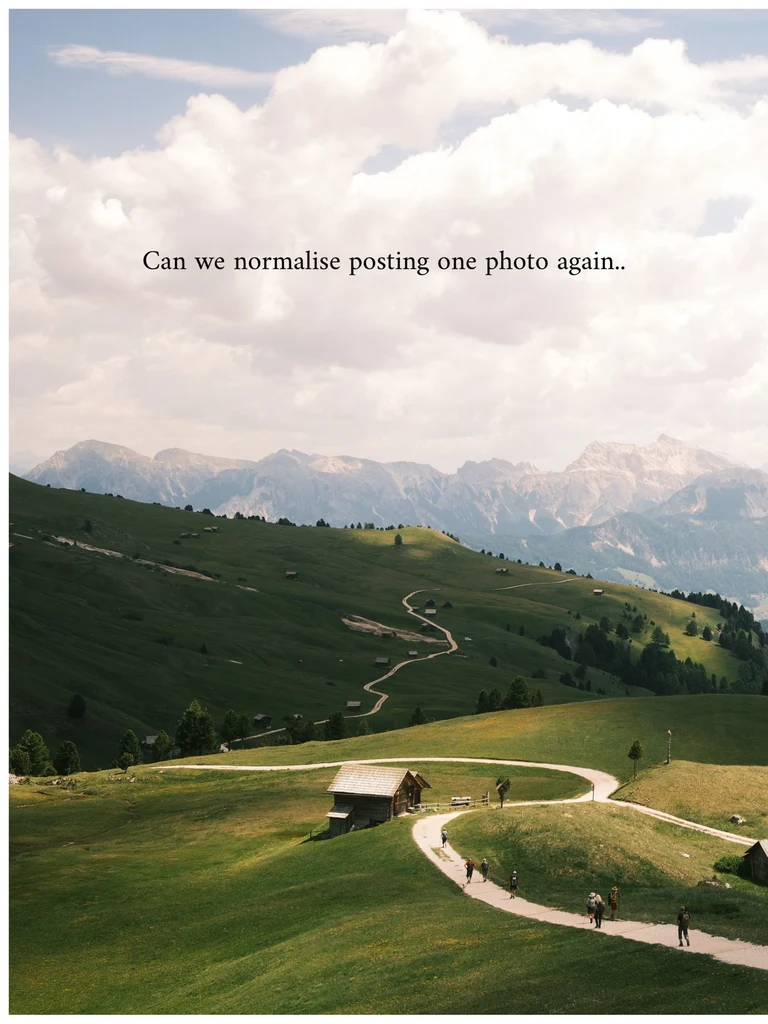

Before and after: a caption removed from a landscape photo with the Remove tool.
Convert HEIC photos to JPG first
iPhones often save photos in the HEIC format, which EditText.ai doesn't accept. Convert the photo to JPG or PNG before you upload it. Apple documents a few ways to do this:
- For new photos: go to Settings, tap Camera, tap Formats, then choose Most Compatible. Apple's HEIF support article says new photos will then use JPEG. Choose High Efficiency to switch back.
- For a photo you already took: open it in Photos, tap the Share button, tap Options, and choose Most Compatible before you share or save it. Apple says the file may convert to JPEG.
- On a Mac: open the photo in Photos or Preview, choose File > Export, then pick JPEG or PNG.
Which method should you use?
| Method | Where | Cost | How you select | Best for | Limits |
|---|---|---|---|---|---|
| Clean Up | Photos app on supported iPhones | Included | Tap, brush or circle | A few words on a plain background | Supported models only; not in all languages or regions; usage limits may apply |
| Magic Eraser | Google Photos app on Android and iPhone | Included | Tap, circle or brush | Signs, labels and short text | Device requirements; some tools download first |
| Object eraser or AI Eraser | Gallery app on Samsung Galaxy phones | Included | Tap or draw around | Quick fixes on Galaxy phones | Menus vary by model; Galaxy AI tools need an account and internet |
| Markup cover-up | Photos app on any iPhone | Included | Draw a filled shape | Hiding a detail before sharing | Leaves a visible box |
| EditText.ai Remove | Any phone or computer browser | 1 or 2 credits; one free trial edit with a watermark | Tick detected text lines | Many lines, small text, busy backgrounds | Upload required; PNG, JPG or WebP up to 14 MiB; results vary |
For a word or two, start with your phone's built-in eraser. Switch to a text-detection tool when it leaves smudges or there is a lot of text to clear.
Special cases
Captions and subtitles on photos
Text added on top of a photo, such as a caption bar or subtitles on a video still, often runs across the full width of the image. Brushing that away on a small screen is slow. A line-by-line tool lets you remove captions from an image by ticking each line instead of tracing it.
Date stamps on old photos
Many older cameras printed the date in orange digits in a corner of each picture. These digits are often a good fit for removal tools, because they are small and usually sit over a simple part of the image. See how to remove a date stamp from a photo.
Screenshots
For screenshots that show personal details, a crop or a solid box is often safer than an eraser. Read how to hide personal information in a screenshot before you share one. When you want a tidy result for a tutorial or mockup, you can remove text from a screenshot instead.
Replacing words instead of removing them
If you want new words in the same spot, you don't need to remove the old ones first. You can edit text without changing the background, or compare your options in how to edit text in an image.
Translating the text instead
For a sign, menu or poster in another language, you might want the words translated rather than removed. You can translate text in an image and keep the original design.
Tips for clean results
- Zoom in to check. Look closely at the area where the letters were. Faint outlines, shadows and blurry patches are easy to miss at normal size.
- Watch repeating patterns. Bricks, tiles, fabric, fences and wood grain are hard to rebuild. Check that lines still run straight through the edited area.
- Work in small passes. Remove one word or line, check it, then move on. If a pass goes wrong, undo it and try a smaller selection.
- Keep the original. Use Save as copy where you can, or keep the untouched file somewhere safe, so you can try again with another tool.
Remove text from your photo
If your phone's eraser leaves smudges, or there's more text than you want to brush away, try EditText.ai to remove text from an image. Upload a PNG, JPG or WebP, tick the lines to remove, and download a PNG.
Frequently asked questions
Can you edit words out of a picture?
Yes. Eraser tools such as Clean Up on iPhone, Magic Eraser in Google Photos and Object eraser on Samsung Galaxy phones remove words and fill the space with background that matches the area around it. Browser tools such as EditText.ai detect the text for you, so you pick which lines to remove. Results depend on the background: plain walls and skies are easy, while detailed patterns and faces are harder.
Does iPhone have a built-in tool to remove text from photos?
Yes, on supported models. Clean Up in the Photos app is part of Apple Intelligence, and as of October 2026 Apple lists the iPhone 15 Pro, iPhone 15 Pro Max and iPhone 16 models or later. On other iPhones, the Photos app has no eraser. You can cover text with a filled Markup shape, use Magic Eraser in the Google Photos app, or use a browser tool.
Is Magic Eraser free on Android?
Google says Magic Eraser is available to eligible Google Photos users at no cost (as of October 2026), but your phone must meet Google's requirements. Google's help page says most editing features need at least 3 GB of RAM and Android 8.0 or later, and some tools must be downloaded before first use. If you can't find it, update the app and search for it in the editor.
Can I undo Clean Up or Magic Eraser later?
Usually, yes. On iPhone, open the photo, tap Edit, then Tools, then Clean Up, and tap Reset to undo Clean Up changes after saving. In Google Photos, open the edited photo, tap Edit, then tap Revert. Google notes that you can't revert a photo saved as a copy, but in that case your original is still in your library as a separate photo.
Why can't I upload my iPhone photo to EditText.ai?
The photo is probably in HEIC format. EditText.ai accepts PNG, JPG and WebP files up to 14 MiB, so convert a HEIC photo to JPG or PNG first. On iPhone, you can choose Most Compatible under Settings, Camera, Formats for future photos, or choose Most Compatible under Options when you share an existing photo.