Yes. You can upload a picture to ChatGPT, ask it to change the words, and it will give you an edited version. You can even highlight the area you want to change first. But ChatGPT does not edit letters the way a text box does. It generates a new version of the image, or of the part you selected, so the spelling, the style of the lettering and nearby details can all change.
That makes ChatGPT a good fit for creative changes and a weaker fit when everything except the words must stay exactly the same. For that job, a tool built to edit text in an image line by line, or careful manual editing, is often the better choice. This guide shows how to get the best result from ChatGPT, what to check, and when to switch.
How ChatGPT edits an image
ChatGPT's image feature is called ChatGPT Images. As of October 2026, the current version is ChatGPT Images 2.5, and OpenAI's help center says it is available on all ChatGPT plans, on the web, iOS and Android. ChatGPT can create new images from a description, and it can also change an image you upload. OpenAI has retired the separate DALL·E GPT, so image creation and editing now happen in ChatGPT Images.
OpenAI's help center describes two ways to edit:
- Describe the change in the chat. Upload the image and write what you want, for example "change the headline to WINTER SALE".
- Select an area first. Select the image to open the editor, highlight part of it with the selection tool, then describe the change for that area.
The mobile app also shows extra controls, such as Resize and Remove, for images that ChatGPT has generated.
ChatGPT does not find the letters, delete them and type new ones. Its image model works like other text-to-image models: it predicts what the finished picture should look like and draws it. When you select an area, the new content has to fit your instructions and blend with the pixels around it. Filling in part of a picture this way is a form of what image researchers call inpainting.
Because the area is drawn again rather than retyped, the new words can come out slightly misspelled or in a different style, and small details nearby can change. OpenAI's help center notes that highlights are not always precise and that edits can extend beyond the area you selected.
How to change text in an image with ChatGPT
- Start with the best copy you have. Use the largest, sharpest version of the image. OpenAI's help center lists PNG, JPEG and non-animated GIF files up to 20 MB each.
- Name the old words and the new words. Put the exact new wording in quotes and say where the text is, such as "the headline at the top" or "the price tag on the left".
- Say what must stay the same. Ask ChatGPT to keep the lettering style, color, size and position, and to leave everything else unchanged.
- Limit the area if you can. Open the editor and highlight only the text with the selection tool, or name the area in your prompt. OpenAI suggests including the area in your prompt when you want an edit to apply to one part of the image.
- Check every word at full size. Zoom in and read the new text letter by letter. Then compare the whole image with the original, looking at faces, hands, edges and any other text.
- Change one thing at a time. If you need several edits, make them one by one. If the image starts to drift away from the original, go back to the original upload and try a clearer prompt instead of editing the edited version again.
A clear prompt might look like this:
Change the headline "SUMMER SALE" to "WINTER SALE". Keep the same lettering style, color, size and position. Do not change anything else in the image.
If ChatGPT still gets a word wrong, ask it to fix only that word and repeat the correct spelling in quotes. Short, specific requests are also easier to check than a long list of changes.
What usually works, and what to check carefully
Results vary from image to image, so treat these patterns as general guidance, not promises.
Usually goes well
- Short words or a single line in large lettering
- Text on a plain or simple background
- One block of text, such as a single headline
- Creative changes where a close match is good enough
Check carefully
- Long passages or several separate text blocks, where a change to one can disturb another
- Small text, which has very few pixels to work with
- Non-Latin scripts. OpenAI's help center notes that the model handles text in non-Latin alphabets, such as Japanese or Korean, less well, so check spelling in these scripts with extra care
- Faces, hands, fine patterns and textures close to the text, since they may be redrawn along with it
- Numbers and prices, where one wrong digit changes the meaning
Why the words sometimes come out wrong
Image models do not store words as text. They learn what letters look like as shapes and patterns of pixels, and they draw those shapes along with everything else in the picture. A face that is slightly different still looks like a face, but a word with one wrong stroke looks wrong at once. Many models also read your prompt in word pieces rather than single letters, which makes exact spelling harder. For the full explanation, see why AI image generators can't spell.
The same process explains why other parts of the image can change. The edges of the edited area are drawn again so that the new text blends in, which is useful for creative edits. It also means you should always compare the result with the original.
When ChatGPT is the right tool, and when it is not
ChatGPT is a good choice when:
- You want a creative change, such as a new slogan on a concept image
- You are making a new design or a rough mockup and can accept a slightly different picture
- You want other changes at the same time, such as a new background or a new style
- You are happy to receive a new image rather than the original with new words
A dedicated text tool or manual editing is usually better when:
- Everything except the words must stay as it is
- You need exact spelling across several lines
- The new words must look like the original lettering
- The image is for print, a client or a product listing
- You have the original design file, where editing the text directly is the most exact option
| Factor | ChatGPT | Dedicated text tool (such as EditText.ai) | Photoshop or Photopea |
|---|---|---|---|
| How it changes the image | Generates a new version of the image or of the selected area | Detects each line of text; you type replacements and the image is redrawn in the look of the original lettering | You remove the old text and set new type yourself |
| Control over exact wording | You describe the change, then check the spelling it produces | You type the exact words for each line, then check the result | Full control; you type every letter |
| Skill needed | Low; clear prompts help | Low | High; you match the font, color, perspective and background by hand |
| Cost model | Included in ChatGPT plans, including the free plan, with usage limits | One free Standard edit with a watermark, then monthly credit plans | Photoshop is a paid subscription; Photopea is free to use with ads and has a paid option |
| Best for | Creative edits, new designs and mockups | Changing words while keeping the rest of the design | Print and client work where every detail matters |
EditText.ai uses AI too, so its results can vary as well, especially with unusual lettering or detailed backgrounds. The difference is the workflow: you type the exact words for each detected line instead of describing the change in a prompt.
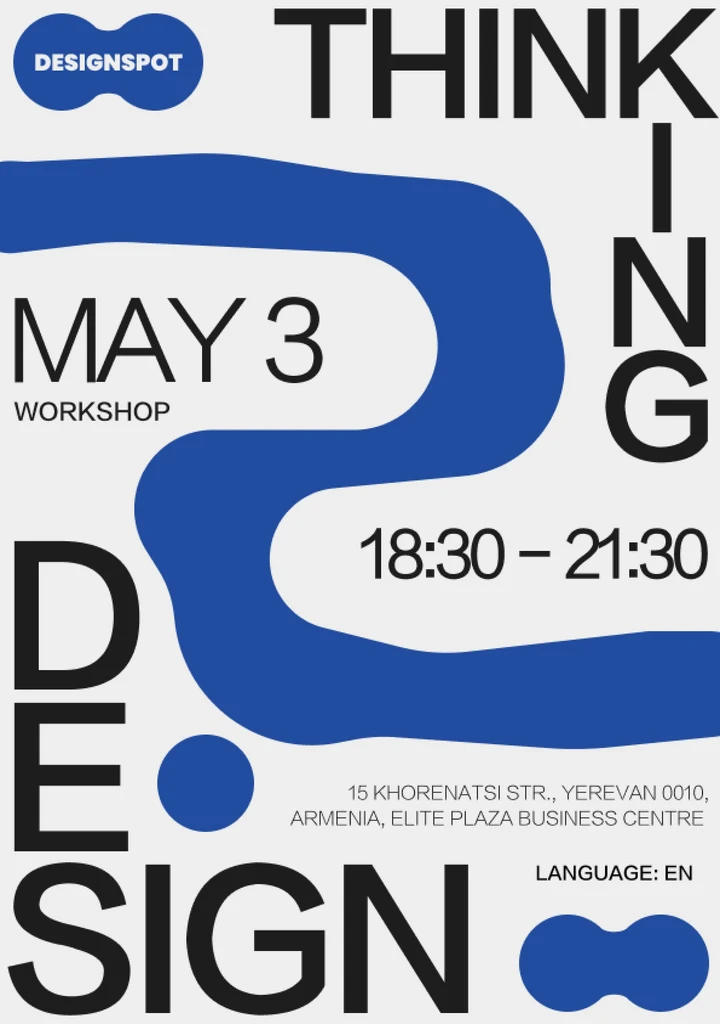
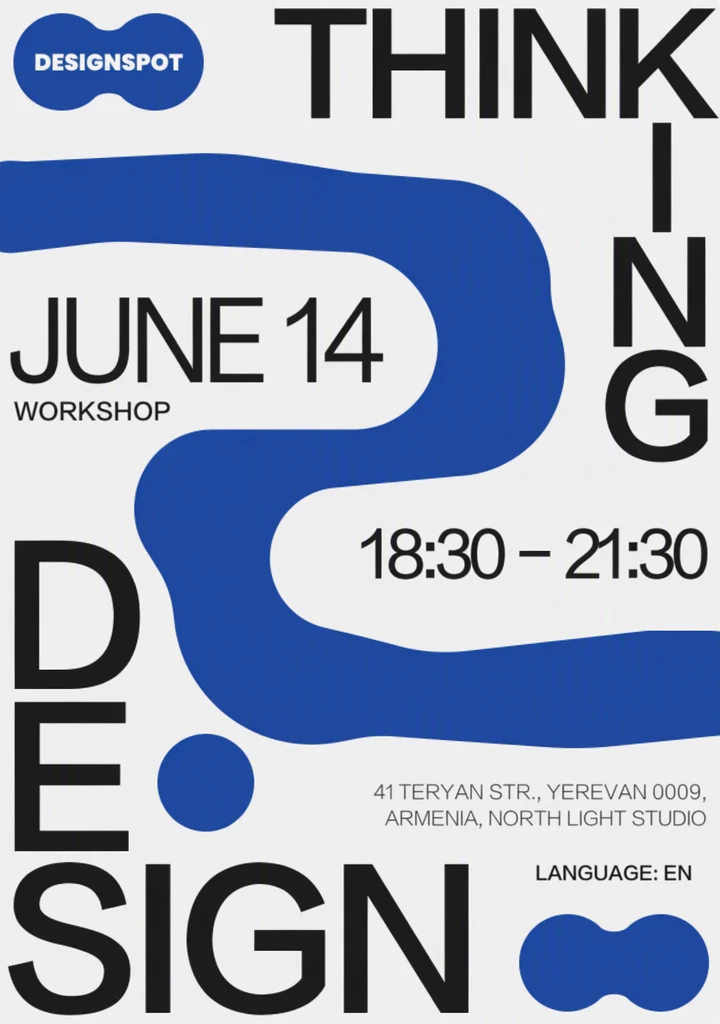
Before and after: the date and the venue lines retyped in EditText.ai; the rest of the poster was left as it was.
Depending on what you need:
- To match the look of the original words, read how to edit text in an image with the same font.
- If the picture came from an AI generator and the words came out garbled, you can fix text in AI-generated images by typing the correct spelling for each line.
- To put the words into another language, you can translate text in an image. If you only need to understand foreign words in a picture, see can ChatGPT translate text in an image.
- To clear words away entirely, you can remove text from an image and let the background be rebuilt.
- For a wider look at every method, including manual editing, see how to edit text in an image.
Can ChatGPT edit photos for free?
Yes, within limits. OpenAI's help center says ChatGPT Images is available on all plans, and that image uploads are available on free and paid plans with usage limits that vary by plan (as of October 2026). Some features are reserved for paid plans. For example, OpenAI lists Images with thinking as available on Plus, Pro and Business. Limits can change, so check your own plan in ChatGPT before you rely on it for a project.
EditText.ai works differently. You get one free Standard edit, which carries a watermark. Paid plans cost $9, $29 or $49 a month for 10, 35 or 60 credits, and paid results are watermark-free. A Standard edit uses 1 credit and a High quality edit uses 2 credits. On a paid plan, a 2K or 4K edit uses 2 or 3 credits at Standard and 5 or 7 at High quality. The free edit also works for translating or removing text. See EditText.ai pricing for the current plans.
A note on privacy
Uploading an image to any AI service sends a copy to that service. Before you upload something personal or confidential, check the service's privacy settings. In ChatGPT, OpenAI's help center describes a Data controls section in Settings, where you can turn off "Improve the model for everyone" so that new conversations are not used to train OpenAI's models. On EditText.ai, your image is processed by AI to make the edit, and your images are private to your account and saved in My images.
Whatever tool you use, only edit images you own or have permission to change. Don't remove watermarks or credits, and don't alter screenshots or records to mislead anyone.
Try it on your own image
If ChatGPT's version changed more than you wanted, try a tool that keeps the focus on the words. Upload your picture to edit text in an image with EditText.ai, type the new wording for each detected line, and check the result before you download the PNG.
Frequently asked questions
Can I use AI to edit text in an image?
Yes. Chat assistants such as ChatGPT can redraw an image with new words when you describe the change, and dedicated tools detect the existing text so you can type replacements line by line. Both approaches use AI to redraw the lettering, so results vary from image to image. Check the spelling, the style of the letters and the area around the text before you use the result.
Can ChatGPT edit an existing photo?
Yes. Upload the photo, then describe the change in the chat, or open the editor and highlight the area you want to change first. ChatGPT then generates a new version of the image or of the selected area. Faces, textures and fine details may be redrawn as well, so compare the result with your original before you share it or use it in a project.
Why did ChatGPT change parts of my image that I didn't select?
The selection guides the edit, but the area is drawn again and blended with its surroundings, so changes can spread past the edge you marked. OpenAI's help center notes that highlights are not always precise. To limit this, select a tight area, add "change nothing else" to your prompt, and start again from the original image if the picture keeps drifting.
Why does ChatGPT misspell words in images?
Image models draw letters as shapes rather than typing them as text, and many read prompts in word pieces instead of single letters. Spelling is usually more reliable with short text, large lettering and the exact words in quotes. If a word is still wrong, ask ChatGPT to fix only that word, or use a tool where you type the replacement text yourself.
Can ChatGPT keep the same font when it changes text?
It can try to match the look if you ask it to keep the same lettering style, size and color. Because it redraws the letters instead of setting them in a font file, the match may be close rather than exact. For print or brand work, compare the new letters closely with the old ones, or edit the original design file if you have it.
What image files can I upload to ChatGPT?
As of October 2026, OpenAI's help center lists PNG, JPEG and non-animated GIF files, up to 20 MB per image. A sharp image in which the text is large and clear gives the model more detail to work with. For comparison, EditText.ai accepts PNG, JPG and WebP files up to 14 MiB and returns the edited result as a PNG.