AI image generators struggle with spelling because they draw pictures, not text. They learn what letters look like as shapes and patterns of pixels, and they never type a word one letter at a time, so a small slip can turn "BAKERY" into "BAKRERY". Many of them also read your prompt in word pieces rather than individual letters, which makes exact spelling even harder.
Newer generators handle short text much better than early ones did, but long passages, small lettering, unusual names and non-Latin scripts still cause mistakes. If you already have an image with broken words, you can often fix text in AI-generated images without starting over. This guide explains why the errors happen, how to prompt for better text, and how to repair it afterwards, whether the image came from Midjourney, ChatGPT, Gemini, Stable Diffusion or another generator.
How AI image generators make a picture
Many popular image generators use a method called a diffusion model. The model starts with random noise, similar to static on a screen, and removes a little of that noise in each of many steps. Your prompt guides every step, so the noise slowly turns into a picture that matches your description. The whole image is refined together: the sky, the faces and the lettering all take shape at the same time.
Not every generator works this way. Some build the image as a sequence of small pieces instead. But in general, text-to-image models share one important trait: they predict what the picture should look like. There is no step where the model picks a font and types "B", then "A", then "K". Letters appear only as shapes that look right, which is why they can come out almost right but not quite.
Why text is so hard for image generators
Several causes work together. Each one makes a small error more likely, and text is a place where small errors are easy to see.
Letters are tiny details with strict rules
A tree can have any number of branches and still look like a tree. A word has exactly one correct spelling. Text also has rules that apply across the whole word: every letter needs the same style and height, the spacing must be even, and the letters must sit on the same line. One extra stroke, a missing letter or a doubled letter is obvious to anyone who reads the language, even when the rest of the image looks real.
The model may never see the letters you typed
Before a generator can use your prompt, a component called a text encoder turns it into numbers. Many text encoders first split the prompt into tokens. Common words often become a single token, while rarer words are broken into several pieces. A widely used method for building these pieces is byte-pair encoding. The approach is efficient, but the model receives an ID for each piece, not the letters inside it. It has to learn from examples that a certain piece is drawn as a certain row of letters.
A Google Research paper, Character-Aware Models Improve Visual Text Rendering, studied this directly. The researchers compared text encoders that see individual characters ("character-aware") with encoders that only see word pieces ("character-blind"). Image models with character-aware encoders rendered visual text more accurately, and they were especially strong on rare words. The paper also found that very large character-blind language models can learn to spell well, but that this ability did not carry over well beyond English and appeared only in models far larger than the text encoders image generators typically used at the time.
Training images often show text poorly
Generators learn from very large collections of images paired with descriptions. In those images, text is often small, blurry, cut off, seen at an angle or partly hidden, and it appears in a huge range of fonts and styles. The description paired with an image may not mention its text at all. So the model sees many examples of what text looks like in general, but fewer clear examples of exactly how a specific word should be spelled.
Small text has very few pixels
A headline might span hundreds of pixels, while a word of fine print may get only a few pixels per letter. Many generators also work on a compressed version of the image and rebuild the full-size picture at the end, which leaves even less room for small details. Fine lines, such as the bar in a lowercase "e", are easy to lose.
Why newer models write better text
Image generators have become much better at short headlines and labels. In general, newer systems use stronger language models to understand the prompt, and developers have given text more attention during training. The research above points in the same direction: models that receive better information about letters draw text more accurately.
The improvement is real but uneven. A generator that writes a three-word title correctly can still struggle with a paragraph, a menu or a label in a language it saw less often during training.
Where AI image generators still struggle
- Long text. Paragraphs, menus and lists, where every extra word is another chance for an error
- Small text. Fine print, labels and text far away in a scene
- Unusual words. Names, invented words, new terms and long numbers such as phone numbers or codes
- Non-Latin scripts. Arabic, Chinese, Hindi, Japanese, Korean, Thai and other writing systems, as well as accented letters
- Many text blocks. Posters and infographics with several separate pieces of text
- Curved or angled surfaces. Text on a bottle, a flag or a sign seen from the side
- Consistency. Keeping the same wording identical across a series of images
These are common patterns rather than fixed rules, and they vary from one generator and version to the next.
How to get better text when you generate an image
- Put the exact words in quotes. For example, ask for a poster with the title "NIGHT MARKET" rather than a poster about a night market.
- Keep the text short. A few words in a large size are easier to get right than a full sentence. Put longer text in a caption or on a web page instead.
- Say where the text goes. Describe the placement and size, such as "large title across the top" or "small label on the jar".
- Ask for simple lettering. Bold, clean capital letters on a plain area are easier for a model to draw than decorative script over a busy background.
- Make several versions. Generate a few options, pick the one with the best spelling, and fix only what is left.
- Add exact text later when it matters. For a menu, a price list or anything with fine print, generate the image with empty space and set the text in a design tool. That way the wording is typed, not drawn.
How to fix the text afterwards
If the picture is right but the words are wrong, you have four main options. Here they are from the least effort to the most.
| Method | Effort | What else can change | Best when |
|---|---|---|---|
| Regenerate the image | Low | Everything, because you get a new picture | The whole image is wrong, or you don't mind losing this version |
| Select and edit in the generator | Low | Nearby areas can be redrawn too | You want a quick fix in the same tool |
| AI text replacement tool | Low to medium | The text area is redrawn, so check the result | The picture is right and only the words are wrong |
| Fix it by hand in an image editor | High | Only what you change | You need full control, for example for print or client work |
Regenerate the image
Regenerating takes little effort, but the result is random. A new attempt may fix the word and break something else, such as a face, a hand or the layout. Use it when you have not yet spent much time on this exact image.
Select and edit inside the generator
Some generators let you mark an area and describe a change. In ChatGPT, for example, you can highlight the text with a selection tool and type what it should say. OpenAI's help center notes that highlights are not always precise, so details near the text can change too. For a closer look, see can ChatGPT edit text in images.
Use an AI text replacement tool
A text replacement tool detects the text in the image for you, so you only type the correct spelling. With EditText.ai, for example, you edit text in an image line by line, and each line is redrawn in the look of the original lettering and background. For a single wrong letter or word, see how to fix a typo in an image. For headlines and display lettering on event designs, see how to change text on a poster.
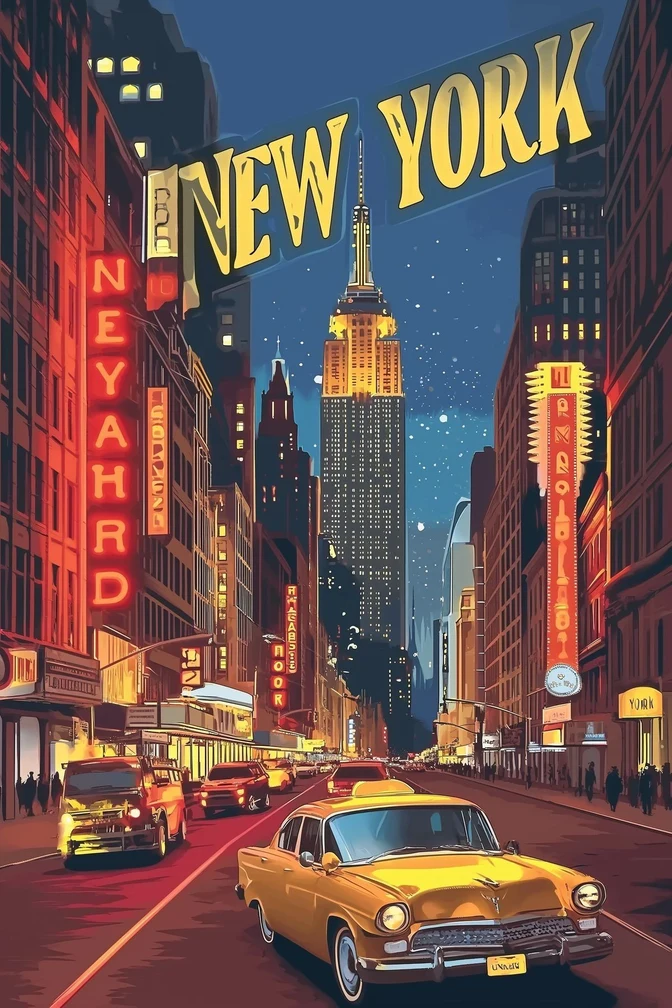
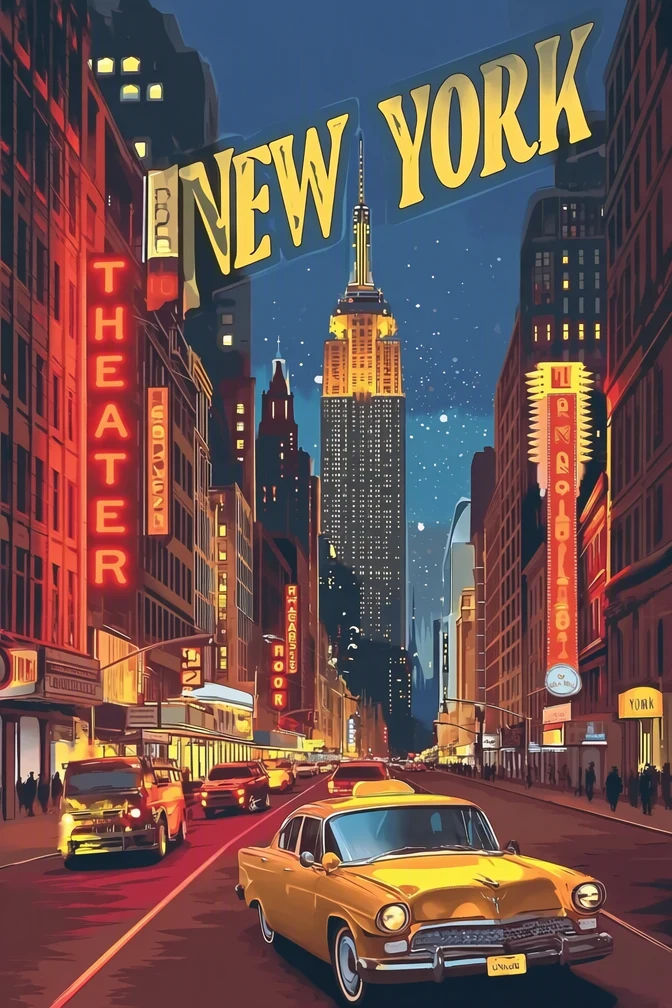
Before and after: a garbled neon sign in an AI image, corrected by typing THEATER in EditText.ai.
Results can vary, especially with unusual lettering or detailed backgrounds. Because the redraw is also done by an image model, read every new word letter by letter at full size. Any text detection can also misread garbled letters, so make sure each detected line is the one you meant to change.
Fix it by hand
In Photoshop, Photopea or a similar editor, you remove the broken letters, rebuild the background and set new text in a font. This gives you the most control and suits print or client work, but it takes skill and time. AI lettering is often not a real font, so a font finder may not find a match. Read how to identify a font from an image for ways to find a close substitute.
A simple rule helps you choose: if the whole image is wrong, regenerate it. If only the words are wrong, fix the words.
Other options
You can also remove text from an image completely and set real type on the clean background in a design tool, a good approach for menus and price lists. Once the wording is right, you can translate text in an image to make versions for other languages.
Only edit images you own or have permission to change, don't remove watermarks or credits, and keep any AI-image labels that a platform requires.
Fix the words and keep the picture
If the image is right but the spelling is wrong, you don't have to start over. Upload it to fix text in AI images with EditText.ai, type the correct words for each line, and check the result before you download it.
Frequently asked questions
Why does AI mess up text in images?
AI image generators draw text as shapes instead of typing it as letters, and many read prompts in word pieces rather than single characters. Text is also a small detail with strict rules, so one wrong stroke stands out. Training images often show text that is small, blurry or at an angle, which gives models fewer clear examples to learn from.
Why does AI write gibberish instead of real words?
When a model is unsure how a word is spelled, it still draws shapes that look like letters, because that is what text looks like in its training images. The result can be letter-like marks, mixed alphabets or invented words. It happens most with long text, small lettering and unusual words, and less often with a short phrase in quotes.
Which AI image generator is best at text?
There is no permanent answer, because models change often and each new version can behave differently. In general, recent generators handle short, large text better than older ones. The most useful test is your own prompt: generate the same short phrase in the tools you can access, then check the spelling letter by letter before you choose one.
Can I fix misspelled text in an AI image without regenerating it?
Yes. You can select the area and describe the fix in the same generator, retype the text by hand in an editor such as Photoshop or Photopea, or use a text replacement tool that detects the words so you can type the correct spelling. Whichever method you use, compare the result with the original to catch changes near the text.
Why can't a font finder identify the lettering in my AI image?
AI generators usually draw lettering from patterns they learned, not from an installed font file. The letters may mix features of several typefaces, or change shape from one letter to the next. A font identifier may still suggest similar fonts, which helps if you plan to retype the text, but an exact match often does not exist.