To identify a font from an image, crop tightly around a few clear letters and run the crop through a font identifier such as MyFonts' WhatTheFont, Font Squirrel's Matcherator or WhatFontIs, or through Photoshop's Match Font. Then confirm the best suggestion by comparing distinctive letters one by one. If the text is on a live website, check the font in your browser's developer tools instead. And if your real goal is to change the words, you may not need the font name at all: you can edit text in an image with the same font, because the image itself guides the new lettering.
Start with a clean sample
Font identifiers compare the shapes of letters, so the cleaner your sample, the better the matches. Before you upload anything:
- Use the largest, sharpest copy of the image you can find, not a small thumbnail or a compressed screenshot.
- Pick one line of text in one style. Mixed fonts confuse the search.
- Choose a line with distinctive letters, such as a, g, R, Q or y, rather than plain ones like I, O or l.
How to use a font identifier, step by step
- Crop to one line. Cut the image down to a single line of text with a little space around it. Leave out other words, icons and busy background.
- Straighten it. Rotate the crop so the letters sit on a level line. Curved or slanted text is much harder to match.
- Raise the contrast. Dark letters on a plain, light background usually work best. Adjust brightness and contrast if the text is faint.
- Separate touching letters. If letters overlap or join, some tools let you mark each character yourself, which helps the match.
- Upload and check the characters. Most tools detect the text on their own. Check that each letter was read correctly, and fix any mistakes the tool lets you correct.
- Compare the suggestions letter by letter. Type your own sample text into the preview where the tool offers it, and look at the shapes that differ most between fonts.
Results often include both commercial fonts and free alternatives. Treat the top suggestion as a starting point, not a final answer, and compare the details covered below before you buy or download anything.
How to use Photoshop's Match Font
If you already use Photoshop, its Match Font feature does the same job inside the app. According to Adobe's help page:
- Open the image in Photoshop.
- Select the text with the Rectangular Marquee tool, keeping the box tight around one line.
- Choose Type > Match Font. Photoshop shows a list of fonts similar to the text in your selection.
- To see only fonts installed on your computer, uncheck the option that shows fonts available to add from Adobe Fonts.
- Select the closest font and click OK.
Match Font is handy when you plan to retype the words in Photoshop anyway, because the matched font is ready to use in the same document. For the full retyping process, and for faster alternatives, see our guide on how to edit text in an image.
If the text is on a website, check the code
For text on a live web page, you don't need to guess from pixels. The page tells your browser which fonts to use through CSS, and the browser's developer tools can show you the answer.
- Right-click the text and choose Inspect.
- In Chrome, open the Computed tab and scroll to the bottom to find Rendered Fonts, the fonts actually used to draw the text.
- In Firefox, open the Fonts panel in the Page Inspector, which lists the fonts used by the selected element.
The CSS font-family line lists the fonts the designer asked for, in order of preference. The rendered font tells you which one actually loaded on your device.
Why font identifiers sometimes fail
Font identifiers can only match fonts in their catalogs, and some text was never a font to begin with. Expect weak or wrong matches with:
- Hand lettering and custom type. Many posters, invitations and packages use letters drawn for that one design, so no exact font exists.
- Logos. Logo lettering is often custom-made or heavily modified.
- Heavy effects. Outlines, shadows, 3D effects, glows and distressed textures hide the letter shapes.
- Curved or angled text. Arches, waves and perspective distort the shapes the tool compares.
- Low resolution. Blurry or heavily compressed images lose the small details that separate similar fonts.
- Script and joined letters. Font Squirrel's own page says script and connected fonts don't work well with its matcher.
- AI-generated images. Lettering made by an image generator usually isn't a real font, and the same letter can change shape from one word to the next. Our post on why AI image generators can't spell explains why.
- Non-Latin scripts. Coverage can be limited. WhatTheFont, for example, says its detection works only with Latin text, as of October 2026.
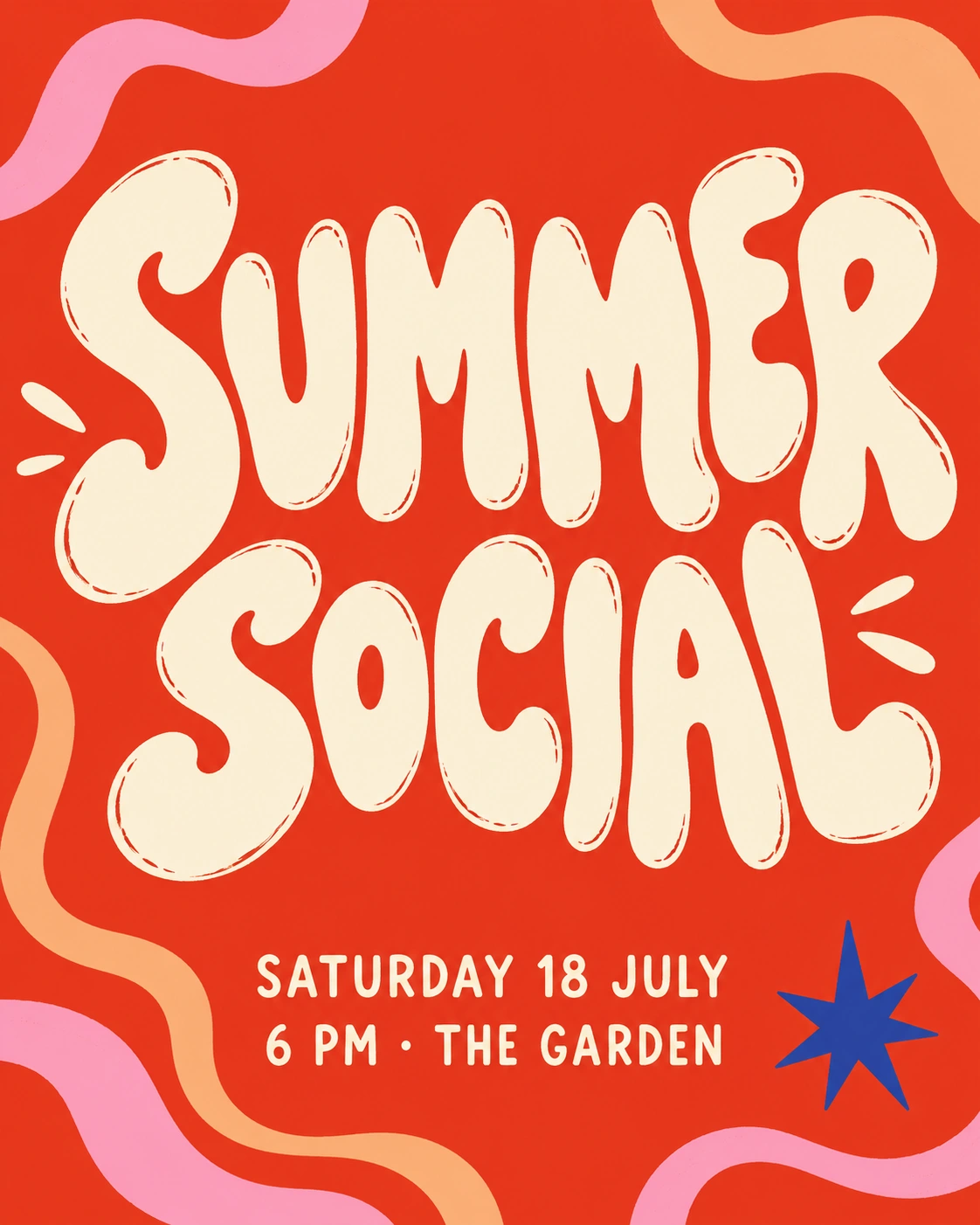
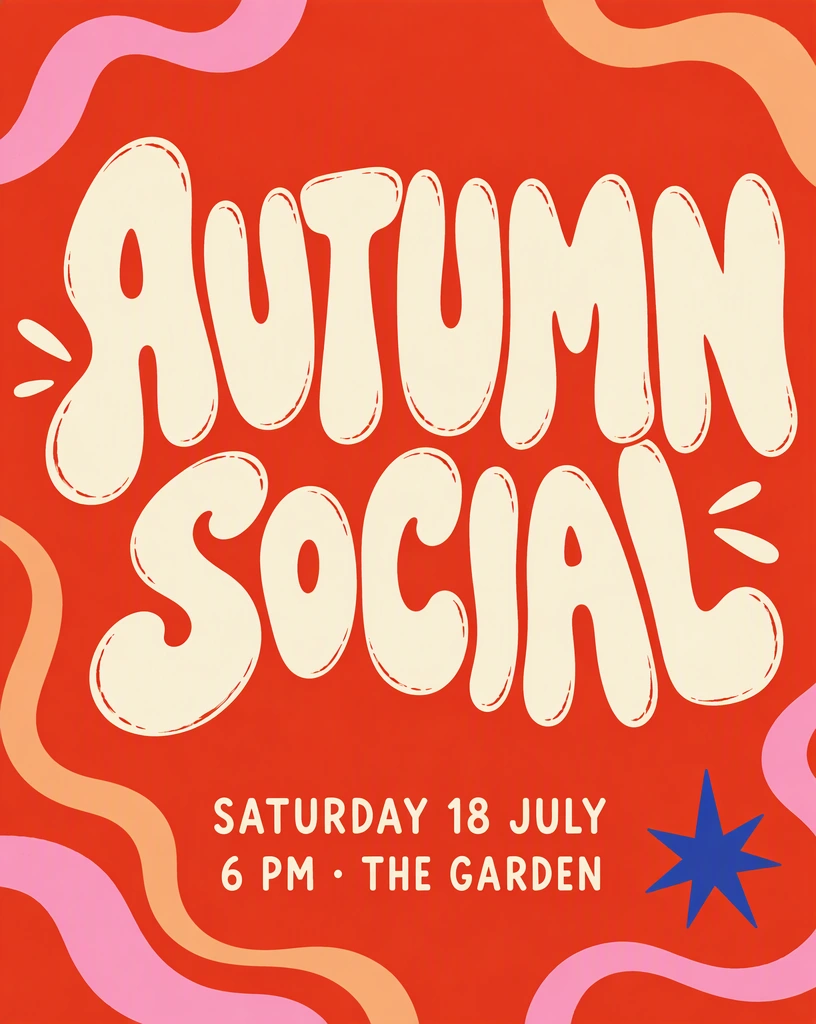
Bubble lettering with hand-drawn details is hard for font identifiers to match, but an image-guided edit can keep the style. Before and after: SUMMER SOCIAL changed to AUTUMN SOCIAL (from the EditText.ai examples).
How to identify a font yourself
When the tools disagree, or find nothing close, a few simple checks narrow the search.
- Classify the style. Is it a serif font, with small strokes at the ends of the letters, a sans-serif without them, a script that imitates handwriting, or a decorative display face?
- Check the proportions. Look at the x-height, which is the height of lowercase letters such as x compared with the capitals. Note whether the letters are narrow or wide, and whether the strokes vary between thick and thin.
- Study the most distinctive letters. Is the lowercase a single-story or double-story? Does the g have one loop or two? Is the leg of the R straight or curved? How does the tail of the Q cross, and does the y end in a straight line or a curve?
- Look at the spacing and numbers. Tight or loose letter spacing is part of a font's character, and so are the shapes of its numbers.
- Search specimen collections. Use what you noted to browse type foundry catalogs and specimen pages. If you want a free lookalike, Google Fonts lets you browse open-source fonts by category and preview your own text.
A close match is often enough. If you only need a similar feel for a new design, a well-chosen lookalike can work as well as the original.
Check the license before you use it
Fonts are software, and each one comes with a license. As the Google Fonts guide to font licensing explains, the license spells out what you may and may not do with the font files. Paid licenses are often priced by use, such as the number of computers that can install the font or the number of visitors to a website that uses it. Many open-source fonts use the SIL Open Font License. Before you use an identified font in a commercial project, read its license or ask the foundry that made it.
When you can skip the font hunt
Naming the font matters when you build something new, such as a brand style, a print layout or a website. But if your real goal is to change the words in an existing image, you can often skip the search.
A same-font AI edit uses the image itself as the reference. With EditText.ai, you upload the image to edit text in an image, the text is detected automatically, and you type the new words. The image is redrawn with your replacement in the look of the original lettering, so there is no font to pick. The redraw is done by AI rather than by setting type from a font file. This can also work for custom or hand-drawn lettering that no identifier can name, although results can vary with unusual lettering or detailed backgrounds.
It also covers several reasons people go looking for a font in the first place:
- To fix a typo in an image without rebuilding the whole design.
- To change text on a poster when a date, venue or price changes.
- To translate text in an image into one of 35 languages while keeping the design.
- To remove text from an image and rebuild the background instead.
Only edit images you own or have permission to change. And if you're working in Canva and the words won't change at all, the text may be part of a picture: our guide on why you can't edit text in Canva covers that and other common causes.
Don't use font matching to copy logos
Font tools are for typefaces, not brand marks. Logo lettering is often custom-drawn and protected as part of a trademark, so don't use font matching to recreate or imitate someone else's logo. Use identified fonts for your own designs, under the right license.
Change the words without naming the font
If you found the font, install it under the right license and use it in your design. If you only need different words in the same style, upload your image to edit text in an image with the same font and let the original lettering guide the result.
Frequently asked questions
How do I find out what font is in a picture?
Crop the picture to one clear line of text, then upload it to a font identifier such as WhatTheFont, Matcherator or WhatFontIs, or use Photoshop's Match Font. Compare the suggestions against distinctive letters like a, g, R and y. If nothing matches, the lettering may be custom, so look for a close lookalike by style instead.
Can Photoshop identify a font from an image?
Yes. Select the text with the Rectangular Marquee tool, then choose Type > Match Font. Photoshop lists similar fonts installed on your computer and fonts you can add from Adobe Fonts. It works best on clear, straight text, and like other identifiers it can only suggest fonts it knows, so custom lettering may only get approximate matches.
Why can't a font identifier find my font?
The text may not be a font at all. Hand lettering, logos and AI-generated text often have no matching font file. Low resolution, curved or angled text, heavy effects, joined script letters and some non-Latin scripts also lead to poor matches. Try a cleaner, straighter crop, or identify the style yourself and look for a lookalike.
How do I identify a font on a website?
Skip the screenshot. Right-click the text and choose Inspect. In Chrome, the Computed tab lists the rendered fonts at the bottom. In Firefox, the Fonts panel in the Page Inspector shows the fonts used by the selected element. This tells you the exact font the page uses, which an image-based guess can't do.
Is it legal to use a font I found in an image?
It depends on the font's license. Some fonts are free for personal use but need a paid license for commercial work, while many open-source fonts, such as those on Google Fonts, allow commercial use under their license terms. Read the license that comes with the font, or ask the foundry, before you publish anything.
Do I need to know the font to change text in an image?
Not always. If you plan to retype the words in a design app, you need the font or a close match. An AI tool that redraws the words in the image's own lettering doesn't need a font name, because it uses the image as the reference. That route can also work for custom or hand-drawn lettering that no font identifier can name.