EditText.ai vs Photoshop for changing text in images
Photoshop can change any pixel in a picture, so it is the right tool when you need full control or still have the layered file. If you only have a flat image, such as a JPG or a screenshot, EditText.ai can change the words without layers, selections or a font search. This page compares the two and says when each one is the better choice.
We make EditText.ai. Facts about the other tool come from its maker's own pages, listed under Sources.
Upload an imageSign in with Google to upload. Your first Standard edit is free and includes a watermark.
The short answer
Use Photoshop when you have the layered file, need an exact typeface or need your file at its own size. Use EditText.ai when you only have a flat image and want new words that match the old lettering without retouching the background yourself.
Choose EditText.ai if…
- you only have a flat PNG, JPG or WebP, not the layered source file
- you want the new words to follow the original lettering without identifying the font
- the words sit on a photo, a texture or curved lettering that is slow to rebuild by hand
- you want to translate the text in an image into one of 35 languages
Choose Photoshop if…
- you have the layered PSD, so the text is still live text
- you need an exact typeface, spacing or color, such as for brand work
- you need your file at its own size, for print or further retouching
- you already pay for Adobe Creative Cloud and are comfortable with layers
Side-by-side comparison
Checked October 2026. Prices and features change, so confirm them on the official pages under Sources. The learning-curve row is our own view.
| Feature | EditText.ai | Photoshop |
|---|---|---|
| How the text is changed | Upload an image, type the new words beside each detected line and apply. The AI redraws the image with your wording. | You remove the old words, then type the new ones on a live text layer with the Type tool and format them in the Character panel. |
| Font matching | There is no font to choose or identify: the lettering in your image guides the new letters. Results can vary with unusual lettering, so compare each changed line with the original. | The Match Font command in the Type menu suggests similar fonts from your computer or Adobe Fonts for Latin and Japanese text. You then set the size, color and spacing yourself. |
| Background | The area behind the old words is rebuilt as part of the edit, from the surrounding image. Details close to the text can change, so check the result at full size. | You rebuild the area behind the old words with the Remove tool, Content-Aware Fill or Generative Fill, and you can refine it pixel by pixel. |
| Translation | The Translate tool rewrites the detected text in one of 35 languages and keeps the design. Check names, prices and long lines in the result. | You supply the translation and retype it with the Type tool. |
| Removing text | Select the detected lines you want gone and the area is rebuilt from the surrounding image. It is meant for text you have the right to change. | The Remove tool brushes text away and fills the area from the surrounding pixels. Content-Aware Fill and Generative Fill do the same from a selection. Adobe says the Remove tool does not use generative credits. |
| Learning curve | Low: upload, type the new words, apply. There are no layers, selections or fonts to learn. | Steeper. Layers, selections, a retouching tool and the Type and Character panels all come into play. Adobe publishes tutorials, and the skills carry over to other image work. |
| Platforms | In a web browser, after you sign in with Google. There is nothing to install. | Desktop apps for Windows and macOS, plus Photoshop on the web and on mobile, according to Adobe. |
| Pricing | Every account includes one free Standard edit with a watermark. Plans cost $9, $29 or $49 a month for 10, 35 or 60 credits. A 1K edit uses 1 credit with Standard or 2 credits with High quality. | As of October 2026, Adobe lists Photoshop at US$22.99 a month on an annual plan billed monthly, with a 7-day free trial. Adobe also sells bundles that include Photoshop, so check its pricing page for them and for your country. |
| Output | A flat PNG, made at 1K, 2K or 4K size. 2K and 4K need a paid plan. Your original stays saved in My images. | Your document at its own size. Save a layered PSD to keep the text editable, or export a flat image such as a PNG or JPG. |
Examples

When Photoshop is the better choice
If you still have the layered file, open it in Photoshop and edit the live text. Adobe says a PSD keeps type layers editable, so there is nothing to detect or redraw, and the new words stay crisp. That is faster and cleaner than editing a flattened export with any tool, including ours.
Photoshop also wins when the job needs exact typography or print-ready output. You choose the font, size, tracking and color yourself in the Character panel, and the document keeps its own size. EditText.ai has no font menu, and its result is a PNG made at 1K, 2K or 4K size, so it is a poor fit for large prints.
Finally, Photoshop does far more than text. It can remove, replace or extend other parts of a picture, and you can refine every step by hand. EditText.ai does one job: it changes, translates or removes the words in an image. If you already pay for Creative Cloud and know your way around layers, you may not need a second tool for the occasional edit.
How to change text in an image in Photoshop
Open the image and duplicate it
Open the file in Photoshop and duplicate the background layer, so the original stays untouched. If you have the layered PSD, open that instead and edit the text layer directly: you can skip the steps below.
Remove the old words
Choose the Remove tool and brush over the text, and Photoshop fills the area from the surrounding pixels. For more control, select the text and use Content-Aware Fill (right-click the selection and choose it) or Generative Fill. Adobe says Generative Fill uses generative credits and the Remove tool does not. On a busy background, expect to refine the result.
Find a matching font
Draw a tight box around one line of the original text with the Rectangular Marquee tool and choose Match Font from the Type menu. Photoshop lists similar fonts from your computer or Adobe Fonts. Custom or hand-drawn lettering may have no close match.
Type the new words
Select the Type tool, click where the text should start and type. In the Character panel set the font, size, color and tracking to match the original, and use the transform tools for slanted or perspective text.
Blend the text in
Match the blur, grain and lighting so the words do not look pasted on. Some filters need the type layer to be rasterized first, which makes it uneditable as text, so keep a copy of the live text layer.
Save and export
Save a PSD to keep the text editable, then export a PNG or JPG to share.
When EditText.ai is the better choice
EditText.ai fits the case that takes the most manual work in Photoshop: a finished, flattened image that only needs different words. You upload it, type the new wording beside each detected line, and the AI redraws the image so the new words follow the original lettering, color and texture. There is no font to identify and no background to rebuild by hand.
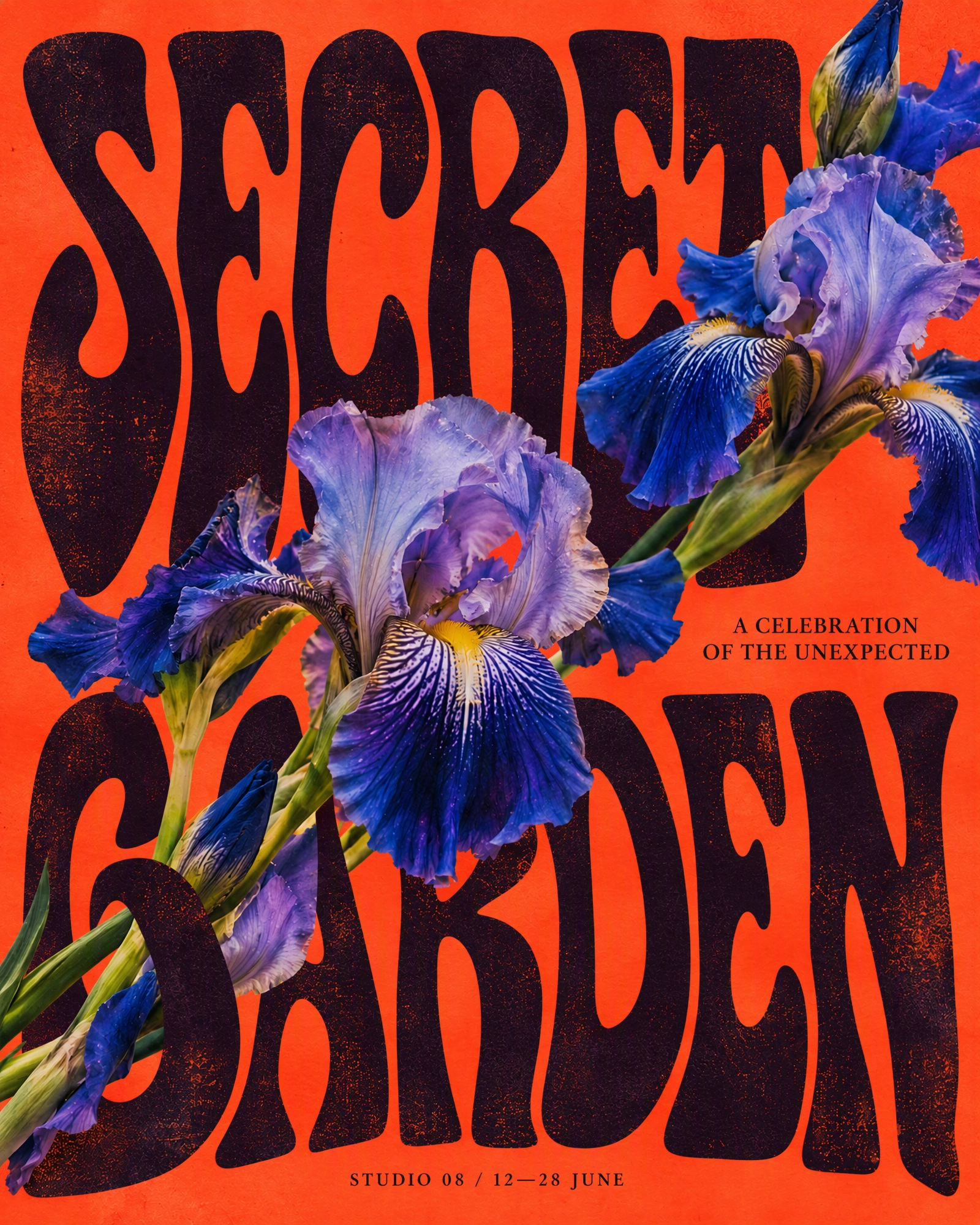
It also suits text that is hard to retype, such as curved lettering on packaging, wavy poster titles or words printed over a photo. Because the image guides the letters, you compare the result with the original instead of matching each setting yourself. Results can vary with unusual lettering or detailed backgrounds, so check the finished image at full size.
Typical jobs are changing the date on a poster, fixing a typo in a screenshot or updating a label on a product photo. You can also translate the text in an image, or remove text and let the surrounding picture fill the space. The whole process takes three steps:
- Sign in with Google and upload a PNG, JPG or WebP up to 14 MiB.
- Type the new words beside each detected line, and add any line it missed.
- Apply the change, compare the result with the original and download a PNG.
Edit text in imageTranslate text in imageRemove text from image
Frequently asked questions
Can I edit text in an image without Photoshop?
Yes. For a flat image, upload it to an AI text editor such as EditText.ai, type the new words and download the result as a PNG. A browser editor such as Photopea uses tools similar to Photoshop: you paint out the old words and type new ones. If you still have the layered file, editing the live text in the app that made it is the cleanest route.
Is Photoshop better than EditText.ai for editing text?
It depends on the job. Photoshop is better when you have the layered file, need an exact typeface or need your file at its own size. EditText.ai is better when you only have a flat image and want the new words to match its lettering without retouching the background yourself. Using both is reasonable: Photoshop for design work, EditText.ai for a quick change to a finished image.
How much does Photoshop cost compared with EditText.ai?
As of October 2026, Adobe lists Photoshop at US$22.99 a month on an annual plan billed monthly, after a 7-day free trial. EditText.ai gives every account one free Standard edit with a watermark. Plans cost $9, $29 or $49 a month for 10, 35 or 60 credits. A 1K edit uses 1 credit with Standard or 2 credits with High quality. Photoshop does far more than text, so the prices compare fairly only for this one job.
Can Photoshop match the font of text in an image?
Often, yes. Select a line of the text with the Rectangular Marquee tool and choose Match Font from the Type menu. Photoshop suggests similar fonts from your computer or Adobe Fonts, and Adobe says it reads Latin and Japanese text. Custom or hand-drawn lettering may have no close match, and you still set the size, color and spacing yourself. EditText.ai skips the search because the lettering in the image guides the new words.
Does EditText.ai replace Photoshop?
No. EditText.ai does one job: it changes, translates or removes the text in an image. It does not make layered files or retouch other parts of the picture, and its result is a PNG made at 1K, 2K or 4K size. Use Photoshop for design work and for anything that needs exact control.
Can I translate the text in an image with Photoshop?
You supply the translation yourself: remove the old words, then type the translated ones with the Type tool and choose a font that suits the new language. EditText.ai has a Translate tool that rewrites the detected text in one of 35 languages and keeps the design. With either tool, check names, prices and long lines before you publish.
Sources
Checked in October 2026 on these pages from the tools' makers.
- Adobe: Photoshop plans and pricing adobe.com/products/photoshop.html
- Adobe: Photoshop free trial adobe.com/products/photoshop/free-trial-download.html
- Adobe: Creative Cloud plans adobe.com/creativecloud/plans.html
- Adobe Help: Match fonts in images with Photoshop helpx.adobe.com/photoshop/desktop/text-typography/select-manage-fonts/match-fonts.html
- Adobe Help: Remove objects from images in Photoshop helpx.adobe.com/photoshop/desktop/repair-retouch/remove-objects-fill-space/remove-unwanted-objects-and-distractions.html
- Adobe Help: Remove objects with Content-Aware Fill helpx.adobe.com/photoshop/desktop/repair-retouch/remove-objects-fill-space/remove-objects-with-content-aware-fill.html
- Adobe Help: Edit text in Photoshop helpx.adobe.com/photoshop/using/editing-text.html
- Adobe Help: Photoshop on desktop technical requirements helpx.adobe.com/photoshop/desktop/get-started/technical-requirements-installation/adobe-photoshop-on-desktop-technical-requirements.html
Try it on your own image
Upload an imageSign in with Google to upload. Your first Standard edit is free and includes a watermark.