Canva Grab Text alternative: change text in an image
You can't click into the words in a photo or PNG in Canva, because Canva edits text boxes and the letters in a picture are pixels. Grab Text is Canva's way around that for straight, flat text. EditText.ai takes another route: it redraws the image with your new words. This page compares the two and says when Canva is the better choice.
We make EditText.ai. Facts about the other tool come from its maker's own pages, listed under Sources.
Upload an imageSign in with Google to upload. Your first Standard edit is free and includes a watermark.
The short answer
Use Canva when the design lives there, or when Grab Text can lift straight Latin text into text boxes you want to keep editing. Use EditText.ai when the words are part of a photo or a downloaded graphic, especially arched, rotated or non-Latin lettering, and you want a finished image back.
Choose EditText.ai if…
- the words are part of a photo, a sign, packaging or a downloaded graphic, not a Canva text box
- the lettering is arched, rotated or not in the Latin alphabet, which Grab Text does not support
- you want a finished image back, not text boxes you have to restyle
- you want to translate the text in an image into one of 35 languages in one step
Choose Canva if…
- the design was made in Canva, so the words are still text boxes you can retype
- the text is straight, flat Latin text and you want editable text boxes afterward
- you want to lay out, design and publish in one place, not only change a few words
- you already have Canva Pro
Side-by-side comparison
Checked October 2026. Prices and features change, so confirm them on the official pages under Sources. The learning-curve row is our own view.
| Feature | EditText.ai | Canva |
|---|---|---|
| How the text is changed | Upload an image, type the new words beside each detected line and apply. The AI redraws the image with your wording. | If the words are in a text box, click and type. If they are part of a photo, select the photo, choose Edit, open Tools and See all, then choose Grab Text, select the words and choose Grab: Canva turns them into text boxes you can retype. |
| Font matching | There is no font to choose or identify: the lettering in your image guides the new letters. Results can vary with unusual lettering, so compare each changed line with the original. | Grab Text tries to match the font in the image to one in Canva's library and picks the closest if the exact font is missing. As of October 2026, Canva's help center says bold, italic and underline formatting is not available for it yet. |
| Background | The area behind the old words is rebuilt as part of the edit, from the surrounding image. Details close to the text can change, so check the result at full size. | Canva says Grab Text lifts the text off the image with no manual erasing, and you edit the result as normal text boxes. Its help center notes that adjusted transparency can make grabbed text look odd on an image, so check the result. |
| Translation | The Translate tool rewrites the detected text in one of 35 languages and keeps the design. Check names, prices and long lines in the result. | Translate, a Canva Pro tool, translates the text in your designs into more than 100 languages. For text inside a photo, Canva's image translator starts by isolating the text with Grab Text. |
| Removing text | Select the detected lines you want gone and the area is rebuilt from the surrounding image. It is meant for text you have the right to change. | Magic Eraser (Pro, Teams and Education plans) lets you brush over or select what to erase, including text, then choose Erase. |
| Learning curve | Low: upload, type the new words, apply. There are no layers, selections or fonts to learn. | Low. If the text is in a text box you click and type; Grab Text adds a few steps. |
| Platforms | In a web browser, after you sign in with Google. There is nothing to install. | In a web browser, in desktop apps for Windows and Mac, and in iOS and Android apps, according to Canva's help center. |
| Pricing | Every account includes one free Standard edit with a watermark. Plans cost $9, $29 or $49 a month for 10, 35 or 60 credits. A 1K edit uses 1 credit with Standard or 2 credits with High quality. | As of October 2026, Canva's help center lists Grab Text, Magic Eraser and Translate as Pro features. Pro bills monthly or yearly and has a 30-day free trial for eligible accounts. See Canva's pricing page for today's price in your country. |
| Output | A flat PNG, made at 1K, 2K or 4K size. 2K and 4K need a paid plan. Your original stays saved in My images. | The result is part of your Canva design, so you can keep editing it there. |
Examples
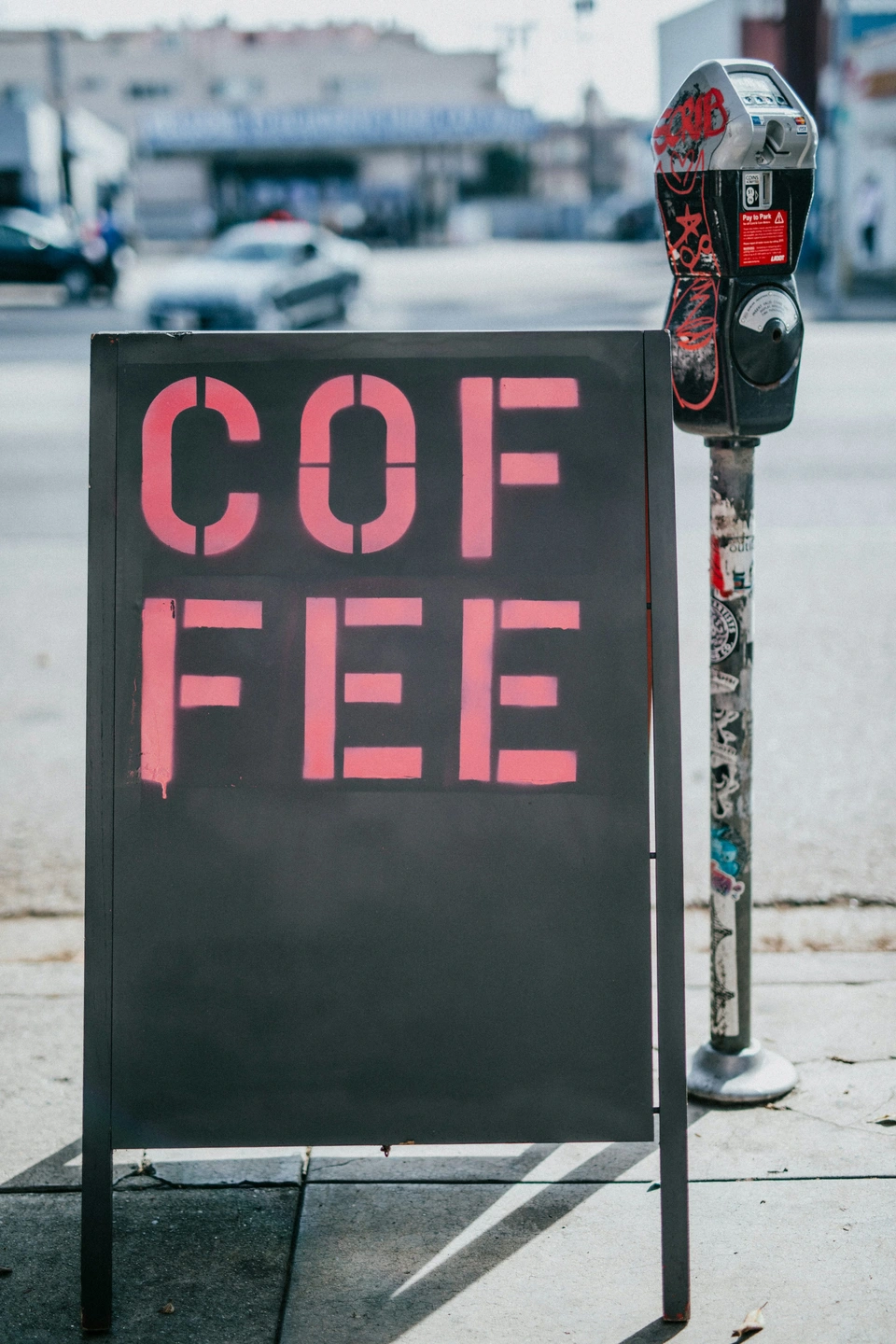
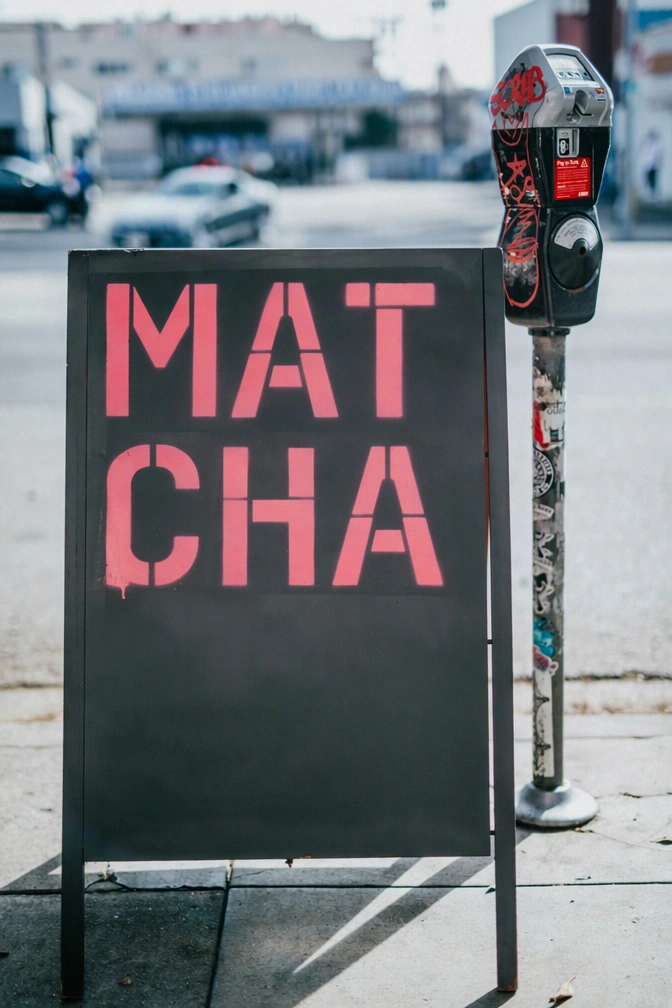
When Canva is the better choice
If the design was made in Canva, open it and retype the text box. Live text is sharper and quicker to change than any edit to a picture, and it keeps your fonts and layout. If a text box will not respond, a lock, a group or view-only access is usually the cause, and our guide on why you can't edit text in Canva covers each one.
Grab Text is also a good fit when the words in a photo are straight, flat Latin text and you want them back as text boxes. You get editable text you can restyle, and everything stays in one Canva design. Canva's help center says it handles one image or page at a time and is not available in Canva Docs.
Canva is also stronger than EditText.ai at everything around the words: templates, layout, brand kits and publishing. EditText.ai only changes the words inside an image.
How to change text in a photo with Grab Text
Add the image to a design
Open a design and add the picture to a page. Grab Text works on a photo inside a design, and Canva lists it as a Pro feature.
Open Grab Text
Click the photo, choose Edit in the toolbar, open Tools, select See all, scroll to the bottom and choose Grab Text.
Select the words and grab them
Select the text you want to change, then choose Grab. Canva turns the words into text boxes and tries to match the font.
Retype and restyle
Click a text box and type the new words. If the font, size or color is off, change them in the toolbar. Bold, italic and underline are not available for grabbed text yet, according to Canva.
Check the limits
Grab Text does not support rotated or arched text, languages that do not use the Latin alphabet or files with more than one page, and some text may not be recognized. For those, cover the old words with a shape in the background color and add a new text box, or use an image tool such as EditText.ai.
When EditText.ai is the better choice
EditText.ai is for the words Canva cannot select: text printed on a sign or a package, or lettering baked into a downloaded graphic or a screenshot. You upload the image, type the new wording beside each detected line, and the AI redraws the image so the new words follow the original lettering. Then you place the downloaded PNG back in your Canva design.
As Canva's help center describes it, Grab Text does not support rotated or arched text, languages that do not use the Latin alphabet, or files with more than one page. EditText.ai redraws the image instead of reading the letters into text boxes, so curved lettering and other scripts are part of its normal use. Results can vary with unusual lettering, so compare each changed line with the original.
It is also quicker for translations: the Translate tool rewrites the detected text in one of 35 languages and keeps the design. Check names, prices and long lines before you publish. The whole edit takes three steps:
- Sign in with Google and upload a PNG, JPG or WebP up to 14 MiB.
- Type the new words beside each detected line, and add any line it missed.
- Apply the change, compare the result with the original and download a PNG.
Edit text in imageTranslate text in imageRemove text from image
Frequently asked questions
Why can't I edit text in a Canva image?
Canva edits text that lives in a text box. The words in a photo, a screenshot or a downloaded PNG are pixels, like the rest of the picture, so clicking selects the whole image. Grab Text can turn some of those words into text boxes. Locks, groups and view-only access cause similar symptoms, and our guide on why you can't edit text in Canva covers each one.
Is Canva Grab Text free?
As of October 2026, Canva's help center lists Grab Text as a Canva Pro feature, so it needs a paid plan or the Pro trial, which Canva offers eligible accounts for 30 days. EditText.ai gives every account one free Standard edit, which carries a watermark, and paid plans start at $9 a month.
Can Grab Text edit arched, rotated or non-Latin text?
No. As of October 2026, Canva's help center says Grab Text does not support rotated or arched text or languages that do not use the Latin alphabet, and that some text may not be recognized. EditText.ai redraws the image instead, so curved lettering and other scripts are part of its normal use, though results vary with unusual lettering.
Does Grab Text work in Canva Docs or on multi-page files?
Not in Canva Docs. As of October 2026, Canva's help center also says Grab Text does not support files with more than one page, or processing several images or pages with a single click. It lists social media, presentation, print, website and whiteboard designs as supported.
Can I translate text in an image in Canva?
Yes, with limits. Canva's Translate tool is a Pro feature that translates the text in your designs, and for text inside a photo its image translator starts by isolating the text with Grab Text. EditText.ai's Translate tool rewrites every detected line in one of 35 languages and keeps the design. Check names, prices and long lines in either result.
Can I use Canva and EditText.ai together?
Yes. Download the image from your Canva design, upload it to EditText.ai, change the words, then add the downloaded PNG back to the design. If the words are still a Canva text box, edit it there and skip the image tool. EditText.ai accepts PNG, JPG and WebP files up to 14 MiB.
Sources
Checked in October 2026 on these pages from the tools' makers.
- Canva Help Center: Grab Text canva.com/help/using-grab-text/
- Canva: Edit text in your image with Grab Text canva.com/features/edit-text-in-image/
- Canva Help Center: Erase or retouch photos canva.com/help/magic-eraser/
- Canva Help Center: Translate your Canva designs canva.com/help/translate-canva-designs/
- Canva: Online image translator canva.com/features/image-translator/
- Canva Help Center: Upgrading to Canva Pro canva.com/help/upgrade-to-canva-pro/
- Canva Help Center: Billing frequency for Canva plans canva.com/help/subscription-options/
- Canva Help Center: Technical requirements canva.com/help/technical-requirements/
Try it on your own image
Upload an imageSign in with Google to upload. Your first Standard edit is free and includes a watermark.