The most common reason you can't edit text in Canva is that the words aren't in a text box at all. They are part of a picture, such as a photo, a screenshot, a downloaded PNG or JPG, or a scanned page, so Canva sees pixels instead of letters. The other usual causes are a lock, view-only access, a group, or an imported file that came in flattened. Each one has a quick fix, and for words that are part of a photo you can use Canva's Grab Text or a tool that can edit text in an image directly.
Quick diagnosis
| What you see | Likely cause | Fix |
|---|---|---|
| Clicking selects a whole picture, with image options instead of font options | The text is part of an image | Use Grab Text, cover and retype, or an AI text editor |
| A padlock appears and nothing moves or changes | The element or page is locked | Select Unlock; unlock the page first if needed |
| You can type new words but can't change the font, size or color | Lock position only, a partial lock | Unlock it, or ask whoever set the lock |
| You can't change anything and only see view or comment options | View or comment access | Ask the owner for edit access, or make a copy |
| Clicking selects several items at once | The text is in a group | Click the group, then the text, or select Ungroup |
| Parts of a team template won't change | Brand Template locks | Ask a team admin or brand designer |
| A page from an imported PDF acts like one picture | A scanned or flattened PDF | Retype the words, or try Grab Text |
| Fonts switch back or won't apply | A browser extension or a glitch | Try another browser, the desktop app, or a private window |
1. The text is part of an image
This is the most common reason Canva won't let you edit text. Canva can only edit text that lives in a text box. Words inside a photo or another raster image are just colored pixels, like everything else in the picture.
It happens with photos of signs and packaging, screenshots, social graphics you downloaded, template previews saved as JPGs, and scanned flyers. To check, click the words. If Canva selects a whole picture and shows image options, such as crop and Edit, instead of a font menu, the text is part of the image.
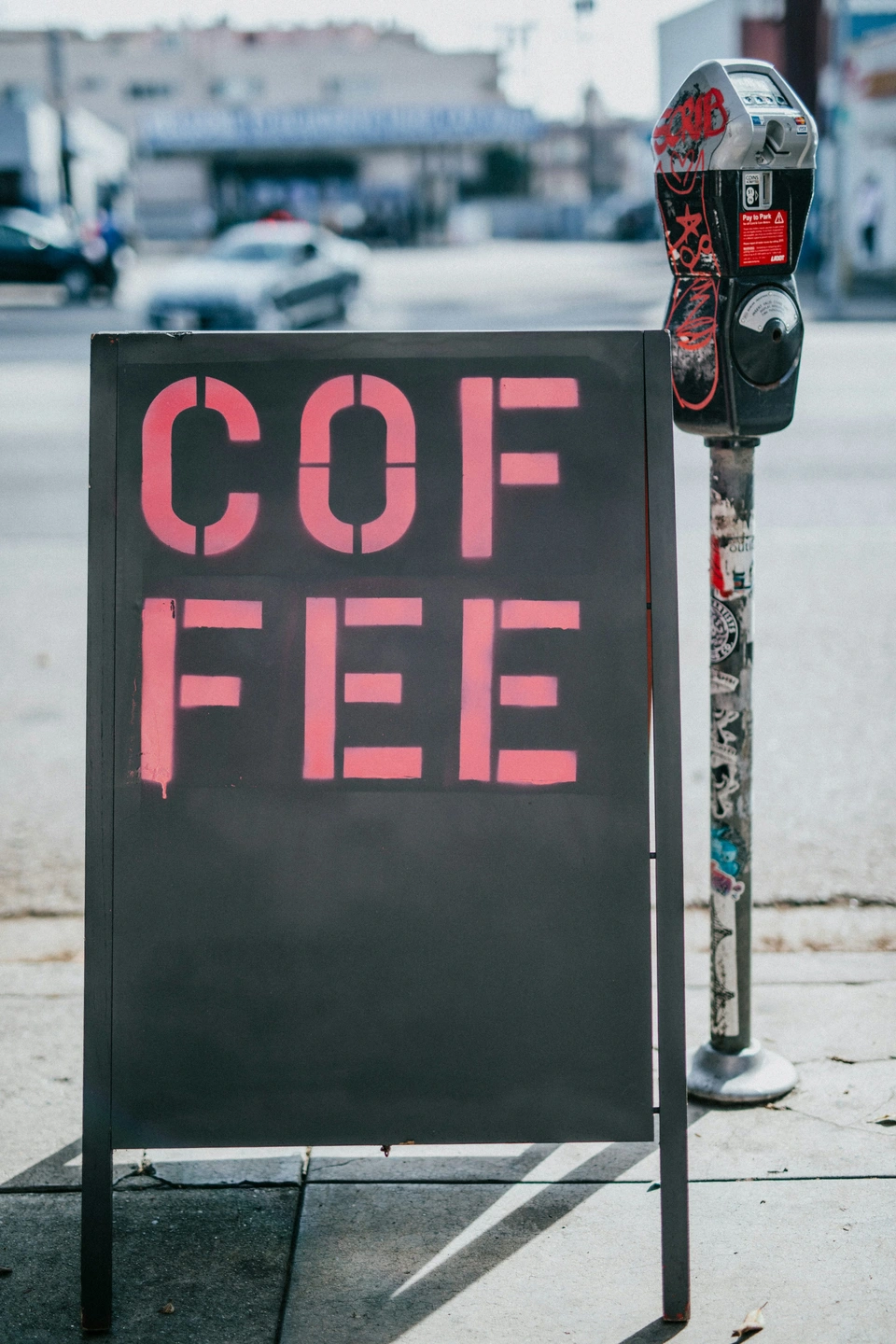
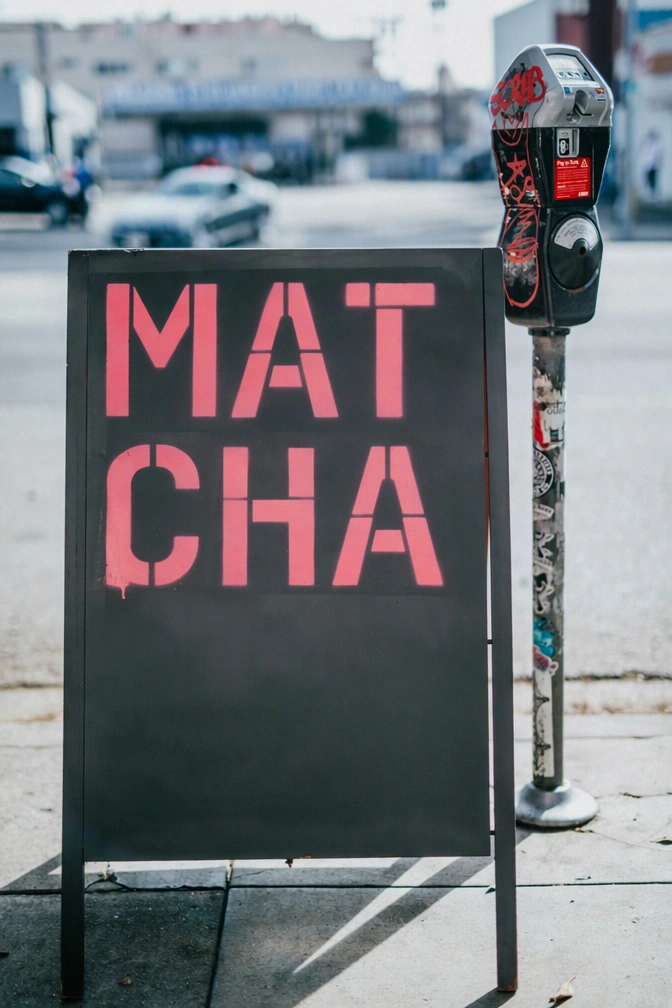
Words like these are part of the photo, so Canva can't select them as text. Before and after: COFFEE changed to MATCHA (from the EditText.ai examples).
How to fix it:
- Find the original design. If the picture came from a Canva design or another layered file, open that and edit the live text.
- Try Grab Text. Select the photo, choose Edit, open the full list of tools (Tools, then See all), and pick Grab Text. Select the words and choose Grab. Grab Text reads the words out of the picture, a technique called optical character recognition (OCR), turns them into editable text boxes, and tries to match a similar font.
- Cover and retype. Place a shape in the background color over the old words, then add a new text box. If you want the same typeface, our guide on how to identify a font from an image shows how to find it.
- Change the words in the picture itself. An AI text editor can redraw the new words in the original lettering, and then you upload the result back to Canva. This helps when you need to edit text without changing the background or edit text in an image with the same font.
Grab Text has limits worth knowing. As of October 2026, Canva lists it as a Pro feature, and its help center says it works best on straight, flat text. It doesn't support rotated or arched text, languages that don't use the Latin alphabet, or files with more than one page. It isn't available in Canva Docs or in video designs, and it can leave small traces of the old letters behind.
2. The element or page is locked
Canva has two kinds of locks. A full Lock stops any change to an element's position, style and content. Lock position only keeps the position and style fixed but still lets you change the content, such as the words in a text box. So if you can type but can't change the font, a partial lock is the likely reason.
- Click the element. If you see a padlock, select Unlock or Unlock position on the floating toolbar.
- If the whole page is locked, unlock the page first. Canva doesn't let you unlock elements on a locked page.
- If something still won't change, select the lock icon again until every element is unlocked.
According to Canva's help center, anyone with edit access to a design can lock or unlock its elements. Some Canva Education accounts are the exception: if a teacher locked an element, students can't unlock it and may see the message "Lock cannot be edited." In that case, ask the teacher to make the change.
3. You only have view or comment access
Shared designs come with one of three permission levels: Can edit, Can comment or Can view. With view access you can look at, export and copy a design, but not edit it. With comment access you can leave feedback, but not change anything.
- Ask the owner to share the design with you again with Can edit access.
- If you only need your own version, make a copy, which view access allows, and edit the copy.
- If you belong to a Canva team, its admin may have blocked designs made outside the team. Ask the person to share the design with you inside your team, or ask your admin.
4. Brand Template locks set by your team
Teams use Brand Templates to keep designs consistent. Admins and brand designers can lock key parts, such as logos, text styles and layouts, before they publish a template. Only admins and brand designers can change these locks, and they have to edit the template and publish it again.
If a team template won't let you change something, it is usually on purpose.
- Check whether you can still type in the text box. With Lock position only, you can change the words but not the style.
- Ask a team admin or brand designer which parts are locked, and why.
- Ask them to unlock that part, or to edit the template and publish a version that fits your needs.
5. The text is grouped, covered or inside a mockup
Templates often group text boxes with other elements, so a click selects the whole group.
- Click the group once, then click the text inside it. You can now edit that text while the group stays intact.
- To separate everything, select the group and choose Ungroup on the floating toolbar.
- If another element sits on top of the text, open the Layers panel (under Position) and select the text layer from the list.
Frames and mockups work differently. A frame holds a picture, and a mockup shows an image or design that you dropped into it. Words inside a framed photo are part of that photo, which brings you back to cause 1. For a mockup, change the words in the original design or image, then add it to the mockup again.
6. Imported PDF or PowerPoint files
Canva converts imported files into designs and keeps as much as it can editable, but not everything comes across. As of October 2026, Canva's help center says:
- Scanned PDFs import as a single flattened image, so their text can't be edited.
- Flattened text, meaning text that was turned into an image, can't be edited either.
- Fonts that Canva doesn't support are replaced with similar fonts.
- In PowerPoint files, charts, SmartArt, 3D objects and WordArt aren't supported and are left out.
To fix it:
- Click the text. If Canva selects a single picture that covers the page, the text came in flattened.
- Retype that text in a new text box. Grab Text may also work on the picture, within the limits described under cause 1.
- If only the font changed, select the text and choose a different font.
- If you have the original file, export it again with real text rather than images, and import that version.
7. Glitches and browser problems
Sometimes text won't take a change because of the browser, not the design. Canva's help center notes that browser extensions can make fonts switch unexpectedly or fail to apply. Try these steps in order:
- Refresh the page and check your internet connection.
- Open the design in a private or incognito window.
- Turn off browser extensions, or try a different browser or the Canva desktop app.
- Update the Canva app on your phone or computer.
Changing words that are part of a photo
When the words are part of a picture inside your design, you have three realistic options.
- Grab Text keeps everything inside Canva and gives you editable text afterward. It works best on straight, Latin-alphabet text on a simple background, and you may need to fix the font and clean up leftovers.
- Cover and retype works on any plan and is fine on flat, solid colors. On photos, gradients and textures the patch tends to show, and you need a matching font.
- AI text replacement, with a tool such as EditText.ai, redraws the new words in the image's own lettering and rebuilds the background around them. It handles textured, curved or stylized lettering better than a patch. Results can vary with unusual lettering or detailed backgrounds, and the result is still a flat PNG that you place back into your design.
Canva is the better choice whenever you have the editable design, because retyping live text is faster and sharper than editing any picture. The image route is for words that exist only as pixels: a poster you need to update (change text on a poster), a video thumbnail (edit thumbnail text), a flyer you need in another language (translate a poster), or a photo you want clean (remove text from an image). Only edit images you own or have permission to change, and don't erase watermarks or credits from other people's work.
For a side-by-side look at methods outside Canva, see our guide on how to edit text in an image.
Edit the words inside your image
If the words you need to change are part of an image, Canva's text tools can't reach them. Upload the image to edit text in an image with EditText.ai, type the new wording, and place the downloaded PNG back in your design.
Frequently asked questions
Why can't I click on text in my Canva template?
The text is probably in a group, locked, or part of an image. Click once to select the group, then click the text inside it. If you see a padlock, select Unlock. If Canva selects a whole picture instead, the words are pixels inside an image, so you'll need Grab Text, a cover-and-retype patch, or an AI text editor to change them.
How do I unlock text in Canva?
Click the locked element and select Unlock, or Unlock position, on the floating toolbar. If the whole page is locked, unlock the page first, because Canva doesn't unlock elements on a locked page. If the design came from a team Brand Template, only an admin or brand designer can change its locks. In some Canva Education accounts, students can't unlock elements a teacher locked.
Can Canva edit text in a photo?
Yes, with Grab Text, which Canva lists as a Pro feature. It recognizes words in a photo and turns them into editable text boxes with a similar font. As of October 2026, it works best on straight text in the Latin alphabet and doesn't support rotated or arched text. For curved or stylized lettering, an AI text replacement tool may give a closer match.
Why does Canva say "Lock cannot be edited"?
That message usually appears in Canva Education accounts. When a teacher locks an element, students can't unlock it, even if they have edit access to the design. This is expected behavior, not a bug. Ask your teacher to unlock the element or to make the change for you.
Why did my fonts change after I imported a PDF into Canva?
Canva replaces fonts it doesn't support with similar ones during import. Select the affected text, choose a different font from the toolbar, and adjust the size and spacing. If you can't select the text at all, the PDF was probably scanned or flattened, so Canva imported that page as a single image. In that case, retype the text or try Grab Text.