App store localization means translating and adapting your store listing (app name, subtitle or short description, keywords, description and release notes) and your screenshots and previews for each language you target. Start with the markets your own analytics point to, localize the listing text, then the screenshots, and have a native speaker review everything before it goes live. Screenshots usually take the most work because their text is part of the image. You can re-export them from design files, capture them in each language, or translate App Store screenshots you already have.
The steps below apply to both the App Store and Google Play.
What you can localize on each store
App Store (App Store Connect)
In App Store Connect you add languages and enter localized metadata for each one, as Apple explains in Localize app information. Localizable items include the app name, subtitle, description, keywords, What's New text, screenshots and app previews, plus your support, marketing and privacy policy URLs.
A few rules shape how localizations appear:
- A localization is shown to people whose language setting matches it. In Apple's example, a French listing appears for French-language users and in storefronts that support French but not English.
- People can find your app with localized keywords in every storefront that supports that language. Apple's App Store localizations reference lists the languages each storefront supports; the United States storefront, for example, also supports Spanish (Mexico), Chinese, Korean and several others.
- When you add a language, its screenshots and other fields start out as your primary language's, except the description and keywords. If you never upload localized screenshots, that market sees your original ones.
- Listing languages are separate from the languages inside your app, which you add in Xcode.
Apple says the App Store is available in 175 regions and 50 languages, as of October 2026 (Apple's localization overview).
Google Play (Play Console)
Play Console Help explains how to translate and localize your app, covering the store listing (title, short description and full description), localized graphic assets, in-app products and app strings. As of October 2026, you can add your own translations, order paid human translations from third-party vendors through Play Console, use a machine translation option for listing text in a limited set of languages, or turn on automatic translation of your app's strings. Google notes that its machine translations aren't reviewed by humans.
Two behaviors matter for planning:
- If you add translated text but no localized graphics, Google Play shows your default-language graphics.
- If you skip a language, Google Play users can choose to view an automated translation of your listing, with a notice that it was translated automatically.
To show different listings by country rather than by language, Google recommends custom store listings.
Side by side
| What to localize | App Store | Google Play |
|---|---|---|
| App name | Name, up to 30 characters | Title |
| Short pitch | Subtitle | Short description |
| Long text | Description | Full description |
| Search terms | Keyword field | No separate keyword field |
| Screenshots | Per language; falls back to primary-language screenshots | Localized graphic assets; falls back to default-language graphics |
| Video | App previews per language | Preview video (a YouTube link) |
Choose which languages to localize first
Start with evidence you already have:
- Your analytics. Apple suggests looking at product page views, app units, sales and active devices filtered by territory to spot markets that might benefit from localization. Play Console statistics can be broken down by country or region and by device language.
- What users ask for. Reviews and support emails written in another language are a direct signal.
- Category fit. Apple notes that each market has its own preferences for the kinds of apps people use most, so check how your category does in a market before you invest in it.
- Effort. Right-to-left languages such as Arabic and Hebrew need mirrored layouts, and scripts such as Chinese, Japanese, Korean and Thai need fonts that include their characters.
Begin with one or two languages, measure the results, then expand. That keeps review and maintenance work manageable.
Localize the listing text
A word-for-word translation can be accurate but sound unnatural. Aim for transcreation: adapting the message, tone and examples so the text reads as if it were written for that market.
- Write for the market. Keep the benefits, but let the translator rephrase headlines and examples so they sound natural.
- Research keywords in each language. People search with their own words, which are often not literal translations of yours. On the App Store, the keyword field's limit is counted in bytes, so languages that use more bytes per character, such as Chinese, Japanese and Korean, fit fewer characters.
- Keep names consistent. Decide which terms stay untranslated, such as your app name and feature names, and keep a glossary so every language matches. Apple's guidelines also warn against packing metadata with trademarked terms, popular app names or pricing information.
- Localize release notes. What's New text should clearly describe significant changes in every language.
Localize your screenshots
Each screenshot can carry three kinds of text: marketing captions, the app's interface, and demo content such as names, prices and dates. Without localized screenshots, both stores show your original images.
Three ways to produce them
- Re-export from your design files. If you built the screenshots in a design tool, duplicate each frame per language, paste in the translated captions and adjust the layout. This is the best option when you have the source files.
- Capture the app in each language. Switch the device or simulator to the target language so the interface itself appears translated, then capture again. In Xcode, test plans can run your tests in different languages, and Apple's Localization Screenshots feature can export screenshots from successful tests. This is the most accurate way to show a real localized interface.
- Translate exported screenshots in place. When the source files are gone or only a caption has changed, a tool that can translate text in an image detects the captions and visible interface text, lets you choose which lines to translate into one of 35 languages, and redraws the image with the translations in place, keeping the design. Prices, links and names are kept where possible, so if a market needs a different currency amount, edit it in the translated screenshot afterwards. Results can vary, especially with unusual lettering or detailed backgrounds, so check each line.
Translate interface text in a screenshot only if your app supports that language. If it doesn't, translate the captions and leave the interface as it is (in EditText.ai, switch off Translate all text and leave only the caption lines ticked), so the screenshot still shows what people will get. Only edit screenshots of apps you own or have permission to change, and never alter a screenshot to mislead anyone about what your app does.
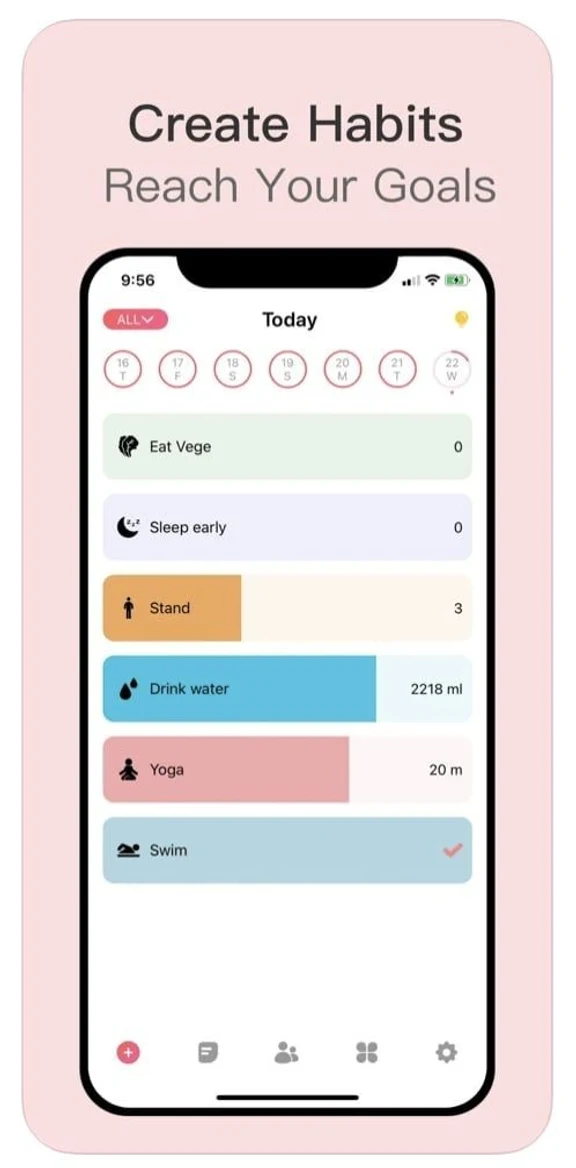
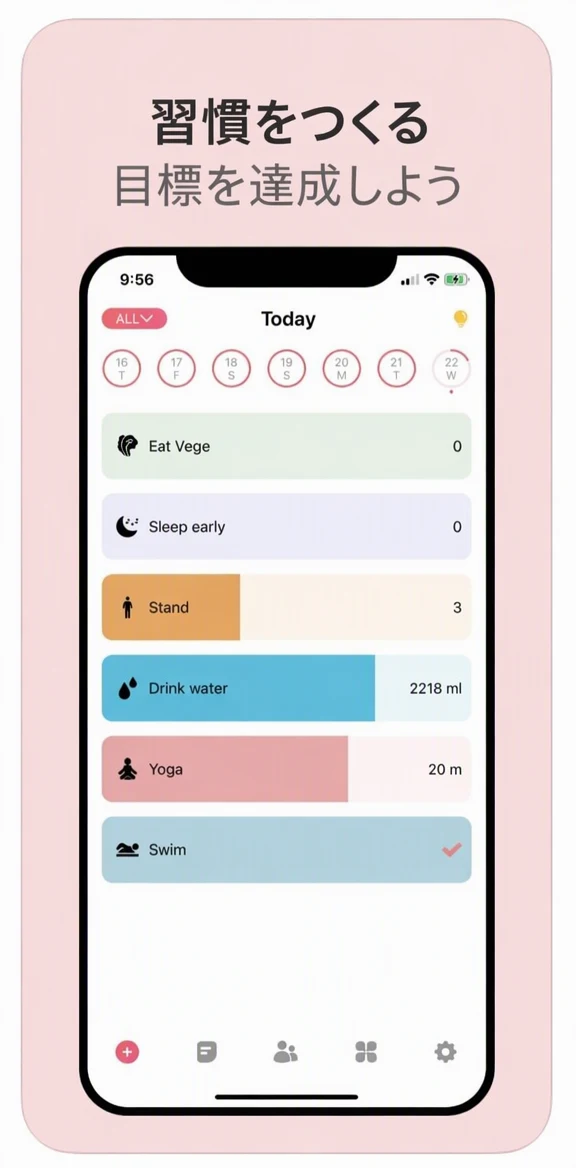
Before and after: only the caption lines were ticked, so the caption is in Japanese and the app’s interface stays in English.
Step by step
- List every piece of text in each screenshot: captions, interface labels and demo content.
- Write captions with room to grow. The W3C notes that text translated from English or Chinese usually gets longer, and short phrases can grow to two or three times their length (W3C on text size in translation). Keep captions short and lay out your longest language first.
- Check fonts and line breaks. Use fonts that include every character you need, including Cyrillic for Russian or Ukrainian. Chinese, Japanese and Thai don't put spaces between words, so lines can't simply wrap at spaces; break them where a native speaker would. These scripts can also need more line height than Latin text.
- Match local formats. Dates, times, currencies, number separators and units should follow the target market. A Japanese screenshot shouldn't show US dollars, and a German one shouldn't show month-first dates.
- Use fictional demo data. Apple's guidelines ask for fictional account information instead of a real person's data, so use made-up names that fit each market. If a real name or email address slipped into a capture, see how to hide personal information in a screenshot, or remove text from a screenshot to clear it.
- Fix leftovers. One untranslated button or misspelled word stands out. You can edit text in a screenshot to replace a stray label, or fix a typo in an image without rebuilding the design.
- Check the specifications. Confirm the pixel sizes and file formats each store currently requires. Both stores, for example, require screenshots without transparency.
- Review in context. Have a native speaker check every screenshot at full size, ideally on a phone, before you upload.
Camera translation apps are useful for checking what a screenshot says, but they produce overlays for reading rather than store-ready images. Can Google Translate translate text in an image? explains the difference.
Keep the listing accurate
Localization is a chance to adapt your message, not to promise more. Apple's App Review Guidelines (section 2.3, Accurate Metadata) say your description, screenshots and previews should accurately reflect the app's core experience and stay up to date with new versions. Within that section:
- Screenshots should show the app in use, not just title art, a login page or a splash screen; text overlays are allowed (2.3.3).
- App names are limited to 30 characters, and keywords should accurately describe the app (2.3.7).
- Use fictional account information rather than a real person's data (2.3.9).
Google's preview asset guidelines likewise ask for screenshots that show the actual in-app experience, with taglines and text overlays localized. In practice, if a feature isn't available in a market, leave it out of that market's captions.
Review and maintain
- Native-speaker review. Apple advises having native speakers test any machine translation. Give reviewers context: a glossary of key terms and screenshots that show where each string appears.
- Update screenshots when the interface changes. A redesign in your primary language leaves every localized set out of date.
- Track results by market. App Analytics in App Store Connect and Play Console statistics both let you filter by country or region, so you can compare how each market performs before and after a localization.
App store localization checklist
- Pick one or two languages based on your analytics and user requests.
- Adapt the app name, subtitle or short description, description and release notes.
- Research keywords in each language instead of translating them.
- Keep a glossary of names and terms that stay the same.
- Localize screenshot captions, and the interface if your app supports the language.
- Check that text fits, fonts cover every character, and line breaks look right.
- Match dates, currencies and units to each market, and use fictional demo data.
- Get a native-speaker review of the listing and every screenshot.
- Confirm sizes and formats against each store's current specifications.
- Refresh localized screenshots when the interface changes, and track results by country.
Common mistakes
- Untranslated interface in screenshots when the app itself supports the language.
- A translated interface for a language the app doesn't support, which sets the wrong expectation.
- Truncated or crowded captions after translation made them longer.
- Literal keyword translation instead of research into local search terms.
- Another region's formats in screenshots, such as the wrong currency, date order or units.
- Translated text next to original-language screenshots, because the stores fall back to your default images.
- Unreviewed machine translation published as is.
Localize the screenshots you already have
If you have finished screenshots but no editable source files, you can translate App Store screenshots with EditText.ai. Upload each image, choose the language and the lines to translate, and download the redrawn PNG. Each translated screenshot costs 1 credit at Standard or 2 at High quality, and the one free Standard edit (with a watermark) lets you try it first. Paid plans can also translate screenshots in 2K or 4K, for 2 or 3 credits at Standard and 5 or 7 at High quality. See pricing for plans.
Frequently asked questions
What does app store localization include?
It covers your listing text (app name, subtitle or short description, keywords, description and release notes) and your visual assets (screenshots and preview videos) for each language you target. App Store Connect also lets you localize your support, marketing and privacy policy URLs. Translating the app's own interface is a separate step in your code, and your screenshots should match what the app shows.
How many languages does the App Store support?
As of October 2026, Apple says the App Store is available in 175 regions and 50 languages. Apple's App Store localizations reference lists every language and locale you can use for metadata, along with the languages each storefront supports. Google Play publishes its own list of store listing languages in Play Console Help.
What happens if I don't upload localized screenshots?
On the App Store, a new language starts with your primary language's screenshots, so that market sees your original images. On Google Play, if you add translated text without localized graphic assets, your default-language graphics appear. Either way, people read a translated description next to screenshots in another language.
Should I use machine translation for my store listing?
Use it as a first draft, not a final version. Google says the machine translations in Play Console aren't reviewed by humans, and Apple advises having native speakers test machine translations. Start from the machine output if it helps, then have a native speaker adapt the wording, check the keywords and review every screenshot.
Which languages should I localize my app into first?
Start with the languages your data points to. Look for countries with product page views or downloads but weak conversion, and for reviews or support requests in other languages. Weigh that against effort, since right-to-left and non-Latin scripts may need extra design work. Begin with one or two languages, measure the results, then expand.