Yes. Google Translate can translate text in an image in three ways: point the Translate app's camera at the text, open a photo you already took, or upload a picture to the Google Translate website. Google Lens and Apple's Live Text offer similar options. The catch is the result: you get a translation laid over the picture so you can read it, not a redesigned image ready to publish. For that, you need a tool that can translate text in an image and redraw it in the original design.
If you just want to read a menu, a sign or a label, Google's tools handle that well. Below are the steps for Android, iPhone and a computer, what the results look like, where they fall short, and what to do when you need the whole image in another language.
How to translate an image on your phone
Google's help page on how to translate images covers both mobile apps. The steps differ slightly by platform.
Android
- Open the Google Translate app.
- Choose the language to translate from, or tap Detect language, and the language you want the translation in.
- On the app's home screen, tap Camera.
- To translate a photo you already have, tap All images and pick it. To translate what is in front of you, point the camera at the text and tap the shutter button.
- Tap a word to select it, then drag the selection handles to cover the text you need. The options at the bottom let you copy the text, hear it read aloud or search for it.
Google says you can translate images stored on your phone, and that some devices can also translate through the live camera.
iPhone and iPad
- Open the Google Translate app.
- At the bottom, choose the language to translate from (or Detect language) and the language to translate to.
- Under the text box, tap Camera.
- To use a photo you already took, tap Gallery. To translate live, point the camera at the text and watch the translation appear, then tap the shutter button to pause.
- Select the words you need and choose Copy text, Listen, Send to Translate Home or Search.
On both platforms you can download languages from the language picker in camera mode. Google says camera translations then work for those languages without an internet connection.
How to translate an image on a computer
The Google Translate website (translate.google.com) has its own image option:
- Open the Google Translate website in your browser.
- Select the Images tab at the top.
- Choose the language to translate from (or Detect language) and the language to translate to.
- Click Browse your computer and choose the image.
- Review the result. Show original puts the original and the translation side by side, Copy text copies the translated words, and Download translation saves the translated image. Click Clear to start again.
This option gives you a translated image file you can keep. It is still a reading aid: the translation sits where the original words were, and the help page makes no promise about matching the original fonts or layout.
Google Lens and Apple's built-in options
Google Lens
Google Lens lets you search with your camera, an image or a screenshot, and one of its options translates text. You can use it in the Google app, Google Photos and Chrome, and some Android phones include it in the camera app. Choose Translate and Lens shows the translation in place on the image. It suits quick checks, such as a label in a photo a friend sent you.
Apple Live Text and the Translate app
On iPhone, you may not need another app. Apple's guide to copying and translating text from photos says Live Text needs an iPhone XS, iPhone XR or later with iOS 15 or later (as of October 2026). To translate with it:
- Open a photo in the Photos app, or select an image online.
- Tap the Live Text button.
- Tap Translate. You may need to tap Continue and choose a language.
If you don't see the button, turn on Live Text in Settings > General > Language & Region. Live Text shows the translation on screen, where you can copy it. Apple's own Translate app can also translate text in a photo from your library, overlay the translations on the image, and let you share or save the translated image. Both work only with supported languages.
What the results look like, and where they fall short
Every option above is built for understanding, and that shapes what you get.
- An overlay, not a redesign. The translation appears over or beside the original words so you can read it in context. The help pages describe translating signs, menus and handwritten notes; none of the tools promise to match the original typeface, colors or spacing.
- Accuracy depends on how clear the text is. Google's help pages say that small, unclear or stylized text may not translate accurately. Posters and packaging often use exactly that kind of decorative lettering.
- Longer translations may not fit. Text often grows in translation. The W3C explains that English and Chinese are compact, so text translated from them usually gets longer, and short phrases can grow to two or three times their length (W3C on text size in translation). An overlay has to squeeze that into the original space.
- No context for names and numbers. Machine translation can't know that your product name, shop name or slogan should stay as it is. That doesn't matter when you're reading a menu, but it matters on anything you publish.
For better results, Google suggests checking that the languages are set correctly, using a strong network connection, turning on the flash in low light, and photographing text set in clear, common fonts.
How do I translate an entire image so it still looks designed?
Google's tools answer "What does this say?" If your question is "How do I make this image in another language?", you need a translate-and-redraw workflow. The original words are taken out, the background behind them is rebuilt, and the translation is drawn in a style that fits the design.
Here is how that works in EditText.ai, as of October 2026:
- Sign in with Google and upload a PNG, JPG or WebP image up to 14 MiB. If your iPhone saved the photo as HEIC, convert it to JPG or PNG first.
- The text is detected automatically, line by line.
- Choose one of 35 languages. All detected text is translated by default.
- To translate only some lines, switch off Translate all text and keep only the ones you want ticked. Unticked lines stay as they are, and the list also lets you fix a misread line or add one that was missed.
- Choose Standard (1 credit) or High quality (2 credits) and select Translate image. The text is translated as the image is redrawn, with each translation written in place of the original in a matching style. Prices, links and names are kept where possible, and a long translation is fitted into the original text area. You download the result as a PNG. The one free Standard edit also works here, with a watermark. Paid plans can also translate in 2K or 4K, with Standard at 2 or 3 credits and High quality at 5 or 7.
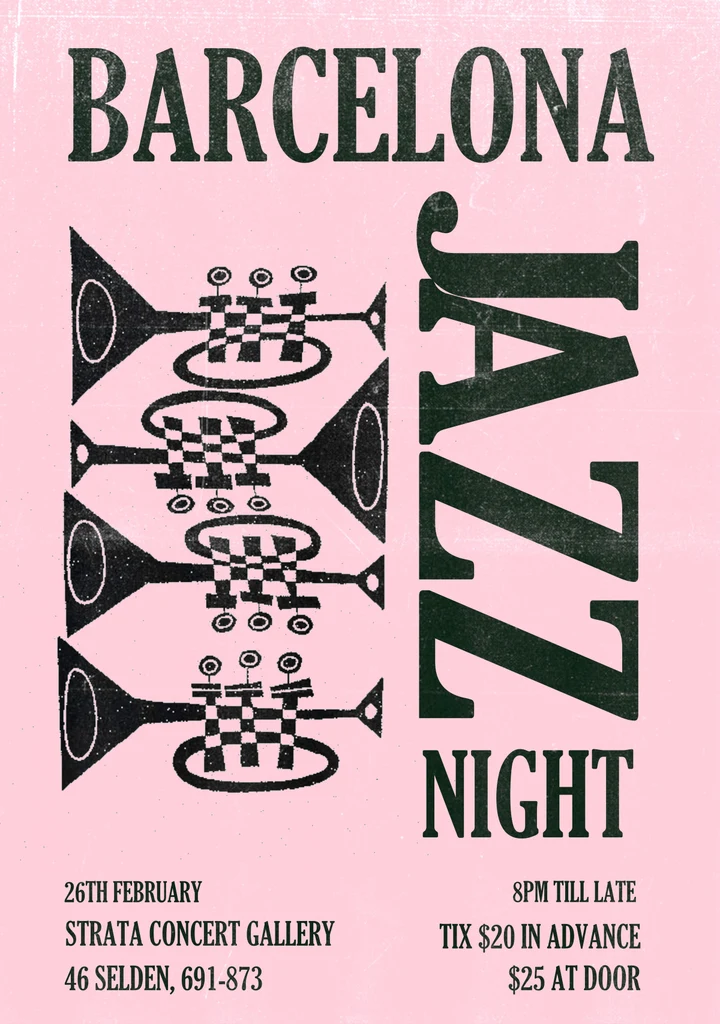
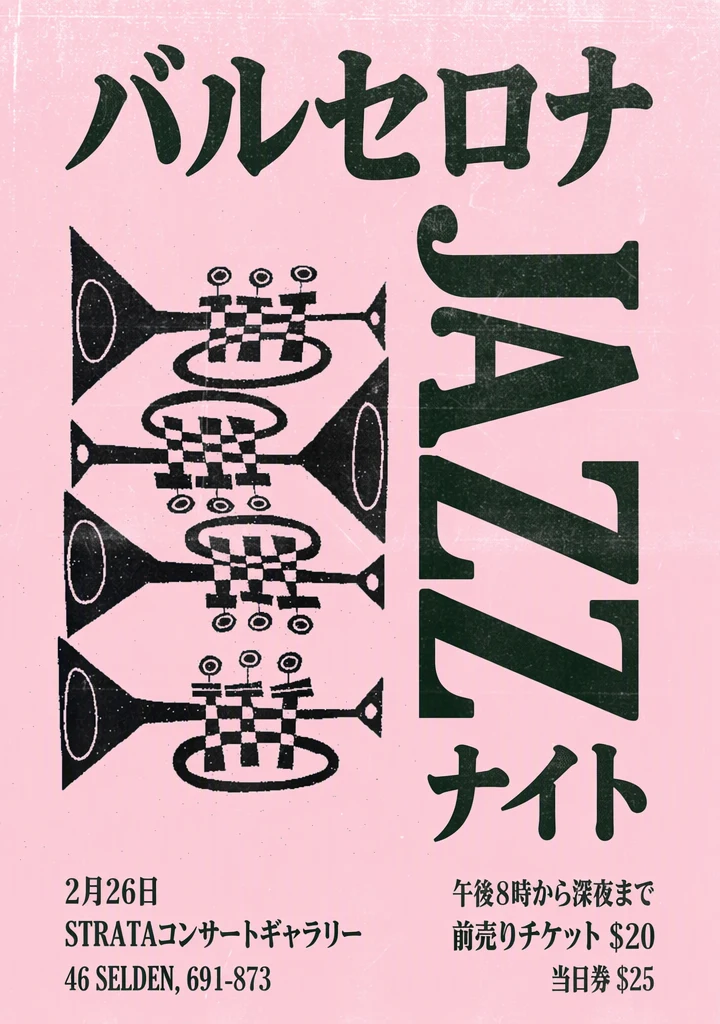
Before and after: an English poster translated into Japanese with the Translate tool; the prices and the address stayed as written.
There is no separate translation step to review first, and results can vary, especially with unusual lettering or detailed backgrounds, so read every line at full size before you publish. Typical uses are event graphics, when you need to translate a poster; marketplace listings, when you need to translate product images; and app listings, when you need to translate App Store screenshots. For the full process on app stores, see the App Store Localization Guide.
Two related cases:
- If you'd rather set the type yourself in a design tool, remove text from an image first to get a clean background, then add the translation in your own fonts.
- If the words stay in the same language and you only need to change a few, edit text in an image instead.
Only edit images you own or have permission to change, leave watermarks and credits in place, and don't alter an image to mislead anyone.
The same split between reading and redrawing applies to AI chatbots, as Can ChatGPT Translate Text in an Image? explains.
Comparison of your options
| Option | Best for | Output | Keeps the original design? | Edit each line before applying? | Cost |
|---|---|---|---|---|---|
| Google Translate app (camera or saved photo) | Reading signs, menus and labels | Translation shown on the camera view or photo; copy or hear the text | No, it is a reading overlay | No; you can copy the text | Free |
| Google Translate website | Translating a saved image on a computer | Translated image you can copy text from or download | Keeps the picture; the text is a reading overlay | No | Free |
| Google Lens | Quick checks in the Google app, Google Photos or Chrome | Translation shown in place on the image | No, it is a reading overlay | No | Free |
| Apple Live Text and Translate app | iPhone users who want a built-in option | Live Text: translation on screen to copy; Translate app: overlaid image you can save | No | No | Included with iOS |
| EditText.ai Translate | Posters, product images and app screenshots you publish | Redrawn PNG in one of 35 languages | Redraws text in the look of the original design; results vary | No; you choose which lines to translate | 1 or 2 credits per image, with one free Standard edit (watermarked); see pricing |
When Google Translate is the better choice
You often don't need anything else. Google Translate, Lens or Live Text is the better pick when:
- You want to read a menu, sign, label or handwritten note.
- You only need to understand an image, not publish it.
- You want a free option on the phone you already carry.
- You're traveling without a signal and downloaded the language for offline camera translation beforehand.
A redraw tool adds steps and uses credits, which is wasted effort when the goal is understanding.
Quality tips before you publish a translated image
If customers, an audience or app store visitors will see the image:
- Have a native speaker review it. Treat machine translation as a draft, especially for slogans and short headlines.
- Plan for longer text. Shorten the source copy or leave space, because translations often run longer than the English.
- Keep a list of words that must not change. Brand names, product names, prices, model numbers and web addresses should be identical in every version.
- Check local formats. Dates, currencies and units should match the market you're targeting.
- Read the final image at full size. Check spelling, accents and line breaks before you download and share it.
Translate an image you plan to publish
When the translation needs to live inside the design rather than float on top of it, use EditText.ai to translate text in an image. Upload your image, choose one of 35 languages and the lines to translate, and download the redrawn PNG.
Frequently asked questions
Can Google Translate translate a photo I already took?
Yes. In the Google Translate app, tap Camera, then choose All images on Android or Gallery on iPhone and iPad, and pick the photo. On a computer, open the Google Translate website, select the Images tab and click Browse your computer. Google notes that results depend on how clear the text is, so a sharp, well-lit photo works best.
Does Google Translate work offline for images?
It can. Google's help pages explain that you can download languages from the language picker in the app's camera mode. Once a language is downloaded, camera translations work for it even without an internet connection. Download the languages you need before you travel, because downloading itself requires a connection.
Can I download the translated image from Google Translate?
On a computer, yes. The Google Translate website has a Download translation button for translated images and a Copy text button for the words. Google's help pages for the mobile apps describe copying, listening to and searching the translated text. Either way, the result is a reading overlay rather than a redesigned image.
Why does Google Translate get the text in my image wrong?
Usually because the text is hard to read. Google says small, unclear or stylized text may not translate accurately. Check that the source and target languages are correct, use the flash in low light, and photograph the text straight on and in focus. Decorative lettering on posters and packaging tends to be the hardest to read.
How do I translate an image and keep the layout?
Use a translate-and-redraw tool instead of an overlay. These tools detect the text and redraw the image so the translated words sit in the original design. In EditText.ai, the image model translates the text as it redraws the image, and you can choose which lines to translate. Alternatively, remove the original text and typeset the translation yourself in a design tool.