To add text to a photo on iPhone, open the photo in the Photos app, tap the Edit button, tap the Markup button, tap the Add button (a plus sign), then tap Add Text. Type your words, set the font, size and color with the text tools, and tap Done to finish. Markup puts the text on top of the picture, like a label. If you want words that look painted, printed or lit inside the scene, or big letters behind a person, use a browser tool such as EditText.ai's Add text.
Markup is built in and needs no extra app or sign-in, so it suits captions, labels and quick notes. This guide also shows where it stops being the right tool.
How to add text to a photo on iPhone with Markup
As of October 2026, Apple's guides give the same route for iOS 17 and later, including iOS 27, the newest version. The steps follow Apple's Markup instructions and its Photos editing guide.
- Open the Photos app and tap the photo.
- Tap the Edit button, then tap the Markup button.
- Tap the Add button (a plus sign), then tap Add Text.
- Tap the text box, then type your words with the keyboard.
- Change the font, size or color (see the next section).
- Tap outside the text box when you're done.
- Tap Done to close the Markup toolbar, then tap Done again to save the photo.
If you don't see the Markup toolbar, Apple's iOS 27 guide says to tap the Markup button. If the toolbar is minimized, tap its minimized version.
Changed your mind? Before you save, tap the Undo button, or tap the text box's More button and delete the text box. After you save, open the photo, tap the More button, then tap Revert to Original. Apple says this undoes your edits after you save, so any other edits to that photo go too.
How to change the font, size and color in Markup
Apple's guide lists font, size, justification (alignment), style and color as the text tools. Apple's Markup article, published in March 2026, says to tap the circle to pick a text color, then tap the formatting button to adjust the font, size and alignment.
- Color and size: choose a color that contrasts with the area behind the words, and make the text large enough to read on a small screen.
- Font: Apple's guide doesn't list the fonts, so check the text tools to see what your iPhone offers.
- Cut, copy or delete: tap the text box's More button to cut, copy, duplicate or delete it.
What changes on older versions of iOS
As of October 2026, Apple's guides for iOS 13 to iOS 16, such as its iOS 16 Markup guide, describe a different route. If your menu says Text, not Add Text, use these notes:
- Open Markup: on iOS 15 and 16, tap the photo, tap Edit, then tap the Mark Up button. On iOS 13 and 14, tap Edit, tap the Plug-ins button, then tap Markup, as Apple's iOS 14 guide says.
- Add the text: tap the Add Annotation button, then tap Text. Double-tap the text box to type. On iOS 17 and later, you tap it once.
- Format and move: tap the text, then tap the Shape Attributes button in the toolbar to change the font, size or layout. To delete or duplicate the text, tap Edit. To move it, drag it.
Other ways to add text with Apple's own apps
Markup also works outside Photos. Apple's Markup article describes two routes:
- Mail: attach the photo, tap the attachment, tap the gray arrow, then tap Markup and the plus button.
- Messages: add a photo to a message, tap the photo, then tap Markup and the plus button.
On iOS 26 and later, Apple's guide to annotating an image in the Preview app says to tap Markup, tap Add, then choose text.
The limit of Markup text: it sits on top of the photo
Markup text is an overlay, a flat layer of letters over the picture. Apple's guide lists font, size, justification, style and color as the text tools, with no controls for perspective, curves or lighting. So the words:
- don't bend with an angled or curved surface, such as a shirt or a wall seen from the side;
- don't pick up the light, shadow or texture of the surface, so they don't look painted, printed or lit;
- can't go behind a person, a pet or a building.
That is fine for a caption or a quick note, but not for words that should look as if they were always in the photo.
How to add text that looks part of the scene with EditText.ai
Some words belong inside the picture: a name painted on a brick wall, a slogan printed on a shirt, a neon sign on a dark wall, or giant letters behind a person. EditText.ai publishes this guide, so it is one of the options. Its Add text tool uses AI to draw the words into the scene, aiming to match the surface, its angle, its light and its texture. It runs in Safari or any other phone browser.
- Open Add text to photo, sign in with Google and upload a PNG, JPG or WebP up to 14 MiB.
- In Words, type what the photo should say. Keep it short.
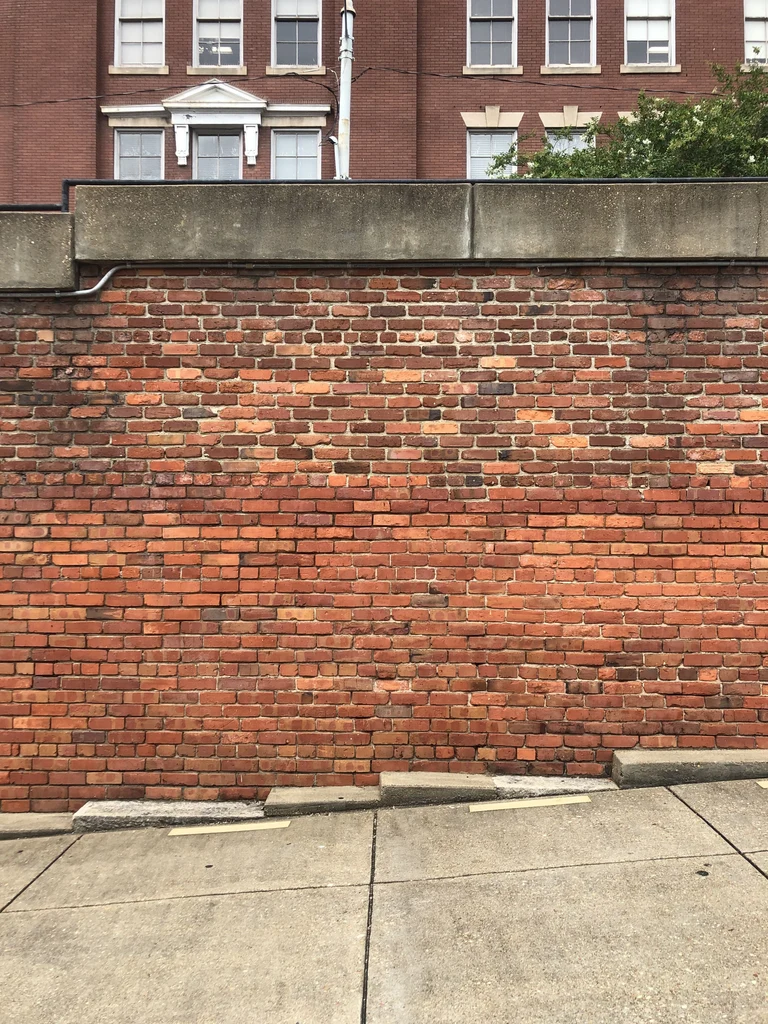
- In Where, say where the words go in plain language, such as "across the middle of the brick wall," "on the back of the shirt" or "behind the person."
- In Look (optional), describe the style, such as "white brush script, painted on the wall" or "pink neon." If you leave it empty, a style that suits the place is chosen for you.
- Choose Standard or High quality (High quality suits detailed lettering and busy scenes), then tap Add text. An edit uses credits, and a new account gets one free Standard edit with a watermark.
- Compare the result with your original, check every letter, then download the PNG.

Before and after: "hello summer" added to a brick wall photo with Add text. The mortar lines show through the paint.
Add text has trade-offs. The result is a flat PNG, so to change the words later you run Add text again on your original photo. You describe the look in words and can't choose an exact font file. Results can vary, so check every letter and, for text behind a subject, the edges around hair and fur. Your photo is uploaded for processing and stays private to your account. Only use it on photos you have the right to change, and never to fake what a photo shows.
Which method should you use?
| Method | Where | How the words look | Best for | Limits |
|---|---|---|---|---|
| Markup in Photos | Photos app | A flat overlay on top of the photo | Captions, labels, quick notes | Can't go behind objects or follow a surface |
| Markup in Mail, Messages or Preview | Those apps; Preview needs iOS 26 or later | The same flat overlay | A note added while you send or view an image | Same limits |
| EditText.ai Add text | Any phone or computer browser | Drawn into the scene: painted, printed, lit or behind a subject | Words that should look part of the photo | Upload and Google sign-in needed; uses credits; no exact font file; check every letter |
For a caption or a label, start with Markup. For words that should look as if they were always in the photo, try Add text. To change words that are already in a photo, edit text without changing the background or remove text from a photo. Compare more options in how to edit text in an image.
Frequently asked questions
How do I add text to a photo on iPhone without an app?
Use Markup in the Photos app. Open the photo, tap the Edit button, tap the Markup button, tap the Add button, then tap Add Text. Type your words, then tap Done twice to save.
Can I put text behind a person on iPhone?
Not with Markup, because Markup text always sits on top of the photo. EditText.ai's Add text can draw big letters behind a person, a pet or a mountain if you say so in the Where box. It works best when the subject has a clear outline against a simple background. See text behind image.
Why can't I find the Markup button in Photos?
Open the photo and tap the Edit button first, because Markup is part of edit mode. If the toolbar isn't showing, Apple's iOS 27 guide says to tap the Markup button, and if it's minimized, to tap its minimized version.
Can I add text to a photo on iPhone for free?
Yes. Markup is part of iOS, so it needs no extra app or account. EditText.ai's Add text uses credits, and a new account gets one free Standard edit with a watermark.