To put text behind an image in Canva, add your photo, duplicate it, and remove the background from the top copy with BG Remover. Then add your text and send it backward so it sits between the two copies, with the cutout in front and the original photo behind. As of October 2026, Canva's Help Center says Background Remover is included with paid plans. If you'd rather skip the layers, EditText.ai's Add text draws the words into the photo for you: you type them, say "behind the mountain," and download one finished image.
Text behind image is a popular look: big words sit behind a person, a pet or a mountain, with the subject overlapping part of the letters. Canva gives you full control and editable layers. Add text gives you a finished image in one step.
Before you start
- Pick the photo. A person, pet, building or peak against open sky or a plain wall leaves room for the words. Crop and color-correct before you duplicate, so both copies match. If the photo has words you don't want, remove the text first, or see how to do it in Canva.
- Check your plan. As of October 2026, Canva's Background Remover help page says the tool comes with paid plans, without listing which ones. Options without a paid plan are below.
- Know the limits. Canva says Background Remover works on photos under 9 MB and downscales uploads above 10 megapixels to 10 megapixels after the background is removed.
How to put text behind an image in Canva on the web or desktop
These steps use Canva's editor in a browser or the desktop app.
- Add your photo. Select Uploads, then Upload files, choose the photo and drag it into your design.
- Duplicate it. Right-click the photo and select Duplicate, or press Cmd+D (Mac) or Ctrl+D (Windows), as in Canva's duplicate steps.
- Cut out the top copy. Select the top copy, then BG Remover on the editor toolbar, and wait for the background to be processed. The background turns transparent.
- Line up the copies. Hold Shift and click both copies, select Position, and use the Align elements options, such as Left and Top. Or give each copy the same X and Y values under Advanced. If you don't see Position, select the three-dot button on the toolbar first. Canva explains aligning and moving elements.
- Add your text. Open the Text tab, add a text box and type your words. Make them big and heavy (see the tips).
- Put the text between the copies. Select the text box, select Position and choose Backward until it sits behind the cutout but in front of the original. Or open the Layers tab and drag the text layer between the two photos, as in Canva's layers guide. Front to back, the stack is: cutout, text, original photo.
- Place the text. Drag and resize it so the subject covers part of the letters.
- Clean up the edges. Zoom in. If the cutout is rough, select it, select BG Remover again and use the Erase and Restore brushes. Select Show original image to compare.
- Download. Select Share, then Download, choose a file type such as PNG or JPG and select Download, as in Canva's download steps.
How to do it in the Canva app on your phone
Canva documents each step for its mobile app, but we didn't find one text-behind-image page for phones, so this list combines its help pages. Its Background Remover page gives no separate plan rule for phones.
- Open your design, tap Uploads, tap Upload files, choose the photo and tap it to add it.
- Tap the photo, then tap Duplicate on the floating toolbar.
- Tap the top copy, tap BG Remover on the editor toolbar and wait for the background to be processed.
- Tap Text, add a text box and type your words. Swipe through the toolbar if you don't see Text.
- Select the text box, tap Position on the toolbar below the editor, then tap Backward. Or tap Layers, press and hold the text layer, and drag it between the two photos.
- To line up the copies, tap and hold one, tap Select Multiple, tap the other, then tap Position and use Align elements.
- To fix edges, select the cutout, tap Configure on the BG Remover tile and use the Erase or Restore brush.
- Tap the Share icon, then tap Download.
Tips for a convincing result
- Use a heavy font and a large size. Thick letters stay readable when part of them is hidden, while thin or script fonts can nearly disappear. Pick a color that stands out from the sky or wall behind. Canva's Format text page covers font, weight, size and color.
- Cover only part of the word. Let the subject hide the bottom or middle of a few letters, not whole ones. Keep it to one or two words, and if you can't read it at a glance, enlarge it or move it.
- Check hair, fur and thin parts. Zoom in on the cutout's edge for a halo or missing strands. A double edge means the copies are slightly off, so nudge the top copy with the arrow keys (Nudge on a phone).
No paid plan? Two other routes
As of October 2026, Canva's own text-behind-image page points to a free app called Text Layer, and the app's listing says it's free to use with any Canva plan. Per Canva, you upload the photo, separate the layers, type your text and select Add to design. The app comes from another developer. Its listing says it can read and change your design and access your uploads, so read it before you use the app on a private photo. The other route is a tool outside Canva, covered next.
The one-step alternative: EditText.ai Add text
EditText.ai publishes this guide and is one option among several. Add text works in any browser and needs no layers. You type the words and say where they go. It draws the letters into the photo with your subject in front and its edges kept, and you get one finished image.
- Open Add text to photo, sign in with Google and upload a PNG, JPG or WebP up to 14 MiB.
- In Words, type what the photo should say. One or two bold words work best.
- In Where, say where the words go, such as "behind the mountain" or "behind the person." Add what should overlap, such as "with the peak in front of the bottom of the letters."
- In Look (optional), describe the style, such as "huge white bold capitals."
- Choose Standard or High quality (High quality suits hair, fur and fine edges), then select Add text. An edit uses credits, and a new account gets one free Standard edit with a watermark.
- Drag the comparison slider. Check every letter and the subject's outline where it crosses the letters, then download the PNG.
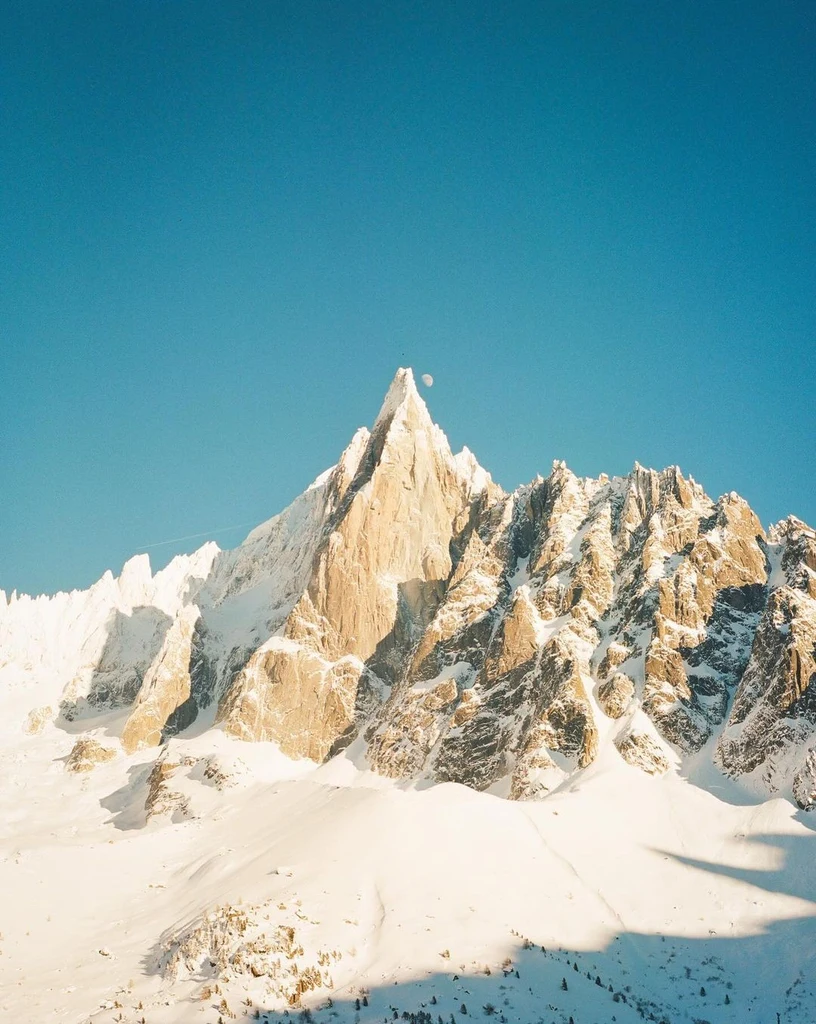
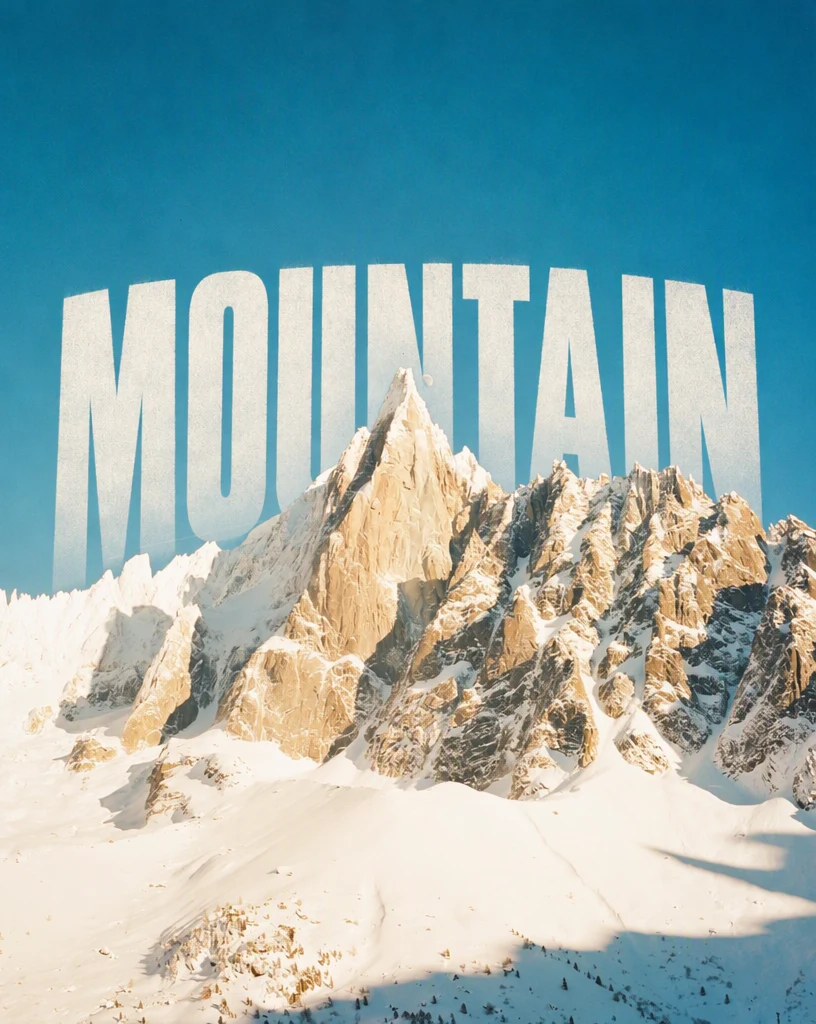
Before and after: MOUNTAIN added behind the peak with Add text. The peak and ridge stay in front of the lower part of the letters.
Add text has trade-offs. The result is a flat image, so to change the words you run Add text again on your original photo. You describe the font in words and can't pick an exact font file. Results can vary, and hair and fur are the hardest edges, so check them. Your photo is uploaded for processing and stays private to your account. Only edit photos you own or have permission to change. See text behind image for more.
Which method should you use?
| Method | What you need | Best for | Limits |
|---|---|---|---|
| Duplicate and BG Remover (Canva on web, desktop and phone) | A paid plan, per Canva | Exact fonts and colors; layers you can edit again | Several steps; edges depend on the cutout |
| Text Layer app (inside Canva) | Free with any plan, per its listing | Trying the look without a paid plan | From another developer; needs access to your design and uploads |
| EditText.ai Add text (any browser) | Google sign-in; credits after one free Standard edit with a watermark | One finished image, no layers | No editable layers or exact font; check spelling and edges |
Choose Canva for an exact font, brand colors or words you will change again. Choose Add text for a finished image quickly, or when your Canva plan doesn't include BG Remover.
Frequently asked questions
How do you put text behind a person or an object in Canva?
Duplicate the photo, remove the background from the top copy, add your text and send it backward so it sits between the two copies. Hair is the hardest edge, so zoom in and use the Erase and Restore brushes.
Do I need Canva Pro to put text behind an image?
For this method you need a plan with Background Remover. As of October 2026, Canva's help page says it comes with paid plans and doesn't name them. Canva's text-behind-image page also points to the free Text Layer app, which works with any plan, per its listing.
Why is my text still in front of the person?
The text layer is above the cutout. Select the text, open Position and choose Backward, or drag it below the cutout in Layers. If it won't move, it may be locked or grouped: select Unlock or Ungroup on the floating toolbar. If the words are part of a picture, see why you can't edit text in Canva.