To remove text from an image in Canva, select the image, choose Edit, then Magic Eraser, pick the Text option or brush over the words, and select Erase. As of October 2026, Canva's help page lists Magic Eraser for Canva Pro, Teams and Education plans, so on Canva Free the simple routes are to cover the words with a shape, crop them out, or use a separate tool. This guide covers five ways in Canva, what each one needs and where each one goes wrong. For a photo with many lines of text, a tool built to remove text from an image lets you tick the detected lines instead of painting over each one.
First, check whether the words are live text
If the words are a text box in your design, select the box and press Delete. No special tool is needed. The methods below are for words that are part of a photo, a screenshot or another image, where Canva sees colored pixels instead of letters. If you can't select the words at all, they are part of an image, and our guide on why you can't edit text in Canva shows how to tell.
Removing words from a picture means rebuilding what was behind them. The tools below fill the area from the pixels around it, a technique known as inpainting. It works best on simple backgrounds and is harder over faces, fine patterns or other lettering.
Five ways to remove text in Canva
| Way | Plan, as listed by Canva in October 2026 | Use it when | Watch for |
|---|---|---|---|
| Magic Eraser | Canva Pro, Teams and Education | The words sit over a photo or a texture | Results vary, so zoom in for smudges |
| Grab Text, then delete | Canva lists Grab Text as a Pro feature | The text is straight and in the Latin alphabet | Not rotated or arched text; can leave traces |
| Magic Edit | Check Canva's help center for your plan | You want to fill the area with content you describe | The fill is generated, so it may not match |
| Cover with a shape | Any plan | The background is flat and solid | Hides the words without deleting them; shows on photos |
| Crop | Any plan | The words are near an edge | Changes the size and framing |
Way 1: Magic Eraser
Canva's Magic Eraser help page describes the steps.
- Click the image in your design. On the editor toolbar, select Edit.
- Select Magic Eraser.
- Choose how to select the words. Text selects the text that Canva finds in the image. Brush lets you paint over the words, with a slider for the brush size. Click selects an object when you tap it, and Foreground selects the main subject.
- Select Erase and wait while Canva processes the image.
- Zoom in and check the area. If the words are still there, Canva's help suggests erasing a slightly larger area around them.
If the Text option misses a word, switch to Brush for that word. Work on one line at a time, so you can check each result before you go on.
Way 2: Grab Text, then delete the text boxes
Grab Text is meant for editing words in a photo, and Canva's text remover page also presents it as a way to remove them. The steps below follow Canva's Grab Text help page.
- Select the photo, then select Edit on the editor toolbar.
- Open Tools, select See all, scroll to the bottom and select Grab Text.
- Select the words you want to remove. You can drag across several words to select them together.
- Select Grab. The words become text boxes that sit on the picture.
- Select each text box and press Delete.
As of October 2026, Canva lists Grab Text as a Pro feature, and its help center says it works best on straight, flat text. It doesn't support rotated or arched text, languages that don't use the Latin alphabet, or files with more than one page, and it isn't available in Canva Docs or in video designs. It can also leave small traces of the old letters behind. If Grab Text doesn't recognize a word, Canva's help says you can erase that word with Magic Eraser.
Way 3: Magic Edit
Magic Edit replaces an area with content you describe, so you can use it to fill the space where the words were. Canva's Magic Edit help page lists the steps.
- Select the photo, select Edit, then select Magic Edit under Tools.
- Select Brush and brush over the words. You can change the brush size with the slider.
- Describe what should be there instead, such as "plain sand" or "clear sky", and select Generate.
- Check the result and zoom in. If the fill doesn't match, try again with a different description.
Magic Edit generates new image content, so the fill is a guess about what was behind the words. Check Canva's help center for the plans that include Magic Edit and any usage limits on your account.
Way 4: Cover the words with a shape
This works on any plan, and only on flat backgrounds.
- Open the Elements tab and add a square or rectangle. Drag it over the words and resize it so it covers them and nothing else.
- Select the shape, select the color tile on the toolbar, and use the "Pick a color" eyedropper to click the background beside the words.
- Zoom in. On a gradient, a texture or a photo, the patch is usually easy to see.
A cover-up hides the words, but it doesn't remove them from the image underneath, and anyone who can edit the design can move the shape. Don't use it to hide personal details in a design you share. Our guide on how to hide personal information in a screenshot explains safer options.
Way 5: Crop the words out
If the words sit at the edge of the picture, cropping is a clean fix. Select the image, select Crop on the toolbar, drag a crop handle until the words are outside the frame, and select Done. The cost is a smaller picture with different framing.
Tools that don't fit the job
- Pixel Eraser. Canva's Pixel Eraser makes parts of an image transparent. It fully removes pixels instead of filling them from the background, so it leaves holes where the words were.
- Apps from other developers. Canva's Apps panel lists text-removal apps made by other developers. Read each app's listing for its limits and for how it handles your image before you upload anything.
After the words are gone
If you want new words in the same place, add them as a normal text box. Canva keeps it as live text, so you can change the font, size and color later without touching the picture. To choose a font that resembles the old lettering, our guide on how to identify a font from an image shows how. If the new words must look like the original lettering, a tool that can edit text in an image does the removal and the retyping together.
When another tool fits better
Canva lists Magic Eraser for paid plans, and brushing over many lines by hand is slow. EditText.ai starts from detection instead. It finds the lines of text, you tick the ones to remove, and the text you don't tick stays as it is. On its Edit text page, leaving a replacement blank also removes that line.
- Upload a PNG, JPG or WebP image up to 14 MiB. Text detection runs automatically and lists the words it finds.
- Tick the lines you want removed. If a small or blurry line was missed, add it yourself.
- Choose Standard or High quality, run the removal, then download the PNG.
The background behind the removed text is rebuilt from the surrounding image. Your images are private to your account and saved in My images. Results can vary, especially over detailed backgrounds, so zoom in and check the result. EditText.ai doesn't remove watermarks.

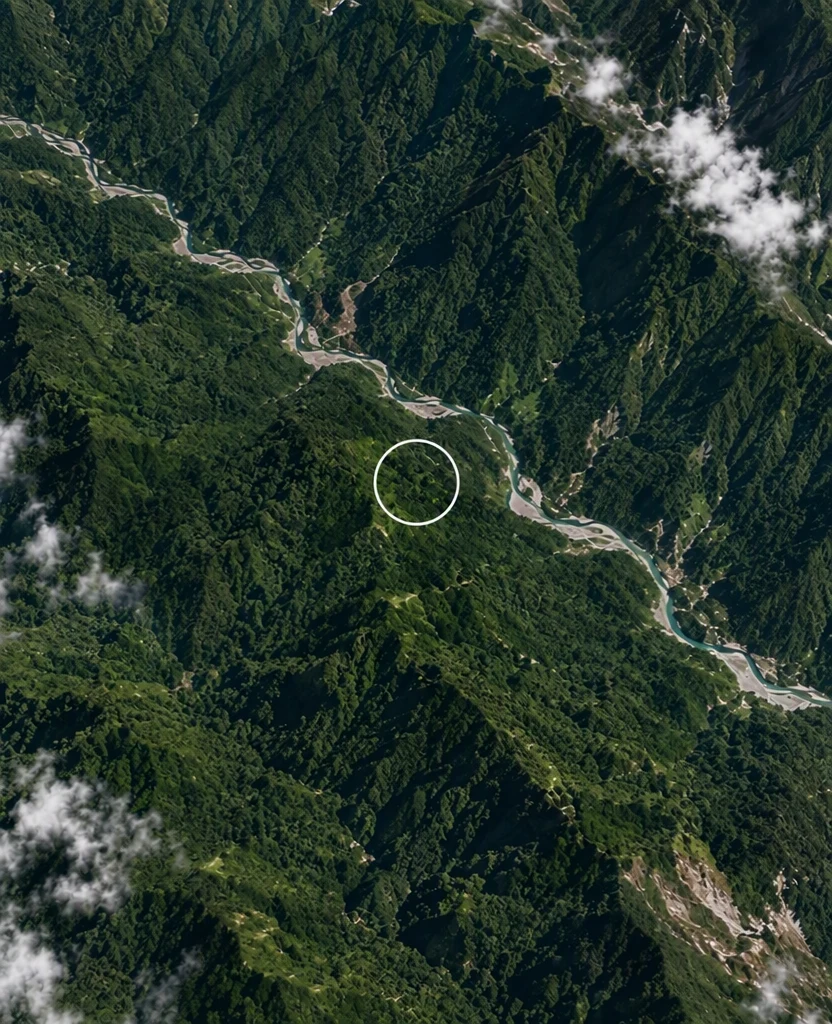
Before and after: a burned-in caption removed with the Remove tool (from the EditText.ai examples). Text over a forest has no flat color to paint over.
A removal costs the same as an edit. Standard uses 1 credit and High quality uses 2 credits at 1K. Paid plans can also edit in 2K or 4K, where Standard uses 2 or 3 credits and High quality 5 or 7. The one free Standard edit also works for Remove, with a watermark. Plans cost $9, $29 or $49 a month for 10, 35 or 60 credits, as listed on the pricing page.
For captions and subtitles that run across a photo, see how to remove captions from an image. For a phone workflow, read how to remove text from a photo on iPhone or Android.
Tips for clean results
- Zoom to 100%. Check the area for faint outlines, shadows and blurry patches before you export.
- Go one line at a time. Remove a line, check it, then move on. Undo and use a smaller selection if a pass goes wrong.
- Watch repeating patterns. Bricks, tiles, fabric and fences are hard to rebuild. Check that the lines still run straight through the area.
- Keep the original. Keep the untouched image file, so you can try another method if the first one leaves smudges.
- Match the method to the background. Flat colors suit a cover-up. Photos and textures need an eraser or a fill tool.
If something goes wrong, these fixes cover the common cases:
- Words are still visible after Magic Eraser. Erase a slightly larger area around them, as Canva's help suggests.
- Grab Text finds nothing. Check that the text is straight, in the Latin alphabet and on a single page. If it is not, use the Brush option in Magic Eraser instead.
- The patch from a cover-up shows. The background is probably not a flat color. Sample the color again next to the words, or switch to Magic Eraser or a crop.
- The fill looks blurry or repeated. Undo, then use a smaller brush on one line at a time.
Use removal responsibly
Only remove text from images you own or have permission to change. Leave watermarks, logos, photographer credits and copyright notices in place. This guide doesn't cover removing them, and EditText.ai doesn't remove watermarks. Don't use removal to alter documents or records that other people rely on, or to change what a photo or screenshot shows in a way that could mislead.
Remove text from your image
If Canva's tools need a paid plan or leave smudges, upload your image to remove text from an image, tick the lines to remove and download a PNG. If you want new words in the same place, you can edit text without changing the background. To put a flyer into another language instead, see how to translate a poster.
Frequently asked questions
Can I remove text from an image in Canva for free?
Not with Magic Eraser, which Canva's help page lists for Pro, Teams and Education plans. On Canva Free, the simple options are to cover the words with a shape, crop them out, or use another tool. A cover-up works only on flat colors, and it doesn't delete the words from the image underneath. Check Canva's help center to see whether Magic Edit is included in your plan. EditText.ai gives you one free trial edit, with a watermark.
How do I remove text from a photo with Magic Eraser?
Select the photo, select Edit, then Magic Eraser. Choose Text to select the words Canva finds, or choose Brush and paint over them. Select Erase, wait for Canva to process the image, then zoom in to check. If words remain, erase a slightly larger area around them.
Why does Canva leave traces of the old text?
Canva's help says Grab Text can leave small traces of the old letters behind, and any fill tool can leave faint outlines or smears over busy backgrounds. Zoom in, erase a slightly larger area, or go over the spot again with a smaller brush.
Can I remove a watermark with Canva?
This guide doesn't cover removing watermarks. A watermark shows who owns an image, so leave it in place. If you need a version without one, ask the owner for a clean file or license the image.
I exported my design as a PNG. How do I take the text out?
If you still have the design, open it, delete the text boxes and export again. That is faster and cleaner than editing the picture. If you only have the PNG, upload it to Canva and use one of the methods above, or use a tool built to remove text from an image.