Yes, you can edit text in a PNG or a JPG, but you can't click into the words and retype them. In both formats the letters are pixels, so an editor has to redraw them. Two differences decide how an edit goes. A JPG carries compression artifacts that make small text harder to read and to redraw, and a PNG can have a transparent background, which EditText.ai does not keep. This guide shows what works for each format, how to edit text in an image step by step, and when another tool is the better choice.
Why you can't select the text in a PNG or JPG
A PNG or JPG is a flat picture. When the file was exported, every layer was merged into one grid of colored pixels, so the words became pixels like everything behind them. That is why a cursor can't select them, and why changing a word means redrawing it.
Our guide on how to edit text in an image compares the four main ways to do that. The short version: if you still have the layered design file, change the live text there. If you only have the PNG or JPG, you need a tool that redraws the words.
PNG and JPG at a glance
The two formats store a picture in different ways, and that changes what an edit has to deal with.
| Feature | PNG | JPG (JPEG) |
|---|---|---|
| Compression | Lossless: no detail is thrown away | Lossy: fine detail is discarded to shrink the file |
| Transparency | Can have transparent areas | Cannot |
| Common sources | Screenshots, exported graphics, slides, stickers, text overlays | Photographs, social images, many downloaded pictures |
| Text edges | Sharp | Can look fuzzy, with speckle and blocky squares near the letters |
| File size | Larger for photographs | Smaller for photographs |
| With EditText.ai | The words are edited. The result is a PNG with a solid background, even if the original had transparent areas | The words are edited. The result is a PNG, not a JPG |
These format facts follow MDN's image file type guide, which describes PNG as lossless with full alpha transparency and JPEG as a lossy format that suits photographs.
How to edit text in a PNG or JPG, step by step
Both formats go through the same steps in EditText.ai.
- Start with the best original. Use the largest, sharpest copy you have, as a PNG, JPG or WebP file up to 14 MiB. A photo saved as HEIC has to be converted to JPG or PNG first.
- Upload it to EditText.ai. The text is detected automatically and listed line by line.
- Check the detected lines. Compare each Original entry with the image. On a compressed JPG, small or blurry lines can be misread, so correct them, or add a missed line with Add text.
- Type your replacements. Write new wording only for the lines you want to change, and leave the others as they are.
- Choose a quality. Standard uses 1 credit. High quality uses 2 credits and suits detailed backgrounds or complex lettering. Paid plans can also edit in 2K or 4K, where Standard uses 2 or 3 credits and High quality 5 or 7.
- Apply, compare and download. Check the result against the original at full size. The edited image downloads as a PNG, whatever format you started with, and your original stays in My images.
You get one free Standard edit, which carries a watermark; paid results are watermark-free. Plans cost $9, $29 or $49 a month for 10, 35 or 60 credits.
Editing a PNG: sharp text, but no transparency
PNG text is usually the easier case, because letter edges stay sharp and the file has not been through JPG compression. Screenshots, slides and exported graphics are mostly PNGs. If the new letters need to follow the old lettering closely, read how to edit text in an image with the same font.
One difference matters. A PNG can store see-through areas, which is how stickers, cut-out product shots and text overlays sit on top of other pictures. EditText.ai does not keep them. The edited image is saved with a solid background, so any area that was transparent comes back filled with a color. Text that was made for another background, such as dark text on a see-through overlay, can be hard to read against the new fill.
If your PNG has transparent areas, you have these options:
- Change the text in the source file. In Photoshop, Figma, Canva or a slide deck, the words are live text and the transparent areas are not touched.
- Use a layered editor on the PNG. Photoshop and Photopea can cover the old words and set new type on a layer above them, and a layered file can keep its transparent areas when you export a PNG.
- Edit, then remove the background again. If the words sit on a picture or a solid shape, edit it here and remove the filled background afterward with a background-removal tool in your image editor. This works less well for text drawn straight onto an empty background, because the new fill can hide it.
- Check whether it matters. If the picture will sit on a solid color anyway, the filled background may make no difference.
Editing a JPG: compression and re-saving
JPG is the usual format for photographs and for pictures that have been shared online. Its compression is the main thing to plan for.
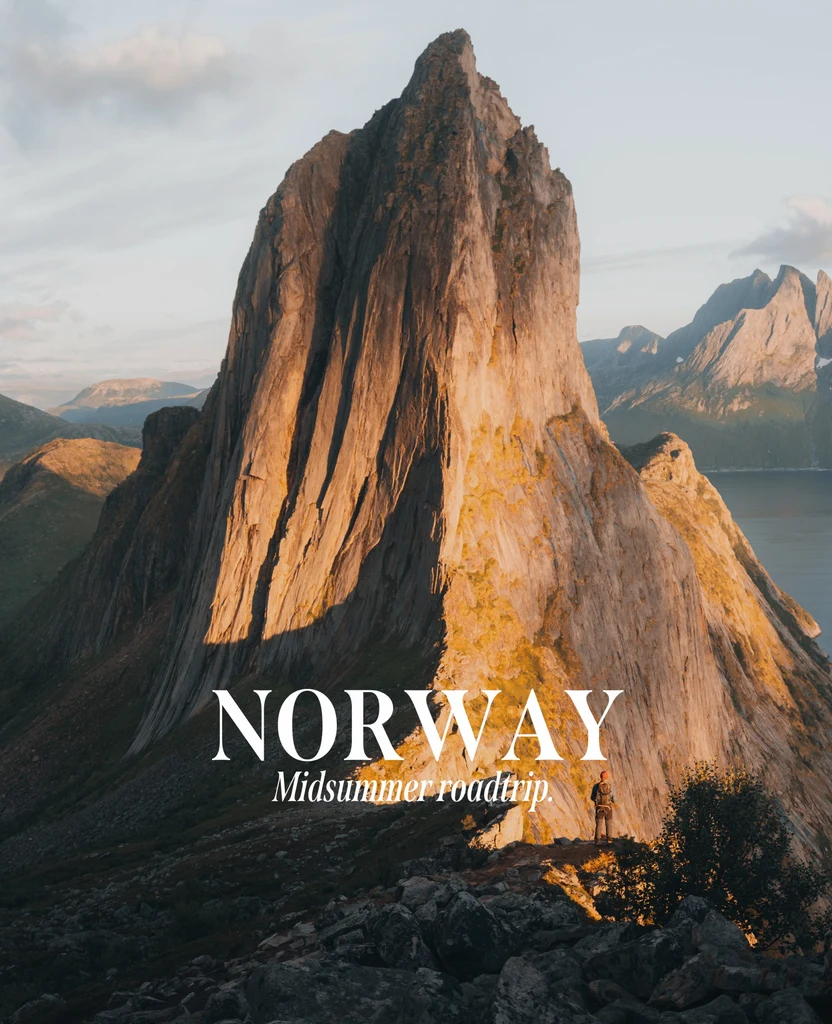
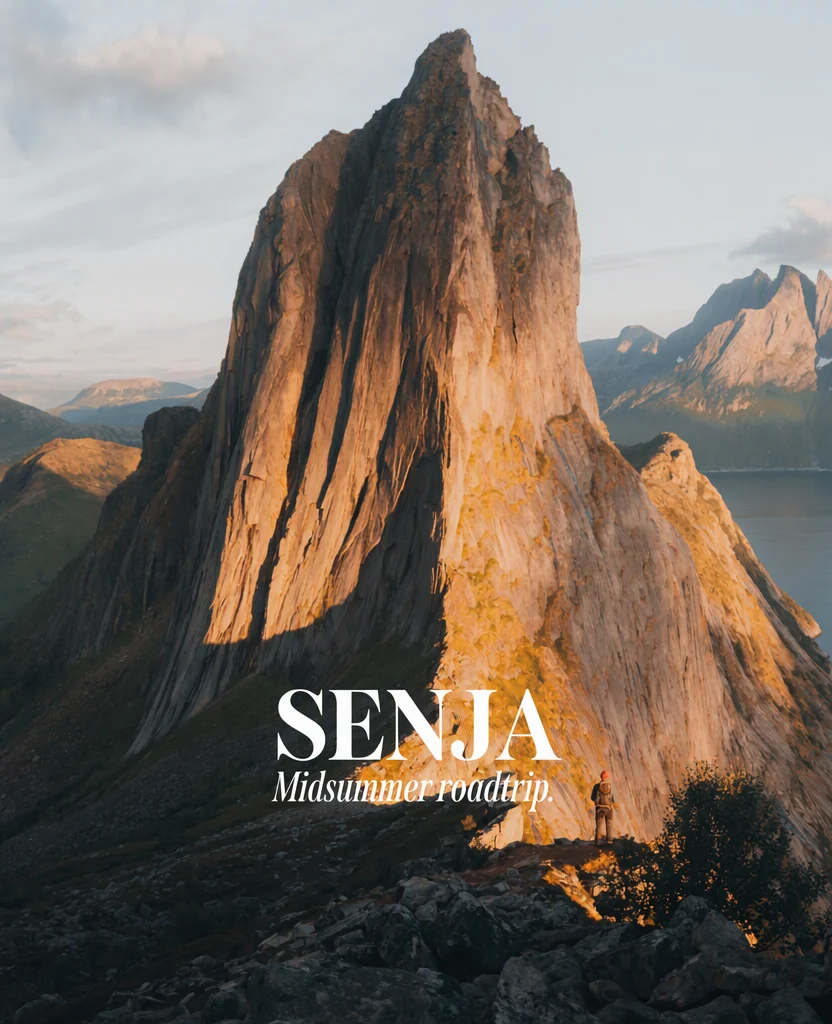
Before and after: NORWAY changed to SENJA on a mountain photograph (from the EditText.ai examples).
Compression artifacts. JPG keeps a file small by discarding fine detail. Wikipedia's article on compression artifacts describes what heavy compression leaves behind, such as fuzzy edges, ringing near sharp edges and visible blocks. Letters are sharp edges, so text shows the damage first. Small text and thin strokes are affected most. That can make a line harder to detect, and after an edit the new letters can look cleaner than the compressed text beside them.
Re-saving. Each time you open a JPG, change it and save it as a JPG again, it is compressed again and the loss adds up. Wikipedia's article on generation loss notes that opening and saving a JPG in an image editor creates a new, re-encoded version, and that social media sites often re-encode the images people upload. For that reason, edit the original or the least-compressed copy you have, and edit it once.
The download. EditText.ai saves the edited image as a PNG, so the save adds no new JPG compression. A PNG cannot bring back detail the JPG had already lost, and for a photograph it is usually a larger file. If a website or form needs a JPG, export one from the PNG as the last step, at a high quality setting, and keep the PNG as your working copy.
The size. The edited image is sized by the resolution you choose, not by the file you upload. At 1K its longer side is about 1,000 pixels, so a photo straight from a phone camera, which is often around 4,000 pixels wide, comes back much smaller. Paid plans can choose 2K or 4K for a larger result.
The page on how to edit text in a JPG walks through these points for JPG files, with the steps and a short list of questions.
Which format should you upload?
If you have both a PNG and a JPG of the same picture, upload the PNG. It has not been through JPG compression, so its letters are cleaner. If you only have the JPG, upload it as it is. Converting a JPG to a PNG first does not bring back lost detail. It only changes the file type.
Either way, the result downloads as a PNG.
Other ways to edit text in a PNG or JPG
- A layered editor such as Photoshop or Photopea. You get full control, and transparency is kept, but it takes skill and time. Matching the font is part of the job, and our guide on how to identify a font from an image explains what to try.
- Cover and retype. Draw a shape in the background color over the old words and add a new text box. This works on flat colors, and the patch usually shows on photographs and textures.
- An AI chat app. It can change words in a photo, but it generates a new version of the image, so other details can change too. The post on whether ChatGPT can edit text in images explains what to expect.
Tips for clean results
- Keep the new wording a similar length. A much longer phrase has to fit the same space, so the letters may shrink or crowd.
- Check your spelling first. The new image shows exactly what you type.
- Inspect the PNG at full size. Zoom in on small text and edges before you publish. Artifacts, grain and edges are easier to judge there than in a preview.
- Use High quality for small text and busy backgrounds. Textures and fine detail behind the letters are harder to rebuild.
- Mind the background. If the words sit on a photo or a texture, read how to edit text without changing the background.
- Need another language? You can translate text in an image into one of 35 languages and keep the design. It costs the same as a normal edit.
- Need the words gone? To remove text from an image, tick the detected lines you want removed and the background is rebuilt. The text you don't tick stays as it is.
When editing a PNG or JPG here isn't the right move
- You need transparency. Stickers, cut-out product shots and overlays come back with a solid background. Edit them in the source file or a layered editor.
- You have the source file. Change the live text in the Canva design, Photoshop document or slide deck instead. You get the exact fonts and sharper text.
- Official documents and records. Don't change the words on documents, records or screenshots that other people rely on.
- Watermarks, credits and logos. Don't remove watermarks or credits, and don't alter or recreate someone else's logo or brand mark.
The basic rule: only edit images you own or have permission to change, and don't alter anything to mislead anyone.
The short answer
You can edit text in both formats. A PNG with a solid background is the easiest case. A JPG works too, but start from the least-compressed copy, edit it once and expect a PNG back. Anything that needs transparency belongs in a layered editor. To see what works for your file, upload it to edit text in an image and compare the result with the original.
Frequently asked questions
Can PNG files be edited?
Yes. A PNG is a picture file, so anything in it can be changed, including the words. You can't click into the text, because it is made of pixels, but you can redraw it with a layered editor or an AI text editor such as EditText.ai. A layered editor keeps transparent areas. EditText.ai redraws the words and saves a PNG with a solid background.
How do I edit a JPG file?
Upload the JPG to an AI text editor such as EditText.ai, change the detected lines and download the result as a PNG. You can also open it in a layered editor, cover the old words and type new ones. Start from the largest, least-compressed copy you have, and export a JPG only once, at the end, if you need one.
Should I upload the PNG or the JPG version of the same image?
Upload the PNG if you have both. It has not been through JPG compression, so its letters are cleaner and easier to read. If you only have the JPG, upload it as it is. Converting a JPG to a PNG first does not bring back detail the JPG had already lost.
Does editing keep a transparent PNG background?
No. EditText.ai saves the edited image with a solid background, so areas that were transparent come back filled with a color. If you need the transparency, change the text in the source file or in a layered editor, or remove the background again after the edit.
Can I save the result as a JPG?
EditText.ai downloads PNG files only. To get a JPG, open the downloaded PNG in a photo or image editor and export a JPG once, at a high quality setting. Keep the PNG as your working copy, and edit from it if you need another change.
Will editing make a JPG look worse?
The edit redraws the image, so details near the text can change, and the result is sized by the resolution you choose: at 1K, a large photo comes back smaller. The PNG download adds no new JPG compression. Results vary, so compare the result with your original at full size before you use it.