The quickest way to copy text from an image is usually to use the text recognition built into your device. On iPhone, iPad and Mac, that is Live Text. On Android, it is Google Lens in the Google Photos app. On Windows, it is the Text actions button in Snipping Tool. Open the picture, select the words and copy them. If those tools miss words, or you want every line at once, you can also copy text from an image in your browser with EditText.ai. This guide gives the steps for each option and says where each one falls short.
Why you can't select the words in a picture
In a photo or a screenshot, the words are pixels, not text. A tool has to read the picture first, a process called optical character recognition, or OCR. It works best on sharp, straight, high-contrast text, and it can still get names, numbers and small print wrong.
The options at a glance
| Option | Where it works | Good for |
|---|---|---|
| Live Text | iPhone, iPad, Mac | Photos, camera views and pictures in Safari |
| Google Lens | Google Photos on Android | Photos on your phone |
| Snipping Tool | Windows | Screenshots and anything on your screen |
| PowerToys Text Extractor | Windows | Text anywhere on your screen |
| OneNote | Windows desktop apps | Pictures already in a note |
| Google Docs | Any browser | An image or PDF up to 2 MB |
| EditText.ai Image to text | Any browser | All the text as lines, or a .txt file |
| EditText.ai PDF to text | Any browser | PDFs of up to 20 pages, scans included |
iPhone and iPad: Live Text
Live Text is part of iOS and iPadOS. Apple's steps for the Photos app are:
- Open the photo and touch and hold a word.
- Move the grab points to adjust the selection, or tap Select All.
- Tap Copy, then paste the text into another app.
Live Text also works in the Camera app, Safari, Notes, Messages and Mail. If you can't select words, open Settings, tap General, tap Language & Region, and check that Live Text is on. As of October 2026, Apple lists iPhone XS, iPhone XR and later with iOS 15 or later, and publishes a list of the regions and languages that support it.
Mac: Live Text in Preview and Photos
On a Mac, Preview and the Photos app both read the text in a picture. Open the image, move the pointer over the text, and drag to select it. Control-click the selection, choose Copy Text, then paste. If Preview won't select anything, choose Tools > Text Selection. Apple notes that Live Text isn't available in all regions or languages.
Android: Google Lens in Google Photos
- Open the photo in Google Photos and tap Lens.
- Select the words you want, or choose to select all of the text.
- Tap Copy text, then paste it into another app.
Google's help page for Photos says to tap and select the words you'd like to copy. Button names can differ between app versions, so update Google Photos if you can't find Lens.
Windows: Snipping Tool or PowerToys
Snipping Tool. Press the Windows logo key + Shift + S and capture the picture or the words on your screen. Once the snip is open in Snipping Tool, select Text actions. You can select specific words and copy them, or choose Copy all text. Microsoft says all text recognition in Snipping Tool happens locally on your device.
PowerToys Text Extractor. PowerToys is a set of free, open-source Windows utilities from Microsoft. After you install it and check that Text Extractor is turned on, press Windows logo key + Shift + T (the default shortcut) and drag a box around the words. The text goes to your clipboard. By default it reads in the language from your Windows keyboard settings, and OCR language packs can be added. Microsoft says to proofread the result.
OneNote and Google Docs
OneNote. Microsoft lists OneNote for Microsoft 365, 2024, 2021 and 2016 for this feature. Put the picture in a note, right-click it, choose Copy Text from Picture, then paste with Ctrl+V. Microsoft says the command may not appear right away, so wait a moment and try again.
Google Docs. Upload the image or PDF to Google Drive, right-click it, and choose Open with, then Google Docs. Google lists PDFs and .jpeg, .png and .gif files up to 2 MB, text at least 10 pixels high, and a picture that is right-side up. Bold, italics, font size and line breaks are likely to carry over. Lists, tables, columns and footnotes are not likely to be detected.
Copy text in your browser with EditText.ai
EditText.ai publishes this guide and is one of the options. Its Image to text tool works in any browser, so it helps when your device has no built-in tool, when a tool misses words, or when you want all the text as a list or a .txt file.
- Open Image to text and sign in with Google.
- Upload a PNG, JPG or WebP file up to 14 MiB. For a PDF, use PDF to text instead. An iPhone photo saved as HEIC needs converting to JPG or PNG first.
- Read the text beside the image. It comes back in reading order, one line for each line in the image, with a blank line between separate blocks such as columns or paragraphs. It keeps the original language and characters and doesn't translate.
- Compare it with the image. Check names, numbers, prices and email addresses first.
- Select Copy all, copy a single line, or download a .txt file.
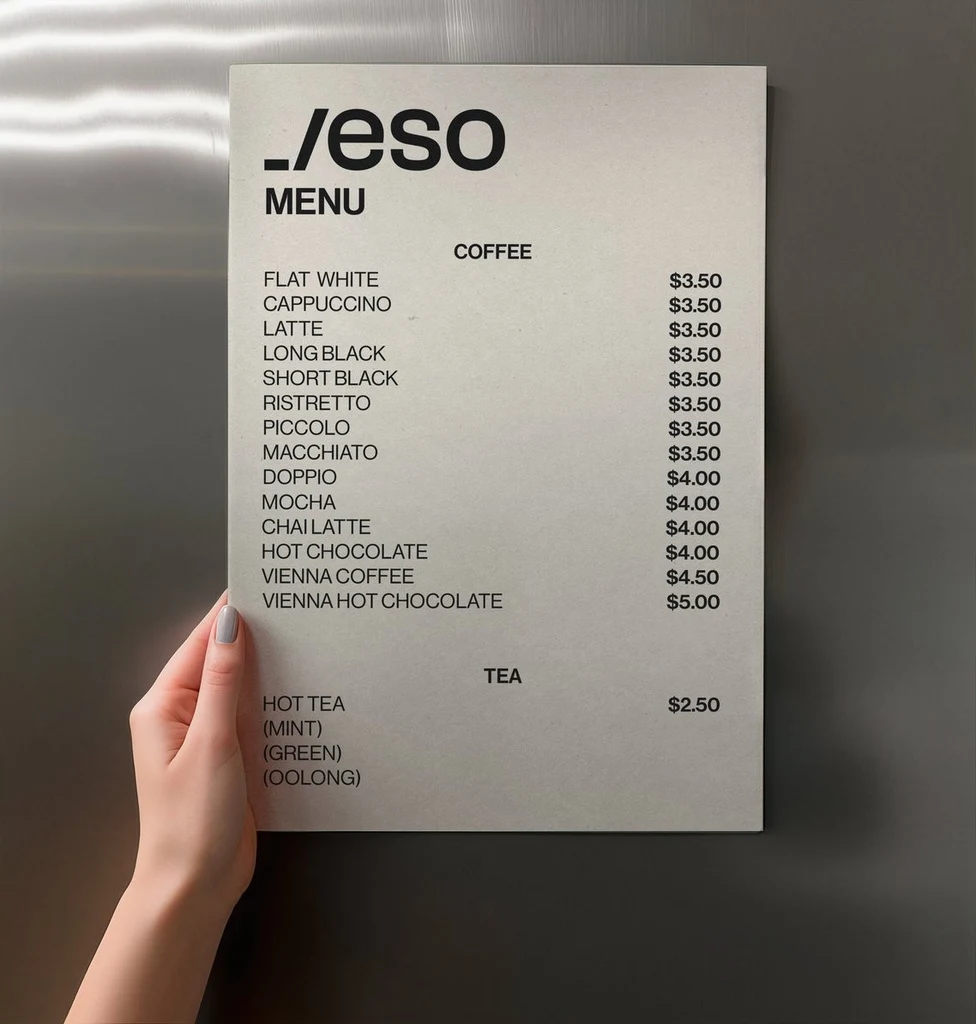
A printed menu read line by line (from the Image to text examples). Each price stays on the line of its drink.
Reading text uses no credits. The tool reads one image at a time, and it copies what is written, so a typo in the picture comes back as a typo. Your image is uploaded for processing and saved in My images, private to your account. If an image is sensitive, an on-device tool such as Snipping Tool may be the more cautious choice.
Tips for cleaner text
- Start with the sharpest copy. A screenshot of a screenshot has lost detail.
- Crop to the words you need. The tool then has less to guess about.
- Photograph pages straight on, in good light, with the page flat. Zoom in before you capture small interface text.
- Use one page or one screen per image.
- Check look-alike characters. The number 0 and the letter O, or 1 and l, are easy to mix up. Check names, numbers, prices and email addresses against the picture.
What copying text doesn't do
Copying gives you plain text. Fonts, colors and layout don't come along, and the picture stays as it is. To change the words inside the image, edit text in an image or translate text in an image. To clear them, remove text from an image. Those tools change the picture, so they use credits. For handwriting, see how to convert handwriting to text. For a screen capture, see screenshot to text.
Frequently asked questions
How do I copy text from an image on iPhone?
Open the photo in the Photos app, touch and hold a word, move the grab points, and tap Copy. Tap Select All first to take all the text. This is Live Text, which needs an iPhone XS, iPhone XR or later with iOS 15 or later. If you can't select words, turn Live Text on in Settings under General, then Language & Region.
How do I copy text from an image on Android?
Open the photo in Google Photos, tap Lens, select the words, and tap Copy text. If you can't find Lens, update Google Photos, or upload the image to EditText.ai in your phone's browser.
Why are some words missing or wrong?
Small, blurry, low-contrast or heavily stylized text can be misread or skipped. Use the sharpest original, crop to the text, and retake photos straight on in good light. Then compare the text with the picture before you use it.
Is it free to copy text from an image?
Live Text, Google Lens and Snipping Tool come with your device or app, and Microsoft describes PowerToys as free and open source. On EditText.ai, reading text uses no credits, but you need to sign in with Google first.