To remove text from an image, you either hide it or rebuild what was behind it. Hiding means cropping the words off or covering them with a patch. Rebuilding means cloning the background over the letters by hand, or using an eraser or AI tool that fills the area from its surroundings. The right choice depends on the background: flat color is easy, while faces, patterns and other lettering are hard. This guide compares six ways. If you have several lines of text, you can also remove text from an image with EditText.ai.
First, check for the source file
If the words are a text layer in a design file, such as a Canva design, a Photoshop file or a slide deck, delete the layer and export again. That is cleaner than editing pixels. The six ways below are for flat images such as a JPG, a PNG or a screenshot.
Why the background decides the method
Removing words means supplying the picture that was behind them. Tools do this by filling the area from the pixels around it, a technique known as inpainting. It works well on simple backgrounds such as sky, sand or a plain wall. It is harder over faces, fine patterns such as brick or wood grain, and other lettering, because the tool has to guess what was hidden.
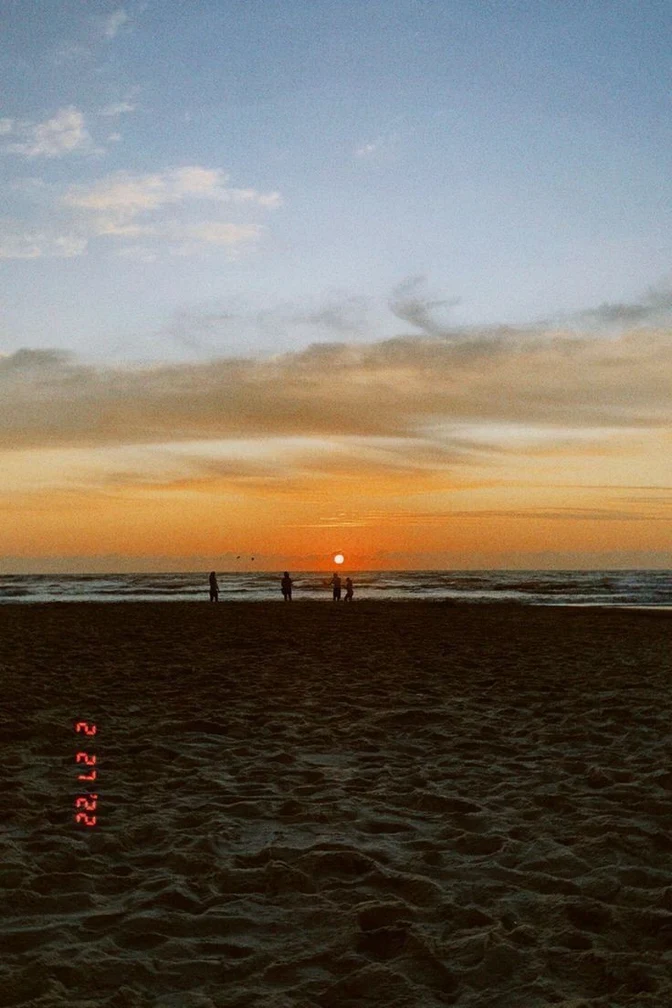
Small text over a fairly even area, such as this camera date stamp on sand, is one of the easier cases (from the EditText.ai examples).
The 6 ways at a glance
| Way | Best for | Skill | Cost | Watch for |
|---|---|---|---|---|
| 1. Crop | Words near an edge | Low | Free | A smaller picture |
| 2. Cover with a patch | Flat, solid backgrounds | Low | Free | The patch shows on photos and textures |
| 3. Clone or heal | Textures and patterns, with full control | Medium | Free in Photopea or GIMP | Slow; patterns can smear |
| 4. Photoshop | Photos, gradients and large areas | Medium | Paid subscription | Generative Fill needs an internet connection |
| 5. Phone or Canva eraser | A few words on a simple background | Low | Included on supported phones; in Canva, Pro, Teams and Education plans | Device and plan limits |
| 6. EditText.ai Remove | Many lines, or a busy background | Low | Credits; one free Standard edit with a watermark | Upload required; results vary |
1. Crop it out
If the words sit near an edge, crop them off. Every photo app can do this, and nothing needs rebuilding. The cost is a smaller picture with different framing.
2. Cover it with a patch
Draw a box in the background color and place it over the words. This works only on flat, solid backgrounds. On a photo, a gradient or a texture, the patch is easy to see. A patch hides the words instead of removing them, and anyone who opens a layered file can move it, so export a flat copy.
3. Clone or heal in a free editor
Photopea runs in your browser and is free to use, with ads. GIMP is free software for Windows, macOS and Linux. Both have a clone tool and a healing tool: you pick a clean patch of background as the source, then paint over the letters so that patch is copied across.
- GIMP: Ctrl-click a clean spot to set the source, release Ctrl, then drag over the letters. The shortcuts are C for the Clone tool and H for the Healing tool.
- Photopea: hold Alt (Option on a Mac) and click a clean spot to set the source, then release Alt and paint.
Healing blends the copied pixels with their surroundings. GIMP's documentation says it works best when the defect is slight and not very different from the pixels around it, so letters over a busy background may need several short passes. Our Photopea guide has more detail.
4. Photoshop: Remove tool, Content-Aware Fill or Generative Fill
Photoshop has three tools for this.
- Remove tool. Mark the words with the brush and Photoshop fills the area from the surrounding picture. See Adobe's page on the Remove tool.
- Content-Aware Fill. Select the words, then choose Edit > Content-Aware Fill. You can adjust the area Photoshop samples from. Adobe explains it on its Content-Aware Fill page.
- Generative Fill. Select the words and leave the prompt blank. Adobe says Photoshop then fills the selection based on the surroundings. It needs an internet connection and uses generative credits.
Photoshop is a paid subscription, and any of these tools can leave smears over patterns, so check the result at full size. Our Photoshop guide has the steps.
5. Phone and Canva erasers
On iPhone, Clean Up is in the Photos app on supported models. Google Photos has Magic Eraser, and Samsung Galaxy phones have Object eraser in the Gallery app. As of October 2026, Canva lists Magic Eraser for its Pro, Teams and Education plans. They suit a few words on a simple background. Our guides cover phones and Canva step by step.
6. A text remover that detects the text
EditText.ai publishes this guide and is one of the options. Its Remove tool starts from detection instead of painting: it finds the lines of text, you choose which to remove, and the AI rebuilds the background behind them. Lines you don't tick stay as they are.
- Open Remove text from image and sign in with Google. Upload a PNG, JPG or WebP file up to 14 MiB.
- Tick the lines to remove, or choose Select all. If small, blurry or handwritten text was missed, use Add missing text and type it.
- Choose Standard or High quality. High quality suits busy backgrounds. Then select Remove selected text.
- Compare the result with the original, then download the PNG.
A removal is an edit, so it uses credits. Standard uses 1 credit and High quality uses 2 credits at 1K. Paid plans can also edit in 2K or 4K, where Standard uses 2 or 3 credits and High quality 5 or 7. Every account includes one free Standard edit, with a watermark. Plans cost $9, $29 or $49 a month for 10, 35 or 60 credits, as listed on the pricing page.
Results vary, especially over detailed backgrounds. Your image is uploaded for processing and saved in My images, private to your account. The tool doesn't remove watermarks or logos. For captions, date stamps and screenshots, see how to remove captions from an image, remove a date stamp from a photo and remove text from a screenshot.
Tips for clean results
- Zoom in and check. Look for faint outlines, smears and repeated patterns where the letters were.
- Remove the whole mark. Letters often have a shadow, outline or glow. Include them in the area you remove.
- Work in small passes. Remove one line, check it, then move on. Undo and try a smaller area if a pass goes wrong.
- Copy the words first if you still need them. Image to text copies the text from an image, and reading it uses no credits.
- Keep the original file. Then you can try another way.
Use removal responsibly
Remove text only from images you own or have permission to change, leave watermarks, logos and credits in place, and don't use removal on documents or anything presented as proof.
Frequently asked questions
What is the easiest way to remove text from an image?
It depends on the background. Crop words at the edge, cover them on a flat color, use a phone eraser for a few words, and use a tool that detects the text when there are many lines or a busy background.
Can I remove text from an image for free?
Yes, in several ways. Cropping and covering cost nothing, Photopea and GIMP are free to use, and supported phones include an eraser. EditText.ai gives every account one free Standard edit, with a watermark. Photoshop is a paid subscription.
Why does the area look smudged or blurry afterward?
The fill is a guess at what was behind the words, and guesses are weakest over faces, fine patterns and other lettering. Undo, then remove one line at a time with a smaller selection. In EditText.ai, High quality suits busy backgrounds. If it still looks wrong, crop the words out instead.
How do I hide personal details in a screenshot?
For personal details, a crop or a solid box is often safer than an eraser. Read how to hide personal information in a screenshot before you share one.